USB-C Hubs and Docks: Hidden Heat Risks While Charging Laptops
If your laptop runs hotter when it charges through a hub, you are not imagining it. The usb c dock laptop charging heat problem is real, and it can sneak up on you in a tidy desk setup.
I like docks because one cable makes a desk feel clean and fast. I also dislike how many docks turn into little space heaters the moment you ask them to pass 60 to 100 watts while driving a monitor.
Heat during charging matters because it stacks on top of whatever your laptop is already doing, like Zoom calls, external displays, and background syncing. If you care about battery health and long term capacity, you need to treat docked charging like a thermal system, not a convenience feature.
How USB-C Power Delivery behaves through docks
USB-C Power Delivery is a negotiation between the charger and the laptop, and a dock often sits in the middle as a broker. Many docks do not simply pass power through, they request power for themselves and then re-advertise a smaller budget to the laptop.
That middle step is where extra heat can start, because the dock has to convert and route power while also running its own controller chips. If you have ever touched a metal USB-C dock and found it warm, that is conversion loss turning into heat.
Power Delivery profiles are usually 5V, 9V, 15V, and 20V at different current limits, and modern laptops prefer 20V for higher wattage charging. A dock that tops out at 60W may force the system into a lower ceiling even if you plugged in a 100W charger.
Some docks also reserve power for ports, like 7.5W for USB-A charging or 15W for a downstream USB-C port. That reservation reduces what the laptop gets, which can keep charging active longer and keep everything warm for longer.
When the laptop cannot get enough wattage, it may charge slowly or hover near a steady state where it alternates between charging and supplementing from the battery. That pattern can increase cycle count over time, which is one reason power delivery dock battery wear shows up in real desk habits.

Why hubs can increase charging temperature
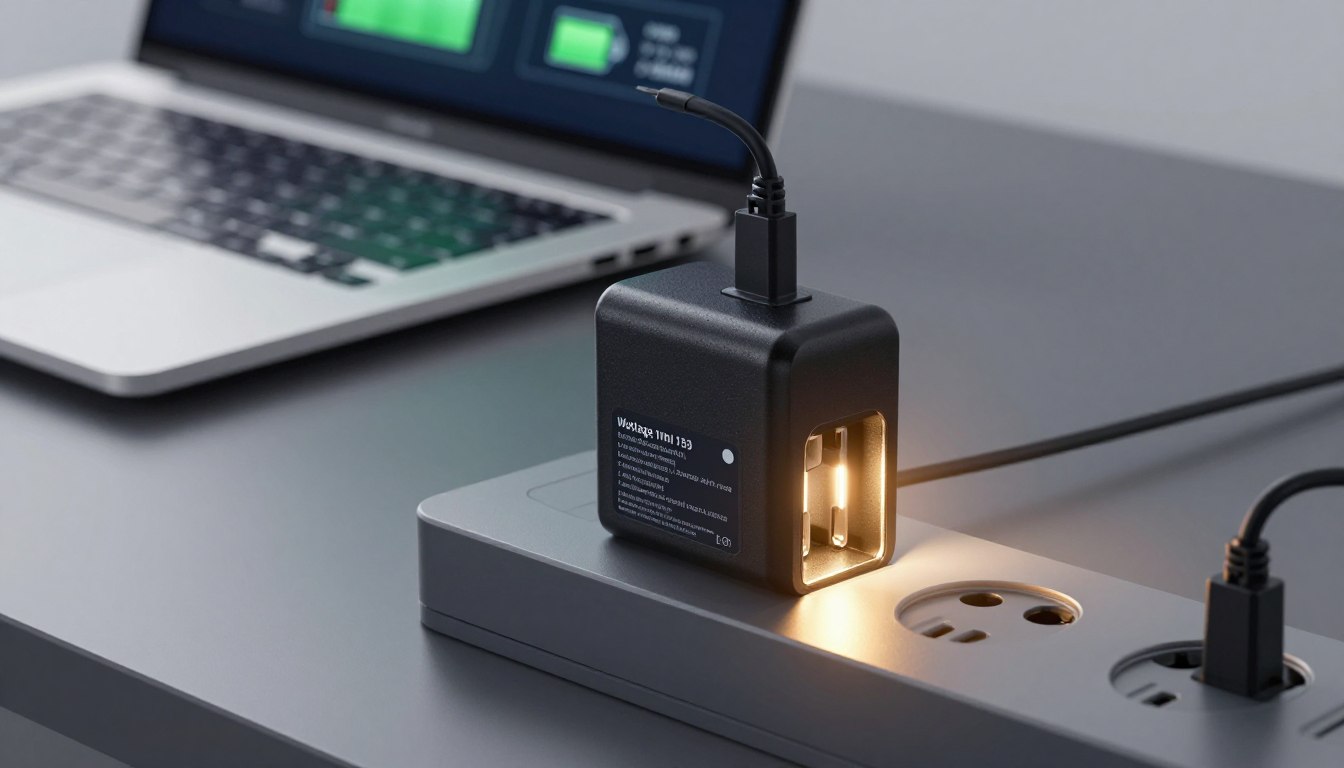
A compact hub has very little surface area, so even a few watts of loss can raise its temperature quickly. Those watts come from voltage conversion, cable resistance, and the overhead of running display and USB controllers.
Heat from the hub does not stay in the hub, because it sits right next to your laptop’s USB-C port and often right under the palm rest area. If the hub is tucked behind the laptop or under a stand, the warm air has nowhere to go.
Display output is a common multiplier for laptop dock overheating, especially with 4K at 60Hz or high refresh ultrawides. The dock’s DisplayPort or HDMI chip pulls power, and the laptop’s GPU often ramps up, so you get heat on both ends of the cable.
Charging itself creates battery heat inside the laptop, and the faster the charge rate, the more thermal load you add. If the dock also warms the chassis near the port, the battery starts from a higher baseline temperature.
Some hubs run hot because they are built to a price, with minimal metal mass and no thermal pads from hot chips to the shell. I have used plastic-bodied hubs that felt fine at 30W but became uncomfortable at 90W with Ethernet and a monitor attached.
Common dock setups that stress battery longevity
The worst setups are the ones that look neat, like a dock hidden under a desk shelf with the laptop in clamshell mode. You trap heat around the dock and the laptop, and the battery bakes while it sits at a high state of charge.
Another rough pattern is using a 60W dock with a laptop that really wants 90W or more, because the laptop ends up topping off slowly and staying warm for hours. That is a quiet recipe for power delivery dock battery wear if you do it every workday.
| Docked setup | Why it runs hotter | Battery longevity risk |
|---|---|---|
| Clamshell laptop on a desk, dock under the stand | Poor airflow, dock heat warms the chassis near the port | High temperature while held near 100% charge |
| 60W dock powering a 90W to 140W laptop | Longer charging time, frequent power balancing | More micro-cycles and sustained warmth |
| 4K60 monitor plus Ethernet plus SSD on one small hub | Controller load and bus power draw raise hub temperature | Higher internal laptop temps during work sessions |
| Dock placed in a drawer or cable box | Heat buildup with no convection | Repeated high heat exposure near the battery |
| Charging while gaming on an external display through the dock | High system power plus charging heat at the same time | Hot battery while cycling under heavy load |
Cable, wattage, and airflow factors that matter
Cables are boring until they are the bottleneck, and cheap USB-C cables can run warm at high current. If your setup relies on 5A charging, you need an e-marked 100W or 240W cable, not a random freebie from a box.
Wattage headroom helps with heat because the laptop can meet its needs without running the charger and dock at their limits. A 100W charger feeding a 100W dock that can only pass 85W to the laptop often runs hotter than a 140W or 180W setup loafing along.
Airflow is the most ignored part of a safe usb c charging setup, and it is also the cheapest to fix. Give the dock open air on all sides, and keep it off fabric, papers, and foam pads that act like insulation.
Orientation matters because many docks shed heat through their metal shell, and flat on a desk is not always best. A vertical dock stand or even a simple spacer under the hub can drop surface temperature by improving convection.
If you run your laptop in clamshell mode, you should assume it needs extra help cooling. Put it on a stand that leaves the hinge area open, and avoid pushing the rear vents against a wall or monitor arm column.
How to monitor charging heat during desk use
You do not need lab gear to catch usb c dock laptop charging heat problems early, you just need a repeatable check. Touch is useful, but I prefer numbers because your hand adapts fast and lies to you.
On macOS, tools like iStat Menus can show battery temperature and charge rate, and on Windows, HWiNFO can show battery sensors and adapter power. If your battery temp climbs into the 95 to 105F range during normal office work, your dock setup is probably part of the story.
An inexpensive IR thermometer works well on docks because the hot spot is usually near the USB-C input or the display chip area. Take readings after 30 minutes of charging with your usual monitor and peripherals attached, then compare after you improve airflow.
Watch for patterns like charging stopping and starting while the laptop stays plugged in, because that can mean the dock cannot keep up with load spikes. That behavior can also show up as the laptop slowly losing charge during heavy work even though the dock is connected.
If you see consistent laptop dock overheating, do not assume the laptop is the only heat source. Unplug the dock and charge directly for a day, then compare battery temperature and fan noise, because the difference can be obvious.
Best practices for cooler docked charging sessions
A cooler docked setup starts with right sizing the dock and charger to your laptop, not buying the smallest hub that claims 100W on the box. If your laptop shipped with a 90W adapter, treat 90W as the floor, not the target.
Next, limit how often the battery sits at 100% while warm, because that combination is rough on cells. If your laptop supports a charge limit like 80% or an optimized charging mode, turn it on for daily desk use.
- Use an e-marked 100W or 240W USB-C cable
- Pick a dock that can pass your laptop’s full wattage
- Keep the dock in open air, not in a drawer or cable box
- Place the laptop on a ventilated stand for clamshell mode
- Enable an 80% charge limit or optimized charging feature
- Prefer direct charging during heavy GPU or gaming sessions
- Unplug bus powered SSDs when you do not need them
How USB-C PD limits inside docks create hot spots
Inside a dock, the PD controller, power switches, and protection circuits sit close together, and that cluster is where heat concentrates. When you push high current, even small resistance in those parts turns into noticeable warmth.
Many docks also include a DC-DC converter to supply 5V rails for USB-A ports and internal logic. Conversion is never perfect, so the dock burns a few watts just to stay alive, even before you plug in a phone or flash drive.
Some models throttle when they get too hot, and they do it quietly by reducing downstream power or dropping display links. If your monitor flickers or your USB devices disconnect when the dock feels hot, that is a thermal limit showing up as a usability problem.
Long cables can make this worse because the dock may request higher current to maintain voltage under load. Higher current means more heat in the cable, the connectors, and the dock’s internal switching parts.
If you want fewer surprises, pick a dock with a heavier metal enclosure and a reputation for running cool, even if it costs more. The extra mass and better thermal design do not fix everything, but they reduce peak temperatures in normal use.
When external displays and Ethernet raise system heat
External displays are the biggest reason a laptop that idles cool on battery suddenly warms up on a dock. Even simple office work can keep the integrated GPU active, and some laptops wake up the discrete GPU just because you connected a monitor.
Ethernet sounds harmless, but USB Ethernet controllers draw steady power and can warm the dock and the laptop’s USB subsystem. If you also power a webcam and a microphone through the same hub, the dock becomes a constant load instead of a passive adapter.
High refresh monitors can be a sneaky heat source, because driving 144Hz at 1440p or 4K often raises GPU power even on the desktop. Dropping to 60Hz for work hours can cut laptop temperatures more than people expect.
Some docks use HDMI 2.0 conversion chips that run warmer than native DisplayPort paths, especially when they handle 4K60. If your dock offers both, try DisplayPort first and see if the dock shell runs cooler after an hour.
If you want a safe usb c charging setup for a multi monitor desk, consider a dock with its own power brick and strong cooling design. Bus powered hubs are convenient for travel, but they often run hot when they become the center of a full workstation.
Battery wear basics, why heat plus high charge is rough
Lithium ion batteries age faster when they spend lots of time hot, and they also age faster when they sit at a high state of charge. Docked charging often creates both conditions at once, which is why people notice capacity drop after a year of desk docking.
Fast charging is not automatically bad, but it raises temperature, and temperature is the lever you can actually control. If your dock makes the laptop warm while it charges to 100%, you are stacking the deck against long term health.
Modern laptops try to protect themselves with charging logic, but they cannot beat physics. If the chassis around the battery stays warm for eight hours a day, the battery experiences that heat whether you are charging or just holding at full.
Power delivery dock battery wear also shows up when the laptop constantly sips power because the dock barely meets the load. That pattern can create lots of tiny cycles, which add up over months even if you never fully discharge.
I treat charge limits as normal desk hygiene, like using a screen dimmer at night. If your machine offers 80% or 85% caps, use them, and save 100% for travel days when you need the range.
Troubleshooting a hot dock without buying new gear
Start by simplifying, because you cannot fix what you cannot isolate. Unplug the monitor and all peripherals, then charge through the dock and see whether the dock still runs hot to the touch.
Swap the cable next, because a marginal cable can make connectors heat up and can trigger PD renegotiations. A good 1 meter e-marked cable often runs cooler than a long, soft cable that came with a random accessory.
Move the dock into open air and away from the laptop’s exhaust, because many laptops vent warm air to the side or rear. If the dock sits in that exhaust stream, it starts hot and stays hot.
Reduce load where you can, like turning off downstream charging ports or unplugging bus powered drives. A portable SSD can pull several watts continuously, and that power becomes dock heat plus drive heat.
If the dock has firmware updates, install them, because some vendors fix PD quirks and thermal throttling behavior over time. Firmware will not make a bad design cool, but it can stop wasteful renegotiation loops that create extra warmth.
Building a safe USB-C charging setup for daily desk work
A safe usb c charging setup starts with matching your laptop’s real power needs, including peak draw with an external display. If you use a 16-inch MacBook Pro, a Dell XPS 15, or a Lenovo ThinkPad P series, assume you need more than 60W for stable behavior.
Choose a dock that can pass through the wattage you need while running cool, and do not ignore reviews that mention heat. If a dock is famous for being hot, it will not magically run cool on your desk.
Place the dock where it can breathe, and treat cable management boxes like ovens. If you want a clean look, use open trays or under desk mounts that do not trap hot air.
Set a battery charge limit and keep it enabled all week, because that one setting reduces stress even if you never change your hardware. Pair it with a laptop stand, and you will usually see lower fan noise and lower charging temperatures.
If you still see usb c dock laptop charging heat issues after all that, consider splitting duties, with direct charging plus a separate display adapter or Thunderbolt dock built for higher power. I like one cable too, but I like a cool battery more.