Gaming While Charging: How to Control Thermal Spikes and Battery Stress
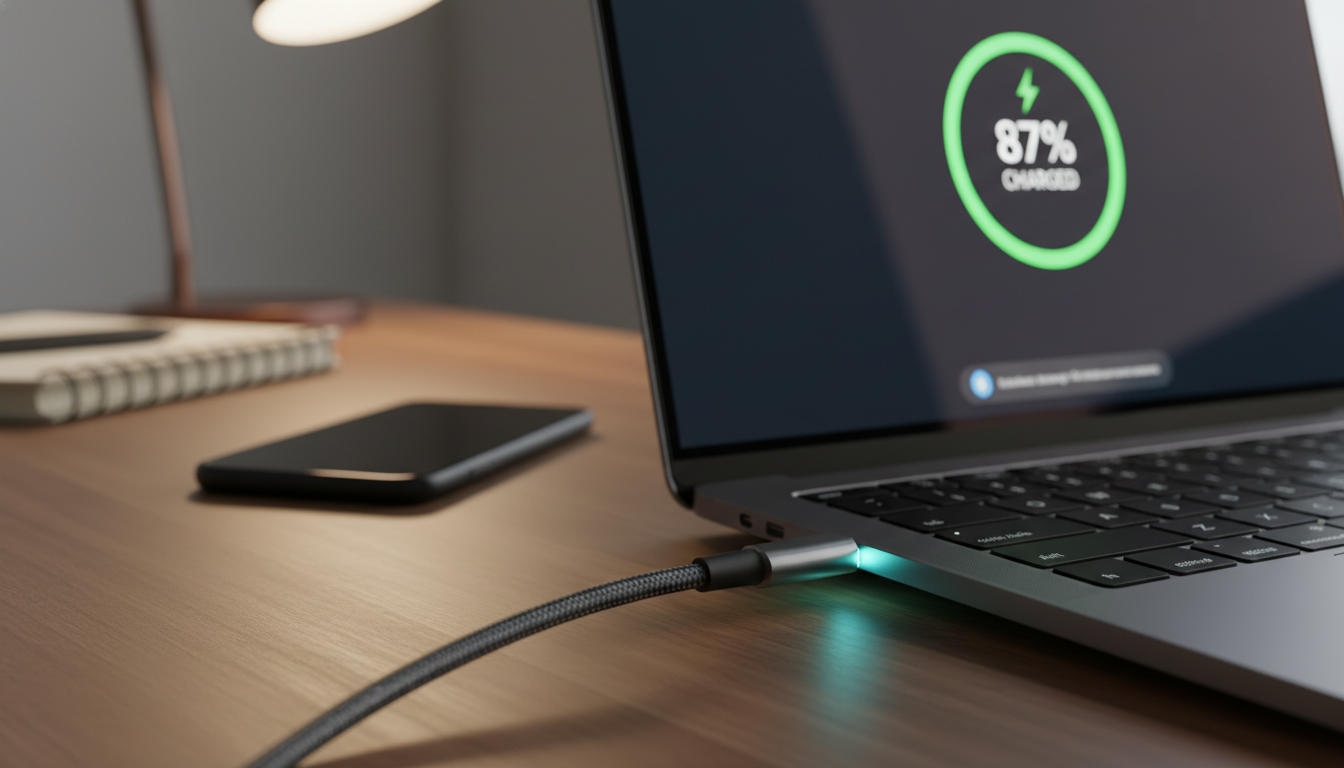
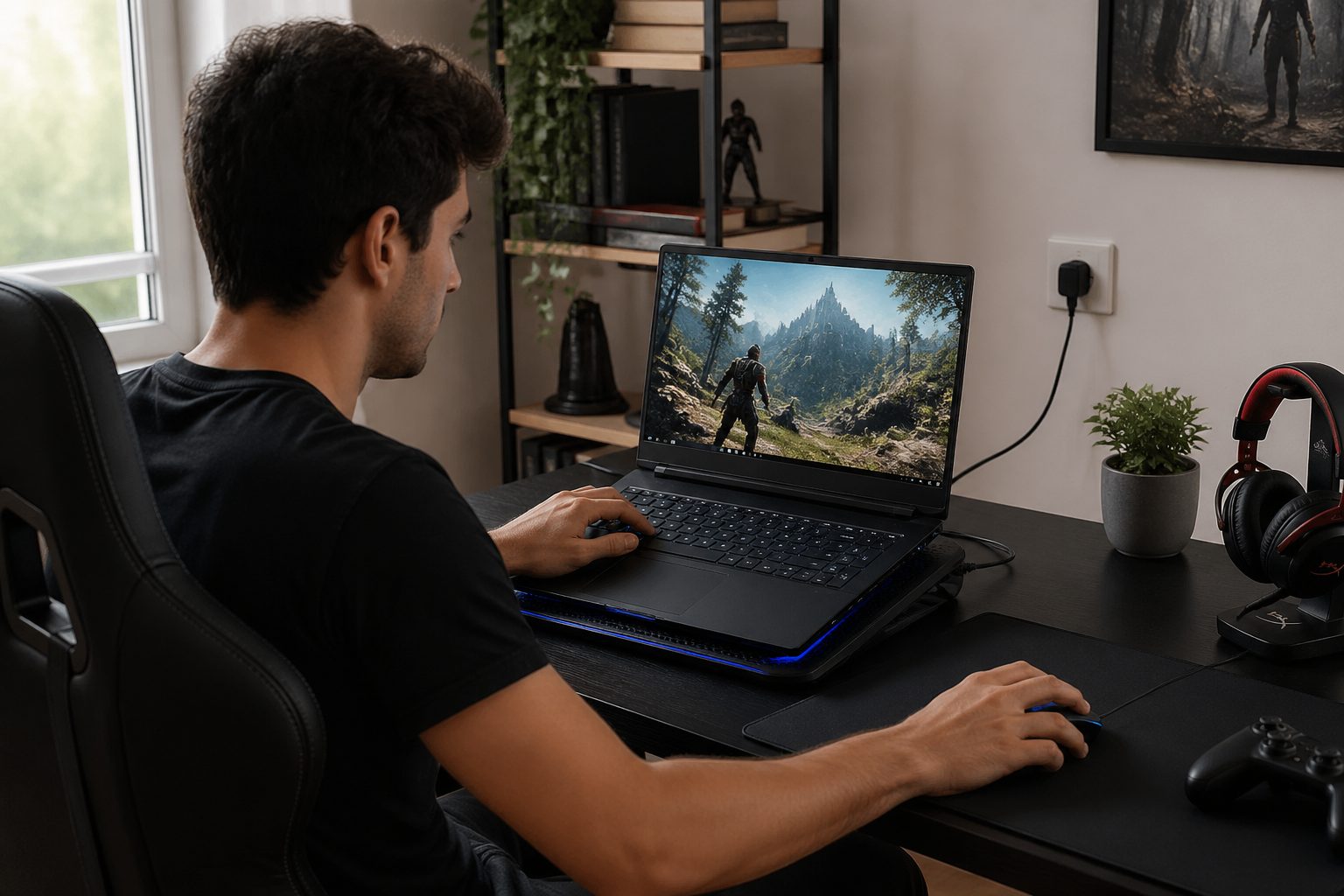
Gaming while your laptop is charging is the fastest way to find out where your cooling system is weak. The mix of high CPU and GPU load plus charging current can push internal temperatures up in a hurry.
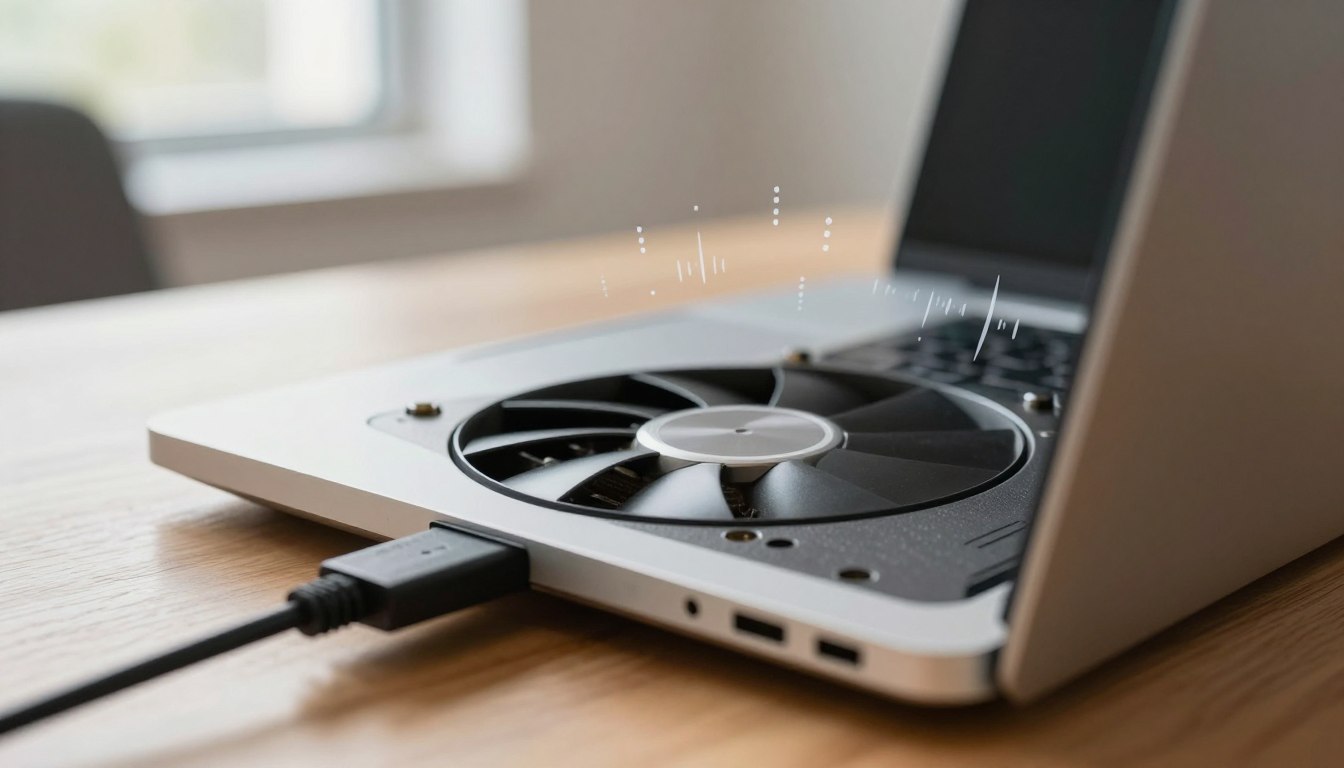
If you have ever noticed fans ramping hard right after you plug in, that is not your imagination. The charger adds its own heat and it can also raise the power ceiling that the system tries to use.
This matters because gaming while charging laptop battery heat is not only about comfort, it is about long term battery wear. Heat plus high state of charge is a rough combo for lithium ion chemistry.
You can still play plugged in without cooking the pack, but you need a setup that controls spikes. The goal is steady power delivery, fewer laptop thermal spikes charging, and less battery stress under heavy load.
Why gaming and charging create compound heat
When you game, the CPU and GPU pull more watts and they dump that energy as heat in the same tight space as the battery. When you charge at the same time, the battery and charging circuitry add more heat right next to that hot zone.
Many gaming laptops also raise performance limits when they detect AC power, so the GPU boosts higher and stays there. That is great for frame rates, but it is a common trigger for laptop thermal spikes charging.
The battery does not always sit idle while plugged in, even if the icon says charging or plugged in. Some systems still cycle small amounts in and out of the pack during fast load changes, which adds battery stress under heavy load.
Heat is the multiplier that makes all of this worse. A pack sitting at 90 to 100 percent charge while warm ages faster than one kept cooler at a lower charge level.
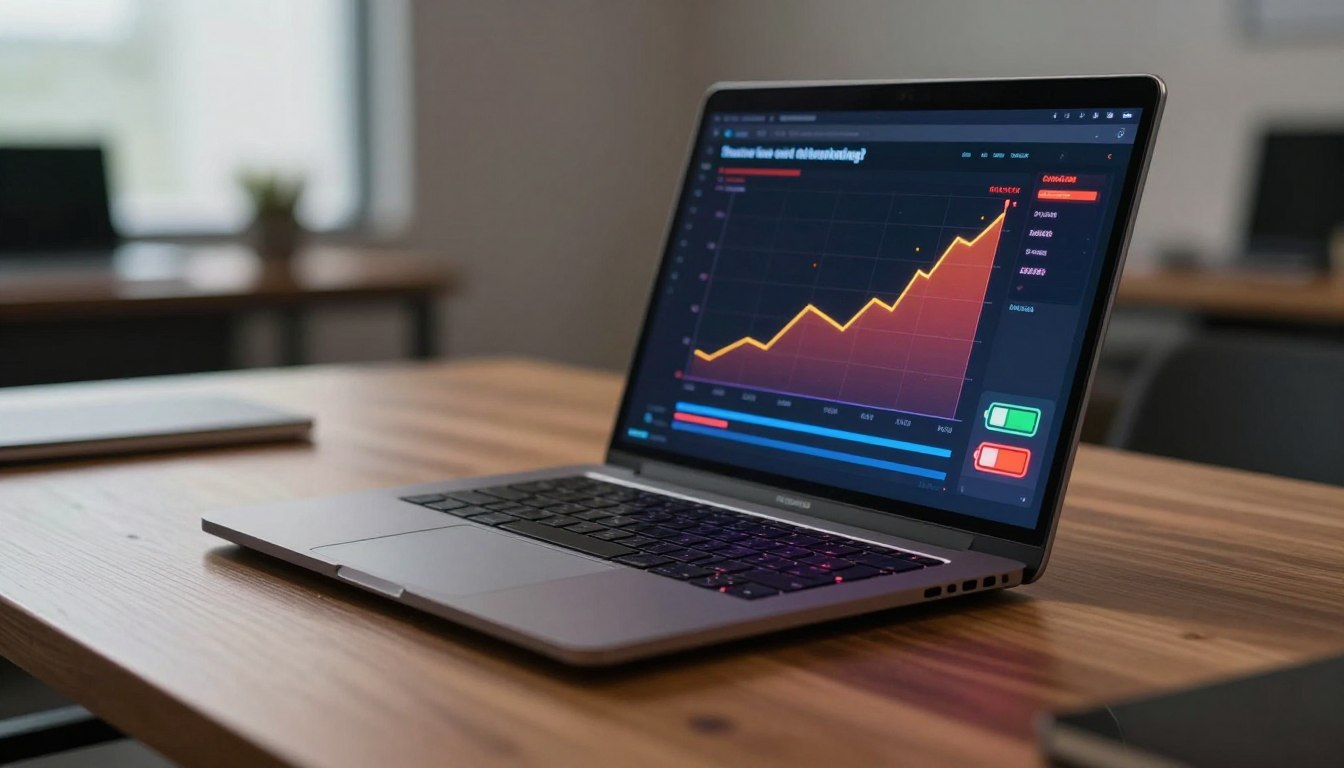
I treat sudden temperature jumps as a sign the laptop is chasing short boosts instead of stable performance. If you can smooth the power draw, you usually calm the fans and reduce gaming while charging laptop battery heat at the same time.
Power adapter sizing and sustained wattage
A lot of overheating complaints start with the wrong charger, even when it physically fits. If the adapter is under sized, the laptop may pull extra from the battery during peaks, which increases heat and wear.
Check the label on the brick and compare it to your laptop’s rated input, then give yourself margin. A system that can draw 180 W in a game is happier on a healthy 230 W adapter than a tired 180 W unit running at its limit.
USB C charging is convenient, but many gaming laptops cap USB C input at 65 W to 140 W. That can be fine for light play, but it often causes battery stress under heavy load when the GPU ramps.
Cheap third party adapters can sag in voltage when they get hot, and the laptop compensates by shifting power sources. That source switching is a sneaky cause of laptop thermal spikes charging because the VRMs have to react fast.
If you want a safe gaming power setup, start by using the OEM adapter or a reputable replacement with the same voltage and equal or higher wattage. Then keep the brick in open air, because a power adapter that cooks under a blanket will throttle or fail.
Power limits and frame caps that reduce battery stress
The easiest way to reduce gaming while charging laptop battery heat is to stop chasing unlimited frame rates. A frame cap keeps the GPU from sprinting at 99 percent for no real gain on a 120 Hz or 144 Hz panel.
Think in watts, not vibes, because watts become heat. If you can cut 20 to 40 W from GPU draw with a cap or a mild power limit, you often cut laptop thermal spikes charging more than any fancy cooling pad.
| Control | Where to set it | What it changes |
|---|---|---|
| Frame rate cap (60 to 144) | In game settings or NVIDIA Control Panel | Lowers sustained GPU watts and heat |
| GPU power limit (80 to 95%) | MSI Afterburner or vendor utility | Reduces peak draw and stabilizes clocks |
| V Sync or Adaptive Sync | Game settings and display settings | Prevents runaway FPS in menus and light scenes |
| CPU turbo limit | BIOS or Windows power settings | Cuts short boost spikes that heat the chassis |
| Resolution scaling (90 to 100%) | Game render scale or DLSS, FSR | Trades a small quality hit for lower GPU load |
Power adapter behavior, battery bypass, and charge limits
Some laptops support battery bypass, meaning the adapter powers the system directly while the pack rests. If your model has it, turning it on is one of the cleanest ways to cut battery stress under heavy load.
Charge limits also matter more than most people expect. Keeping the battery at 60 to 80 percent during long plugged in sessions reduces the chemical stress that stacks with heat.
Look for settings in Lenovo Vantage, ASUS MyASUS, Dell Power Manager, Acer Care Center, or MSI Center. The wording varies, but you are looking for Battery Conservation, Maximum Lifespan, or Custom Charge Threshold.
If you cannot set a limit, you can still manage it manually by unplugging once it hits 80 to 90 percent, then plugging back in later. It is annoying, but it beats leaving a hot pack parked at 100 percent every night.
I also avoid fast charging modes during gaming sessions if the laptop lets me choose. Slower charging reduces heat around the battery and can reduce laptop thermal spikes charging when the game suddenly loads a new area.
GPU and CPU settings that reduce battery stress
Start with the GPU because it is usually the biggest heater in modern games. A small undervolt or a modest power limit often keeps the same performance while cutting the heat that radiates into the battery bay.
On NVIDIA laptops, you can cap FPS in NVIDIA Control Panel and set a Prefer maximum performance profile only for specific games. Leaving maximum performance on globally is a common reason gaming while charging laptop battery heat stays high even on the desktop.
On AMD Advantage laptops, use Adrenalin to set Radeon Chill or a frame cap and keep SmartShift balanced instead of maxed out. If the GPU pulls less power, the CPU often stays cooler too because the shared cooling system has more headroom.
For the CPU, the simplest move is limiting boost behavior rather than crippling base clocks. In Windows, setting Maximum processor state to 99 percent can disable aggressive turbo on some systems, though BIOS and vendor tools give cleaner control.
If you know what you are doing, undervolting on supported Intel systems can reduce heat without a big performance hit. If undervolting is locked out, a turbo power limit or an Eco mode profile still reduces battery stress under heavy load.
Cooling and airflow placement best practices
Airflow problems create the kind of heat that makes people blame the battery when the real issue is the intake. If your laptop pulls air from the bottom, placing it flat on a bed or couch is basically asking for laptop thermal spikes charging.
Lift the back edge by even half an inch, because that small gap helps fans breathe. A simple aluminum stand often works better than a loud cooling pad with weak fans.
Keep the exhaust path clear, especially on rear vent designs that blast heat toward a wall. Hot exhaust bouncing back into the intakes is a real thing, and it can raise gaming while charging laptop battery heat during long sessions.
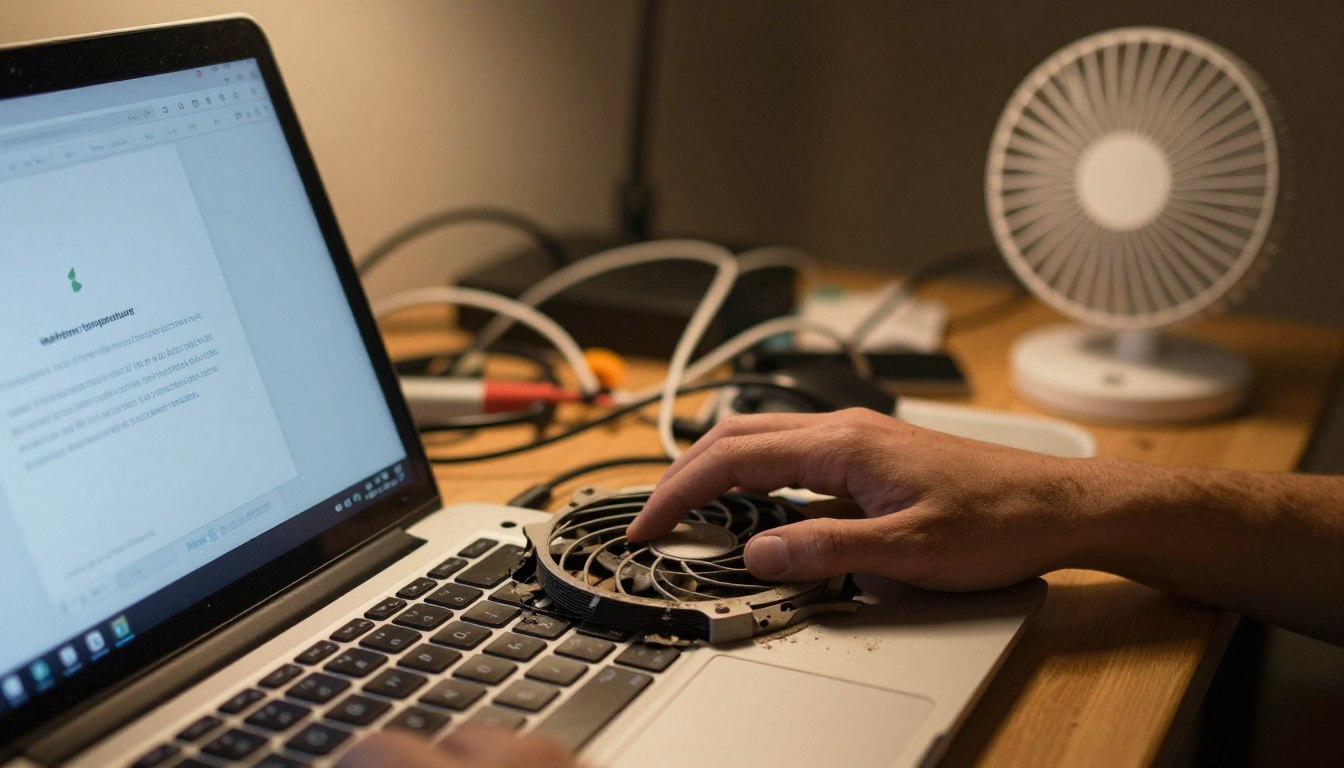
Dust is boring but it wins fights, because clogged fins turn normal load into overheating. If you see temps creeping higher month by month, clean the intakes and consider a careful compressed air blowout, or open it up if you are comfortable.
Room temperature matters more than people want to admit. A laptop that is fine at 70 F can struggle at 82 F, and that extra heat ends up stored in the chassis right where the battery sits.
Quick checks that prevent thermal spikes while charging
You can catch problems early with a few quick checks before you launch a game. I like to confirm the adapter is seated, the vents are clear, and the laptop is on a hard surface.
Then I watch power and temperature for two minutes after loading into a demanding area. If the system spikes hard and then settles, that is normal boost behavior, but repeated spikes usually mean your settings need work.
- Confirm OEM wattage adapter is in use
- Enable an FPS cap matching your display
- Set a battery charge limit at 60 to 80%
- Raise the rear edge for better intake airflow
- Keep the power brick in open air
- Close background updaters and launchers
Signs your battery is overheating during sessions
Heat from the CPU and GPU can make the whole chassis warm, so you need more specific clues than “it feels hot.” A battery that is overheating often shows up as charging pauses, sudden drops in charge rate, or the system refusing to charge past a certain percent.
If you see the battery percentage bouncing up and down while plugged in, pay attention. That can mean the laptop is switching between adapter and battery during load spikes, which is classic battery stress under heavy load.
Swelling is the hard red line, even if it is slight. If the trackpad starts to feel uneven, the bottom panel bulges, or the laptop rocks on a flat desk, stop using it and get the battery inspected.
Software readings help, but they are not perfect. Tools like HWiNFO can show battery temperature and charge rate, and a battery temp that climbs fast during gaming while charging laptop battery heat is a warning sign.
Smells matter too, and people ignore them. A sweet or solvent like odor, or a faint electrical smell near the palm rest, is not normal and you should shut down and unplug.
Managing battery stress under heavy load with smarter charging habits
If your laptop sits plugged in most of the time, treat the battery like a backup, not a constantly full tank. Keeping it at a moderate charge level reduces wear even if you still game hard.
Plan around long sessions by charging to your limit before you start, then letting the laptop run on adapter power. If your system does not support bypass, the charge limit still reduces how much time the pack spends hot and full.
Avoid running the battery down to near zero during gaming and then fast charging it while the chassis is still hot. That pattern stacks heat from discharge and heat from charging, and it can accelerate degradation.
If you travel and need full charge, use 100 percent only when you will unplug soon. Parking at 100 percent for days is rough on cells, especially if the laptop is also warm from background tasks.
Battery health features in Windows and vendor apps are worth checking once a month. A sudden drop in full charge capacity is often connected to weeks of high temperature gaming while charging laptop battery heat.
A stable setup for long gaming sessions
A stable setup is boring in the best way, because it keeps performance consistent and reduces heat swings. When you control the power budget, you usually control the noise and the battery wear too.
Start with the safe gaming power setup basics: correct wattage adapter, a surge protector you trust, and a clean cable path that does not tug the port. Loose DC jacks can arc and heat up, and that is a problem you do not want.
Set a frame cap, then tune graphics to keep GPU usage steady instead of pegged at 99 percent with wild oscillations. Consistency reduces laptop thermal spikes charging and makes the laptop easier to cool.
Use a stand, keep the rear vents clear, and do not trap the power brick in a pile of clothes. If the brick runs hot, it can reduce delivered wattage and push the laptop toward battery assist.
Finally, watch your numbers once, then play the game instead of obsessing. If temps, charge rate, and performance stay stable for 20 minutes, you have probably tamed gaming while charging laptop battery heat for that title.