How to Charge a Laptop During Travel Days Without Accelerating Wear
Travel days mess with your normal routine, and your laptop battery pays for it if you treat every outlet like a lifeline. The goal is to stay productive without locking in the kind of laptop charging habits while traveling that age a battery faster.
On the road you tend to top off constantly, run heavier apps, and shove the machine into tight spaces while it is still warm. Those little choices stack up as extra heat and extra time at high charge, which is where wear accelerates.
I am not anti charging, I am anti mindless charging. If you can keep your battery out of the extremes and keep the laptop cool, you can travel hard and still come home with solid battery health.
This guide assumes a modern lithium ion laptop battery and the typical mix of airport work, train rides, and hotel desk time. If your laptop has a battery health feature like an 80 percent limit, travel is the perfect time to use it.
Why travel conditions change charging behavior
When you travel, your laptop goes from a stable desk setup to a string of unknown power sources and awkward work positions. That shift pushes people into reactive charging, which is the fastest way to build bad patterns.
Airports and stations create a scarcity mindset because outlets are crowded and you never know when you will get another chance. You plug in at 92 percent just because the seat has power, then you stay plugged in for hours.
Mobile work also changes your power draw, since video calls, hotspot use, and high screen brightness are common on the move. Higher draw means higher heat, and heat is the quiet enemy of long term capacity.
Another travel factor is vibration and movement, which can make loose plugs spark or disconnect and reconnect repeatedly. That is annoying for work, but it also means your laptop may bounce between battery and AC more than you realize.
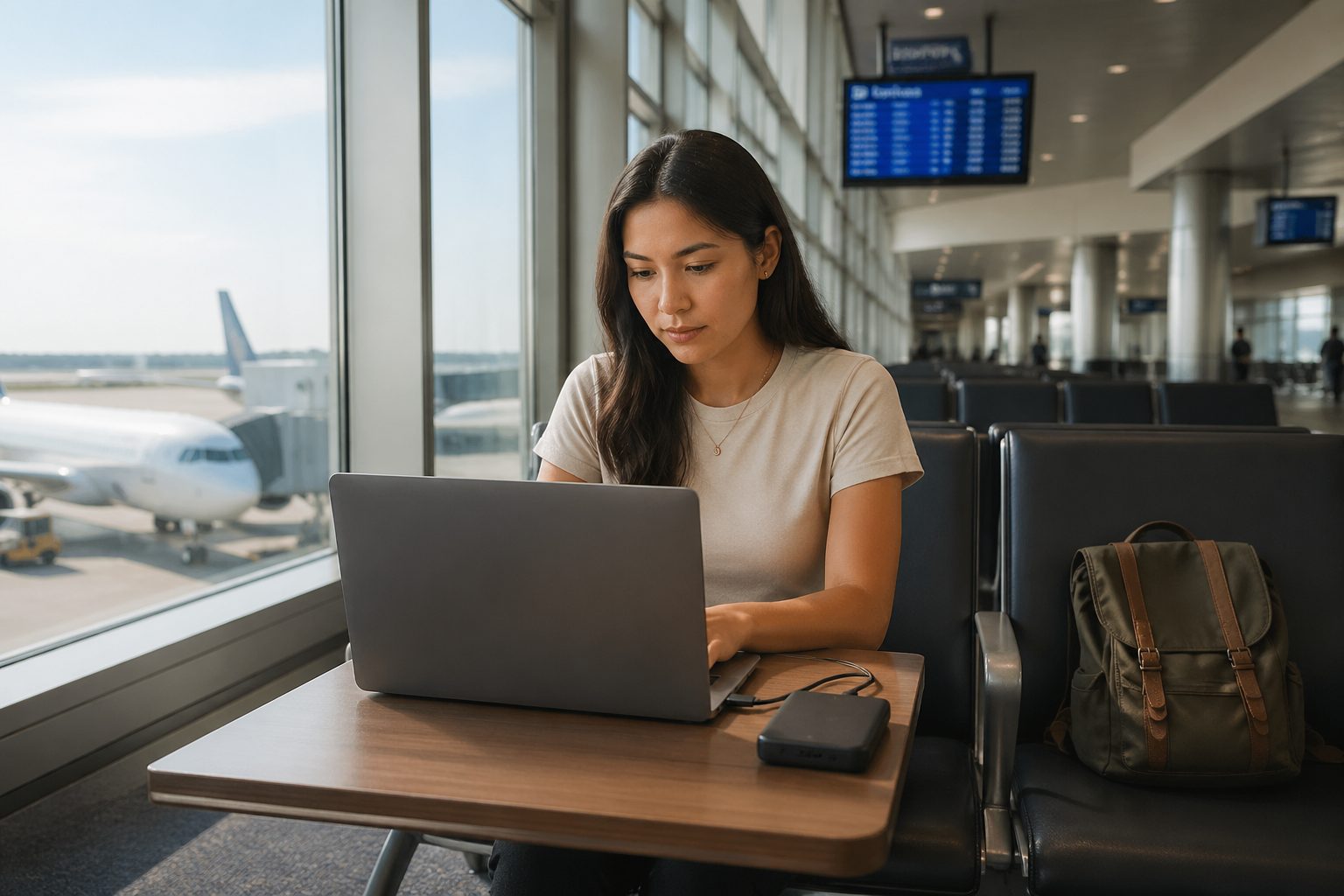
Finally, travel days often include short bursts of charging with long stretches of standby inside a bag. A laptop that sleeps at 100 percent in a warm backpack for three hours is aging even though you are not using it.
Best charge windows during mobile workdays
The easiest win is to stop treating 100 percent as the default target during travel. For most people, a practical window is charging up to about 70 to 85 percent, then running down to about 30 to 40 percent before topping up again.
If you have a long flight or a full day of meetings with uncertain access to outlets, you can stretch that window upward. I still avoid sitting at 100 percent for hours, so I charge to full right before I need to unplug, not at the start of the day.
Use the time you are already stationary to charge, like when you are eating, waiting at the gate, or in a hotel room. Charging while you are actively working hard creates more heat, so it is better to charge during lighter tasks when possible.
If your laptop supports a battery charge limit, set it before the trip and leave it on for the whole travel week. Windows laptops from Lenovo and ASUS, and many MacBooks with optimized charging, can keep you in a healthier range with less effort.
For road trip battery care, plan around the car segments, because those are the times you can predict. Charge during the drive with a proper car adapter, then arrive at a stop with enough battery to work without immediately hunting for an outlet.
Using power banks and adapters safely
A good power bank can improve portable charger laptop battery health because it lets you charge in calmer, controlled bursts instead of clinging to random outlets. The trick is matching the bank and adapter to your laptop so you are not forcing inefficient charging or overheating cables.
Look for USB C Power Delivery with enough wattage for your machine, which is often 45W for thin laptops and 65W to 100W for larger models. If you under power the laptop, it may drain slowly while plugged in, which keeps the system warm for longer.
| Travel power option | What to check | Battery friendly use |
|---|---|---|
| USB C PD power bank | 65W to 100W output, PD 3.0 or newer | Top up from 35% to 80%, then unplug |
| GaN wall charger | Correct wattage, reputable brand, UL listing | Charge during low load tasks to reduce heat |
| Plane seat outlet | AC watt limit, plug stability, shared circuit | Charge in short sessions, avoid 100% parking |
| Car USB C adapter | PD support, 12V socket quality, cable rating | Charge while driving, do not bury laptop in bag |
| International plug adapter | Grounding, snug fit, no loose wobble | Use with your normal charger, not cheap bricks |
How to reduce heat in backpacks and small spaces
Heat management is where most travel battery damage happens, and it is usually self inflicted. If you close the lid and slide a warm laptop into a padded sleeve, you have built a tiny oven.
Before packing, give the laptop two minutes to cool with the lid open and the fans able to breathe. If you are in a rush, at least shut down instead of sleep, because sleep can keep sipping power and generating heat.
Do not charge inside a backpack, even if you see other people doing it. Charging raises internal temperature, and the bag blocks airflow while also trapping the heat from the charger brick.
On a plane or train, avoid placing the laptop on a blanket, coat, or foam seat cushion that blocks vents. A thin hard surface like a tray table is better, and a simple laptop stand can help if you use one.
If your laptop has a quiet or battery saver mode, use it during cramped sessions to keep fan speeds and temperatures down. Lowering screen brightness by even 20 percent often drops heat more than people expect.
Charging on planes and trains without stressing the battery
Charging on planes and trains laptop setups are weird because the power is sometimes limited and sometimes flaky. Treat seat power as a convenience, not as a reason to hold 100 percent for the whole ride.
If the outlet is shared, your charger may cycle as other passengers plug in devices, and that can create repeated on off charging. When I notice that behavior, I switch to a power bank buffer or I charge in a single block, then unplug.
Use the smallest reliable charger you can, because big bricks often hang off loose outlets and fall out. A compact GaN charger with a snug plug reduces disconnects and reduces cable strain in tight seating.
For battery health, aim for a mid range target during the ride, like arriving at 70 to 85 percent. If you need full battery for a connection or a last mile work sprint, charge to full near the end of the segment.
Also pay attention to what you run while charging, because video encoding, gaming, or heavy compiling will heat the battery while it is already charging. If you need to do heavy work, I prefer doing it on battery for a while, then charging during lighter tasks.
Power settings that support healthier travel charging habits
Battery wear is not only about charging, it is also about how hard the laptop works while it charges. A few settings changes can make laptop charging habits while traveling less stressful without changing your workflow.
Start with screen brightness, because it is the most direct lever in most travel situations. I keep a quick key bound habit of dropping brightness the moment I unplug, then raising it only if I truly need it.
On Windows, use Battery Saver or set a lower maximum processor state on the travel power plan if you do long writing and browsing sessions. On macOS, Low Power Mode on battery can reduce heat and fan noise in cramped spaces.
Turn off keyboard backlighting in bright environments, and stop background sync from hammering the CPU on a weak hotspot. Cloud drives and photo apps love to wake up and churn right when you need the laptop to stay cool.
If you do video calls on the move, use headphones and reduce camera resolution when possible. A 1080p camera plus a bright screen plus charging is a heat recipe, especially in a warm terminal.
Smart habits for airports, hotels, and coworking
Travel is chaotic, so I like habits that are easy to repeat without thinking. The best ones are about choosing where you charge and when you stop charging.
In airports, pick a seat with airflow and a stable surface, then charge in one focused session instead of grazing all day. That usually means plugging in when you are around 35 to 50 percent and unplugging around 80 to 90 percent.
- Unplug at 80% when you have predictable access to outlets
- Charge to 100% only right before a long unplugged segment
- Use a compact GaN charger with the correct wattage
- Pick seats where vents are not blocked and the laptop can breathe
- Skip charging inside bags, sleeves, and stacked luggage piles
- Use battery limit or optimized charging features for the whole trip
- Inspect outlets for looseness before hanging a heavy charger
Road trip battery care when power comes from the car
Road trip battery care looks simple because you have a 12V socket, but the quality varies a lot by vehicle. A cheap USB adapter that runs hot can hurt charging efficiency and make the whole setup warmer than it needs to be.
Use a USB C PD car charger from a known brand and pair it with a cable rated for the wattage you plan to pull. If your laptop needs 65W, do not expect a random 18W adapter to do anything except keep the battery in a slow drain state.
Charging while driving is fine, but do not wedge the laptop on a seat where vents get blocked. Put it on a hard surface, or better yet keep it closed and off while it charges from a power bank, then work at the next stop.
If you are navigating and working, the laptop may sit in direct sun through a windshield, and that heat is brutal. Move it out of the sun, because a battery that bakes at high charge in a hot car ages fast.
For long drives, I like a rhythm of charging to 80 percent during one leg, then running down to 40 percent during the next leg. That pattern keeps you away from the extremes while still giving you plenty of usable runtime.
Managing fast charging and high wattage chargers on the go
Fast charging is convenient, but it can raise battery temperature and keep the pack under more stress. You can still use it, you just need to be intentional about when you use it.
If you have a 100W USB C charger and your laptop supports it, use that power when you need a quick bump before boarding. Once you hit your target, unplug, because sitting at a high state of charge is the part that drags on battery longevity.
When you have time, a slower charge can run cooler, especially if you are also using the laptop. Some laptops let you choose a quieter, cooler charging mode in the vendor utility, and it is worth enabling during travel weeks.
Watch for warm charging bricks in crowded power strips at hotels or coworking spaces. If the charger is too hot to comfortably hold, move it to a cooler spot or switch to a lower watt charger for overnight top ups.
Fast charging plus heavy work is where I see the most heat, like exporting video while plugged into a 96W MacBook charger. If you must do that, raise the laptop for airflow and stop charging once you have enough buffer to finish the task.
Post-travel battery recovery routine
After a travel week, your battery is often warm cycled, topped off too often, and left at odd percentages. A simple recovery routine helps you reset your normal baseline without drama.
Start by letting the laptop cool and rest at room temperature, then charge it to around 80 percent and use it normally for a day. This gets you out of the habit of parking at 100 percent while the machine is still hot from travel.
If your battery meter seems jumpy after lots of short charges, do one controlled cycle, but do not turn it into a monthly ritual. Run down to around 15 to 20 percent, then charge back to 80 to 90 percent in one session while the laptop has good airflow.
Check your battery health stats, like cycle count on MacBooks or the vendor battery report on Windows laptops, and write the numbers down somewhere. Tracking once every few months is enough to spot real degradation without obsessing.
Finally, put your normal charge limit back in place if you changed it for the trip, and clean up your travel kit. Replace any cable that got loose or hot, because that same cable will cause the same problems on your next trip.