Desk Setup Habits That Quietly Drain Battery Health Over Time
Most battery advice focuses on settings, charge limits, and whether you should unplug at 100 percent. That matters, but your desk setup quietly shapes heat and power draw all day long.
If your laptop lives on a stand, pushes an external monitor, and sits next to a warm dock, you are running a tiny thermal and electrical system for eight hours straight. Those conditions add up, even when everything seems “normal.”
This is where desk setup battery health habits come in, because the way you place hardware changes how often the battery cycles and how hot it runs. Heat and high state of charge are a rough combo for long term battery life.
I have seen people obsess over battery calibration while their machine bakes behind a monitor stand. Fixing the desk usually gives you more battery health headroom than another utility app ever will.
Why desk ergonomics also affect battery longevity
Ergonomics is about comfort, but the same choices change airflow, cable strain, and where heat gets trapped. When the laptop runs hotter, the battery spends more time at elevated temperature, which speeds up chemical aging.
A laptop that sits flat on a desk can run cooler than one wedged into a tight shelf under a monitor riser. The difference is not dramatic in the moment, but it matters when you repeat it every workday.
Most people also park their laptop at one charge level for long stretches while docked. If that level is near 100 percent and the chassis stays warm, the battery is basically marinating in the conditions it hates most.
Desk setup battery health habits also influence how often the machine pulls from the battery even while plugged in. Some docks and cheap USB C cables cause brief power dips, and those micro cycles still count as wear.

Good ergonomics tends to clean up the desk, and a cleaner desk usually means fewer blocked vents and fewer hot spots. The win is boring, which is why people ignore it.
Airflow mistakes around stands and closed lids
The most common airflow mistake is using a stand that looks sleek but blocks the intake vents on the bottom. A laptop stand airflow battery setup should lift the machine while leaving a clear path for air to enter and exit.
Wire racks and open aluminum stands usually do better than solid platforms with a big center plate. If the stand covers the vent area, the fans spin harder, and that heat soaks into the battery pack below the keyboard.
Closed lid mode can be fine, but it depends on where the exhaust vents are. Some models vent through the hinge area and rely on the lid angle to guide air, so clamshell use can raise internal temps.
If you run clamshell, do not shove the laptop against a wall or the back of a monitor. Leave a few inches behind the hinge so hot air does not bounce right back into the intake.
Dust is the slow killer here, because a stand makes you forget the vents exist. A quick blast of compressed air every month or two keeps the cooling system from slowly losing capacity and cooking the battery.
Power draw from monitors and peripherals
External displays are great for productivity, but they can raise total system power by a lot, especially at high brightness and high refresh rates. External monitor power drain is real, and it often pushes the laptop into higher fan speeds and higher battery temperature.
Peripherals stack up fast, because each USB device is a little load and some also keep the CPU awake. A webcam, an audio interface, and a bus powered SSD can turn an efficient laptop into a warm brick.
| Peripheral or setting | Typical extra draw | Battery health impact over time |
|---|---|---|
| 4K monitor at high brightness | Moderate to high | More heat, more fan time, more time at high charge while warm |
| High refresh monitor (120 to 165 Hz) | Moderate | Higher GPU load, higher chassis temps near the battery |
| Bus powered external SSD | Low to moderate | Small constant load, can keep laptop from entering deeper sleep states |
| USB hubs with charging ports | Low to moderate | Extra conversion losses in the hub, adds heat near the dock area |
| RGB keyboard or mouse dongles | Low | Minor load, but adds up when combined with other always on devices |
Cable and dock positioning for lower heat
People treat docks like invisible magic boxes, then they hide them under papers or behind a monitor where air never moves. Dock placement heat is a real problem, because docks waste power as heat while converting USB C power and driving displays.
If your dock feels hot to the touch, it is heating the air around your laptop and sometimes the laptop itself if they sit close together. Move it to an open spot, or mount it under the desk with clearance so it can shed heat.
Cable routing also changes heat, because tight coils and cramped bundles trap warmth right where the laptop exhausts. Give the power brick and dock cables space, and do not sandwich them under a laptop stand base.
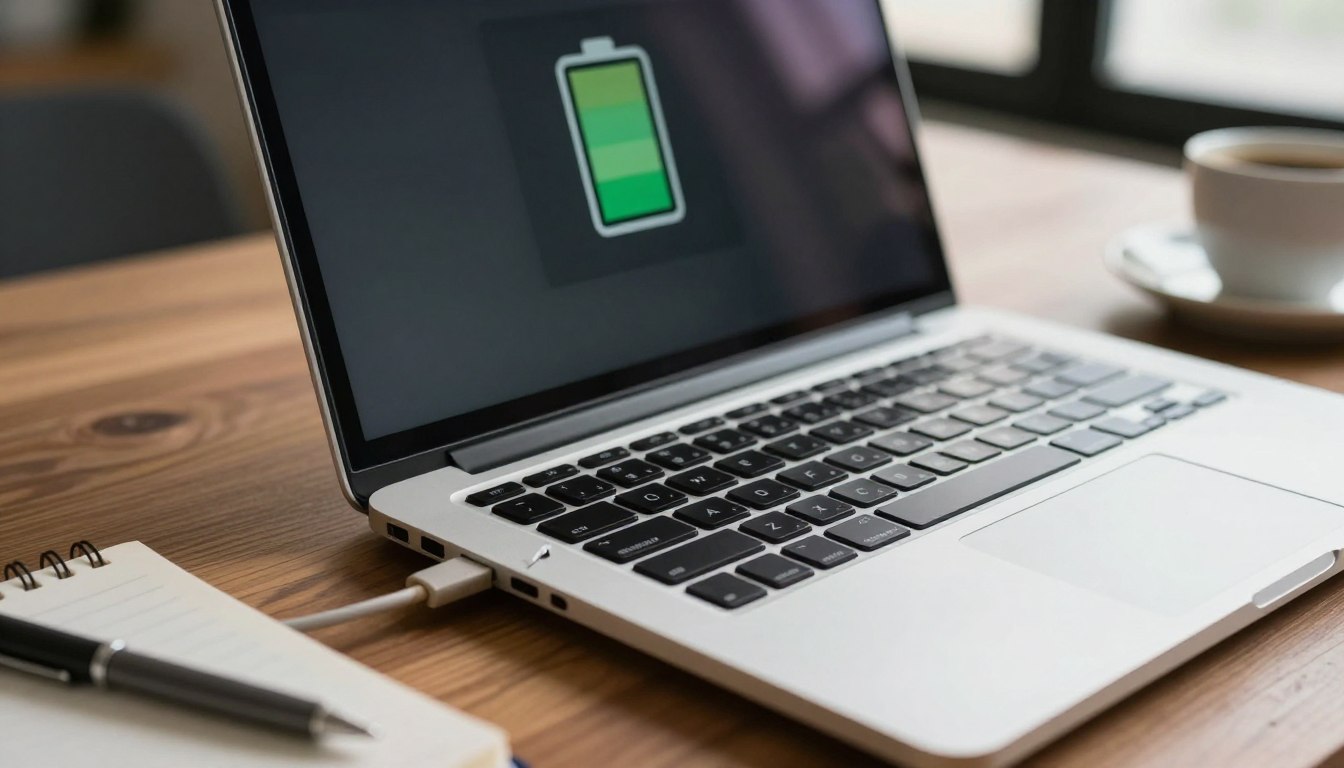
Watch for USB C connectors that run unusually warm, because that can signal a cable that is too thin for the load. A better cable reduces resistance losses, which means less heat near the port and fewer power dropouts.
I also avoid placing a power brick on carpet or on top of a notebook, because it needs to dump heat like any other electronics. If the brick runs cooler, the laptop tends to run cooler, and the battery gets a break.
Charging patterns at the desk that speed up degradation
The desk habit that does the most damage is staying plugged in at 100 percent all day while the laptop is warm. That combination pushes the battery toward faster capacity loss, even if you rarely run on battery.
If your laptop supports a charge limit, set it to 70 to 85 percent for everyday desk use. On Mac, tools like AlDente can help, and on many Windows laptops the OEM utility has a battery conservation mode.
Another sneaky pattern is constant top offs caused by flaky dock power delivery. If the laptop alternates between AC power and battery power every few minutes, you are creating lots of tiny cycles that still add wear.
Fast charging is fine when you need it, but it raises heat and stress when you do it daily for no reason. If you mostly sit at a desk, a slower charger or a lower power USB C port can be easier on the pack.
Some people keep the laptop in clamshell mode on a stand and charge from a dock that runs hot, then wonder why the battery health number drops. The fix is boring: lower the charge target and lower the temperature around the machine.
Daily micro-habits that reduce long-term wear
Big changes help, but the daily stuff is what makes desk setup battery health habits stick. If you build small routines, you stop relying on willpower and you stop cooking the battery by accident.
Most of these habits take less time than opening a battery health app. They work because they reduce heat, reduce time at high charge, and reduce unnecessary wake ups.
- Set a daily charge cap in the OEM utility
- Drop external monitor refresh rate when you do not need it
- Turn off keyboard backlight on bright days
- Unplug bus powered drives when idle
- Keep vents clear of cables and papers
- Let the dock sit in open air, not behind the monitor
- Use sleep instead of leaving the laptop awake overnight
Stand height, angle, and the heat you do not notice
Raising a laptop can lower temps, but only if the stand does not choke the bottom vents. I like stands that contact the laptop at two small rails, because they leave the center open for airflow.
Angle matters too, because some laptops exhaust downward at the rear edge. If the stand aims that exhaust straight at the desk surface, heat pools under the chassis and the fans ramp up.
Material makes a difference, even if it is subtle, because metal stands can soak and spread heat away from the base. Plastic stands can trap it, especially if they have a big flat plate under the machine.
If you use a vertical stand in clamshell mode, check where the vents are and which side faces open air. Some designs press a vented side against felt pads, and that is a slow roast for the internals.
A laptop stand airflow battery setup also benefits from desk placement, because a corner with no air movement gets warmer than the middle of the desk. If you can, keep the laptop away from a radiator, sunny window, or the exhaust from a desktop PC.
External monitor setup choices that spike power draw
Resolution and refresh rate are the two knobs that quietly raise external monitor power drain. Driving a 4K panel at 144 Hz can keep the GPU active even when you are just reading email.
Brightness is the other big one, because many people run monitors at max brightness in a dim room. Lowering brightness can cut the monitor’s own power use and reduce heat around the laptop and dock area.
Connection type can change load too, because some adapters and dongles run hot and add conversion overhead. A direct USB C to DisplayPort cable often runs cooler than a chain of HDMI adapters.
If your monitor provides USB C power delivery, confirm the wattage is enough for your laptop under load. An underpowered monitor can cause the laptop to sip from the battery during spikes, which is wear you did not plan on.
I also recommend disabling HDR when you do not need it, because it can keep certain display pipelines active. Small reductions in GPU activity usually show up as lower fan noise, and lower fan noise usually means lower battery temperature.
Peripherals, hubs, and the hidden idle drain problem
USB hubs are convenient, but they can keep devices powered when you think the laptop is asleep. That constant trickle can prevent deep sleep and cause the battery to drain overnight on a desk.
Wireless dongles for mice and keyboards are small loads, but they also create wake events when they move or lose signal. If your laptop wakes repeatedly, it heats up, charges back up, and repeats the cycle.
Audio interfaces and capture cards are the worst offenders in my experience, because they often stay active and warm. If you do not need them daily, unplug them or put them on a switched USB hub.
Charging phones from the laptop is another classic desk habit that sounds harmless. It increases power draw, warms the chassis, and sometimes forces the laptop to boost CPU power to manage the extra load.
If you want cleaner desk setup battery health habits, treat peripherals like you treat browser tabs. Keep what you need, close the rest, and your laptop runs cooler with less background drain.
Optimizing a desk for performance and battery life
A good desk setup balances comfort with thermal common sense, and you can do it without turning your office into a lab. The goal is steady power delivery, clear airflow, and fewer hot electronics clustered together.
Start with placement: laptop on an open stand, dock in open air, and power brick on a hard surface. That simple change cuts dock placement heat and makes the whole area less stuffy.
Then fix the display chain, because external monitor power drain often drives the rest of the heat problem. Use one good cable, avoid hot adapters, and pick a refresh rate that matches your work instead of your ego.
After that, set a charge limit and stop camping at 100 percent unless you need the runtime. A laptop that floats around 75 to 85 percent while staying cool usually keeps its capacity longer.
Finally, keep the desk predictable, because the battery likes boring conditions. If you build desk setup battery health habits into your layout, you get better performance today and less degradation next year.