How Browser Power Modes and Tab Policies Affect Laptop Battery Runtime
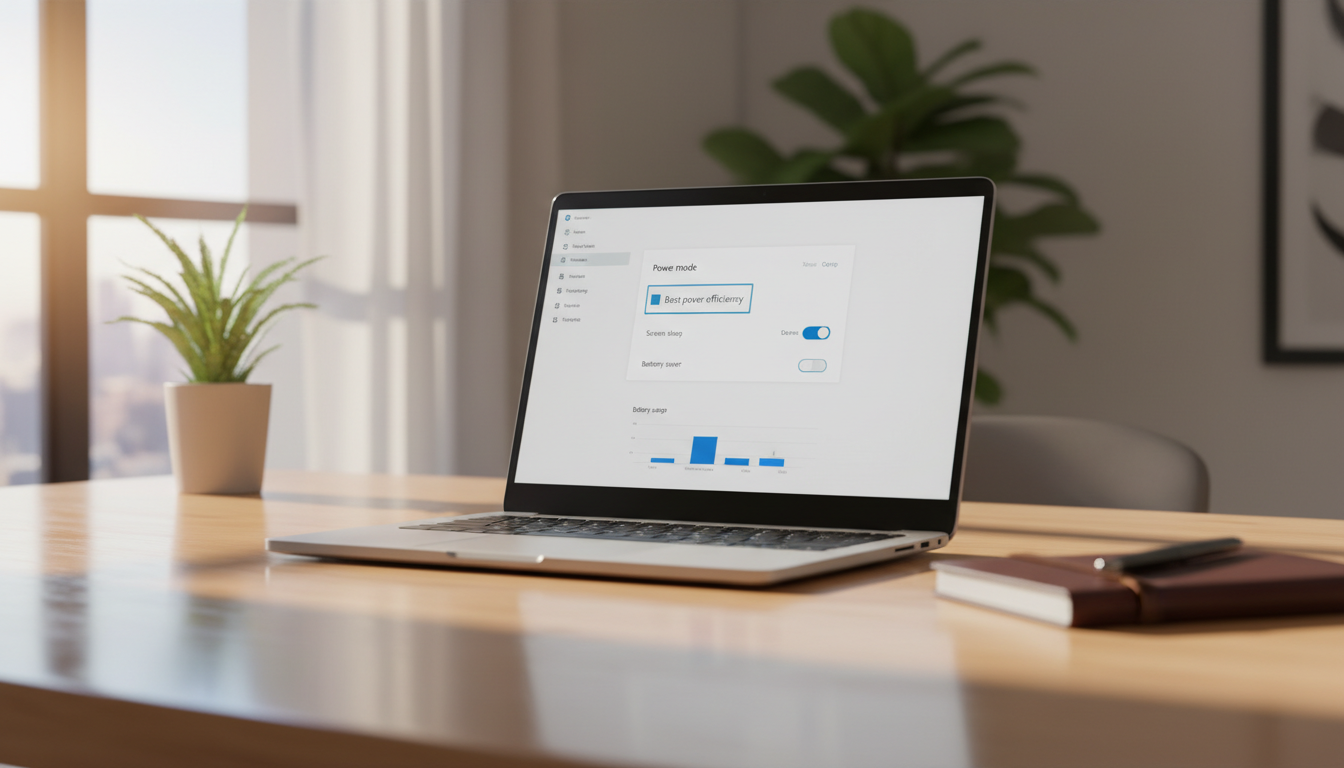
Your laptop battery can look fine on paper and still drain fast because the browser is doing way more work than you think. If you want longer unplugged time, browser power settings battery life laptop tweaks beat most other “optimization” tips.
Modern sites behave like apps, with live updates, background sync, and constant scripts running even when you are not touching them. That activity adds up as heat, fan noise, and a battery percentage that falls faster than it should.
The good news is that browsers now ship real controls like energy saver mode browser options and sleeping tabs policies. The bad news is that defaults vary, and one noisy extension or tab can cancel out the savings.
Why browsers are often the top battery consumer
A browser is a multi process app that runs a rendering engine, a JavaScript engine, a GPU pipeline, audio, video decode, and networking at the same time. That mix makes it easy for the browser to become the top power user in Task Manager or Activity Monitor.
Video is the obvious culprit, but the sneaky drain is background JavaScript that keeps waking the CPU every few milliseconds. Even a “simple” news site can run analytics beacons, ad auctions, and timers that prevent deep idle states.
High refresh scrolling and smooth animations also push the GPU harder than people expect. If your laptop has a discrete GPU, the browser can trigger it for certain pages and keep it awake longer than needed.
Notifications and push messaging can keep service workers alive in the background. That is handy for chat and email, but it increases background tabs power usage when you are trying to stretch runtime.
Another reason browsers drain batteries is sheer tab count, because each tab brings its own memory footprint and its own chances to misbehave. If you care about browser power settings battery life laptop results, start by assuming your browser is a power tool, not a lightweight viewer.
Tab suspension and background throttling behavior
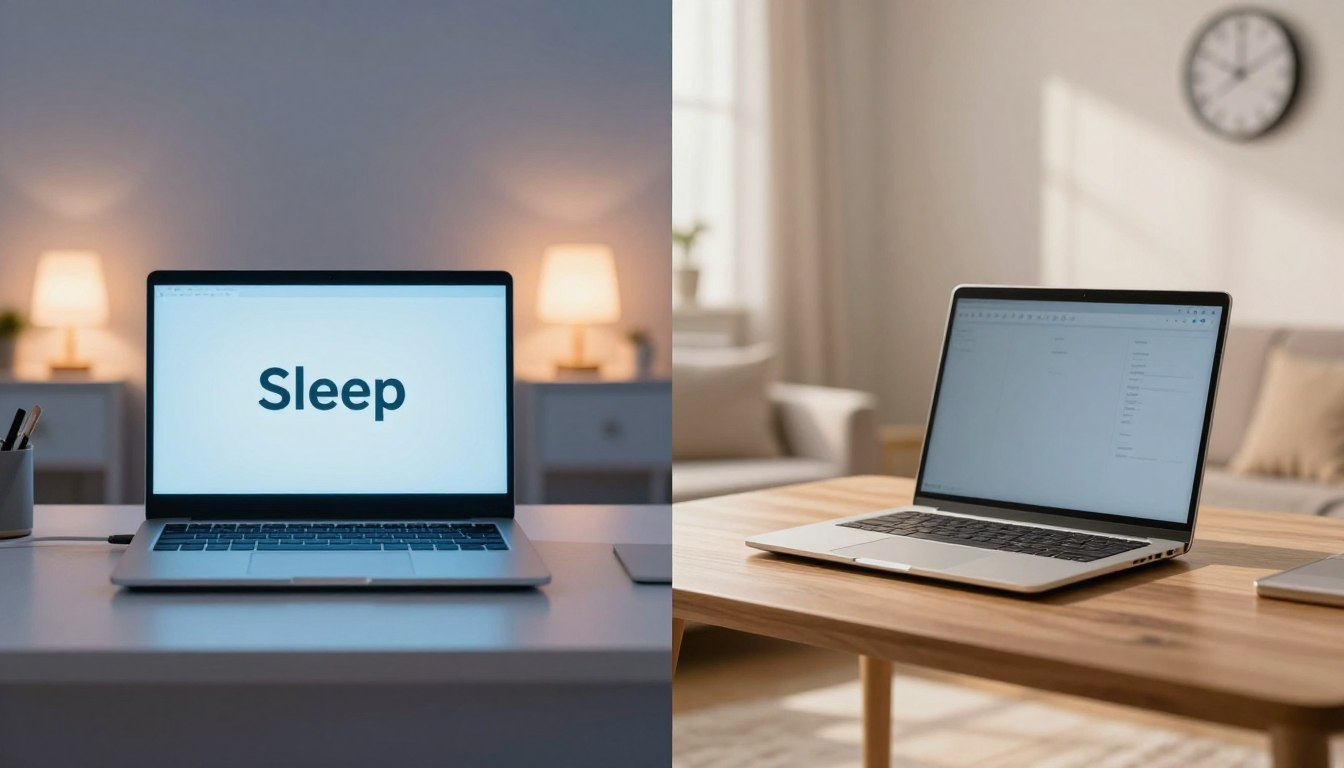
Tab suspension is the browser deciding a tab is inactive and putting it to sleep so it stops running most code. Background throttling is the softer version, where timers run less often and CPU time is capped when a tab is hidden.
Sleeping tabs battery impact depends on what the page is doing, because some sites are quiet and others are basically little casinos of scripts. A sleeping tab usually cuts CPU wakeups a lot, but it may not reduce network activity if the site keeps a connection alive.
Audio, video, and active calls usually block suspension, which is the right call because you would notice the break instantly. The problem is “silent” media, like muted autoplay video, which can still burn power while looking harmless.
Browsers also treat pinned tabs, tabs playing media, and tabs using WebUSB or WebBluetooth differently. If you pin a heavy web app, you are basically telling the browser to keep it ready, and that can raise background tabs power usage all day.
Some browsers reclaim memory by discarding a tab, which reloads it when you return. That saves RAM and sometimes power, but it can annoy you if the page loses state, so you may need to tune the policy rather than turning it off.
Comparing built-in power features across major browsers
Every major browser now claims to help battery life, but the controls live in different menus and behave differently in real use. If you are serious about browser power settings battery life laptop tuning, it helps to know what each one actually offers.
Chrome and Edge lean hard on sleeping tabs and performance mode toggles, while Safari relies on aggressive efficiency work that is less visible to the user. Firefox has improved throttling and can be very efficient, but some settings still need manual attention.
| Browser | Key power feature | Where to find it |
|---|---|---|
| Google Chrome | Energy Saver, Memory Saver | Settings, Performance |
| Microsoft Edge | Efficiency mode, Sleeping tabs | Settings, System and performance |
| Mozilla Firefox | Background tab throttling, optional extensions for discarding | Settings, General and about:config |
| Apple Safari | App Nap integration, per site auto play and background limits | Safari Settings, Websites and General |
How Chrome’s energy and memory features change runtime
Chrome’s energy saver mode browser setting is the blunt instrument, it reduces background activity and can tone down visual effects. On many laptops it is an easy win, especially if you stream video or keep a lot of tabs open.
Memory Saver is separate, and it discards inactive tabs to free RAM. Less RAM pressure can reduce swapping, which matters because disk activity keeps the system from idling and wastes power.
Chrome also shows a “Performance” section where you can see which tabs are active and which are snoozed. If you regularly see a tab refusing to sleep, that is your cue to close it or move it to another browser profile.
One thing I like is that Chrome makes exceptions clear for tabs that need to stay awake, like music players or meeting tabs. One thing I dislike is how easy it is for a site to keep itself “active” with tiny bits of work that add up.
If you want browser power settings battery life laptop improvements in Chrome, keep Energy Saver on and treat Memory Saver as optional based on how much you hate reloads. Pair those settings with fewer always open web apps, because Chrome will happily keep them warm forever.
Edge efficiency mode and sleeping tabs battery impact
Edge has Efficiency mode, which is Microsoft’s umbrella for reducing CPU use and pushing tabs to sleep sooner. On Windows laptops it often integrates nicely with OS power plans, so the savings show up quickly.
Sleeping tabs in Edge are adjustable, including how long a tab must be inactive before it sleeps. If you set it too aggressive you will get reload friction, but if you set it too relaxed you will not see much sleeping tabs battery impact.
Edge also has per site exceptions, and you should use them sparingly. If you whitelist half your work stack, you basically disable the feature and keep background tabs power usage high.
One underrated Edge trick is the “performance detector” style prompts that suggest you close or sleep heavy tabs. I find those prompts annoying, but they do point you to the exact tab that is burning your battery.
If you are comparing Chrome and Edge, Edge can feel slightly more aggressive about sleeping, which can help on thin and light laptops. The difference shrinks if you run the same extensions and keep the same set of chat and email tabs open all day.
Firefox and Safari, fewer switches but real gains
Firefox does a lot of background throttling automatically, and it can be surprisingly gentle on battery when you keep extensions under control. The catch is that some of the strongest tuning options live in about:config, which is not where most people want to hang out.
If you use Firefox, watch for tabs that keep using CPU in the Windows Task Manager or macOS Activity Monitor. When one tab misbehaves, it can erase the advantage you expected from switching browsers.
Safari is the quiet champ on MacBooks because Apple tunes WebKit with the hardware in mind and leans on App Nap. You do not get a big “energy saver mode browser” toggle, but you do get a browser that often idles well when pages behave.
Safari’s per site controls matter more than people think, especially autoplay and location access. A few sites with autoplay allowed can keep the media pipeline active and raise background tabs power usage.
If you bounce between Windows and macOS, do not assume the same browser will behave the same way on both. Your browser power settings battery life laptop strategy should match the OS, because the scheduler and power management stack changes the outcome.
Extension management and hidden battery drains
Extensions are the fastest way to ruin battery life because they can run code on every page you open. A single “helper” extension that injects scripts into all sites can keep the CPU awake and spike background tabs power usage.
Password managers and ad blockers are worth it, but you should still audit them like you would any installed app. If an extension has not been updated in years or has a pile of permissions, it is a battery risk and a security risk.
Some extensions poll for updates, sync data, or scan the DOM constantly to add overlays and widgets. That work looks small per page, but across 40 tabs it becomes a steady drain that no energy saver mode browser toggle can fully fix.
Developer extensions can be the worst offenders because they hook into networking and debugging APIs. If you only need them occasionally, disable them and pin them to your toolbar so you can enable them when you actually need them.
When people ask me why their browser power settings battery life laptop tweaks are not working, the answer is often “you installed five extensions that all watch every page.” Keep the minimum set, and treat everything else like a temporary tool.
A browser profile optimized for battery runtime
A dedicated “battery” profile sounds nerdy, but it works because you stop mixing heavy work tabs with casual browsing. Separate profiles also keep extensions and permissions from bleeding into everything you do.
The goal is simple, reduce wakeups, reduce background network chatter, and avoid keeping the GPU hot. You can do that with a small set of settings and a strict rule about what stays open.
- Create a separate profile named Battery
- Enable energy saver mode browser setting
- Turn on sleeping tabs or equivalent
- Disable all non essential extensions
- Block autoplay video and sound by default
- Limit notifications to one or two sites
- Use reader mode for long articles
Tab habits that beat any setting
The biggest runtime gains often come from behavior, because settings cannot fix everything a messy browsing session creates. If you keep ten “temporary” tabs open for days, you train yourself into constant background tabs power usage.
I like a hard rule, if a tab is reference material, bookmark it and close it. Bookmarks cost nothing, while open tabs keep processes alive and make sleeping tabs battery impact less impressive.
For chat, pick one platform and use its desktop app or its web app, but do not run both. Duplicating the same service in two places doubles notifications, sync, and background timers.
If you need music, prefer a single stream and avoid multiple sites with media players. Background audio keeps the browser out of deeper idle states, and it can block tab suspension entirely.
When you finish a task, close the cluster of tabs that came with it, because that is the moment you still remember what they were for. This habit makes browser power settings battery life laptop tuning actually noticeable, because the browser has less junk to manage.
Site choices that change power draw fast
Some sites are engineered to keep you scrolling, and that usually means constant network calls and animation. If you can use a lighter site, you should, because no browser setting can fully tame a page that is built like an ad exchange.
Web apps built on heavy frameworks can idle poorly, especially when they keep rerendering in the background. If your email or calendar page keeps using CPU while minimized, try the basic HTML view or a native app for travel days.
Video streaming has a big range, because codecs and DRM paths matter. If your browser falls back to software decode, your CPU usage jumps and battery runtime drops fast.
Tracking blockers can reduce network churn and script work, but the wrong blocker can also add overhead by scanning every request. Measure the result with OS tools rather than trusting your gut.
If you are serious about background tabs power usage, avoid leaving social feeds open in a background window. Those pages refresh, preload, and animate even when you are busy doing something else.
Monitoring improvements with built-in OS tools
You should measure battery gains the same way you would measure any performance change, with the tools your OS already includes. Otherwise you will blame the browser when the real drain is a cloud sync client or a runaway indexer.
On Windows, open Task Manager and sort by Power usage and CPU, then watch which browser processes spike when you switch tabs. On macOS, Activity Monitor’s Energy tab and the battery menu’s “Using Significant Energy” list make background tabs power usage hard to ignore.
Windows also has per app battery usage history in Settings, which is great for checking whether your new browser power settings battery life laptop plan changed anything over a day or a week. If the browser still dominates the chart, your tabs, extensions, or video habits are still too heavy.
On macOS, check Energy Impact while you reproduce your normal workflow, then quit the worst tab and see if the number settles. If it does, you found a real culprit, and you can decide whether to change sites or isolate that tab in another profile.
Do not ignore temperature and fan behavior, because heat is wasted energy and it can speed up battery wear over time. When energy saver mode browser features and sleeping tabs battery impact are working, your laptop should run cooler and idle more quietly.