BIOS and Firmware Power Settings That Can Improve Laptop Battery Runtime
Most people chase battery life in Windows settings and ignore the one layer that can quietly waste power all day, the firmware. If your laptop feels like it runs hot at idle or drains overnight, the fix often starts before the operating system even loads.
BIOS battery settings laptop tweaks are not magic, but they can stop a lot of background power leakage that the OS cannot see. I have seen a simple sleep-state change in UEFI turn a “dead in the morning” laptop into one that loses only a few percent overnight.
The tricky part is that every vendor names options differently, and some menus hide behind an “Advanced” tab or a key combo. That is why it helps to know what each feature does so you can make changes with intent, not guesswork.
How firmware-level settings impact battery use
Firmware decides how aggressively the CPU boosts, how deep the system can sleep, and when devices wake the laptop. Those choices happen below Windows or Linux, so the OS can only work within the boundaries the BIOS or UEFI sets.
On many modern laptops, the embedded controller manages charging behavior, fan curves, and standby drain. When those rules are too aggressive, you can get heat and battery loss even when you are doing nothing.
Sleep is a big one because firmware controls which sleep states are available and how wake events are handled. If your machine is stuck in a shallow sleep mode, the battery can drop fast in a backpack.
Another common drain comes from “always on” features like USB charging while off, wake on LAN, or instant-on networking. Each feature sounds convenient until you realize it keeps parts of the system powered all the time.
Firmware battery optimization also affects how the laptop shares power limits between CPU and GPU. If the firmware allows high boost power for long periods, you will see snappier bursts but worse runtime on light workloads.
Key BIOS/UEFI power options worth checking
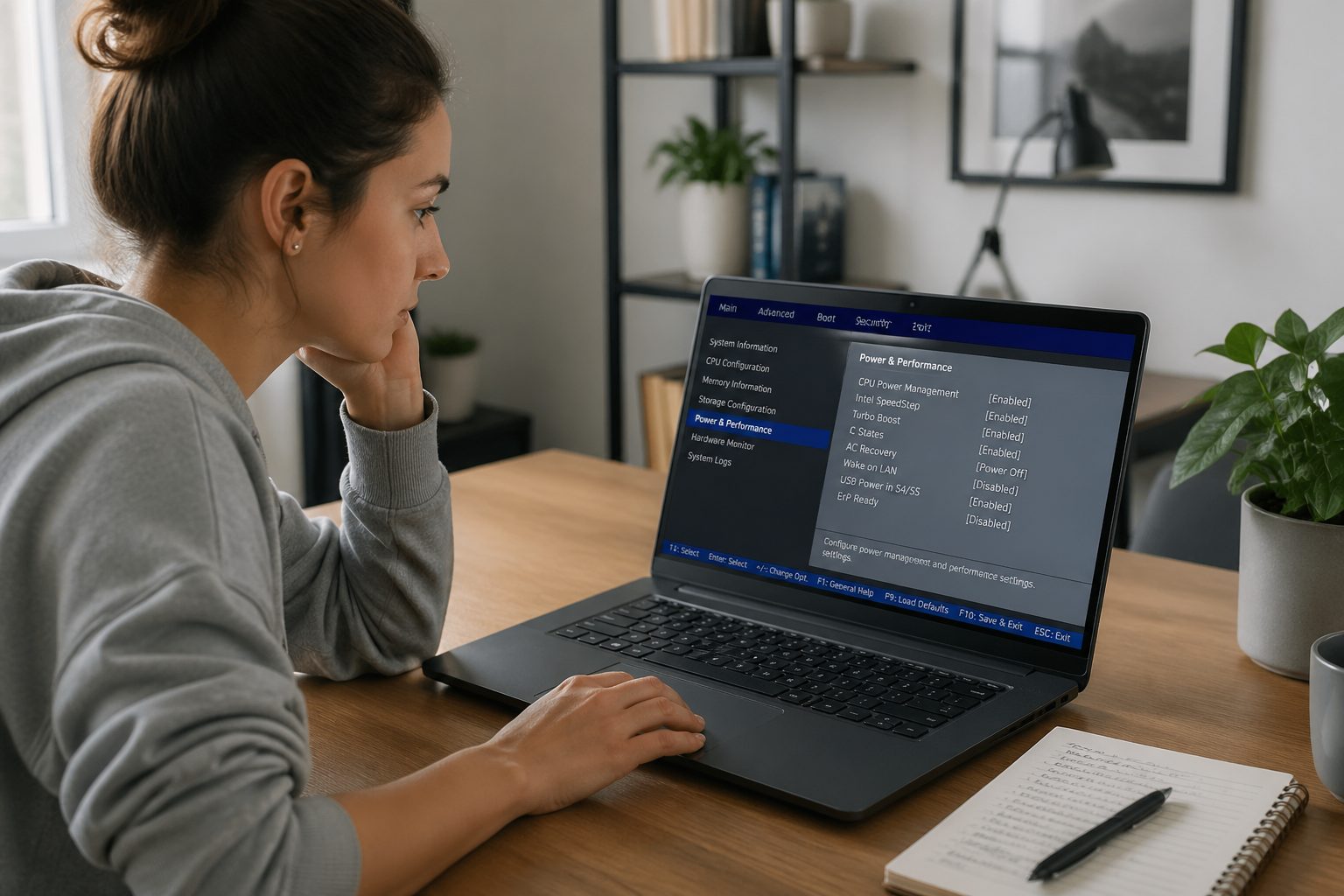
Start with any setting tied to sleep states, sometimes labeled S3, Modern Standby, or “Windows sleep support.” If you have the option to use S3 sleep and you do not rely on instant notifications, it often reduces standby drain a lot.
Look for USB power in off state, “PowerShare,” or “Always On USB” and disable it unless you truly charge your phone from the laptop. That one feature can keep a 5V rail alive and nibble at the battery for hours.
Check wake features like Wake on LAN, Wake on USB, and lid open power on. Turning off wake on LAN is usually safe for personal laptops and can cut weird wake events that prevent deep sleep.
On some business models, you will see CPU power management toggles like Intel SpeedStep, Intel Speed Shift, AMD CPPC, or “Turbo Boost.” I rarely disable turbo entirely, but limiting sustained boost through firmware can improve runtime for office work.
UEFI power management laptop menus sometimes include “PCIe ASPM” or “Native power management” for link states. If your firmware offers ASPM controls, enabling them can reduce idle draw, especially on machines with NVMe drives and Wi-Fi cards that support it.
Battery-related firmware updates and safety
Firmware updates can change charging thresholds, fix sleep drain bugs, and improve how the embedded controller reads battery sensors. They can also introduce new problems, so treat updates like you would a driver update on a work machine.
If your vendor notes mention battery runtime, thermal tuning, USB-C charging, or standby behavior, that update is worth considering. If the notes are vague and your laptop is stable, I usually wait until there is a clear benefit.
| Firmware item | Battery-related benefit | Safety step before updating |
|---|---|---|
| Embedded controller (EC) update | Improves charging logic and fan behavior | Plug in AC power and avoid sleep during update |
| BIOS/UEFI update | Fixes sleep drain and power limit tables | Back up settings, note current version, use vendor tool |
| Thunderbolt or USB-C PD firmware | Stabilizes charging, reduces renegotiation power loss | Use the correct charger wattage and a known good cable |
| Battery gauge or smart battery firmware | More accurate percent readings and wear reporting | Do not interrupt, then do one full charge cycle after |
How firmware interacts with OS power plans
Your operating system power plan can only request behavior, it cannot override every firmware limit. If the BIOS sets a high minimum CPU performance or blocks deep sleep, Windows will look “misconfigured” even when it is doing what it can.
Windows 11 power modes, like Best power efficiency, work best when the firmware exposes the right knobs through ACPI tables. When those tables are sloppy, you get oddities like high clock speeds at idle or fans ramping with simple browsing.
Modern Intel and AMD platforms use collaborative control where the OS asks for performance and the firmware enforces limits. This is why a BIOS update can change battery life without you touching a single Windows setting.
Driver stacks matter too, especially chipset, GPU, and Wi-Fi drivers that talk to firmware for low power states. If you tune bios battery settings laptop options but keep old chipset drivers, you may not see the results you expect.
Linux users run into the same boundary, just with different tools like TLP or power-profiles-daemon. If the firmware does not allow a device to enter a low power state, no userspace tool can force it reliably.
Battery runtime BIOS options that often move the needle
Charge limit features, often called “Battery Conservation,” “Primarily AC Use,” or “Custom charge threshold,” are worth enabling if you sit on a charger most days. Keeping the battery around 60 to 80 percent reduces time spent at high voltage, which slows degradation.
Some laptops let you pick a “cool and quiet” thermal profile in firmware, separate from any vendor app. If your machine has that option, it can reduce fan noise and power spikes during light work.
Discrete GPU controls can be huge on gaming laptops, especially options like “Hybrid graphics,” “MSHybrid,” or “iGPU only.” If you force the dGPU on in firmware, battery life usually collapses even if you never launch a game.
Look for storage power settings like NVMe low power states or SATA ALPM if your BIOS exposes them. These can shave a little power at idle, which adds up across a full workday.
Battery runtime bios options also include keyboard backlight timeouts and panel self refresh toggles on some models. These sound minor, but the display and its supporting electronics are often the biggest load on a thin laptop.
A quick checklist before you change anything
Before you touch settings, write down your current BIOS version and take photos of any power related pages. This is boring, but it saves you when a reset wipes your changes or an update rearranges menus.
Make sure BitLocker recovery keys are backed up if you use Windows device encryption. A firmware change can trigger a recovery prompt, and you do not want to discover that after you already rebooted.
- Record current BIOS/UEFI version and date
- Export or back up BitLocker recovery key
- Photograph power, sleep, and charging pages
- Disable fast startup in Windows for cleaner testing
- Verify AC adapter wattage matches the laptop spec
- Close vendor tuning apps that can override settings
Testing changes without hurting performance
Change one setting at a time and keep notes, because stacked tweaks make it impossible to know what helped. I aim for a simple loop: set change, run the same workload, then measure battery drop and temperatures.
Use a repeatable test like a 200-nit video loop, a browser workload with fixed tabs, or a light compile if you are a developer. Random daily use is too noisy, especially if you bounce between Wi-Fi networks and brightness levels.
On Windows, check powercfg /sleepstudy for standby drain and powercfg /batteryreport for capacity trends. If sleepstudy shows frequent wake events, your best “battery tweak” might be disabling wake sources in firmware.
Watch for performance cliffs, not tiny benchmark dips, because battery life gains often come from smoothing boost behavior. If the laptop feels sluggish opening apps or scrolling, undo the most aggressive limits first.
Firmware battery optimization can also change fan curves, so track noise and skin temperature, not just runtime. A laptop that runs cooler at the same workload usually wastes less energy as heat.
Common gotchas with Modern Standby and sleep states
Modern Standby can be great when it behaves, but some laptops wake constantly for network activity or buggy devices. When that happens, the laptop looks “asleep” while it burns power like it is half awake.
If your BIOS offers S3 sleep, it is often more predictable for battery storage in a bag. The tradeoff is slower wake and fewer background tasks, which many people do not miss.
Network connected standby options, sometimes called “Wake on WLAN” or “Maintain network in sleep,” are frequent offenders. Disable them if you do not need instant email sync while the lid is closed.
USB devices can also block deep sleep, especially cheap dongles and some gaming mice receivers. If your sleep drain is bad, test with everything unplugged and then reintroduce devices one by one.
UEFI power management laptop settings sometimes include “ErP” or “Deep sleep” modes that cut standby power to meet energy regulations. Enabling those modes can stop overnight drain, but it may disable USB charging while off and some wake features.
Charging limits, fast charging, and battery wear
Battery wear is mostly about heat and time spent at high state of charge, not how many times you plug in. If your firmware offers a charge cap, use it when you are at a desk most days.
Fast charging is convenient, but it can raise temperatures and push higher current into the pack. I keep fast charge enabled only when I travel often, and I disable it when the laptop lives on AC.
Some vendors tie charge behavior to a Windows app, but the real logic lives in the embedded controller. When you set thresholds in firmware, they usually persist across OS reinstalls and dual boot setups.
If you use USB-C charging, make sure the charger can provide the wattage your laptop expects. An underpowered adapter can cause constant power renegotiation, which wastes energy and can make the system throttle in annoying bursts.
BIOS battery settings laptop menus sometimes include “battery calibration” or “gauge reset” tools. Use those sparingly, because full discharge cycles add wear, and you usually only need calibration when the percentage reading is clearly wrong.
Rollback and troubleshooting best practices
If a change makes things worse, revert quickly and do not try to “balance it out” with three other tweaks. Firmware settings interact in messy ways, and a clean rollback is the fastest path to a stable baseline.
Use “Load optimized defaults” only when you have your photos or notes, because it can wipe more than power options. After resetting, reapply only the one or two settings you know you want, then retest.
If a BIOS update causes new battery drain, check for a newer revision first because vendors sometimes ship quick fixes. If you must downgrade, follow the vendor method, because forced flashing can brick a laptop.
When troubleshooting, separate runtime issues from capacity issues by checking full charge capacity versus design capacity in a battery report. If capacity has dropped sharply, settings will not fix that, and the battery may need service.
If you see random shutdowns or charging stops, inspect the basics like the AC adapter, USB-C cable, and charging port for heat or looseness. Firmware can manage power well, but it cannot fix a flaky connector or a charger that lies about its wattage.