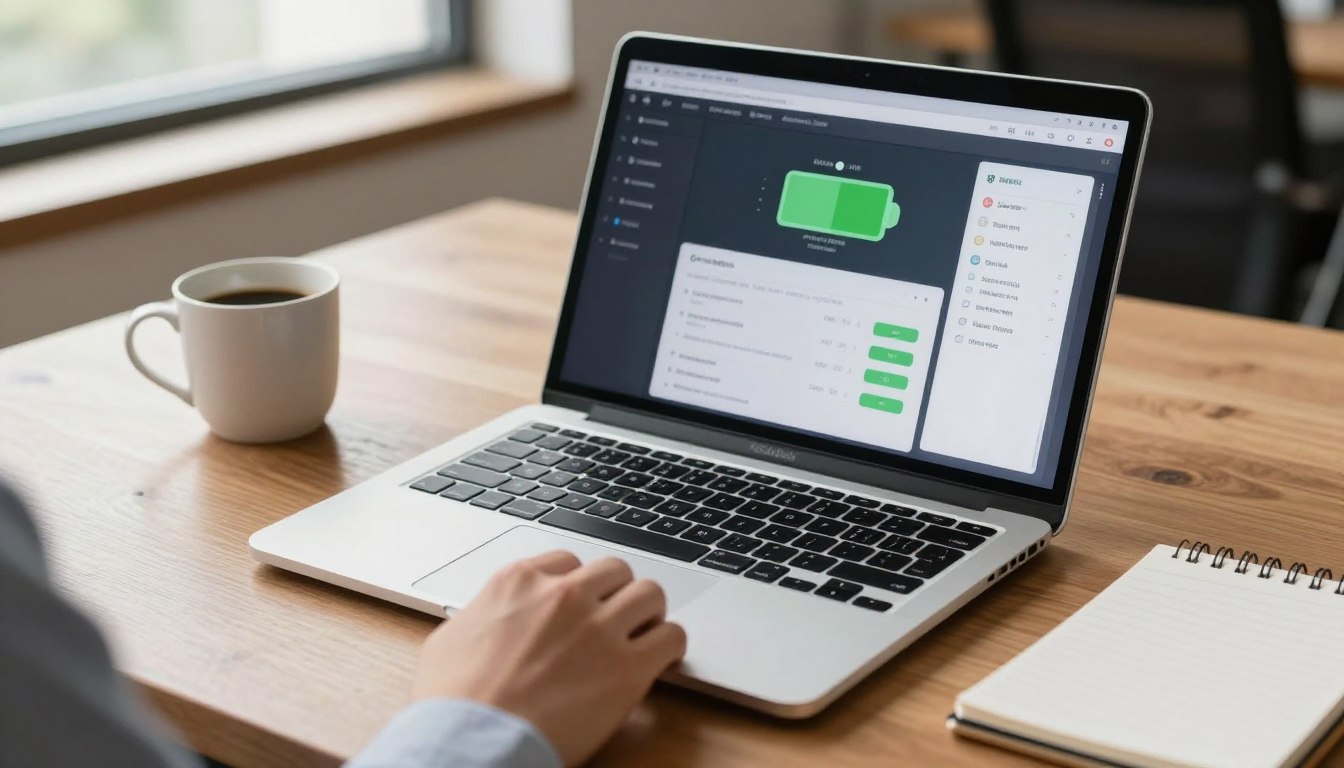
How Battery Calibration Affects Health Readings and Cycle Accuracy
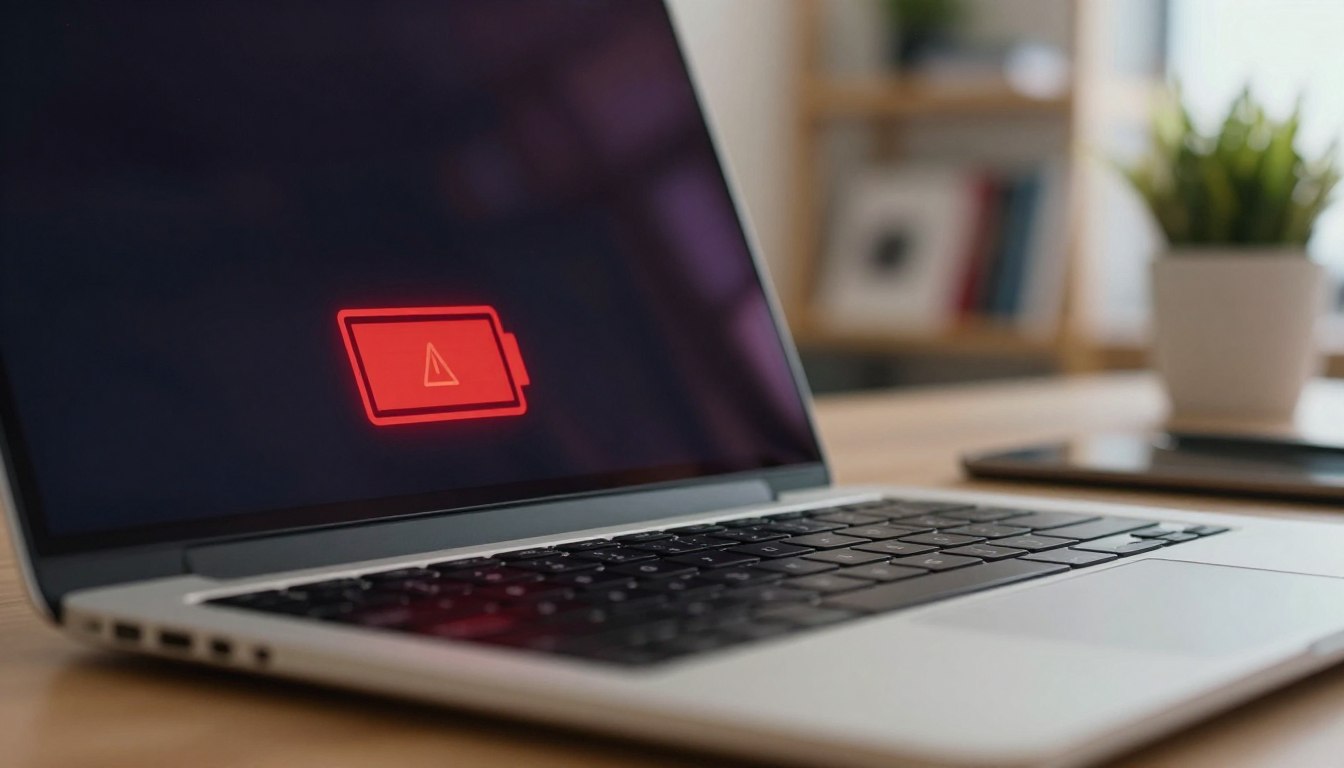
If your laptop jumps from 38 percent to 12 percent in five minutes, the battery did not suddenly age overnight. Your battery gauge lost track of where empty and full really are, and laptop battery calibration is the tool that can bring the numbers back to reality.
Calibration does not add capacity, and it does not reverse chemical wear inside lithium ion cells. What it can do is improve battery health reading accuracy so the operating system stops guessing wrong about remaining runtime.
I see people calibrate because they want a better battery, then get mad when the health percentage stays the same. That reaction makes sense because the word calibration sounds like repair, but it is closer to resetting a measuring tape than fixing the thing being measured.
This article explains what calibration changes, why readings drift, and how to calibrate laptop battery on Windows and macOS without doing extra damage. It also connects calibration to cycle count interpretation, because cycle data often gets misread when the gauge is off.
What battery calibration really changes
Laptop battery calibration changes the way the battery controller and the operating system estimate state of charge. It does this by re learning where the pack hits true full and true empty under a controlled discharge and recharge.
Inside most packs, a fuel gauge chip tracks charge in and out using coulomb counting plus voltage based checkpoints. When those checkpoints drift, you get a battery percentage mismatch where the number on screen stops matching the pack’s real energy.
Calibration mainly updates the reported full charge capacity and the empty point used for shutdown. That is why a calibration often changes when the laptop sleeps, warns, or powers off, even if the cells did not change.
Some systems also adjust the curve that maps voltage to percent, which affects the middle of the gauge. That curve is why two laptops with the same battery can show different percentages at the same voltage.
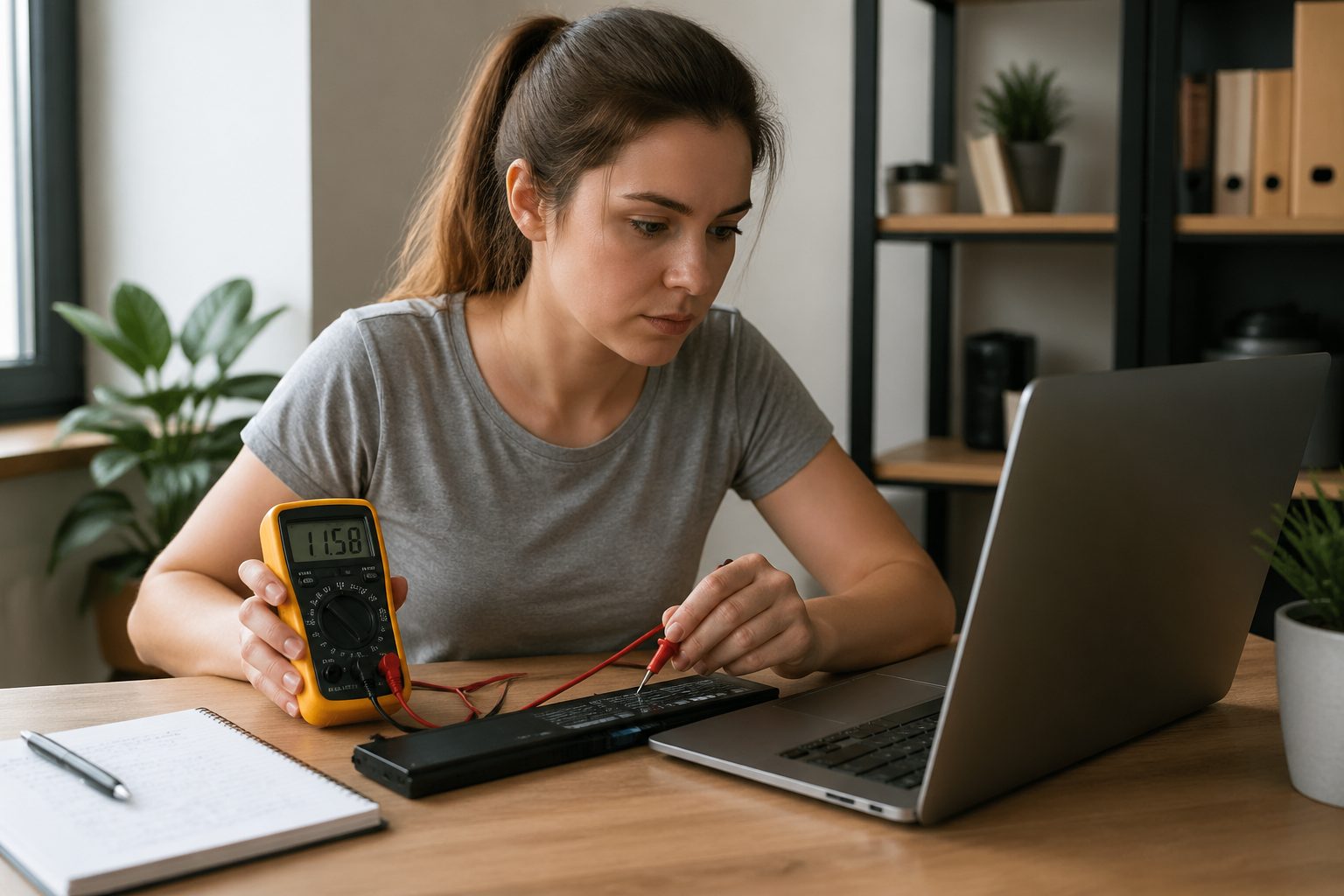
What calibration does not change is the battery’s actual maximum chemistry based capacity, internal resistance, or heat sensitivity. If your pack has worn out, calibration can make the reading more honest, which sometimes feels worse because the laptop stops pretending.
Manufacturers sometimes ship batteries that are pre calibrated at the factory, but shipping time and storage temperature still cause drift. After months of shallow charging, the gauge can lose its reference points even though nothing is “broken.”
Why health percentages can become inaccurate
Battery health is usually computed as full charge capacity divided by design capacity, then shown as a percentage. If the fuel gauge misestimates full charge capacity, the health number looks wrong even when the cells are stable.
Shallow cycles are a common cause because the gauge never sees the ends of the range. If you live between 40 and 80 percent for months, the controller has fewer chances to correct its model, and battery health reading accuracy can slide.
Heat also bends the model because voltage behavior changes with temperature. A laptop that charges while gaming or sitting on a couch can record messy data, and the fuel gauge may “learn” a curve that does not fit normal use.
Firmware updates can change the math used for estimation. After an update, the same raw battery data can be interpreted differently, which can look like sudden degradation or sudden recovery.
Windows and macOS both smooth percentages to avoid jitter, and that smoothing can hide problems until they become obvious. When the smoothing finally catches up, users notice a sudden drop and assume the battery failed, when the gauge simply corrected late.
Aging increases internal resistance, which makes voltage sag more under load. The gauge might treat that sag as “near empty,” so the laptop hits low battery warnings earlier than expected and shows a dramatic battery percentage mismatch during heavy tasks.
When calibration helps and when it does not
Calibration helps when the laptop shuts down at 20 percent, drops in big steps, or charges to 100 percent but runs out quickly. Those are classic symptoms of a gauge that lost its endpoints, and laptop battery calibration can bring the percent display back in line.
Calibration also helps after replacing a battery, because the controller and OS need a clean read of the new pack’s behavior. Some replacement packs ship with slightly different reporting, and a calibration can reduce weird jumps right away.
| Symptom | Likely cause | Will calibration help? |
|---|---|---|
| Shutdown at 15 to 30 percent | Empty point drift or voltage sag mapping | Often yes |
| Stuck at 100 percent for a long time | Top end mapping error or charge termination confusion | Sometimes |
| Health drops 10 percent overnight | Recomputed full charge capacity after new data | Maybe, if readings are unstable |
| Short runtime even with stable percent | Real capacity loss from aging | No |
| Battery gets hot and swells | Cell damage or charging fault | No, stop using it |
Calibration myths that waste your time
One common myth is that you should calibrate every month to “keep the battery healthy.” Regular full discharges are not good for lithium ion, so doing them on a schedule can add wear for little benefit.
Another myth is that calibration fixes fast degradation. If your full charge capacity is truly shrinking, calibration will not grow it back, and the best you can do is adjust your charging habits and expectations.
People also confuse calibration with “battery reset” apps that claim to repair cells. Most of those apps just drain the battery with the screen on, which is a sloppy discharge and can create more heat than a controlled test.
It is also easy to misread a post calibration health drop as damage caused by the calibration. Often the health number was inflated by bad data, and calibration made the estimate more honest, which feels like bad news even when nothing changed that day.
If you see a health increase after calibration, that does not mean the chemistry improved. It usually means the gauge had been underestimating full charge capacity, and the new data corrected the model upward.
Finally, calibration does not fix charging limits set by the manufacturer, like 80 percent conservation modes. If you use a limit, the gauge can still stay accurate, but you should calibrate within that limit only if your vendor tool supports it.
Calibration steps and safety checks before you start
Before you calibrate, check for physical warning signs like swelling, a trackpad that lifts, or a case that no longer sits flat. If you see any of that, skip calibration and stop using the battery because it is a safety problem, not a measurement problem.
Next, confirm you are chasing a reading issue and not normal aging by comparing runtime to what you get at the same workload. If the percent drops smoothly but runtime is short, calibration is unlikely to help because the battery is simply worn.
For a measurement problem, you want a slow, cool discharge that avoids spikes. A simple workload like streaming video at moderate brightness is better than gaming, because the voltage sag under load can confuse the empty point.
Set sleep and hibernate to “never” temporarily so the laptop can run down without pausing the test. If the machine sleeps at 20 percent, you miss the low end data that the gauge needs to correct the battery percentage mismatch.
Plan the timing because a full discharge and recharge can take most of a day. I prefer doing it on a weekend because rushing leads to unplugging early, and partial data is the whole reason calibration fails.
Keep the laptop on a hard surface with good airflow, and avoid charging in direct sun or on a bed. Extra heat during the calibration cycle can bias the data and can also add real wear to the pack.
Calibration steps on Windows and macOS
On both Windows and macOS, you can calibrate laptop battery readings by doing one controlled full cycle, then letting the system settle. The goal is to give the fuel gauge clean endpoints, not to punish the battery with repeated deep drains.
Windows users often have extra vendor tools, like Lenovo Vantage or Dell Power Manager, and those can change the rules. If you have a charge limit enabled, turn it off for the calibration unless the tool offers a built in calibration function.
- Charge to 100 percent and keep it plugged in for 30 to 60 minutes
- Disable sleep and hibernate temporarily in Power and Battery settings
- Unplug and discharge with a light, steady workload to near shutdown
- Let the laptop shut down on its own, then wait 15 to 30 minutes
- Charge back to 100 percent in one session without heavy use
- Re enable sleep settings and any charge limit after the cycle
What to expect right after calibration
Right after calibration, the percent display may still look odd for a day or two. The fuel gauge and OS often need a couple of partial cycles to smooth the curve and stabilize battery health reading accuracy.
You might notice the laptop runs longer between 100 and 80 percent, or shorter, depending on which direction the old estimate was wrong. Either way, the more consistent behavior is the win, because it reduces surprise shutdowns.
If your health percentage changes, treat it as a measurement update first. A drop after laptop battery calibration often means the old full charge capacity number was inflated, and the controller corrected it using the new endpoints.
Watch for whether the low battery warning and shutdown happen closer to 5 percent or 0 percent instead of 20 percent. That shift is usually the clearest sign that calibration worked, because the empty point is where drift causes the worst battery percentage mismatch.
If nothing improves, do not repeat calibration immediately. Repeating deep cycles back to back is a good way to add wear, and it usually means the issue is real capacity loss or a controller problem.
On some Macs, Optimized Battery Charging can delay the last part of charging and make you think calibration failed. For the calibration day, it can help to disable Optimized Battery Charging temporarily so you get a true 100 percent endpoint.
How calibration relates to cycle count interpretation
Cycle count is a separate metric from calibration, but bad readings can make cycles look confusing. A “cycle” is roughly one full design capacity worth of energy used, and the system adds partial discharges together.
When the gauge drifts, your percent swings can look huge even if the energy used is normal. That visual drama makes people assume they burned extra cycles, but the cycle counter usually tracks coulombs, so it is less sensitive to battery percentage mismatch.
Calibration can still affect how you interpret cycles because it changes the reported full charge capacity. If the full charge capacity number drops after calibration, each “100 to 0” percent run may correspond to less energy than before, even though the cycle math stays consistent.
On Windows, you can cross check cycle and capacity data with the built in battery report, which lists design capacity and full charge capacity over time. If the full charge capacity line zigzags a lot, calibration or just a few normal full charges can help the gauge settle.
On macOS, System Information shows cycle count and condition, and it is usually stable unless the battery is near end of life. If cycle count climbs normally but runtime collapses, the chemistry is aging, and calibration only makes the decline easier to see.
Do not treat a high cycle count as a verdict without looking at your use pattern. A laptop used mostly on AC power can still rack up cycles if it constantly tops off from 95 to 100 percent, and that is a settings problem more than a calibration problem.
How to avoid recurring battery reading drift
The easiest way to avoid drift is to let the battery see a wider range once in a while, but not by deep draining every week. A normal use day that goes from around 90 percent down to 20 percent, then back up, gives the gauge good data without stressing the pack.
If you keep your laptop plugged in for weeks, consider enabling a charge limit like 80 percent if your manufacturer offers it. That reduces time at high voltage, which slows real degradation, and it also prevents the gauge from living at the top edge forever.
Keep heat under control because heat breaks both the battery and the accuracy of the model. Clean the vents, avoid blocking airflow, and do not run heavy loads while the battery is charging if you can help it.
Use predictable charging gear, because flaky USB C chargers can cause weird charge start stop behavior. When the charge current bounces around, the fuel gauge has a harder time tracking coulombs, and battery health reading accuracy can drift faster.
If you see a battery percentage mismatch starting again, do not wait until shutdowns get scary. One careful calibration cycle every so often, only when symptoms show up, is a reasonable compromise between accuracy and wear.
Finally, keep your expectations realistic about what the numbers can do. Laptop battery calibration can make the gauge honest, but it cannot make an old pack young, and honest numbers are still useful when you plan replacements and travel time.