Cycle Count vs Battery Health: Why They Diverge on Older Laptops
On older laptops, the numbers you see for batteries can look like they are arguing with each other. You check cycle count, you check a health percentage, and the two refuse to line up.
This is where cycle count vs battery health becomes a real-world problem instead of a spec sheet detail. A battery can show low cycles and still act tired, or show lots of cycles and still hold up better than expected.
Most people assume cycle count is the scoreboard, but it is only one piece of the battery story. The health percentage is also slippery because it depends on calibration, temperature history, and how the laptop estimates capacity.
If you have ever seen battery health not matching cycles, you are not alone. The mismatch is common on machines that have been plugged in for years or stored in a closet half-charged.
Why cycle count and health percentage are different metrics
Cycle count is basically a usage counter that tracks how much charge has moved in and out of the pack over time. Most systems count one cycle after you have used about 100 percent of the battery’s designed capacity, even if that happens across many small top-ups.
Battery health percentage is an estimate of remaining maximum capacity compared to the original design capacity. It answers a different question, which is how much energy the battery can store today.
A laptop can rack up cycles with gentle shallow discharges that do not stress the cells much. Another laptop can keep a low cycle number but spend years at high temperature and high charge, which chews through capacity quietly.
Cycle count is usually measured directly by the battery’s controller, so it tends to be consistent across tools. Health percentage is calculated from measurements like voltage curves and coulomb counting, so it can shift after firmware updates or recalibration.

When people argue about laptop battery wear indicators, they often mix these two metrics like they are interchangeable. They are related, but they are not the same, and older laptops make that gap obvious.
How chemistry aging affects readings beyond cycle numbers
Lithium ion packs age even when you barely use them, and that aging shows up as lost capacity and higher internal resistance. Time, heat, and sitting at high state of charge can matter as much as how many cycles you logged.
Calendar aging is the reason a five year old battery with 80 cycles can still feel worn out. The chemistry forms thicker SEI layers and the electrodes lose active lithium, so the battery’s usable capacity shrinks.
Internal resistance is the silent killer that makes an old battery look worse than the capacity number suggests. A pack can still store a decent amount of energy but sag in voltage under load, triggering early shutdowns at 30 percent.
Heat accelerates almost every bad process inside the cells, and laptops love heat. If the battery sits next to a warm CPU and GPU day after day, the pack can degrade while the cycle counter barely moves.
This is why cycle count vs battery health often diverges most on machines that lived on a desk, plugged in, running hot. The cycle counter stays low, but the chemistry keeps aging anyway.
When low cycles still show high degradation
Low cycles with high degradation usually means the battery spent too much time at the wrong conditions. Think long periods at 100 percent charge, frequent heat soak, or storage at very low charge that let the pack drift into deep discharge.
It also happens when the laptop’s battery gauge loses calibration after months of shallow discharges. The controller can mislearn the pack’s true full charge capacity until you run a controlled discharge and recharge.
| Scenario | What you see | Most likely cause |
|---|---|---|
| Desk use, always plugged in | Low cycles, health drops fast | Calendar aging at high charge and heat |
| Stored in a drawer for a year | Low cycles, sudden poor runtime | Self discharge and cell imbalance |
| Rarely discharged below 70% | Low cycles, health seems stuck low | Gauge calibration drift |
| Gaming laptop used on AC | Low cycles, random shutdowns | High internal resistance and voltage sag |
OS reporting differences and vendor tools
Windows, macOS, and Linux do not all report battery data the same way, even when they read from the same controller. The OS may choose different fields, apply different rounding, or label estimates as if they are measurements.
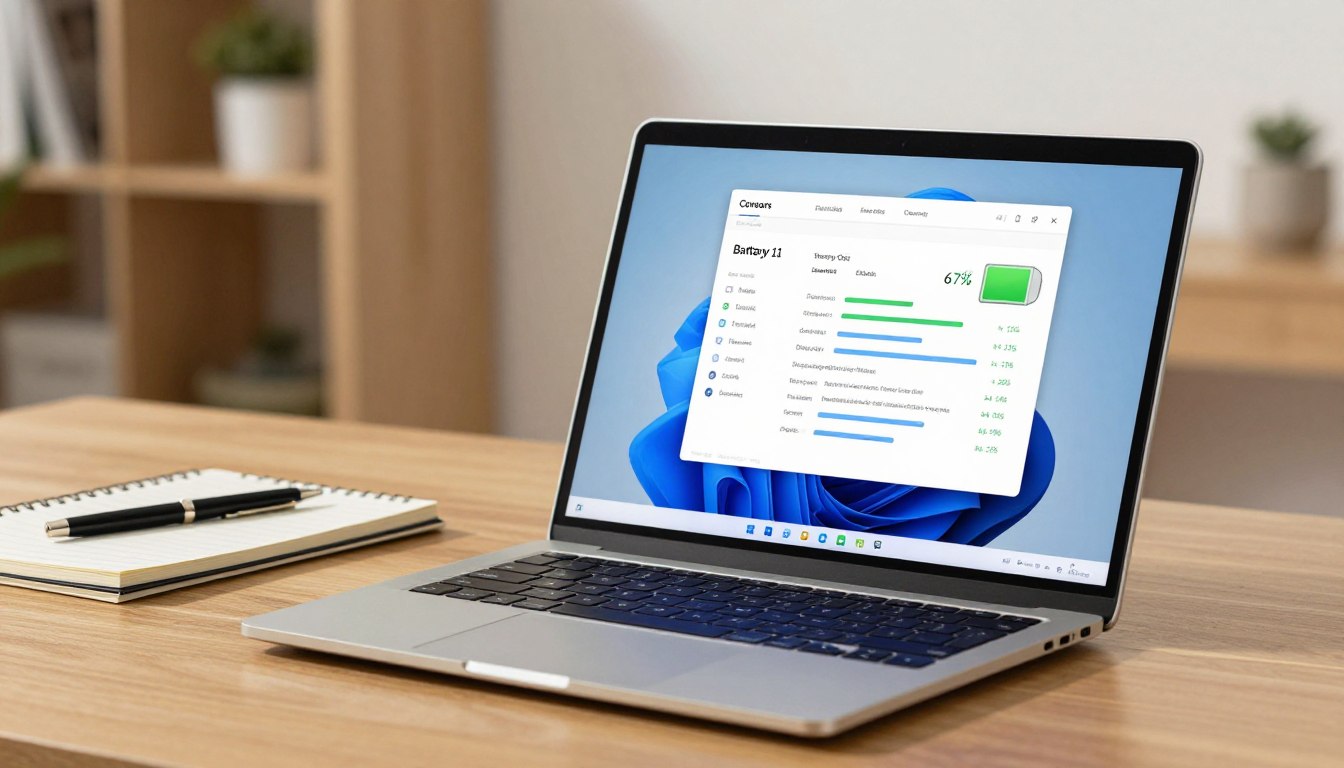
On Windows, the battery report can show Design Capacity, Full Charge Capacity, and cycle count, but those values depend on what the firmware exposes. Some laptops also ship with vendor services that override or smooth the numbers.
macOS tends to be consistent about cycle count, and it also flags a Service Recommended condition when performance and capacity cross Apple’s thresholds. The health percentage you see in System Settings can still jump after a major update or after the battery recalibrates.
Linux tools like upower and tlp-stat read data from sysfs, which is only as good as the ACPI tables and the battery’s own reporting. You can get different answers from different utilities because they interpret the same registers in slightly different ways.
Vendor tools can be useful, but they can also confuse battery diagnostics interpretation by adding their own scoring. Lenovo Vantage, Dell Power Manager, and HP Support Assistant may show wear levels that do not match what the OS reports.
How to decide which metric to trust first
If you want one number to start with, trust full charge capacity versus design capacity before you trust a percent badge in a menu. That ratio tells you how much energy the pack can store right now, even if the estimate is not perfect.
Cycle count is still useful, but treat it like mileage on a car that might have spent years idling in desert heat. A low number does not guarantee a healthy pack, and a high number does not automatically mean the battery is done.
Pay attention to symptoms that numbers cannot hide, like sudden drops from 40 percent to 7 percent or shutdowns under load. Those are classic laptop battery wear indicators tied to resistance and voltage sag, not just lost capacity.
When battery health not matching cycles shows up, look for consistency across tools rather than chasing a single reading. If Windows, the BIOS, and a vendor app all agree on full charge capacity, that value is probably close to reality.
The most honest metric is runtime under a repeatable workload, because it reflects both capacity and voltage stability. Run the same video loop or browsing pattern and time it, then compare that to what the laptop delivered when it was newer.
Battery diagnostics interpretation that avoids common traps
Battery diagnostics interpretation goes wrong when people treat estimates as lab measurements. A health percentage is a model output, and models get weird when the battery has not seen a full discharge in months.
Start by writing down Design Capacity, Full Charge Capacity, cycle count, and the manufacture date if you can find it. A pack made in 2018 and first used in 2019 has a different aging profile than one made last year and installed as a replacement.
Look at the discharge curve if your tool provides it, because a steep early voltage drop points to high internal resistance. That kind of battery can show a decent capacity number but still fail in real use.
Check temperatures during charging and heavy use, since heat can explain a lot of ugly numbers. If the battery area regularly hits the 95 to 110 degree Fahrenheit range, you should expect faster capacity loss over time.
Finally, do not ignore charging behavior, like getting stuck at 99 percent for an hour or charging extremely fast to 80 percent then crawling. Those patterns can be normal charge algorithms, but they can also signal imbalance or a controller that is fighting aging cells.
Action plan when metrics conflict
When cycle count vs battery health looks wrong, your first job is to separate estimation errors from real degradation. You can often fix the first category with calibration, while the second category needs a replacement or a change in how you use the laptop.
Start with a controlled calibration cycle if the laptop maker allows it, and do it once, not every week. One full discharge to a low level and a full recharge can help the gauge relearn, but repeated deep cycles add wear.
- Record design capacity, full charge capacity, and cycle count
- Update BIOS and battery firmware if available
- Run one calibration cycle, then recheck readings
- Test runtime with a repeatable workload
- Enable an 80 percent charge limit if your vendor tool supports it
- Reduce heat exposure by cleaning vents and avoiding soft surfaces
Why older laptops exaggerate the mismatch
Older laptops often have older battery controllers with less accurate coulomb counting and weaker calibration routines. That means the reported full charge capacity can drift until you give the pack a clean learning cycle.
They also tend to run hotter than newer designs because dust buildup and aging thermal paste push temperatures up. If the battery sits in that heat, you get capacity loss that cycle count does not explain well.
Replacement batteries complicate the picture because the laptop may show cycles for the new pack but keep old health assumptions in software. You sometimes see a new pack that looks stuck at 70 percent health until the system updates its baseline.
Sleep and hibernate behavior can also inflate confusion, since some systems drain the battery while “sleeping” in a bag. That extra drain can cause more partial cycles and more heat events than the owner realizes.
This is why battery health not matching cycles is almost a normal condition on machines past four or five years. The data is still useful, but you have to read it like messy real life data.
Charging habits that change health without changing cycles much
Keeping a battery parked at 100 percent for months is rough on lithium ion chemistry, even if you barely discharge it. Many laptops do tiny top-off charges to stay full, and those micro cycles plus high voltage aging can drag health down.
Fast charging can also raise temperature, which speeds up degradation in a way cycle count does not capture well. If your laptop has a “rapid charge” toggle, use it only when you need it.
Charge limiting is one of the few settings that can slow calendar aging, especially for a laptop that lives on a desk. An 80 percent cap reduces time spent at the highest voltage, and it usually costs less runtime than people fear.
Deep discharges to zero are also hard on old packs, and they can trigger gauge confusion if the laptop shuts down before the controller logs the final state. If you want accurate readings, stop discharging around 10 to 15 percent and recharge promptly.
These habits explain a lot of cycle count vs battery health surprises, because the cycle counter does not fully price in voltage stress and heat. The battery ages anyway, and the health percentage is where you see the bill.
Realistic expectations for replacement decisions
If full charge capacity is under about 70 percent and you notice real usability problems, replacement is usually worth it. If the laptop still runs fine and you mostly use AC power, you may choose to live with the numbers.
Watch for the combination of low capacity and high resistance, because that is when shutdowns and performance throttling show up. A battery can be annoying at 60 percent health, but it becomes risky when it cannot supply peak current.
Cycle count can guide shopping expectations, since a pack with 900 cycles has less headroom even if it still reports decent capacity today. On the other hand, a 150 cycle pack that is already at 65 percent health is telling you it aged badly.
When you compare options, prioritize reputable sellers and correct model compatibility over advertised capacity claims. Cheap third party packs often exaggerate mAh ratings, and their controllers can report numbers that make battery diagnostics interpretation harder.
If you decide not to replace, set a charge limit, keep the laptop cool, and accept that the remaining battery is a backup rather than a daily fuel tank. That mindset stops you from obsessing over battery health not matching cycles and focuses you on practical reliability.