Best Windows Power Settings to Extend Laptop Battery Life
Learn how to optimize your Windows power plan battery settings to extend laptop battery life. Discover the best power settings for maximum efficiency.
Want longer unplugged time? This guide shows simple, repeatable steps to gain real-world runtime on your laptop. By measuring usage and tuning system settings, many users see roughly a 30% improvement, and some report about 90 extra minutes on a busy day.
We focus on practical actions: start with diagnostics, pick the right system mode, tighten display and sleep rules, and cut background drain. These moves work on Windows 10 and Windows 11 machines and use built-in tools like Settings, Control Panel, and Powercfg.exe.
Expect variable results: hardware and workload matter. Still, the approach is repeatable. Test a baseline, apply targeted changes, then validate with reports. Over time you can tailor profiles for travel days, meetings, or heavy editing sessions.
Key Takeaways
- Measure current runtime before changing anything.
- Select and customize a plan that fits your daily tasks.
- Adjust display and sleep to cut needless drain.
- Limit background apps and network activity for better life.
- Validate gains with built-in reports and iterate as needed.
Know What’s Draining Your Battery Life in Windows Right Now
Before changing settings, gather facts about how your laptop is using energy right now. A quick diagnostic gives you a baseline and stops guesswork. Capture a report, then compare behavior over days to spot trends.
Generate a battery report
Open Command Prompt, run
cd %temp%
then
powercfg /batteryreport
. This createsbattery‑report.htmlin Temp. Move or rename each file to save snapshots; otherwise each new report overwrites the prior one.
Check capacity and health
In the report, compareDesign CapacityvsFull Charge Capacity(mWh). A sustained gap means cell aging. That separates wear from excessive system draw.
Review recent usage
Look for sudden drops during short sessions and long “idle but awake” intervals. Match timeline events to meetings, streaming, or background software to find real culprits.
Per-app energy use
Open Settings → System → Power & Battery → Battery usage → Battery usage per app. Filter by 6 hours, 24 hours, or a week to see top offenders by energy impact.
“Measure first; optimize second.”
| Check | Where | Why it matters |
|---|---|---|
| Battery report | Temp\battery‑report.html | Baseline for week‑over‑week comparison |
| Capacity numbers | Installed Batteries section | Shows wear vs system drain |
| Per‑app usage | Settings → Power & Battery | Identifies heavy software and services |
Next: with this information you can pick a targeted mode and tweak settings to fix the biggest drains.
Choose the Right windows power plan battery for Your Workload
Match system behavior to tasks to save run time without losing responsiveness.
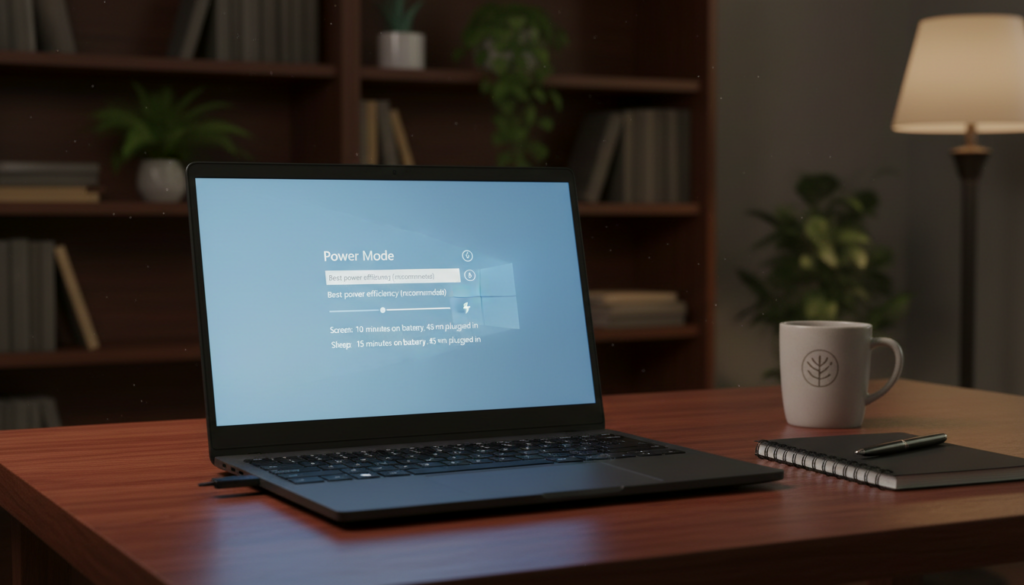
Quick mode vs deep options: use the quick mode slider when you need an instant change. Use Control Panel settings to tune longer-term behavior.
Switch Power mode in Windows 11
Open Power, sleep and battery settings, then choose Power mode. Select Best power efficiency for long unplugged sessions. Move toward performance only for demanding tasks like editing or gaming.
Adjust Power mode in Windows 10
Click the taskbar battery icon. Drag the slider toward Best battery life for quick savings. This is the fastest way to change behavior without diving into menus.
Open Control Panel power options
Search for Power Options to pick or create deeper settings. Choose a profile, select Change plan settings, then Change advanced power settings to cap processor state and tune display and sleep timers.
| Control | Use | Typical change |
|---|---|---|
| Quick mode | Taskbar or Settings | Slider for efficiency vs performance |
| Power Options | Control Panel | Custom timers and processor caps |
| Custom plans | Create & name | Task-based profiles for dayparts |
“Name profiles by use — Morning, Travel, Edit — so switching is fast and obvious.”
Optimize Screen, Sleep, and Display Settings for Maximum Efficiency
Tuning display and idle timers often gives the fastest return when you need more unplugged time. Small changes to screen and sleep behavior cut large drains with little impact on usability.
Set aggressive screen-off and sleep timers on battery power
Open Settings → System → Power & Battery → Screen and sleep and shorten the timeouts for On battery. Aim for quick screen-off (30–60 seconds) and short sleep for idle sessions. Shorter timers stop long “idle but awake” drain during meetings or calls.
Lower brightness and enable dimming
Lower the brightness first; reduce by 20–40% and test legibility. Turn on adaptive dimming so the display reduces output on inactivity. These are low-effort wins that extend runtime.
Reduce refresh rate to 60 Hz when unplugged
Change Display → Advanced display settings and set the refresh rate to 60 Hz for unplugged use. You may notice less smooth motion in games, but office work and web browsing often feel the same and can save significant energy.
Use quick standby habits
Get into the habit of using desktop sleep commands (Alt+F4 on the desktop) or closing the lid for short breaks. These quick standby steps prevent the screen from staying on and help extend battery life estimates in reports.
“Short timers and mindful standby give the highest impact for the least hassle.”
| Setting | Suggested value | Why it helps |
|---|---|---|
| Screen off (on battery) | 30–60 seconds | Stops idle drain during short pauses |
| Sleep (on battery) | 2–5 minutes | Reduces long awake periods and saves runtime |
| Brightness | -20% to -40% | Large reduction in display energy use |
| Refresh rate | 60 Hz (unplugged) | Lower rendering cost for longer sessions |
Reduce Background Activity and App Power Usage Without Slowing Down Your System
Small, targeted limits on background activity can buy hours without slowing daily work. Start with data: open Settings → System → Power & Battery → Battery usage per app to find heavy hitters. Use that list to focus effort.
Turn on Energy Saver / Battery Saver
Enable Energy Saver (also called Battery Saver) to cut background tasks and reduce notifications. It typically enables automatically at 20% and turns off when you plug in.
Tip: turn it on manually for long trips to force limits without changing other settings.
Lower screen brightness while Saver is active
In Settings → System → Power & Battery → Energy Saver, enable Lower screen brightness while in Battery Saver. This compounds earlier display tweaks for big gains with almost no effort.
Use Efficiency mode for CPU-hungry apps
Open Task Manager (Ctrl+Shift+Esc), find a heavy process, right-click and choose Efficiency mode. That reduces CPU use for specific apps without uninstalling them.
Dark mode and network habits
Switch to dark mode (Settings → Personalization → Colors → Dark) where practical to cut display draw. Also limit cloud sync, pause large downloads, and avoid poor Wi‑Fi which spikes network energy use.
“Limit apps selectively, then test — the best gains come from targeted changes.”
Validate Results and Fine-Tune Your Power Settings Over Time
Validate each tweak by collecting new usage data and comparing it to earlier snapshots. Run a fresh report after any meaningful change and save the file with a date so you build a timeline of results.
Re-run the battery report and compare
Open a command prompt and run powercfg /batteryreport again to capture new estimates and discharge patterns.
Move or rename the HTML file to something like battery-report-2026-01-15.html. That keeps historic information so you can compare before and after.
Use Energy Recommendations for faster wins
On compatible systems, go to Settings → System → Power & Battery → Energy Recommendations. Use the Apply links to enable high-impact toggles quickly.
“Test, save, and repeat — small iterations beat sweeping changes.”
Here is a simple validation routine you can follow:
- Apply a set of changes (mode, display, background limits).
- Run a new report and archive it with the date.
- Compare battery life estimates, discharge curves, and standby drain.
- Tweak advanced options in Control Panel → Power Options if needed, then re-test.
| Step | Action | What to look for |
|---|---|---|
| Snapshot | Run powercfg /batteryreport and save | Battery life estimate and recent usage timeline |
| Short test | Apply energy mode, set 60 Hz, enable saver | Fewer steep discharge segments and lower idle drain |
| Refine | Open Control Panel → Power Options → Change advanced settings | Tune sleep timers and CPU limits for balance |
| Iterate | Repeat tests and keep dated files | Track improvements and rollback if needed |
Practical example: set Best efficiency on battery, lower refresh to 60 Hz, enable Energy Saver, then run a report the next day to confirm improved battery life estimates. If sleep feels too aggressive, loosen it slightly and re-measure rather than abandoning the changes.
Conclusion
, Close with a simple workflow you can repeat anytime to protect your unplugged time.
Measure first: run a dated report and check per‑app usage. Then apply the highest‑impact settings for screen, sleep, and background limits.
Big wins are lower brightness, a 60 Hz display rate, shorter sleep timers, and using Energy Saver and Efficiency mode for hungry apps.
Remember platform differences: the battery icon slider in Windows 10 and the Power mode selector in Windows 11 are quick controls. Use Control Panel options on either OS for deeper tuning.
Pick one profile for “unplugged work,” apply these settings today, and re‑run the report tomorrow to confirm improved life.