Why Video Editing Drains Laptop Batteries Quickly
Understand the impact of video editing on your laptop's battery life. Get practical advice on preserving your video editing battery.
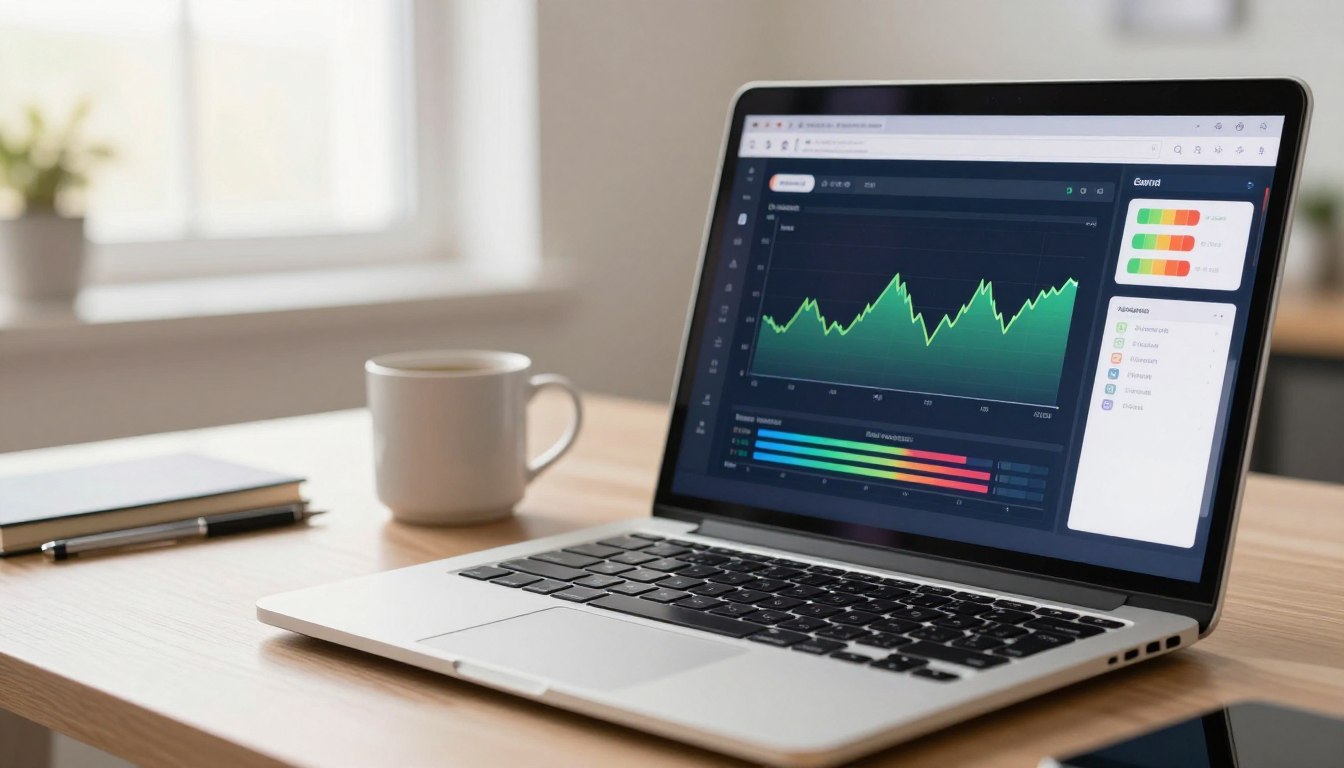
This piece explains a common problem for creators on the go. Many all-day claims are based on local playback tests, not sustained workloads. Real projects keep the CPU, GPU, and storage active and that taxes power systems.
In practice, a drained pack looks like a fast drop in percent, extra warmth, and occasional throttling to protect components. That can cut usable hours and force unexpected shutdowns during exports.
This guide is for students finishing class projects, creators making short clips, and editors using Premiere Pro or similar apps while traveling in the United States. The goal is simple: waste less power, protect long-term life, and stretch usable time away from an outlet.
We will first identify what draws current, then explain why this work differs from casual use, link drain to hardware and features, and finish with practical steps you can apply today for a more predictable session.
Key Takeaways
- Manufacturer claims often use light playback tests, not sustained loads.
- Sustained CPU/GPU use and active storage drive down battery life fast.
- Signs include rapid percent drop, heat, and performance throttling.
- Practical tweaks can add hours and reduce mid-export shutdowns.
- This guide focuses on real-world tips for creators and students in the U.S.
What’s Really Draining Your Battery Life During Video Editing
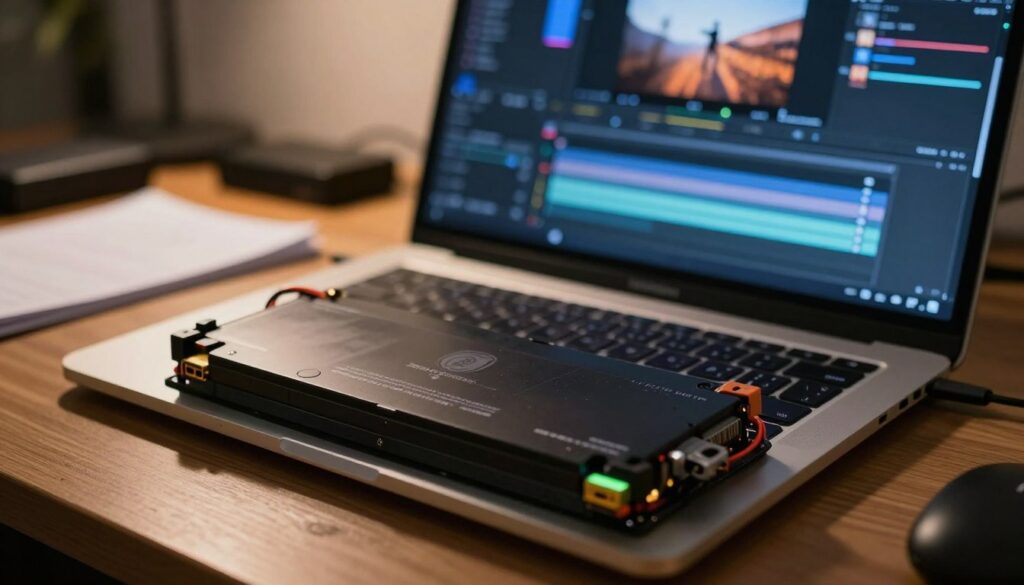
Multiple systems stay active at once, so power disappears faster than a simple playback test suggests. Heavy timelines, background services, and high-res footage keep the CPU, GPU, RAM, and storage working for hours.
CPU load and background tasks
Decoding compressed codecs, rendering previews, and running stabilizers push the cpu into sustained high usage. Cloud sync, open browser tabs, and antivirus scans add sudden spikes that cut session time.
GPU work and high-resolution footage
Effects like color grading, blur, and noise reduction move work to the GPU. Higher resolution means more watts used for the same timeline.
RAM, storage, and multitasking
Low RAM forces swapping to disk, which raises SSD reads/writes and hurts performance. Scrubbing, waveform generation, and proxy creation keep fast storage busy throughout a session.
| Component | Common Cause | Effect | Quick Tip |
|---|---|---|---|
| CPU | Decoding, previews, transforms | High power draw, heat | Lower preview quality |
| GPU | Color, scaling, motion effects | Increased watts, reduced run time | Use software proxies |
| RAM / Storage | Swapping, cache writes | Slower performance, extra SSD usage | Close unused apps, add RAM |
| Display | High brightness, 120Hz, HDR | Steady power drain | Reduce refresh rate and brightness |
Video Editing Battery Basics: Why Editing Apps Drain Faster Than “Normal” Use
Pro timeline work forces a laptop into steady, high-power states that simple web browsing never reaches. Professional apps change how the system behaves: they keep decoders, GPUs, and disk caches active for long stretches.
How Premiere Pro and similar software shift performance
Tools like Premiere Pro and DaVinci Resolve mark assets as active. That drives continuous decoding, caching, and GPU acceleration even when you are only scrubbing. The result is steady watt draw instead of short bursts.
Why rendering and exporting pull sustained power
Exporting holds CPU and GPU at elevated utilization for minutes or hours. Unlike writing or browsing, there are no idle gaps. Render and compression loops keep fans and cores busy until the job finishes.
https://www.youtube.com/watch?v=fo1yjjtfbNE
Real-world benchmark: an After Effects → Media Encoder run
Example result: on an M1/16GB MacBook Pro a combined After Effects → Adobe Media Encoder render took 12’13”. The charge fell from 81% to 74%—a 7 point drop.
Scaled up, that implies roughly ~2 hours 53 minutes of similar sustained work on a full charge. This shows even efficient machines can drop under about 3 hours for heavy creative usage, depending on effects, codecs, and resolution.
| Task | Observed impact | Estimated run time | Quick action |
|---|---|---|---|
| Timeline scrubbing | Continuous decoding, cache writes | Minutes to hours | Use proxies, lower preview |
| Export / render | Sustained CPU/GPU use | Often under 3 hours for heavy jobs | Batch overnight, plug in |
| Effects-heavy grading | More GPU load, longer runs | Varies with complexity | Pre-render or simplify passes |
How Your Laptop Hardware and Features Affect Video Editing Battery Today
Not all laptops are built the same—your hardware and chosen features decide how long a real session lasts.
Processor and performance class
A modern multi-core cpu finishes exports and effects faster. That shortens total run time but raises instantaneous draw. In practice, heavy multicore work can shave hours off casual claims.
RAM recommendations
ram matters. Aim for at least 16GB to avoid swapping to disk. Less RAM creates stalls that prolong jobs and waste energy.
SSD capacity and speed
Pick fast storage. 512GB is a realistic minimum; 1TB is safer. Extra room for caches, previews, and proxies speeds work and reduces constant disk activity.
Display and AI features
120Hz and OLED/HDR improve accuracy and smoothness but increase power draw at high brightness. NPUs and on-chip AI can move tasks like noise removal and auto-captioning to efficient silicon, cutting time-to-result.
Portability and platform notes
“All-day” claims usually reflect light playback tests. On Windows and other platforms, power modes, GPU switching, and software tuning alter real results. Match specs to your workload for a better experience.
| Component | Recommended | Why it helps | Impact on sessions |
|---|---|---|---|
| CPU | Modern multi-core | Faster exports, higher draw | Shorter run time, higher watts |
| RAM | 16GB+ | Less swapping, steady performance | Lower wasted power, fewer stalls |
| Storage | 512GB–1TB SSD | Room for cache and proxies | Smoother workflow, less disk thrash |
| Display / AI | 120Hz / OLED / NPU | Better precision; efficient AI offload | Improved output; variable power use |
How to Preserve Battery Life While Video Editing on a Laptop
Treat mobile post-production like a short production day: plan tasks, offload media, and rotate gear to keep work moving without surprise shutdowns.
Optimize project settings for efficient results
Match sequence settings to final deliverables and avoid high-bitrate intermediates unless needed. Use efficient codecs for proxies and disable automatic re-renders that trigger frequent heavy workloads.
Smarter preview strategies
Lower playback resolution and enable proxies in Premiere Pro or your preferred software to cut CPU/GPU load. Toggle full-quality only for critical frames or final checks.
Manage exporting and compression
Batch renders and use queue tools like Media Encoder to run long exports while plugged in. Avoid repeated re-encodes — each pass keeps cores and fans at high draw for extended hours.
Control display and background apps
Lower brightness, drop refresh rate from 120Hz when possible, and use standard color/HDR only when required. Close nonessential apps and pause cloud sync during heavy exports.
Improve storage workflow and mobile planning
Keep free space on internal drives to prevent cache thrash. Move large footage to fast external storage to reduce constant reads/writes. Clear device storage before a shoot; for example, an iPhone records about 1 hour 25 minutes of 4K/30fps on 32GB, ~6 hours on 128GB, and ~12 hours on 256GB.
| Step | Action | Benefit |
|---|---|---|
| Project settings | Match sequence, use proxy codecs | Lower sustained power use |
| Preview | Lower resolution, adaptive previews | Faster feedback, less strain |
| Export | Batch queue, avoid re-encodes | Fewer high-power hours |
| Display & apps | Dim screen, close apps, pause sync | Reduced constant drain |
| Storage & gear | Offload footage, carry external drives and chargers | Stable performance, longer sessions |
These steps extend usable hours, protect long-term life, and improve the editing experience. Try a few changes and let know which produce the best results in your workflow.
Conclusion
Conclusion
Real-world creative sessions drain a laptop faster because they keep cores, GPU, and drives active without the idle gaps that light tests use.
At the root, sustained workloads force constant use of CPU, GPU, display, and storage. That shortens battery life and cuts predictable hours away from outlets.
Practical gains come from choices, not only specs. Use proxies and lower preview resolution, close background apps, batch exports, and dim the display for quick wins. Those steps often beat chasing raw hardware alone.
Plan pro sessions around charging, carry portable power and external storage, and expect software and AI features to keep improving workflows and total time to finish content.