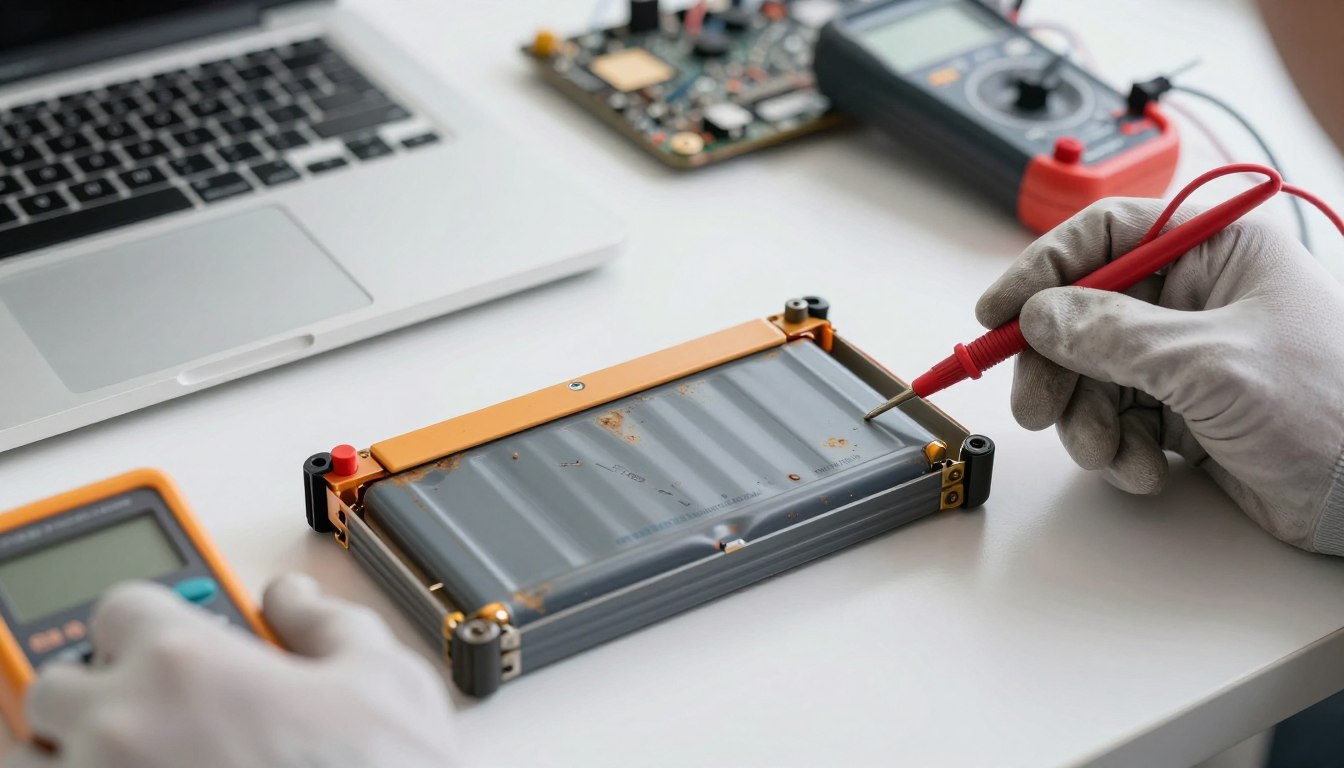
Does Using a Laptop While Charging Increase Battery Wear
Learn the truth about using laptop while charging and its impact on battery life. Discover the best practices for maintaining your laptop's battery health.
Does keeping a portable computer plugged in speed battery wear? This is a common question for students, professionals, and gamers who rely on a device every day.
The short answer is: modern systems handle power routing so the adapter often supplies energy directly, and built-in management prevents typical harm under normal conditions.
Battery wear here means long-term capacity loss, not immediate failure. Two factors matter most: how power flows when connected and how heat affects cell health.
We will debunk myths like “overcharging” and show how modern management changes the picture compared with older devices. This guide targets readers in the United States who use a computer daily for work, school, streaming, gaming, or creative tasks.
Expect practical outcomes: safe charging habits, performance trade-offs, and simple Windows settings that can extend battery life without needless sacrifices. The tone stays neutral and evidence-based, focusing on system behavior and real steps users can take today.
Key Takeaways
- Modern designs often draw power from the AC adapter and limit stress on the battery.
- Long-term capacity loss, not instant damage, is the main concern.
- Heat and power routing are the two key factors that affect battery life.
- “Overcharging” is mostly a myth on current devices with smart management.
- Readers will get clear, practical tips and relevant Windows settings to reduce wear.
What Happens Inside Your Laptop When It’s Plugged In
Connecting the power adapter alters how energy moves through the system and how the battery is topped up. Modern designs route wall power so the adapter runs the computer and replenishes the cells at the same time.
How the AC adapter powers the system and charges the battery
The adapter supplies most of the power needed for the CPU, display, and fans. At the same time, a charging circuit directs current into the battery. This parallel setup means the battery does not have to drive the system when the adapter is present.
Why charging can feel slower during heavy tasks
When you play games, run video calls, or multitask, the system draws more energy. The charger may prioritize immediate power to components, so the battery fills more slowly. In some cases the percentage can plateau, or dip briefly, depending on load and adapter wattage.
Why a little warmth during charging is normal
Mild heat is a normal sign that electrical parts and cells are working. Normal warmth feels warm to the touch and fades after a short period. Problematic overheating is very hot surfaces, throttled performance, or repeated shutdowns.
| Condition | Adapter role | Battery behavior | Heat level | Charge time effect |
|---|---|---|---|---|
| Idle, plugged in | Runs system | Charges steadily | Low | Fast |
| Heavy load | Powers components first | Charges slowly or plateaus | Moderate | Slower |
| High performance profile | Max output | May not gain percent | Higher | May dip |
In short, the key to battery wear is not merely being plugged in but the conditions over time—especially temperature and how long the battery stays at full. When you use laptop charging for sustained heavy tasks, expect slower percent gains. This prepares you for the next section on how those conditions relate to battery wear.
Does using laptop while charging actually wear the battery faster
Everyday habits shape battery wear more than the mere act of being plugged in. To decide what affects battery life, look at two things: charge cycles and temperature. That gives a practical view of long-term health.
Battery wear basics: charge cycles vs. staying plugged in
Battery wear means capacity fade and higher internal resistance. Over time a battery holds less charge and runtime falls.
A charge cycle counts when you use roughly 100% of capacity, but not necessarily in one go. Occasional top-ups do not equal full cycles. Deep drains and full recharges accelerate cycle consumption and reduce long-term laptop battery life.
Why heat is the real battery life killer over time
High temperatures speed chemical aging. Heavy tasks—gaming, video export, or many browser tabs—raise CPU/GPU heat and can cause overheating more often than steady plug-in time.
Heat raises internal resistance and shortens life. Performance may throttle under sustained heat, and batteries age faster even if the device still works today.
How keeping a laptop at 100% for long laptop plugged time can affect long-term health
Holding cells at full state-of-charge for extended laptop plugged time increases stress. It does not cause instant failure, but it can speed capacity loss over months.
For most daily users the risk is small if temperatures stay moderate. Best practice: avoid extremes—deep discharges, constant 100% charge, and prolonged overheating—to protect battery health and performance.
| Factor | How it affects batteries | Practical tip |
|---|---|---|
| Charge cycles | Each full cycle reduces capacity slightly | Top up often; avoid full 0→100 cycles |
| High temperature | Speeds chemical aging and resistance rise | Use cooling pads; ensure vents clear |
| Constant 100% | Increases stress and long-term capacity loss | Enable limit-charge features or unplug occasionally |
Overcharging Myths and Modern Battery Management Systems
Modern battery and power controllers are built to prevent uncontrolled topping. These devices monitor voltage, temperature, and state-of-charge and adjust current as the cells near full.
How modern lithium-ion and lithium-polymer batteries stop charging at full
When a cell reaches its set voltage, the control logic stops active charging. The system then tapers input or routes adapter power to run the system instead of the cell.
Why older generations earned the overcharge reputation
Early chemistries and weak protection circuits could allow excess voltage, which led to swelling or faster wear. Today’s management systems prevent that kind of damage.
“Battery controllers cut or taper input before cells absorb harmful over-voltage.”
- Users may see small percent drops and quick re-tops; this is normal.
- Always-plugged-in setups are usually safe electrically, but heat and high state-of-charge matter for long-term wear.
- Modern designs expect frequent AC use, so daily plugged operation is a normal case for most laptops.
| Aspect | Modern systems | Older generation |
|---|---|---|
| Charge control | Stops/tapers at full | Limited cutoff |
| Temperature monitoring | Active thermal limits | Minimal sensing |
| Risk of damage | Low with normal use | Higher under constant topping |
Using a Laptop While Charging for Gaming, Editing, and Design Work
High-demand tasks like gaming and video exports reveal how a system balances power, heat, and performance. Plugged-in operation often lifts power limits so CPUs and GPUs can sustain higher clocks. That yields smoother gameplay and faster render times.

Why performance is often better when plugged in
AC power lets firmware raise sustained wattage and remove aggressive battery-saving caps. This reduces throttling and keeps FPS or render throughput steady.
Gaming on battery vs. plugged in: FPS, power limits, and heat
On battery, systems often cut peak power to extend runtime. Expect lower FPS, occasional stutter, and tighter thermal headroom. Plugged-in play gives higher frame rates but can make the chassis hotter.
Video editing and creative applications: managing power and temperature
Editing, design, and 3D software like Premiere Pro, DaVinci Resolve, Photoshop, or Blender benefit from full power during exports and previews. Those tasks spike CPU/GPU use and raise temperatures, so cooling matters as much as raw power.
Practical tips:
- Place the device on a hard surface and keep vents clear.
- Use a quality charger with correct wattage for sustained heavy tasks.
- Consider a cooling pad for long gaming or editing sessions.
| Task | Typical effect on performance | Thermal note |
|---|---|---|
| Gaming | Higher FPS when plugged in | Fans ramp; chassis warmer |
| Video export | Faster renders on AC power | Long sustained heat |
| Design & 3D | Better viewport and previews | GPU/CPU both taxed |
How to Use Laptop Charging Safely
Simple gear choices and airflow make a big difference for safe use laptop practices. Follow a few proven steps to reduce damage and overheating risk, especially during heavy work or play.
Choose the right charger and adapter
Use the original charger or a verified replacement with the same voltage and wattage. A correct charger reduces instability and the chance of slow fills, excess heat at the brick, or sudden shutdowns under load.
Avoid counterfeit or uncertified power bricks. In the United States, prefer UL-listed chargers and certified sellers to limit electrical hazards and device damage.
Prevent overheating with good ventilation
Place the device on a hard, flat surface to keep intake and exhaust vents clear. Soft surfaces such as beds or couches block airflow and trap heat.
For long, high-power sessions, add a cooling pad and ensure room vents are unobstructed. Good ventilation lowers internal temperatures and extends battery life.
Watch for warning signs and act quickly
Normal warmth is noticeable but not painful. The charger brick should never feel scalding to the touch.
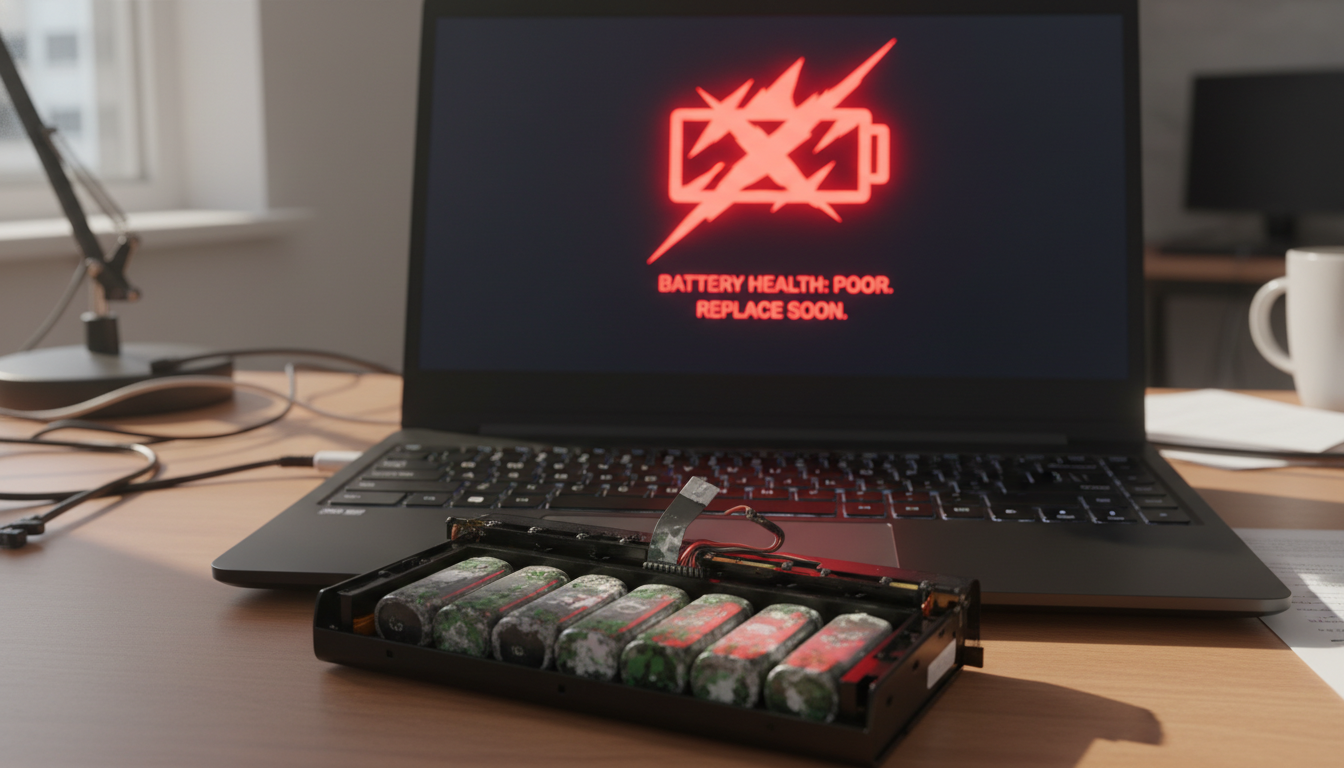
Stop use and unplug immediately if you notice swelling, warped chassis, burning smells, or erratic charge behavior. Let the device cool and contact the manufacturer or a reputable repair shop.
Extra tips for safe use: use a surge protector for added safety, and confirm adapter ratings match device specs before plugging in.
| Risk | Sign | Immediate action |
|---|---|---|
| Wrong adapter | Slow charge, hot brick | Switch to correct charger |
| Overheating | Very hot chassis, throttling | Move to hard surface; cool down |
| Battery fault | Swelling, erratic percent | Unplug; seek repair |
Best Charging Habits to Protect Laptop Battery Life
A steady, moderate charge routine beats extremes for long-term battery health. Follow simple habits that reduce stress at very high or very low charge levels.
A practical charge range strategy to reduce wear
Aim to charge from about 20–30% up to roughly 80–90%. This mid-range reduces chemical stress at the top and bottom ends of the cell curve.
When it makes sense to unplug and run on battery
Unplug for short meetings, quick errands, or light tasks at home. Letting the battery cycle a bit prevents it from sitting at 100% all day.
How to avoid deep discharges that stress batteries
Set low-battery alerts and automatic sleep at 10–15% to avoid deep drains. Frequent full 0→100 cycles accelerate wear more than modest daily use.
Time-based routine: if docked most of the day, let the battery drift into mid-range once every few days instead of holding 100% constantly.
| Habit | Why it helps | Quick action |
|---|---|---|
| Keep charge 20–90% | Reduces high/low stress | Unplug near 80–90%; plug in below 30% |
| Enable low-battery alerts | Prevents deep discharge | Set sleep/hibernate at 10–15% |
| Monitor temperature | Heat speeds aging | Use hard surfaces, cooling pads |
Tip: Consistency and temperature control matter more than perfection. Good habits extend laptop battery life, reduce surprises, and keep runtime steady over time.
Windows and System Settings That Improve Battery Life Without Sacrificing Performance
Small system tweaks in Windows can cut power draw significantly without costing real-world performance. These edits let students and professionals get more runtime for work, travel, or class days.
Choose the right Power & Battery mode
Select Best power efficiency for long flights or exam days, Balanced for mixed tasks, and Best performance when you need full speed. Each profile changes CPU limits, screen behavior, and background activity to match the scenario.
Battery Saver and background app management
Battery Saver cuts nonessential background tasks and sync activity. Turn it on automatically below a chosen percent to stretch life during long days.
Review background apps and startup items. Disable heavy auto-start programs and pause constant sync tools when on battery.
Display, graphics, and storage tips
Lower brightness and match refresh rate to the task to reduce draw. Use per-app GPU preferences for demanding apps to balance speed and efficiency.
SSDs finish reads and writes faster and draw less sustained power than HDDs. In practice, an SSD helps battery life by shortening active disk time.
Updates, firmware, and radios
Keep Windows and BIOS/firmware current. Updates often improve power management, fix sleep issues, and refine fan curves.
Turn off Wi‑Fi and Bluetooth when not needed for offline work or video to remove constant radio scans and save extra minutes or hours of life.
| Setting | When to use | Effect |
|---|---|---|
| Best power efficiency | Travel, long meetings | Lower draw, longer runtime |
| Battery Saver | Low percent, urgent need | Reduces background and sync |
| SSD vs. HDD impact on efficiency | Storage choice | SSDs are faster, often more efficient |
Tip: Small changes across profiles, background apps, display, and radios add up. Use an efficiency mindset to keep performance when you need it and extend battery life the rest of the day.
Conclusion
For most users, plugged operation is safe on modern devices. Smart power managers prevent true overcharge, so the main long-term risks are heat and leaving the battery at full state for long periods.
Keep it simple: plug in for heavy tasks and unplug for light work now and then. Maintain good ventilation, use the correct charger for your laptop, and enable Windows power settings that match your routine.
If you notice swelling, extreme heat, or erratic charge behavior, stop use and have the battery or charger inspected. Good habits protect battery health over time without constant monitoring.