USB-C Laptop Charging: What Affects Battery Wear
Understand how usb c laptop charging affects your laptop's battery wear. Get expert advice on maintaining your battery's health.
Battery wear means a gradual loss of capacity over months and years, not sudden failure. In practice that shows as shorter run times and slower recharge, mostly driven by heat and long periods at high state of charge.
People search for USB-C laptop charging advice because chargers and cables look alike while wattage and behavior vary. Many worry that a different plug or lead might harm their battery or the device.
This short guide, aimed at U.S. readers, explains how the port and power delivery work, how to confirm support, and what daily habits cut wear. Key factors include power negotiation, charger wattage, cable capability, device draw, temperature, and topping off often.
Start safe by using the bundled adapter or the maker’s recommended gear, then learn to pick compatible alternatives. Understanding the limits of this common modern technology clears up a lot of confusion.
Key Takeaways
- Battery wear is gradual and tied to heat and time at high charge.
- Identical-looking chargers can offer different wattage and behavior.
- Confirm your device supports the port before swapping adapters.
- Watch temperature and avoid constant top-offs to reduce wear.
- Use manufacturer-recommended equipment as your safest option.
Why USB-C charging is now common on laptops in the United States
Modern notebooks now favor a single, flexible connector that handles power, video, and fast file movement.
What one port can do
What a usb-c port can do beyond charging: data, display, and device power
The usb-c port supports multiple protocols: USB 3.x, USB4, Thunderbolt, and DisplayPort over the same plug.
That lets the same socket manage high-speed data and video output while also carrying power in and out to other devices.
Practical result: one cable can feed a monitor, move large files, and top up your smartphone or tablet.
Which laptops most often use this connector vs. higher‑watt adapters
Ultraportables, 2‑in‑1s, Chromebooks, and business thin‑and‑lights tend to rely on usb-c for daily power and data transfer.
By contrast, gaming rigs and mobile workstations often require higher wattage and keep dedicated adapters.
- Presence of ports does not always mean full power support—check specs.
- Know your device class and use case to decide if usb-c will be primary or backup power.
How usb c laptop charging works with USB Power Delivery
Power Delivery is a negotiation protocol that lets an adapter and device agree on voltage and current before any energy flows.
Negotiated profiles mean the charger lists supported voltages and currents, the device requests what it needs, and the adapter sets a regulated output. This prevents simple “dumb” adapters from overstressing batteries.
How output, watts and cables affect real charging
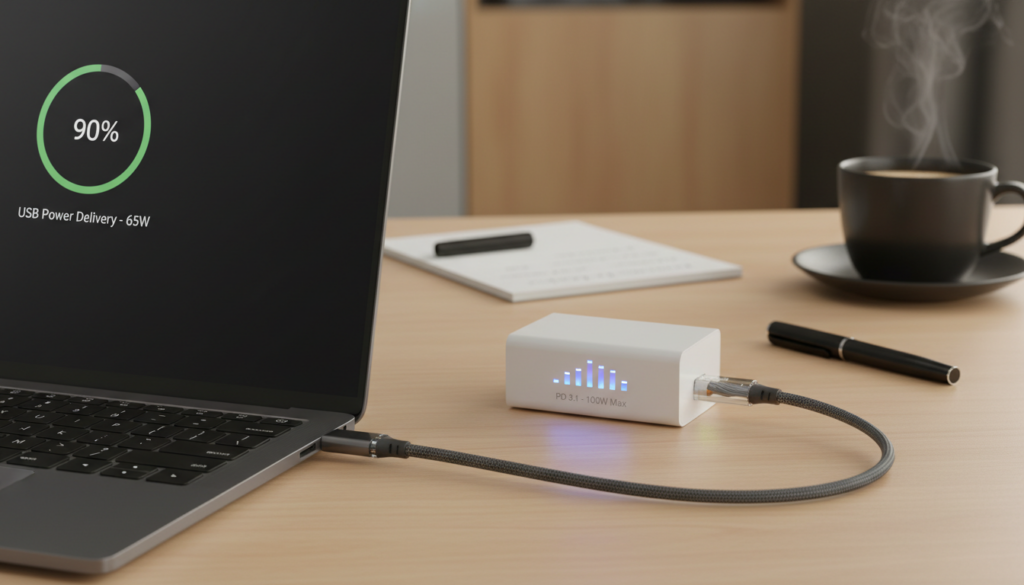
Wattage equals voltage × current, so a 65W adapter can reach that figure via different voltage/current combinations.
Cable capability matters: some cables and connectors only support lower levels, so a high‑watt adapter may be limited by the cable. That is why usb-c cables rated for higher power are needed for full delivery.
What “up to 100 watts” means today
Many power adapters advertise “up to 100 watts.” For most everyday systems, that is enough to run and top the battery. But heavy workloads can demand more than 100 watts, so the device may draw power from the battery while plugged in.
| Item | Common rating | Practical note |
|---|---|---|
| Standard adapters | 45–65 watts | Good for ultraportables; keeps heat and wear lower |
| Many usb-c power adapters | 65–100 watts | Balanced for mainstream notebooks; often the default choice |
| Extended PD (2021) | up to 240 watts | Needs compatible adapter and cable; not yet widely used |
User takeaway: Power Delivery makes mixing adapters safer, but real speed depends on negotiation, the rated output, and whether the cable and device support the chosen profile.
Confirming your laptop supports charging over USB-C ports
Quick checks make sure a given port will actually accept power. Look for a bundled USB‑C charger in the box first. A factory-supplied adapter is the clearest sign the maker expects that connector to be used for mains power.
- Verify the in-box adapter type — is it a USB‑C charger or a barrel-style adapter?
- Read the spec sheet or owner manual for which port is the primary charging port.
- Inspect port icons: a battery or lightning mark usually means that connector can be used to charge.
Why ports can be confusing
Two identical connectors may differ internally. One port might handle data and video only, while another supports power negotiation and recharging.
Common exceptions and practical questions
High-power gaming systems and mobile workstations often need dedicated high-watt adapters and won’t be fully powered via the small connector under heavy load.
Before buying a new charger, ask: “Which exact port charges?” and “What wattage does the device expect?” When in doubt, consult official support — it is the fastest way to avoid a non-charging scenario.
What affects battery wear during USB-C charging
Battery wear is driven mostly by heat and how long a cell stays near full, not the plug shape. Managing temperature and charging behavior matters more than the connection you use.
Heat and charging rate: why temperature matters
Faster charging raises internal temperature. A warm battery ages faster over years than one kept cool.
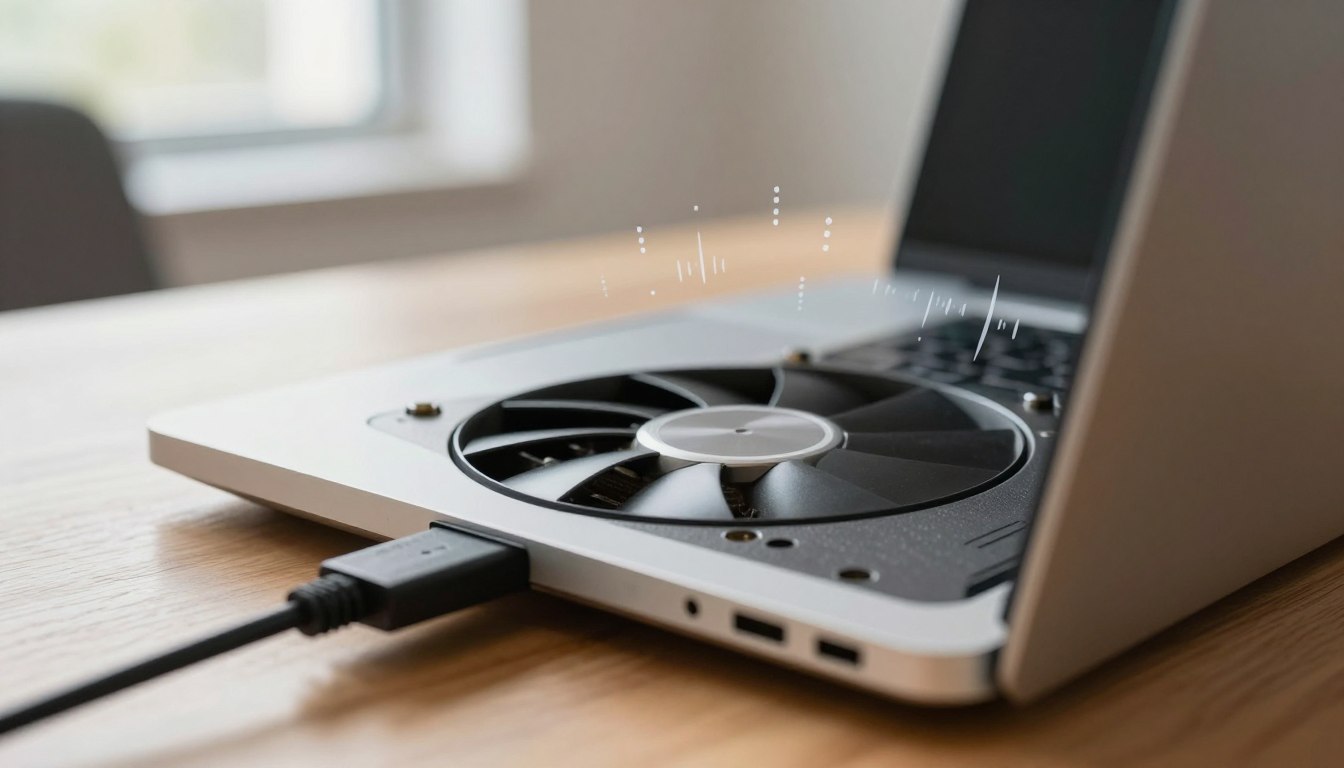
Practical tip: keep vents clear and avoid charging on soft surfaces that trap heat.
When a charger can’t keep up with system demand
If system power needs exceed charger output, the device draws from the battery while plugged in. You may see slow charge, steady percentage, or even gradual drain.
This is common during gaming, video editing, or heavy multi-monitor work where watts drawn exceed what a single adapter supplies.
Frequent top-offs and long time at full charge
Constantly keeping the battery at 100%—especially while warm—speeds capacity loss over years.
Use built-in charge limits or set a desk routine of 80–90% for long-term storage to reduce wear.
Power regulation behavior: throttling to protect the cell
Adapters and the laptop may reduce voltage or current to protect components. That looks like inconsistent charging but is intentional protection.
- Match charger watts to your device to avoid extra battery cycling.
- Improve airflow and avoid charging under blankets or on couches.
- Enable battery-care features when available to limit full charge time.
Choosing the right USB-C charger, cable, and connector for your laptop
Choosing the correct power accessory is about wattage, voltage profiles, and a cable that can carry them. Match the adapter’s output and supported PD profiles to what your device lists in the manual. Stable filling depends on correct power level, not just the fact that it plugs in.
Match the charger’s output to needs
A higher-watt adapter can help many mainstream laptops, but only when the system supports drawing that power. Check the required watts and expected voltage ranges before upgrading.
Why some cables limit performance
Not every cable is rated for high power. Low-power cables bottleneck fast fills even with a capable adapter. Choose certified cables meant for laptop use and note the power rating on the package.
Manufacturer-recommended reduces confusion
Start with the bundled charger. If you must buy elsewhere, prefer maker-approved or reputable third-party adapters and a certified cable. Good connectors and solid build cut wobble and port wear.
Safe purchase order: bundled adapter → manufacturer-recommended → reputable PD adapter + certified cable. Avoid no-name bricks with vague ratings.
How to charge a laptop safely with third-party USB-C chargers and other devices
Mixing adapters and devices is common, yet outcomes depend on negotiated power and the source’s limits. Many third-party sources are safe, but their usefulness varies with rated output and the device’s needs.
Using a phone charger or power bank:
When a phone wall brick is used
A phone wall charger may provide some energy, but it usually delivers far less than a full adapter. Expect very slow fills, and often the system will only gain charge while idle or turned off.
Power banks and portable packs
Power banks can help on the road if they support Power Delivery at laptop-appropriate wattage. Small phone-focused packs often top phones well but fail to sustain a notebook under load.
Safety-first checklist for third-party use
- Verify PD support: confirm the adapter or pack lists Power Delivery profiles suitable for your device.
- Check advertised output: match volts and watts to your manual before relying on it.
- Use a quality cable: a certified cable reduces heat and prevents throttling.
- Monitor temperature: stop use if you see heat or system warnings during initial sessions.
Practical compatibility notes and travel tips
Even if a charger claims fast charging, the notebook decides what it will accept. Some brands limit charging to approved adapters and may decline third-party sources entirely.
| Source | Typical outcome | When to rely on it |
|---|---|---|
| Phone wall charger | Slow or no meaningful charge under load | Emergency top-up or while powered off |
| Power bank (PD rated) | Can sustain use if wattage matches need | Yes, if rated for device wattage |
| Known-good adapter | Reliable full-speed charging | Always carry when traveling |
Travel guidance: bring a known-good adapter, a spare cable, and test any backup before you leave. Do not assume public USB-C ports or random bricks will reliably charge your system.
Using USB-C adapters, docks, and hubs without increasing battery wear
Powered docks can simplify desktop setups by combining one mains adapter with a single port on your machine. They route energy and signals so you can plug in displays, storage, and a network with one connection.
Power pass-through explained: how docking stations can deliver charging power and data together
Power pass-through means a dock accepts an external adapter and passes that energy to the device while also handling data and video over the same link.
If the dock offers a usb-c port for input and attaches to a charging-capable port on the laptop, it will carry both power and data transfer. A dongle without a power input cannot do pass-through.
How to avoid bottlenecks: checking hub power input vs. laptop charging requirements
Hubs don’t inherently speed battery wear. Wear is driven by heat and long time at full charge, not the presence of a dock.
Problems occur when a hub’s pass-through output is lower than the device needs. That causes extra battery cycling or slow charge during heavy use.
- Confirm the adapter that powers the dock meets the laptop’s required wattage.
- Check the hub’s maximum pass-through output and match it to the device spec.
- Plug the dock into a verified charging-capable port, not a data-only port.
Best practices: use a rated adapter for the hub, keep the cable short and high quality, and spot-check whether the laptop holds charge under load. If the system slowly discharges, upgrade the adapter or use a direct connection to avoid extra wear.
Conclusion
A single port can be convenient, but the details of negotiation and wattage decide real-world results.
Main takeaway: modern ports are safe for most users when the device supports the port and the adapter and cable match the required power profile.
Battery wear comes from heat, long times at full state of charge, and heavy use with an underpowered source that forces extra cycles. Manage temperature and avoid constant 100% holds to extend life.
Practical steps: confirm which port takes mains, pick an adapter with adequate watts, use a rated cable, and prefer manufacturer-recommended gear when unsure. Test third-party gear at home before travel.
In short, this technology simplifies everyday use. Prioritize stable power delivery and cooler operation to protect long-term battery health.