Why Screen Timeout Settings Matter for Battery Life
Learn how adjusting your screen timeout laptop settings can significantly improve battery life. Discover simple steps to optimize your laptop's power consumption.
What this guide covers: screen timeout laptop refers to the setting that turns your display off after a short idle period. This introduction explains simple, Windows-focused steps you can take to boost daily battery life without losing convenience.
The display is often one of the biggest draws on a device’s battery. Changing display settings directly affects how long your battery lasts between charges. Small tweaks can add meaningful run time while keeping your machine usable.
We cover both quick settings changes and more advanced Windows options. You will learn the difference between the display turning off and the computer going to sleep, so you don’t mix up display off with system sleep behavior.
Key choices include picking a timeout duration for on-battery vs plugged-in use, and balancing convenience with security. Longer time before the display turns off helps visibility but uses more power. Shorter intervals save battery yet can feel disruptive.
Later sections will also help you troubleshoot cases where the display still turns off unexpectedly due to power plans, software conflicts, or workplace restrictions.
Key Takeaways
- Display off settings control a major source of battery drain.
- Simple Windows adjustments can extend run time without major trade-offs.
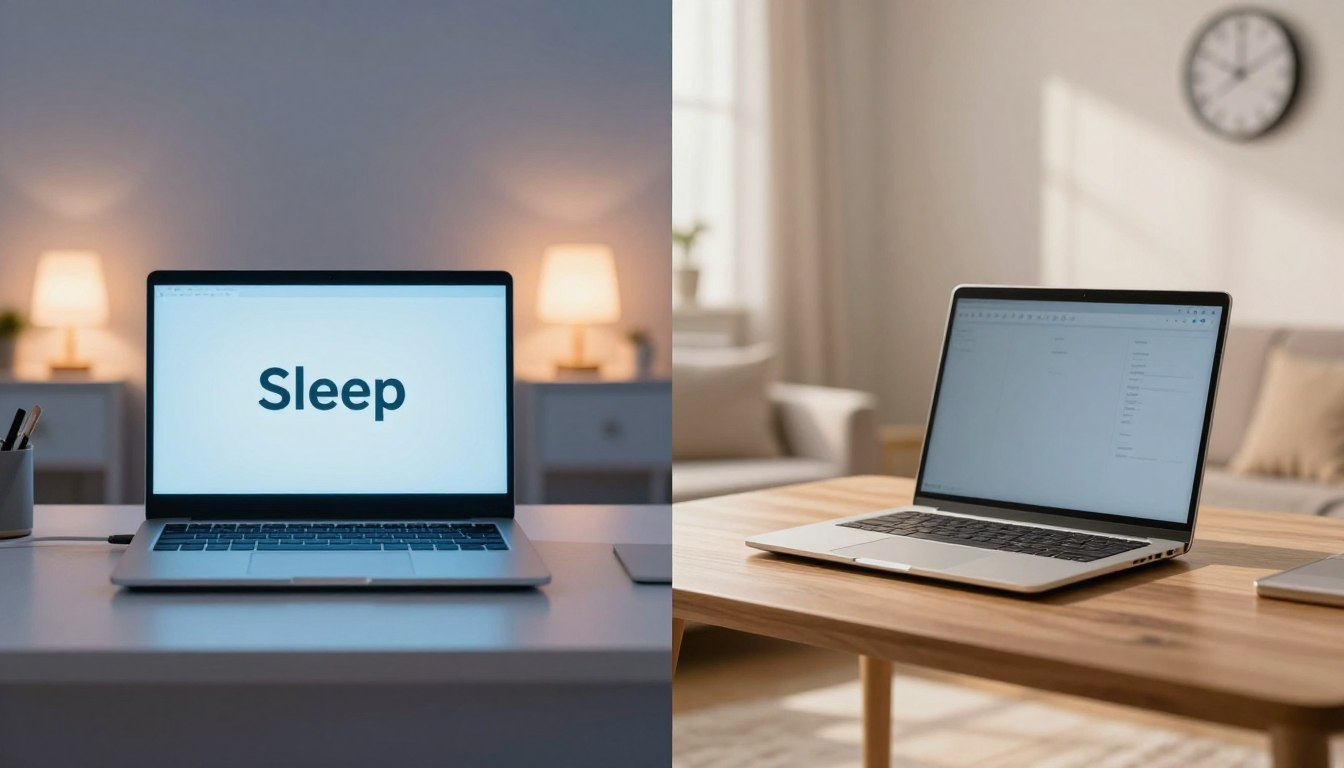
- Know the difference between display off and system sleep to avoid confusion.
- Set separate durations for battery and plugged-in modes for best balance.
- Troubleshoot conflicts like power plans or admin rules if time settings behave oddly.
How Screen Timeout and Screen Sleep Affect Laptop Battery Life
A display that stays lit drains battery far faster than most other parts of your device. The setting that turns the display off after idle time saves energy and can protect data when you step away. The feature is commonly called screen timeout and it acts before other power-saving steps occur.
What inactivity means and what follows
Windows treats inactivity as no keyboard, mouse, or trackpad input. After the set minutes pass, the display turns off first. The system may enter sleep later if that option is enabled.
Why display power draw matters
The display is often a top power consumer. Reducing how long it stays on can add noticeable run time during everyday tasks like reading or email triage.
Choosing a duration that fits your routine
- 5–10 minutes: Good for short breaks and to save power.
- 15–30 minutes: Better for reading or note-taking without frequent wakeups.
- Custom: Set separate values for battery and plugged-in modes via your active power plan in Windows.
Trade-off: Shorter intervals save energy; longer ones reduce interruptions. Also consider security—lock screen or password options when the display turns off.
Best Screen Timeout Laptop Settings for Everyday Use
Balancing visibility and power use starts with sensible display and sleep choices.
On battery vs plugged in: In Windows you can set different display durations for when your device runs on battery and when it is plugged in. For most people, a shorter timeout on battery and a longer one when plugged in hits the right balance.
Practical baseline:
- On battery: set display off at 5–10 minutes and sleep at 15–30 minutes.
- Plugged in: set display off at 15–30 minutes, or use Never for presentations or dashboards.
Pairing with sleep: Use a two-step approach so the display turns off first, then the system enters a deeper power sleep if idle longer. This prevents drain if the device sits in a bag.
Security: Require a password after the display turns off in shared places. That way a dark display does not mean an unlocked session.
| Situation | Display duration | Sleep setting |
|---|---|---|
| Frequent short breaks | 5–10 minutes | 15 minutes |
| Reading or notes | 15–30 minutes | 30 minutes |
| Presentations / dashboards (plugged in) | 30+ minutes or Never | Adjust higher or disable briefly |
Change Screen Timeout Settings in Windows Settings
Changing a few display settings in Windows can add meaningful run time without much hassle.
Open the Start menu and go to Settings. You can also press Win + I to jump straight there.
Use the System power page
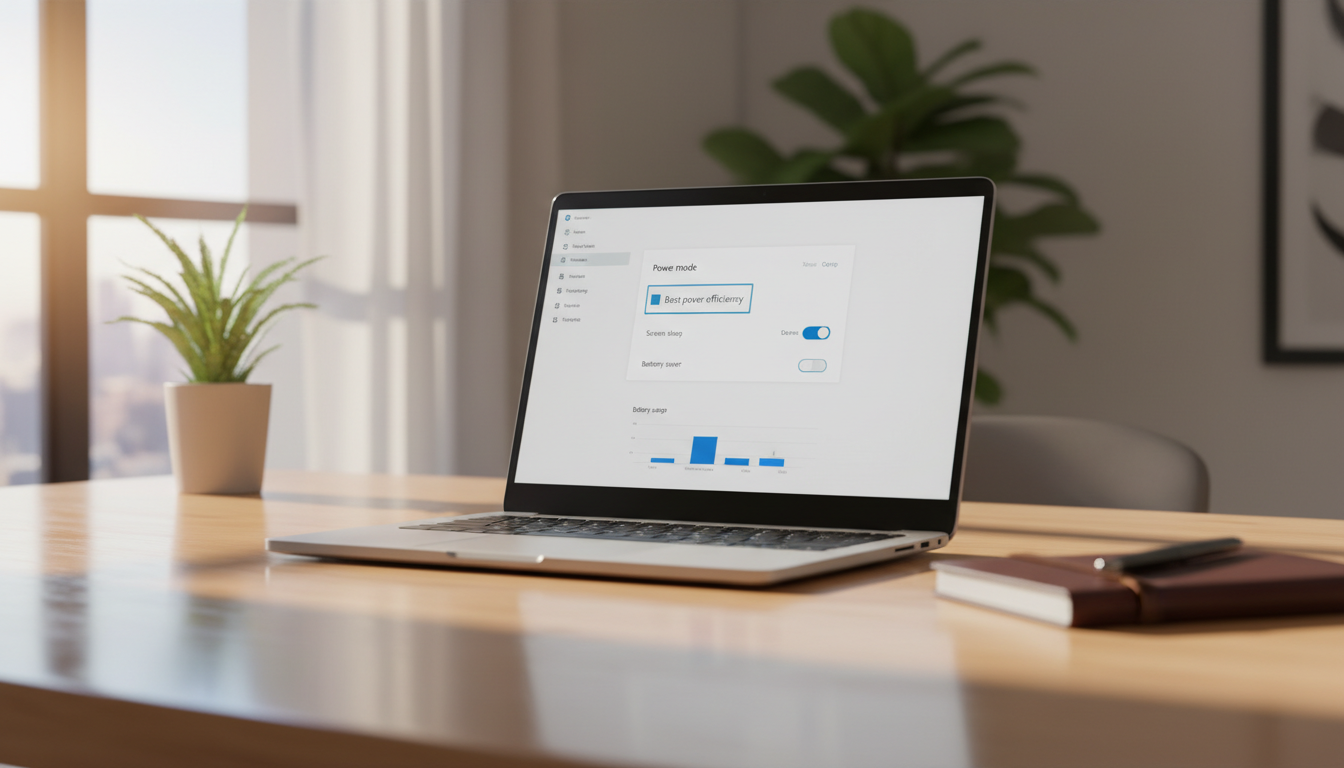
In Settings choose System → Power & Battery (Windows 11) or Power & Sleep on some builds. The page shows Screen and sleep options you can change.
Adjust display and sleep options
Under Screen set values for On battery power and When plugged in. Pick minutes that match your routine. You may choose Never when you need the display to stay on, such as for presentations or dashboards.
Note: Never prevents the display from turning off automatically and can drain the battery if used on battery power. Set a shorter value for battery mode and a longer one when plugged in.
Also review the Sleep options nearby so the system does not sleep before or immediately after the display turns off.
Quick verification: change values, then let the device sit idle for the chosen minutes to confirm behavior. These settings follow the active power plan, so results depend on your current Windows power mode.
| Action | Where to find it | Why it matters |
|---|---|---|
| Open Settings | Start → Settings or Win + I | Quick access to power controls |
| Adjust Display | System → Power & Battery / Power & Sleep | Set separate values for battery and plugged in |
| Set Sleep | Same page under Sleep | Prevents unexpected system suspend |
Advanced Ways to Change Screen Timeout Windows Options
When Settings won’t do the job, deeper tools give control and repeatable results.
Control Panel path: Open Control Panel → Hardware and Sound → Power Options → Change plan settings. Edit the currently selected plan and set “Turn off the display” to your preferred value, then save.
Quick Run shortcut
Press Win + R and enter control.exe powercfg.cpl,,3 to jump to the Power Options area fast. This is handy for admins who need speed.
Command line and PowerShell
Use Command Prompt to set battery minutes: powercfg -change -monitor-timeout-dc X, where X is minutes.
For AC changes run as admin in PowerShell: powercfg -change -monitor-timeout-ac 60 (example sets 60 minutes).
Registry unlock for hidden durations
To reveal extra values in Advanced Power Options edit the key at HKEY_LOCAL_MACHINE\SYSTEM\CurrentControlSet\Control\Power\PowerSettings\7516b95f-f776-4464-8c53-06167f40cc99\8EC4B3A5-6868-48c2-BE75-4F3044BE88A7 and set “Attributes” to 2.
“Create a restore point and export the key before editing; registry changes can alter system behavior.”
Verify changes by idling the device on battery and AC and confirming the display turns off at the intended duration.
When Your Screen Still Times Out: Settings and Power Plan Conflicts
Unexpected blackouts often come from other display controls or an active power plan that overrides your changes. Start with a quick checklist to isolate what is forcing the short duration. Many causes are simple to fix once identified.
Check screensaver and related display options
Screensavers and blanking options can turn the display off independently of your main settings. Open the screensaver menu and set it to None if you want to test behavior.
Also review any third-party display utilities and adaptive dimming features. They may override the minutes you set in the system control panel.
Confirm the active power plan and saved changes
Changing one plan while another is active causes conflicting results. Verify the active plan in Power Options and reapply your desired duration to that plan.
After saving, test by leaving the device idle for the chosen duration. If it still turns off early, export or note the values and try a different plan briefly to compare.
Work-issued devices and policy restrictions
Managed devices often lock display values via MDM or Group Policy. If options are gray or revert, you may need IT approval to change them.
“Document the current behavior, capture screenshots of grayed-out options, and contact internal support with your findings.”
- Check screensaver is set to None and any third-party display tools are disabled.
- Confirm your active power plan and re-save the display duration for both battery and AC.
- Idle the device to verify the change took effect.
- If options are restricted, capture screenshots and send specifics to IT support: battery vs plugged-in values, current plan name, OS version.
| Issue | Likely cause | Quick fix |
|---|---|---|
| Display goes dark early | Screensaver or third-party utility | Disable screensaver, close utilities, retest |
| Changes do not stick | Different active power plan | Select active plan, reapply, and save |
| Options grayed out | Group Policy / MDM restriction | Document settings, contact IT support with screenshots |
If your company enforces short timeouts for security, consider adapting workflows or using a quick lock instead of disabling protections. For persistent issues, reach out to internal support with the documented steps above for faster help.
Conclusion
A few simple adjustments can help your device run hours longer between charges. Pick sensible , practical values for idle time and apply shorter durations when on battery and longer ones when plugged in.
Align sleep with display choices so the system enters deeper power save only after the display has already gone dark. If the built-in Settings panel won’t stick, use Control Panel or powercfg to change and confirm the applied values in Windows.
Keep security in mind when you extend the time before the screen turns off or disable auto-off entirely. Finally, follow this action plan: choose a target time, change the setting, test idle behavior, and troubleshoot conflicts if the device still turns off unexpectedly.