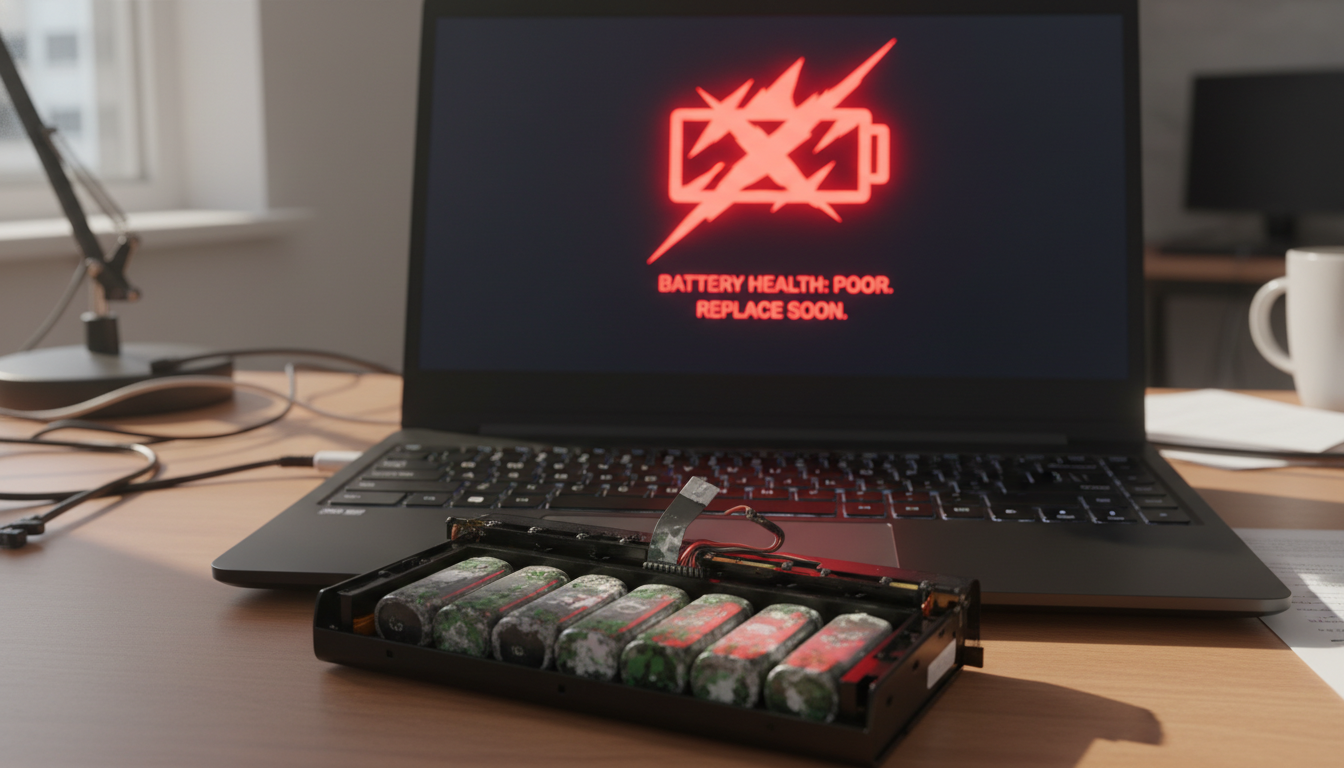
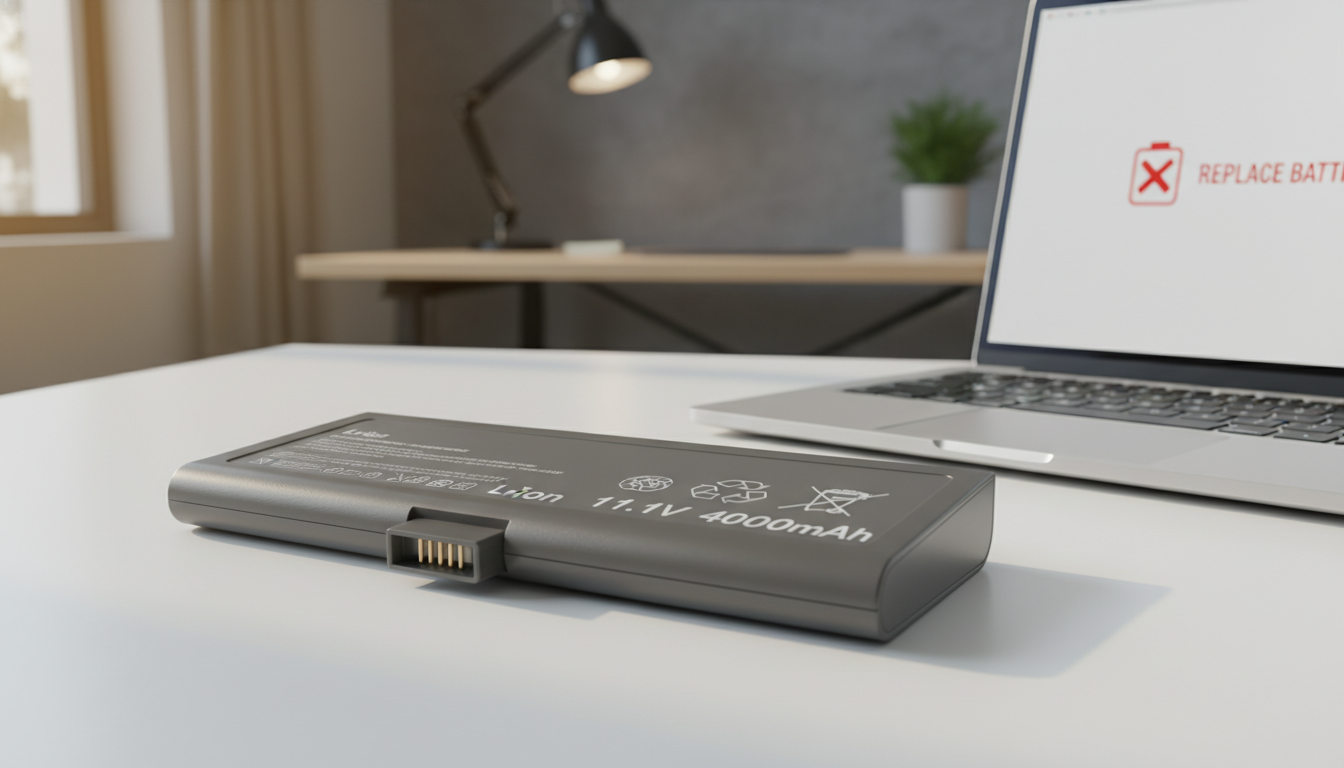
Signs It’s Time to Replace a Laptop Battery
Know the replace laptop battery signs to ensure your laptop runs smoothly. Follow our guide to diagnose and fix battery issues.
Quick wear on power cells is normal, but sudden drops in runtime can catch users off guard. Modern lithium-ion packs lose capacity with use, and many systems that once ran 3–10 hours now fade faster.
Early detection helps prevent random shutdowns and lost files. Look for a clear pattern: fast drain, unexpected power-offs, heat, swelling, or trouble charging. These are practical clues that the power unit can’t hold or report a steady charge anymore.
This guide shows how to observe symptoms, verify health with built-in tools on Windows and macOS, and rule out adapter or thermal issues before you decide next steps. The goal is simple: spot problems early to protect data and keep daily work flowing.
Key Takeaways
- Watch runtime trends: steep drops point to wear.
- Confirm health with system tools before acting.
- Random shutdowns can corrupt files—act early.
- Heat and charger faults mimic power cell faults; check both.
- Common red flags include fast drain, swelling, and charge issues.
Replace laptop battery signs that show your battery is failing
Common faults make it easy to spot when a power pack is failing. Rapid declines in run time, sudden shutdowns, and erratic percentage readings are practical clues that the internal cell is degrading.
Battery life drops fast and you’re charging far more often than before
If a full charge now lasts only a fraction of what it used to, capacity loss is likely. Constantly hunting for outlets instead of working unplugged indicates reduced life and lower performance.
Random shutdowns even when the battery percentage looks high
When the device turns off at 20–40% reported charge, the pack may not sustain voltage under load. These abrupt power-offs risk file corruption and show instability in the cells.
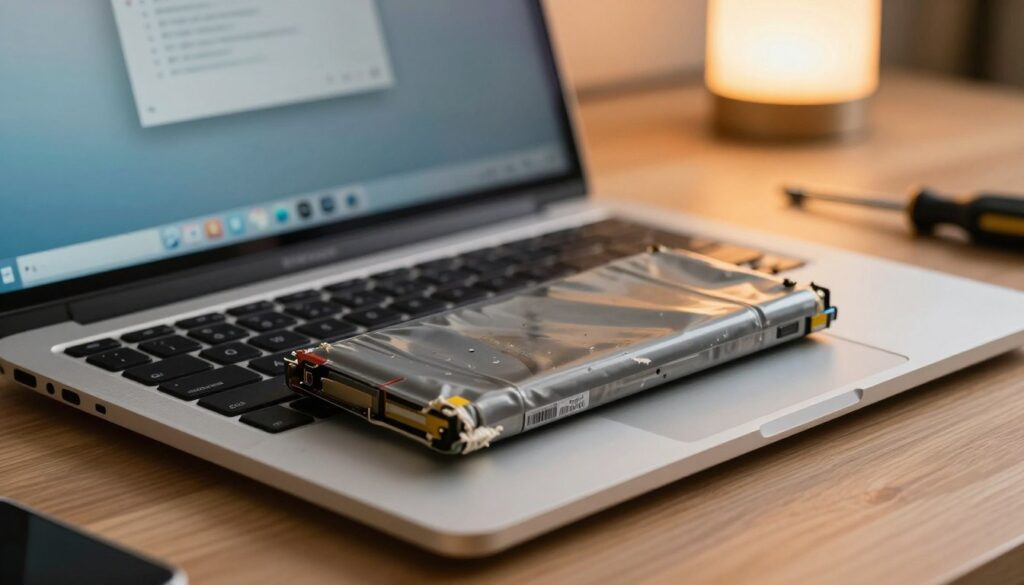
The laptop only works when it’s plugged in
If the computer dies the moment you unplug the power cord, the battery may be delivering no usable power. This defeats portability and usually calls for a replacement.
Battery percentage jumps or won’t read accurately
Erratic meter behavior—like sudden drops from 50% to 10% or quick unexplained gains—points to calibration failure or internal degradation.
Slow or intermittent charging and recognition errors
Longer charge times, stop/start charging, or OS messages that the pack isn’t detected suggest charging circuitry or cell problems. Charger faults can mimic these issues and will be checked later.
Overheating and swollen cells
Heat felt near the pack reduces life and can be dangerous. A bulging case, lifted keyboard, or misaligned trackpad means a puffy cell—stop using the device and seek professional help.
“System alerts like ‘Service Battery’ or ‘Consider replacing your battery’ are built-in diagnostics you should not ignore.”
Confirm the issue with battery health checks and real-world testing
Verify reported runtime with system tools and a short real-world test to confirm whether the power unit is at fault.
Run a Windows battery report
Open Command Prompt and run powercfg /batteryreport. Compare the design capacity to the current full charge capacity. Look at recent usage and full charge samples to see if the drop matches what you observe.
Check macOS system info
On a Mac, open System Information > Power. A condition like “Service Battery” or unusual messages flags reduced health. This is a practical indicator to trust.
Interpret charge cycles and age
A cycle equals 100% cumulative use, even across partial discharges. Most packs fall between roughly 300–1000 cycles. Exceeding that range often lowers capacity and stability.
“Start with OS reports, then validate with timed unplugged use to link health data to real-world performance.”
- Step 1: Run OS reports on your computer.
- Step 2: Time typical tasks unplugged to confirm runtime.
- Step 3: Compare cycle count and capacity decline to known ranges.
Rule out charger, charging port, and heat-related power issues
Start with quick checks that separate external faults from an internal cell problem. These steps are safe for most users and can prevent unnecessary parts purchases or repair costs.
Spot charger and connection problems
Flickering charge lights or a need to hold the cable at a certain angle often mean the charger tip, cable, or port is worn.
Unstable contact can spark, create heat, and cause port damage. That raises the risk of further internal damage if left unchecked.
Separate overheating from airflow faults
Overheating may come from blocked vents, dust buildup, or fans running at full speed. Clean vents and watch fan behavior before blaming the cell.
“If the system only charges when the cable is angled, test a known-good charger first — it often pinpoints the problem.”
- Try a compatible, known-good charger.
- Inspect the port for debris or looseness.
- Monitor charging behavior after swapping the cable.
| Check | What to do | Why it matters |
|---|---|---|
| Charger/cable | Swap with a known-good unit | Rules out adapter faults and faulty parts |
| Charging port | Look for looseness or debris | Prevents sparks and port damage |
| Airflow | Clear vents, reduce dust | Reduces overheating and extends life |
If checks stabilize the charge or fix heat, you may avoid costly repairs. If problems persist, professional diagnostics are the next step.
What to do when you notice these warning signs
Don’t wait after you notice unstable runtime — take a few safety steps to secure files and check coverage.
Back up important files to prevent data loss
Prioritize your data. Use cloud sync or an external drive right away. Random shutdowns can corrupt open files and ongoing work.
Stop using the device if the battery is swollen or dangerously hot
If the case bulges or the unit feels very hot, power down and unplug. Do not try to force a swollen cell out yourself.
“A swollen pack can pose a fire risk; seek a qualified repair service for safe removal.”
Check warranty coverage before paying for a replacement
Verify manufacturer warranty and any extended plans. If covered, the cost of parts and repair may be reduced or free.
Choose OEM or manufacturer-recommended batteries and know when to call technicians
OEM parts fit correctly and reduce charging instability. Contact trained technicians or an authorized service if problems persist after charger and port checks, or for any swelling.
| Action | When | Why it matters |
|---|---|---|
| Back up files | Immediately after erratic shutdowns | Protects work and reduces data damage |
| Power down and unplug | Visible swelling or extreme heat | Reduces fire risk and further parts damage |
| Check warranty | Before paying for a replacement or repair | May save cost and ensure authorized service |
| Contact technicians | Persistent faults or unclear diagnostics | Professional diagnostics prevent unnecessary repairs |
Conclusion
When multiple red flags line up, act swiftly to protect your computer and data.
Most reliable indicators are sharply reduced runtime, unexpected shutdowns, erratic percentage behavior, charging irregularities, overheating, swelling, and OS warning messages.
Confirm the issue with system checks — run Windows powercfg /batteryreport or view System Information > Power on macOS — then validate with a timed unplugged test to match reality.
Rule out charger and port faults first, especially if lights flicker or the connection is loose. If swelling or extreme heat appears, power down and seek professional repair immediately.
If multiple indicators and health data point to decline, it’s time to replace laptop components with a compatible, reputable option to restore predictable performance and avoid broader computer failures.