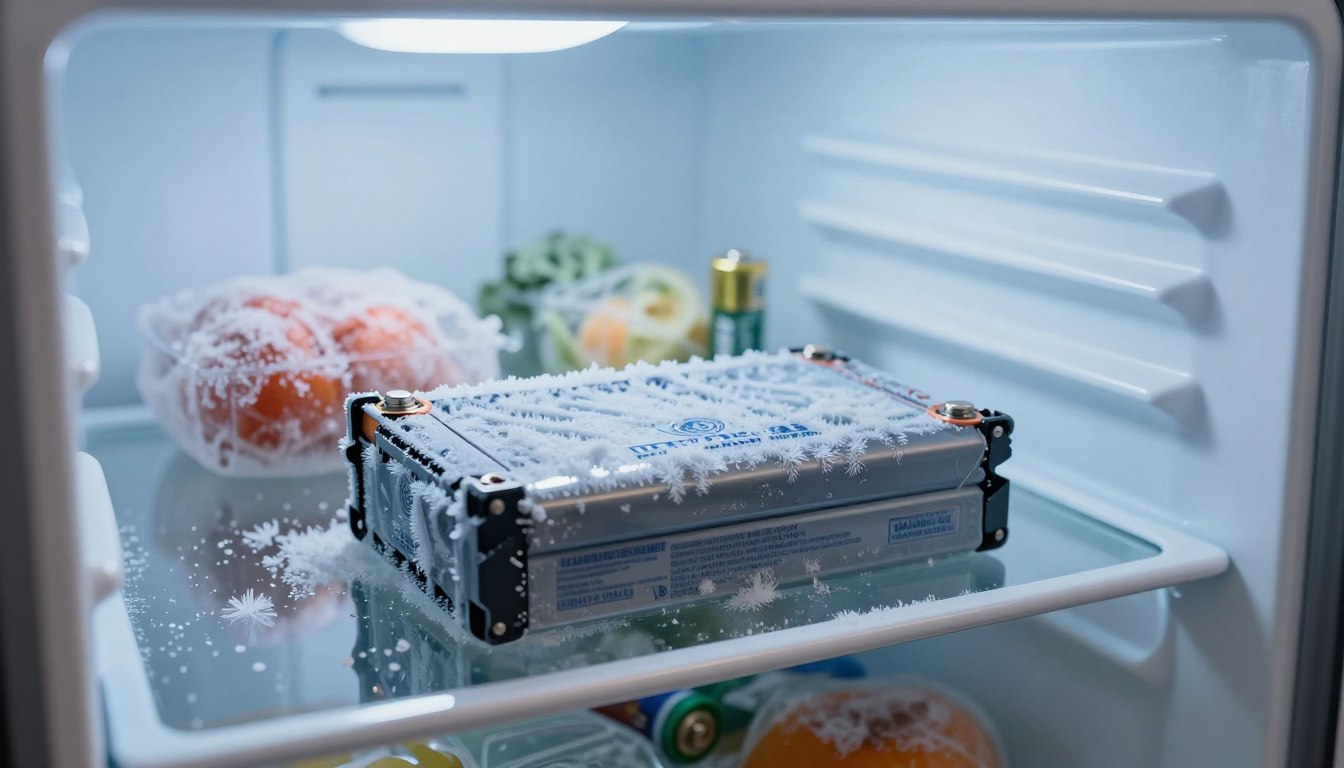
Do New Laptop Batteries Need Conditioning
Discover the truth about new battery conditioning for laptops. Find out if your new laptop battery needs conditioning and how to maintain it.
Short answer: modern laptops rarely need the old-style conditioning. What people now call new battery conditioning usually means calibrating the percentage readout so the system reports run time and avoids odd shutoffs.
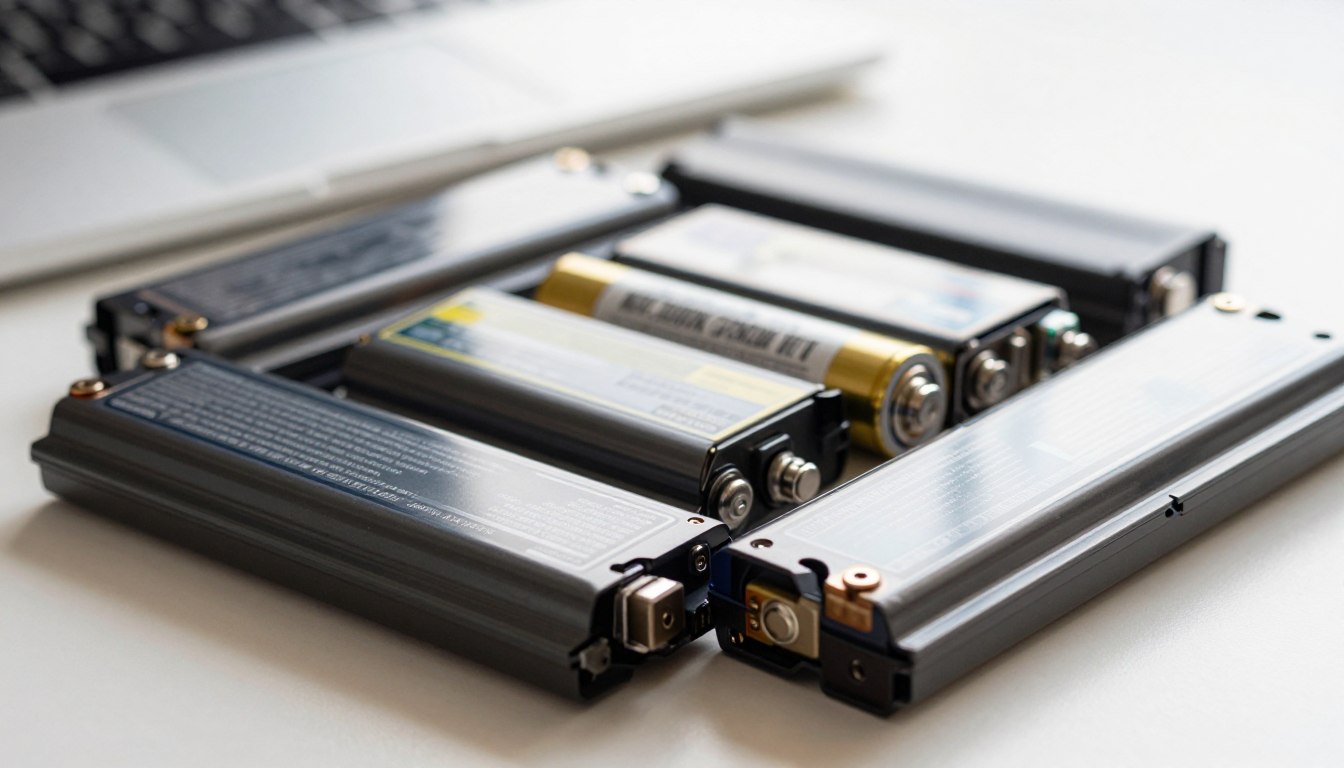
Most laptops ship with lithium packs that work right away. Expect the first few cycles to show uneven numbers as the system learns how the pack reports charge and power use.
This guide exists because a replacement pack can seem to drop fast, get stuck at a percent, or cause sudden shutdowns when estimates are off. It will show a safe calibration process, how long it takes, and what you should and shouldn’t do while it runs.
Who benefits most: anyone who just installed a replacement, swapped an aging pack, or sees a mismatch between shown runtime and actual time left. The goal is reliable, predictable daily use — not unlocking hidden capacity — and the steps rely on built-in safety controls so the pack won’t be harmed by automatic shutoffs.
Key Takeaways
- Modern packs rarely need chemical conditioning; calibration fixes meter errors.
- Expect uneven percentage readings during the first few cycles.
- Follow a safe, step-by-step process that uses laptop power management.
- Calibration usually takes a few full charge/discharge cycles to stabilize.
- Goal is predictable runtime, not extra capacity or deep-drain tricks.
What “conditioning” means today vs. battery calibration for a new battery
Conditioning is mostly a legacy term. For modern laptop packs the practical step is calibration of the fuel gauge so the shown level matches actual available energy.

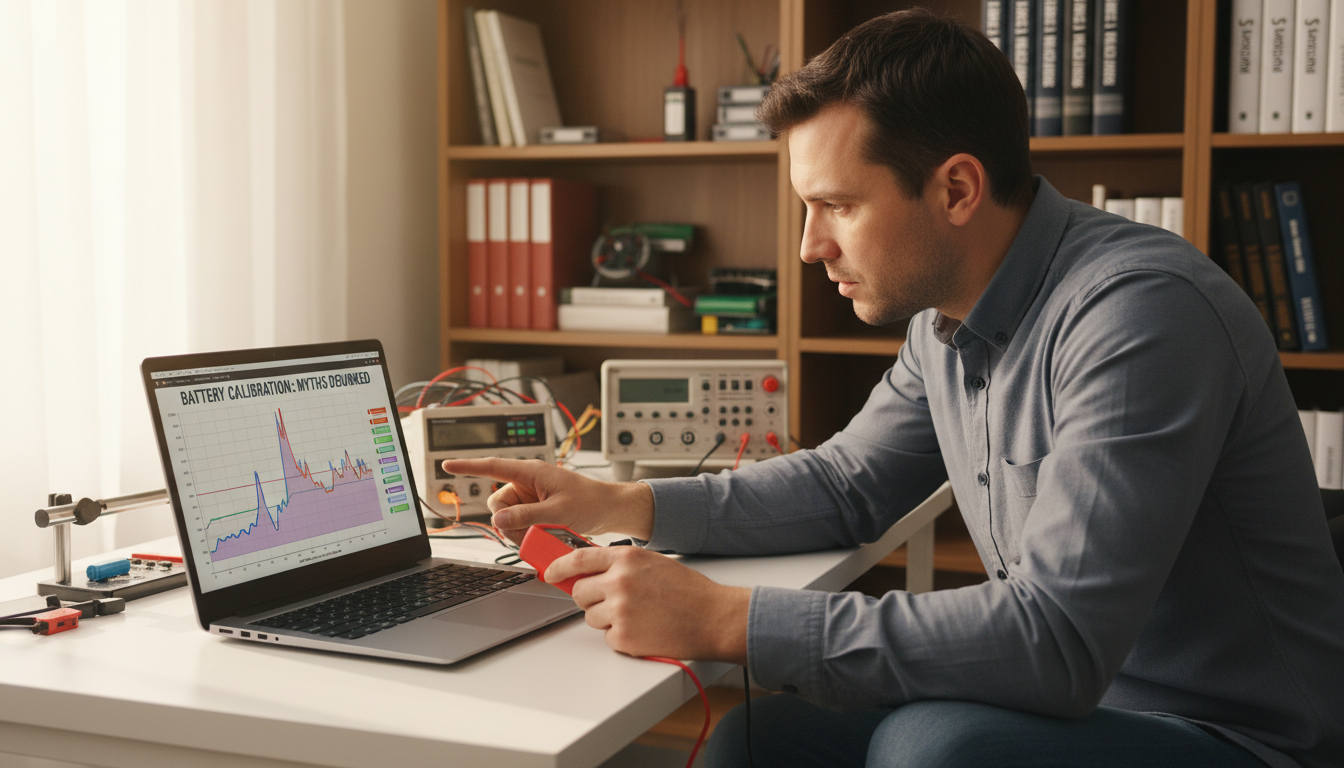
Fuel gauges estimate state of charge from voltage, current, and stored usage data. Over time that model can drift and become less accurate.
With a replacement pack the system has little history. That missing data makes early readings unreliable and can show incorrect battery level.
What calibration actually updates
- Calibration resets the “full charge” and “full discharge” anchors inside the management system.
- Those anchors let the system draw a more accurate line between empty and full usable charge.
Targeting a number like “drain to 10%” can mislead. If the display is off, that percent may not reflect the management system’s true state.
Unexpected shutdowns happen because the pack has a hidden reserve and the protection layer can cut power even when the UI says ~50%.
Calibration improves reported runtime and reduces erratic drops. It does not increase chemical capacity; it simply helps the meter tell a truer story.
How to do new battery conditioning on a laptop the right way
Safety first: this is a calibration process meant to sync the laptop’s meter with the pack. Use the correct charger and a stable power adapter to avoid underpowering during the sequence.
Before you start
Checklist: confirm the new battery is installed by unplugging and booting the laptop on internal power. If it won’t boot, re-check the install before proceeding.
Step 1 — fully charge to battery 100
Plug in and let the laptop reach a full charge. Keep it connected for at least two more hours so the system records a true full charge point.
Step 2 — discharge by normal use
Unplug and use the computer normally. Save work at low-battery warnings and keep going until the system shuts down automatically.
Step 3 — rest and stabilize
Leave the laptop powered off and unplugged for about five hours so voltage and the gauge settle at the discharged anchor.
Step 4 — uninterrupted recharge
Charge back to full charge without interruptions. Avoid docking, swapping adapters, or frequent sleep cycles during this time.
| Step | Action | Recommended time |
|---|---|---|
| Verify | Boot on internal power with correct charger | 5–10 minutes |
| Full charge | Charge to battery 100 and keep plugged in | 100% + 2 hours |
| Discharge & rest | Use until auto-shutdown, then rest powered off | Run down + ~5 hours |
| Recharge | Uninterrupted recharge to full charge | Until full |
Mac note: on macOS Catalina 10.15.5+ some models use Battery Health Management and may prevent reaching battery 100. Temporarily disable that feature so the calibration can set a true full charge anchor; restore it when finished. Also, adjust Energy Saver settings if you need the machine to stay awake during the discharge step.
Keeping readings accurate and protecting capacity over time
Keeping the meter accurate helps you trust the laptop’s runtime and avoid surprises.
How often to refresh the gauge
Practical cadence: calibrate monthly if percent reads erratically or you rely on exact runtime for work. For typical use, repeat the process every three months or after about 40 full charge-discharge cycles.
When to recalibrate
- Sudden drops (for example, 40% to 15% in moments).
- The system sits at 1% for a long time before shutdown.
- Shown time remaining and real time diverge a lot.
- Unexpected shutdowns or repeated odd level jumps.
Best practices to protect capacity and accuracy
Aim for steady discharge during normal use and avoid frequent deep drains unless running the calibration process.
Why this helps: periodic calibration refreshes the management system’s anchors and improves reported battery level without restoring chemical capacity. Letting the system auto-shutoff during the run is safer than forcing deeper discharge.
| Topic | Recommended action | When to do it | Benefit |
|---|---|---|---|
| Cadence | Monthly or every 3 months / ~40 cycles | Based on usage | Stable readout |
| Signs | Watch for sudden drops or long 1% holds | Anytime symptoms appear | Know when to recalibrate |
| Lifespan habits | Steady discharge, consistent power settings | Daily use | Better capacity retention |
| Safety | Let system auto-shutoff during calibration | During calibration runs | Protects pack and data |
Conclusion
New laptop cells work chemically fine; what helps is a single calibration to align the meter with real capacity.
Quick sequence to remember: charge to full and keep charging 2+ hours, use until the machine auto-shuts off, rest powered off ~5 hours, then recharge uninterrupted to full.
This process will improve percent accuracy, cut down on sudden shutdowns, and make daily runtime more predictable. For Macs that won’t reach 100% because of Battery Health Management, note you can disable it briefly to calibrate and then turn it back on.
Repeat only when readings drift or on a light schedule (monthly or every few months). Favor steady use and gentle care over frequent deep drains to protect long-term capacity.