Should You Limit Laptop Charging to 80 Percent
Should you limit laptop charging to 80 percent? Find out how this simple habit can improve your laptop's battery lifespan and overall performance.
Setting a maximum charge threshold means your device stops filling the battery around 80% so it does not sit at full capacity for hours. This practice aims to slow chemical wear and keep capacity higher over years.
This guide is for anyone on Windows or similar systems who keeps their computer plugged in most of the day. Many makers add tools or BIOS/UEFI options to apply a cap. Windows 11 itself lacks a universal built-in switch for this.
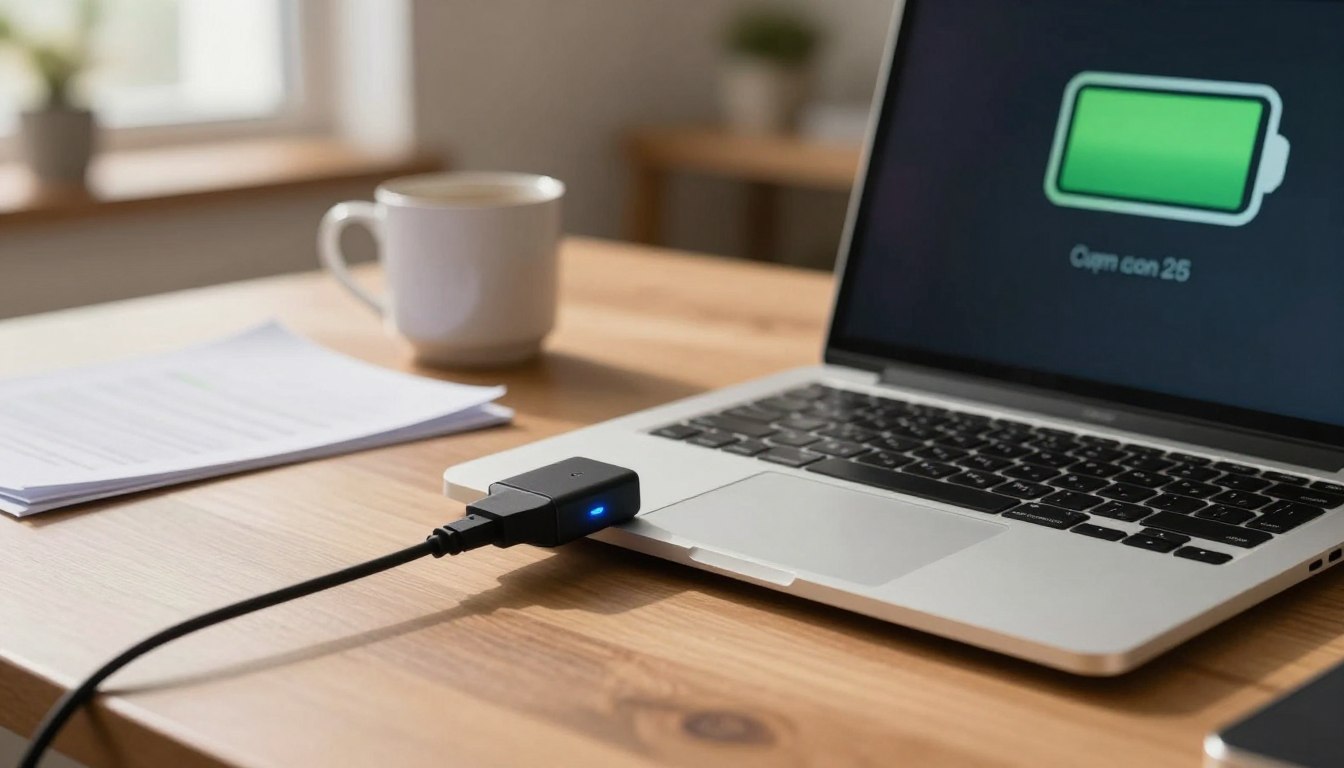
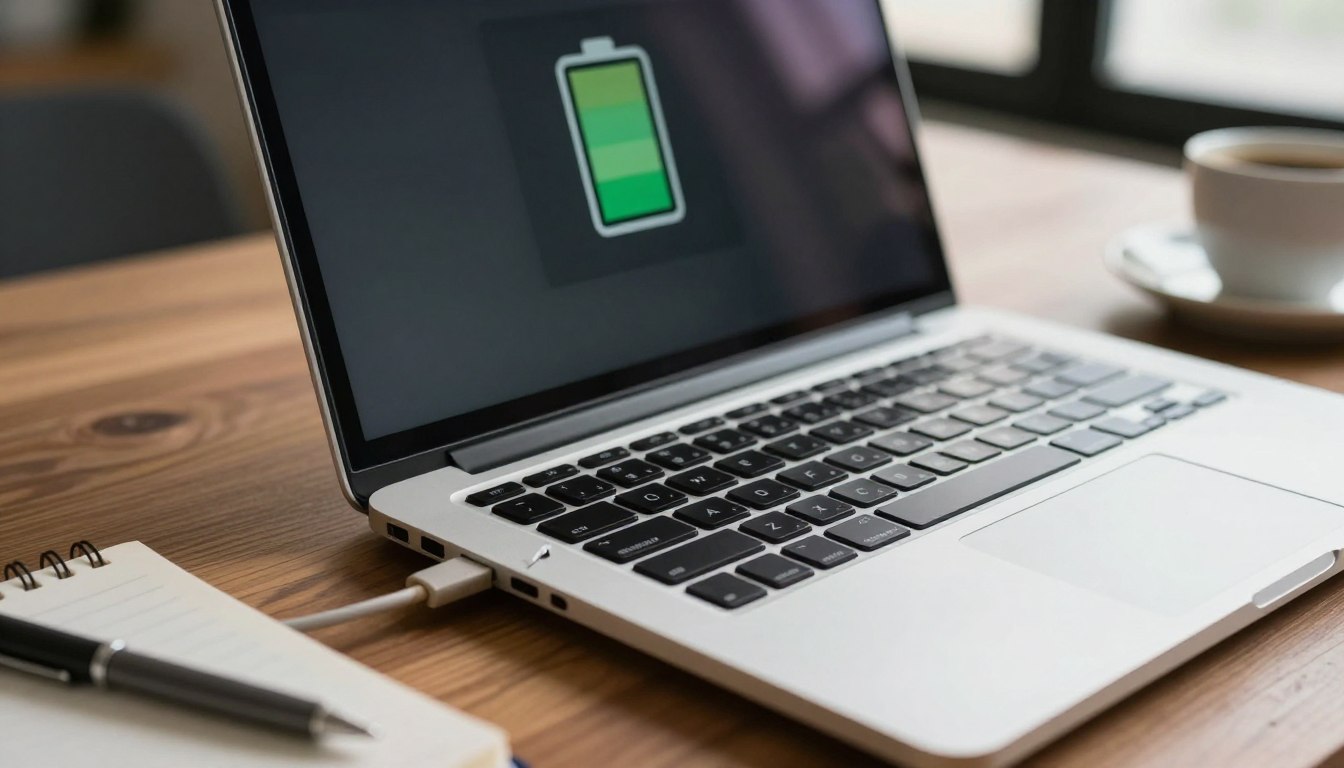
Not every model supports a true cap. Some users must rely on OEM utilities, BIOS settings, or alerts as a workaround. Success looks like a status that reads “plugged in, not charging” near 79–81% or an OEM conservation mode showing active.
Later sections show when a cap helps and when it is inconvenient. You will also find step-by-step paths for Lenovo, Dell, ASUS, Acer, MSI, LG, HP BIOS/UEFI, and Surface smart options so you can jump to your brand.
Key Takeaways
- Stopping a charge short of 100% can reduce battery aging.
- Windows does not offer a global cap; use OEM apps or BIOS when available.
- Not all models support a true charge stop; some use alerts or conservation modes.
- Expect to see “plugged in, not charging” near the cap when it works.
- Later brand guides let you switch between 80% and 100% based on your schedule.
Why charging to 100% all the time can wear out your laptop battery faster
A battery left at peak voltage for long periods ages faster than one kept a bit lower. Over months and years, the chemical reactions inside cells reduce usable capacity. This is the core reason runtime drops even if the device otherwise works fine.
Battery aging basics: why capacity drops over time with use
Battery health naturally declines as cells go through charge and discharge cycles. Every full cycle removes a small portion of total capacity. Frequent deep cycles and high-voltage stress speed that decline.
Why staying at full charge can accelerate battery wear
Keeping a pack at 100% forces the chemistry to sit at higher voltage. That state increases stress and raises the rate of capacity loss compared with a lower top charge.
What “80%” means in real-world lifespan and daily performance
Setting a modest cap trades a bit of runtime today for slower capacity fade over years. For people on AC most days, that trade improves long-term lifespan with little impact on daily use.
- Windows tip: If your battery hovers below full while plugged in, it often means a charger cap or conservation mode is active, not a fault.
- For desk use, capped charging rarely affects the system because external power supplies most needs.
“You trade some runtime today for a better chance of maintaining usable capacity for longer.”
Decision point: In the next section we’ll weigh how often you rely on battery versus AC so you can choose between maximum runtime and longer lifespan.
When an 80% charge limit is worth it and when it isn’t
For most desk-based users, a modest top-charge cap is a practical tool. If your device stays plugged in most of the day, reducing peak voltage cuts the time the battery sits full. That helps preserve battery health and overall lifespan.
Best case — primarily AC use at a desk
- If your system is docked or plugged in daily, a set charge limit reduces stress on the cells without affecting performance.
- Your power needs come from the wall, so day-to-day work feels the same even with a slightly lower top state.
When you may want 100%
- Travel days, long meetings, or field work call for full runtime. Use the full-charge option before those trips.
- People who move between locations a lot will likely prefer higher top-ups for flexibility.
How to think about trade-offs
You choose between more runtime today and slower capacity loss over years. A hybrid approach often works best: keep the charge mode active on most days, then switch to a temporary full option when you need it.
“Trade a little runtime for better long-term battery health if you spend most days on AC.”
Next step: The following sections show how to enable the right option or mode in Windows apps and in BIOS/UEFI by brand.
How to limit laptop charging 80 using manufacturer apps in Windows
OEM utilities are the practical way to apply a charging cap on Windows systems. The firmware that controls battery behavior is usually paired with a vendor app, so the safest route is the maker’s software rather than a generic tool.
Lenovo Vantage
Open Lenovo Vantage and go to Battery → Battery settings. Enable Conservation mode. Many models start charging below ~75% and stop near ~80%, though the UI can vary by version.
Dell Power Manager
Launch Dell Power Manager → Battery Information → Settings. Choose Primarily AC Use for an automatic cap or pick Custom to set a stop charging threshold near 80% and save.
ASUS MyASUS
In MyASUS → Device Settings enable Battery Care Mode (80%). Use Instant Full-Charge Mode for travel days; it temporarily allows 100% and then reverts.
Acer, MSI, and LG
Acer Care Center may show a Battery Charge Limit toggle in Checkup → Battery health; if missing, the model might not support it.
MSI Center (or Dragon Center) → System Diagnosis/Toolbox → Battery Master lets you pick Balanced, which typically stops near 80% (some models resume around ~70%).
Open LG Smart Assistant → Power/Battery and enable Extend Battery Life to cap around 80% on supported systems.
Safe downloads and quick verification
Get apps from the Microsoft Store or the manufacturer’s support website to avoid lookalikes.
- Plug in and watch the percent climb.
- Confirm it stops near the target and displays “plugged in, not charging” or an OEM indicator.
“Use the maker’s app for reliable battery care — it talks to firmware, not just the OS.”
How to set a battery charge limit in BIOS/UEFI (HP and other laptops)
Some systems put battery-care controls in firmware, so you change behavior from the BIOS rather than Windows. This is common on business models where a setting in UEFI applies no matter which OS you boot.
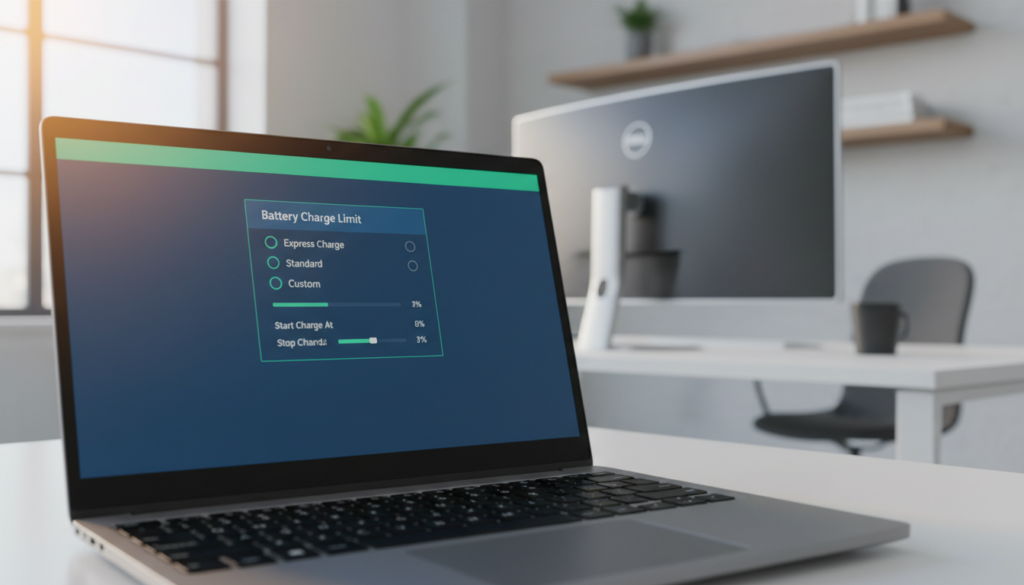
Common HP firmware names and what they do
Adaptive Battery Optimizer watches use patterns and adjusts top-up behavior automatically.
Battery Care Function often gives a fixed cap (many models use ~80% by default).
Battery Health Manager may offer a Maximize my battery health choice to reduce stress at high voltage.
How to reach UEFI from Windows
Open Start → Power. Hold Shift and click Restart.
Choose Troubleshoot → Advanced options → UEFI Firmware Settings to reboot into the firmware menus.
Alternatively, many HP models accept F10 during boot to enter BIOS setup.
If you don’t see battery options in BIOS
- Check the manufacturer’s support page or your model’s manual for available bios settings and updates.
- Install the latest firmware or OEM utility; some vendors only expose the feature via an app.
- If no firmware option exists, use alert tools or the safer charging habits described later.
“Use firmware settings when available — they enforce battery policy before any OS-level software runs.”
Surface smart charging and Battery Limit Mode: what to enable and what to expect
Microsoft mixes a smart-software approach with a stricter firmware option so you can pick a balance that fits daily work or always-on setups.
Surface app — confirm Smart charging
Install or open the Surface app in Windows and look under the power or battery settings.
Find the Smart charging toggle and note the status (for example, “Currently on”).
When active, smart charging commonly holds the pack near ~80% while you stay plugged in.
This reduces time at peak voltage and helps preserve capacity over months.
Battery Limit Mode in Surface UEFI
In UEFI you may see an Enable Battery Limit Mode option.
This mode often stops top-ups around 50% for kiosk, lab, or always-plugged systems.
That setting is useful for dedicated units where runtime on battery is not needed.
Which option should you use?
- Smart charging is the better choice for everyday users — it balances runtime and long-term health.
- The 50% firmware mode suits specialized deployments that stay on AC constantly.
“If you frequently run below 20%, smart charging may pause to give you more available capacity for active use.”
Practical tip: avoid deep discharges and keep a steady plug-in routine to help smart charging engage more consistently.
If your laptop can’t stop charging at 80%, use alerts and safer charging habits
When a firmware cap isn’t available, notifications and better habits become the practical defense for battery wear. Third-party alert tools can tell you when a pack reaches your chosen percentage so you can act.
Battery Limiter-style alarms: getting notified at your chosen charge mark
Install a trusted app that offers an alarm when battery charge hits your target, for example 80%. The alert gives clear information and a cue to unplug or switch routines.
Note: these apps only inform you. They do not stop hardware from continuing to top up like OEM utilities or BIOS settings.
Practical habits that maximize battery health without a built-in limiter
Adopt simple routines to reduce stress on cells. Avoid leaving the device at full battery for days and steer clear of deep, repeated drains.
- Desk flow: plug in, let it reach the chosen charge, then unplug and run in a mid-range band while you work.
- Travel flow: fully charge before long outings, then return to the routine after the trip.
- Heat control: keep vents clear and avoid heavy workloads while the pack tops off to limit extra wear.
Safe-software guidance: download utilities from reputable sources or the manufacturer’s support pages. Be wary of unknown installers that claim control they cannot deliver.
“Use alerts as reminders and pair them with good daily habits to protect battery health when firmware control is not available.”
Conclusion
,Many systems let you reduce time spent at full battery through an app or a firmware option.
In short: capping top-up near a mid charge helps preserve battery health and extend overall lifespan for users who stay on AC most days.
For daily desk use, keep the charge limit active. Switch to full when you need maximum runtime on the road.
Use OEM apps first, then BIOS/UEFI or Surface smart mode when available. If your system lacks a true cap, rely on alert apps and steady habits to cut full-charge dwell time.
Verify changes in battery settings and watch the percent after you enable a mode. Next steps: identify your brand, follow the relevant steps in this guide, and consult official support if menus differ.