Why Laptop Battery Health Drops Over Time
Learn why laptop battery health drops over time and discover simple steps to maintain your laptop's battery life. Get tips on maximizing performance.
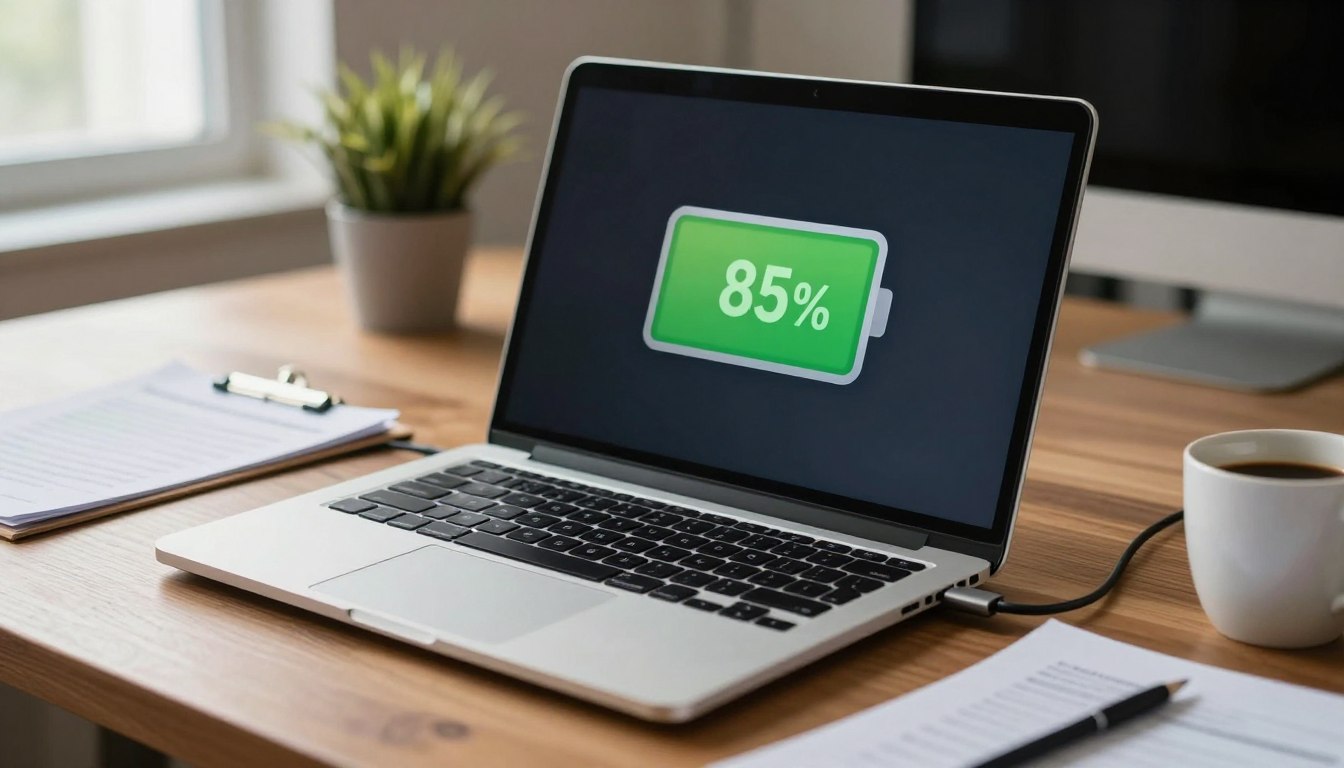
Shorter unplugged time and more frequent charging are the everyday signs people notice first. Measured as a percent of original capacity, battery condition slowly falls, and performance often feels worse once it slips below about 80%.
Degradation is gradual, not sudden. Lithium-ion chemistry ages with use and calendar time. Heat, frequent full cycles, and fast charging speed up that loss.
You can control some factors. Keep charge in a mid-range, avoid high temperatures, and use power management settings to extend useful service life. Other forces, like natural aging, are unavoidable.
This guide shows what causes capacity loss, what you can change, and what to expect next. Later sections offer measurable steps such as generating a Windows report and spotting signs that indicate replacement is near.
Key Takeaways
- Capacity falls gradually; runtime shortens as percentage declines.
- Heat and charging habits are major accelerants.
- Simple routines and settings can slow wear and extend life.
- Some aging is natural and cannot be stopped.
- Later steps will cover reports and clear replacement signs.
What “battery health” means and why it matters for battery life
Think of battery condition as a simple capacity comparison to the day the pack left the factory. The percent figure you see compares current stored energy to the original rated capacity. That makes the metric concrete rather than vague.
Battery health as a percentage of original capacity
At 100% the pack can hold its full rated charge. At about 80% many people notice much shorter runtime and reduced battery performance during normal use.
A small percent loss can feel larger in practice, because usable hours fall with capacity and system power needs remain the same.
How lithium-ion cells age inside modern laptops
Modern packs use multiple lithium-ion cells wired together. The pack’s percent reflects the combined aging of those cells, not a single element.
Chemistry changes inside cells are mostly irreversible. Electrode wear, electrolyte breakdown, and internal resistance rise slowly. These changes cut capacity and lower overall performance over time.
- Runtime per charge: tied directly to capacity percent.
- Total lifespan: the years until replacement, affected by cumulative wear.
| Percent | Approx. capacity effect | User impact |
|---|---|---|
| 100% | Full rated capacity | Expected runtime per specs |
| 90% | Minor capacity loss | Small reduction in unplugged time |
| 80% | Noticeable capacity loss | Shorter sessions; may consider conservation steps |
Why laptop battery health drops: the main causes happening inside your battery
Wear inside the cells builds up with each use, so stored energy slowly falls over months and years.
Charge cycles and cumulative wear. A full cycle equals using 100% of capacity over time, not necessarily one 0–100 event. Several partial discharges can add up to one cycle. More cycles mean more chemical change and lower capacity.
Heat speeds aging. Temperatures above 95°F sharply increase the rate of decay. Heat raises internal resistance and accelerates electrode breakdown.
Charge extremes and fast top-ups. Holding a pack at full charge too often or draining below about 20% stresses electrodes. Fast charging adds thermal load during quick top-ups and can speed wear compared with slower charging.
Natural calendar aging. Even with light use, cells degrade over calendar time. That slow decline is normal and not always a sign of a mechanical problem.

| Cause | How it harms cells | User sign |
|---|---|---|
| High cycle count | Electrode wear; capacity loss | Shorter run time |
| Prolonged heat >95°F | Faster chemical breakdown | Rapid percent loss, warmth |
| Frequent 100% holds / deep discharge | Increased stress per cycle | Reduced lifespan |
| Fast charging | Extra thermal stress | Higher operating temp |
Adopt healthier charging habits with the 20-80 rule
Keeping your charge between moderate limits helps cells age more slowly.
Target daily charge levels between 20% and 80% to reduce electrode stress. Aim to top up during the day rather than letting the pack run very low, and avoid holding a full charge for long periods.
Why partial charges are easier on cells
Frequent partial charges, such as topping from 40% to 80%, place less chemical stress than repeated 0%→100% cycles. This approach spreads wear and can lengthen usable life.
When it’s fine to charge to 100%
Charge to full before long trips or heavy work sessions. Once at full charge, unplug soon after—don’t keep the system at 100% for hours if you can avoid it.
How conservation modes help
Many manufacturers (Lenovo, Dell, ASUS, etc.) include conservation settings that cap charging near 80%. Using these battery management features is a good idea for mostly-plugged-in use.
Simple daily routine: start the day at ~50%, top up between meetings, plug in for travel, and enable conservation mode when available.
Control temperature to prevent battery drain and long-term damage
Thermal stress both reduces immediate runtime and accelerates long-term wear. Keep ambient temps within the safe range of 32°F to 95°F. For best results, aim for about 68°F–77°F when you use your device indoors.
Common heat traps to avoid
Hot cars, direct sunlight, and soft surfaces such as beds or couches block airflow. These situations raise internal temps fast and cause higher battery drain.
Reduce internal heat from heavy loads
Intensive loads like gaming and video editing force fans and components to work harder. The result is warmer internal zones and reduced performance even while plugged in.
Ventilation and simple care steps
- Clear vents of dust and lint to keep airflow steady.
- Use hard, flat surfaces to avoid trapping heat under the unit.
- Consider a cooling pad during long, high-load sessions.
| Issue | What to watch for | Quick fix | Long-term result |
|---|---|---|---|
| Overheating in car | High surface temp, fast battery drain | Move to shade; avoid leaving inside | Less capacity loss |
| Blocked vents | Fans loud, warm case | Clean vents; use hard surface | Improved cooling, steadier performance |
| Heavy workloads | Higher internal temps, throttling | Limit background apps; use cooling pad | Lower thermal stress, slower wear |
Red flags: swelling, unusual heat, or a warped case mean stop use and get the pack checked. Reducing heat now often restores better runtime and slows future capacity loss.
Optimize Windows power and display settings for better battery performance
A few quick tweaks in the system menu often yield the biggest improvements in on‑the‑go runtime. These steps use built‑in Windows controls so you keep performance where you need it and cut needless power draw when idle.
Choose the right power profile
Pick Balanced or Battery Saver instead of High‑Performance for daily work. These profiles reduce CPU and GPU output and lower overall power use with minimal impact on normal tasks.
Reduce screen brightness
Lowering display brightness is one of the single most effective moves. Dim the screen until content is still comfortable to read; this saves more than most small tweaks.
Adjust sleep and screen timeout
Open Settings > System > Power & sleep and shorten screen timeout and sleep timers. Shorter intervals stop wasted draw when the device is idle.
Limit background apps and processes
Use Settings to restrict background apps and open Task Manager to find high‑usage processes. End unnecessary tasks and disable startup items that keep the system active.
Manage radios and peripherals
Turn off Wi‑Fi or Bluetooth when you don’t need them to cut constant radio use. Also disconnect external drives, dongles, and accessories that draw current or prevent deeper sleep states.
Small changes to settings, display, and background tasks reduce heat and long‑term wear. These easy steps improve runtime and help the device run cooler over time.
Keep software, drivers, and firmware current for smarter battery management
Updating core system components brings targeted improvements to power handling and can eliminate subtle runtime issues. OS updates often include fixes that stop background processes from blocking low‑power states. That reduces wasted power and prevents unexplained drain.
How OS updates improve power management and fix battery-related bugs
Operating system patches can correct scheduling and process handling so the system enters sleep or idle modes reliably. These changes are not just feature work; they directly affect power management and the way apps behave when backgrounded.
Why firmware and driver updates affect charging behavior and thermal control
Firmware sits low in the stack and can change charging algorithms, sensor accuracy, and thermal limits. Updated drivers alter how devices like Wi‑Fi cards and GPUs idle, which lowers heat and reduces long‑term wear.
Practical way to stay current: use Windows Update plus your manufacturer’s update utility. After an update, check settings and confirm that battery saver and charge caps still work as expected.
Quick tips: run official tools, avoid random third‑party updaters, and monitor for any new issue after updates so you can roll back if needed. Updated software improves reporting accuracy and helps you make better maintenance decisions.
Monitor battery health and know when calibration or replacement makes sense
Tracking capacity trends gives a clearer picture than trusting a single percentage reading.
Use built‑in tools. On Windows, generate a battery report to see design capacity versus current full charge and any recorded cycles over time. That gap is the clearest signal of aging.
Watch for warning signs: sudden percentage drops, unexpected shutdowns at 20–40%, or overheating during light tasks all point to a real issue rather than ordinary wear.
Simple calibration and realistic expectations
To calibrate: drain to shutdown, then charge to 100% without use. Re‑generate the report and compare the full charge capacity to design capacity.
Expect 2 years for heavy on‑the‑go use, and about 3–4 years for typical use. If capacity loss prevents you from holding charge for meetings or travel, replacement is reasonable.
“Monitor trends, not single numbers, to decide whether repair or replacement fits your workflow.”
Conclusion
A steady routine of moderate charging and cooling beats one-off efforts for extending usable service life. ,
Recap: capacity loss is normal for lithium‑ion packs, driven by cycles, extremes of charge, and temperature. Follow the 20–80 approach, avoid long holds at full charge, and limit deep discharges to slow decline.
Lowering power draw and keeping software updated work together to improve runtime and overall performance. Enable conservation modes and use built‑in Windows options for quick gains you can keep.
Consistent care over weeks and months matters more than occasional perfect behavior. Monitor trends in reports so you know when calibration or replacement is the right step for your laptop battery and device needs.