Why Your Laptop Drops from 100 Percent to 90 Percent So Fast
Discover why your laptop battery drops from 100 to 90 quickly. Learn the causes and find solutions to this frustrating issue.
Seeing the percent fall right after unplugging can feel alarming. This article explains why that quick change often reflects how the device estimates remaining charge, not an immediate loss of real capacity.
We define the specific problem and show what to check in Windows. You’ll get fast explanations, immediate fixes, and simple tests to tell a gauge quirk from a true health issue.
Often, the first big jump is a fuel-gauge recalculation. That means the readout updates when the system sees actual power use. It does not always mean the pack has lost permanent capacity.
The right solution depends on whether the device is pulling high power (screen, CPU, apps) or whether the percent reading is off. Later sections guide you to confirm drains, tweak settings, and decide when replacement is the only practical step.
Key Takeaways
- Early percentage drops often reflect estimation, not sudden capacity loss.
- Check Windows power and resource use to find real drains.
- Simple setting changes can reduce idle power draw.
- Use tests in later sections to confirm a reporting error vs real wear.
- Replacement is last resort after you rule out software and settings.
What That Fast Drop From 100% to 90% Really Means
That quick initial decline is commonly the fuel gauge correcting its runtime prediction rather than real capacity loss.
Fuel-gauge behavior vs true capacity. The percentage is an estimate based on voltage and recent use. The internal meter recalculates once you unplug, so the displayed value can shift even when the cell still holds most of its capacity.
Why the first few points can fall faster. Devices often “float” at full while on AC. Once unplugged, the system measures actual draw and adjusts the shown charge, causing a steeper first point of change.
High background activity—like syncing, indexing, or scans—raises power draw in the first minutes. That makes the percent move faster, yet runtime in hours may remain close to normal if the draw drops later.
Normal vs warning signs
- Normal: a small early shift, stable percent afterward, and expected runtime.
- Warning: sudden shutdowns, inconsistent readings, large swings, or much shorter hours than before.
| Aspect | Gauge Behavior | Real Capacity |
|---|---|---|
| Initial readout | May recalibrate after unplugging | Generally unchanged by a single percent shift |
| Short-term drop | Often caused by high initial power use | Doesn’t indicate permanent wear unless repeated |
| Red flags | Inconsistent numbers or sudden shutdowns | Lower measured capacity on a report confirms wear |
Next step: later sections show simple Windows checks and a battery report to confirm whether recalibration or replacement is needed.
Laptop battery drops from 100 to 90 quickly: the most common causes
Many quick percent shifts trace back to common settings or active programs, not sudden cell failure. Match each short cause below to what you do on the device so you can spot the likely problem fast.
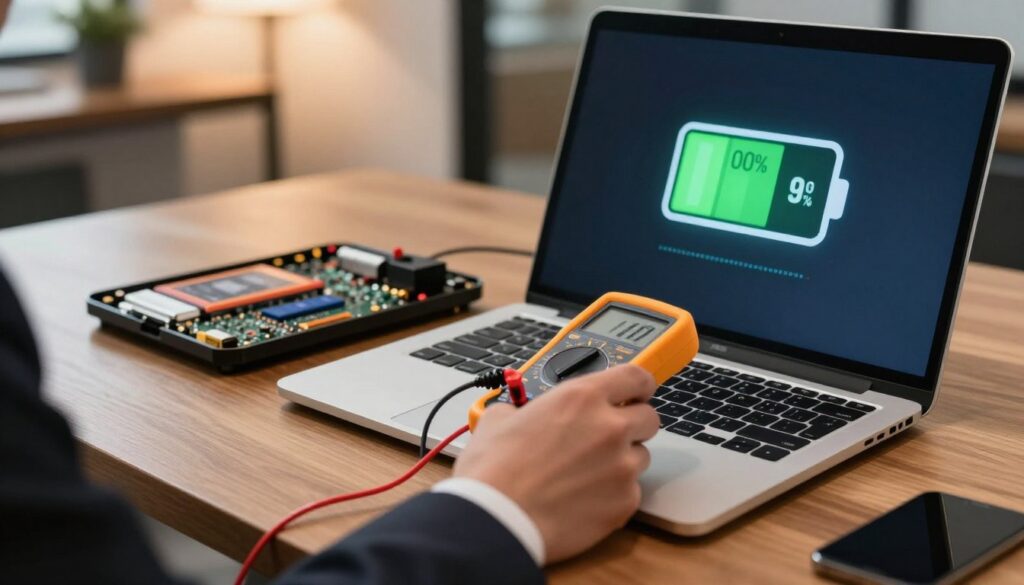
High screen brightness and display power draw
Bright screens use a lot of energy. Turning the screen down often reclaims the first chunk of charge you see vanish.
High‑Performance mode and CPU boosting
Performance plans let the processor spike power during app launches. Those bursts can make the level fall fast.
Background apps, heavy software, and always‑on features
Hidden processes, editors, and games keep cores busy. Keyboard backlight, Wi‑Fi, and Bluetooth add small drains that add up.
Peripherals, firmware, and unexpected setting changes
USB drives, external drives, and dongles draw current. Corrupted firmware or altered settings can also create odd reporting or charger behavior.
- Quick tip: lower brightness, switch to balanced mode, and close background apps to test the real runtime.
| Cause | Typical sign | Easy fix |
|---|---|---|
| Display | Fast early fall | Reduce brightness |
| Performance mode | Short spikes | Use balanced plan |
| Peripherals/apps | Higher steady drain | Disconnect or close |
Quick checks in Windows to confirm what’s draining your battery
A few fast checks in Windows will show whether the meter is estimating poorly or the system is using extra power. These steps create a simple before/after control so you can test if changes cut the early percent swing.
Spot runaway processes with Task Manager
Open Task Manager (Ctrl + Shift + Esc or Ctrl + Alt + Del). Click the Processes tab and sort by CPU or Power usage.
Select any heavy app and choose End Task for nonessential items. Avoid killing system processes you don’t recognize.
Confirm power plan and sleep settings
Go to Settings → System → Power & Sleep. Check that the device uses Balanced or Battery saver when unplugged.
Click Additional Power Settings and pick a lower-performance plan if needed. That reduces spikes during the first minutes after unplugging.
Control background apps and syncing
Open Settings → Privacy → Background Apps and disable apps you don’t need running. Apps that constantly sync cause steady power draw.
After making changes, run another unplug test and note the percent behavior. If the drop shrinks, you found a real power issue; if not, the meter may need calibration.
| Check | What to do | Expected sign |
|---|---|---|
| Task Manager | Sort by CPU/Power, end nonessential tasks | Temporary spike then fall if a runaway app was the cause |
| Power & Sleep | Select Balanced or Battery saver | Lower sustained draw after unplugging |
| Background Apps | Disable unneeded apps under Privacy | Reduced steady drain and fewer syncing spikes |
Step-by-step fixes to slow battery drain right now
You can reduce noticeable early drain in minutes by changing a few system settings and unplugging unneeded gear. Follow these steps, then run a short unplug test to see if the percent level stabilizes.
Lower brightness and shorten screen timeout
Go to Settings → System → Display → adjust brightness and keep it as low as practical. Shorten Screen timeout in Settings → System → Power & Sleep so the screen sleeps sooner.
Switch to a battery-friendly power plan and adjust sleep settings
Open Settings → System → Power & Sleep, then click Additional Power Settings and choose Balanced or an optimized plan. Tweak sleep timing to cut wasted power when idle.
Turn off keyboard backlight and radios when idle
Disable the keyboard backlight unless needed. Turn off Wi‑Fi and Bluetooth when idle and forget networks you no longer use under Settings → Network Connections.
Disconnect peripherals and manage power-hungry apps
Safely remove external drives or USB devices using the taskbar device icon. Close or reconfigure heavy apps and use Task Manager to spot high power processes.
| Action | Why it helps | Quick result |
|---|---|---|
| Reduce brightness | Display is often the largest draw | Faster percent stabilization, more hours |
| Balanced power plan | Limits short CPU spikes | Smoother drain and longer run time |
| Disable radios & remove peripherals | Stops continuous scanning or external draw | Lower steady draw after unplugging |
| Close heavy apps (Task Manager) | Removes runaway processes | Immediate drop in power use, smaller percent shifts |
Tip: Note the percent change over a fixed 10–15 minute window after each adjustment. If the early fall shrinks, you found a working solution; if not, proceed to calibration and reports.
When it’s not the battery: calibration, battery reports, and update-related issues
When percentage behavior looks wrong, a quick diagnostic can separate software quirks from real wear. Start with data, not guesses, so you know whether this is a control case or a hardware problem.
Generate and interpret a battery report
Run the Windows battery report (powercfg /batteryreport). The report compares design capacity vs. current full charge capacity over time.
What matters: steady capacity decline or a current capacity far below design means real wear. Large jumps or inconsistent full charge numbers hint at a gauge issue.
| Metric | Good sign | Warning sign |
|---|---|---|
| Full charge capacity | Close to design | Less than ~70% of design |
| Cycle count | Low to moderate | Very high |
| Recent variability | Stable readings | Wild swings |
Test and calibrate the gauge
Perform one controlled discharge/charge cycle: charge to full, use the device until it sleeps, then charge uninterrupted. This can realign the meter if percentages seem inconsistent with actual hours of run time.
Charger, updates, and power management edge cases
“Plugged in, not charging” can be a settings or OEM threshold issue. Check charger health, firmware, and vendor power tools before blaming cells.
Windows updates can change power behavior. If a recent update causes mid‑charge shutdowns, verify BIOS/drivers from the manufacturer, review power settings, and rerun the battery report after fixes.
When replacement is the only real solution
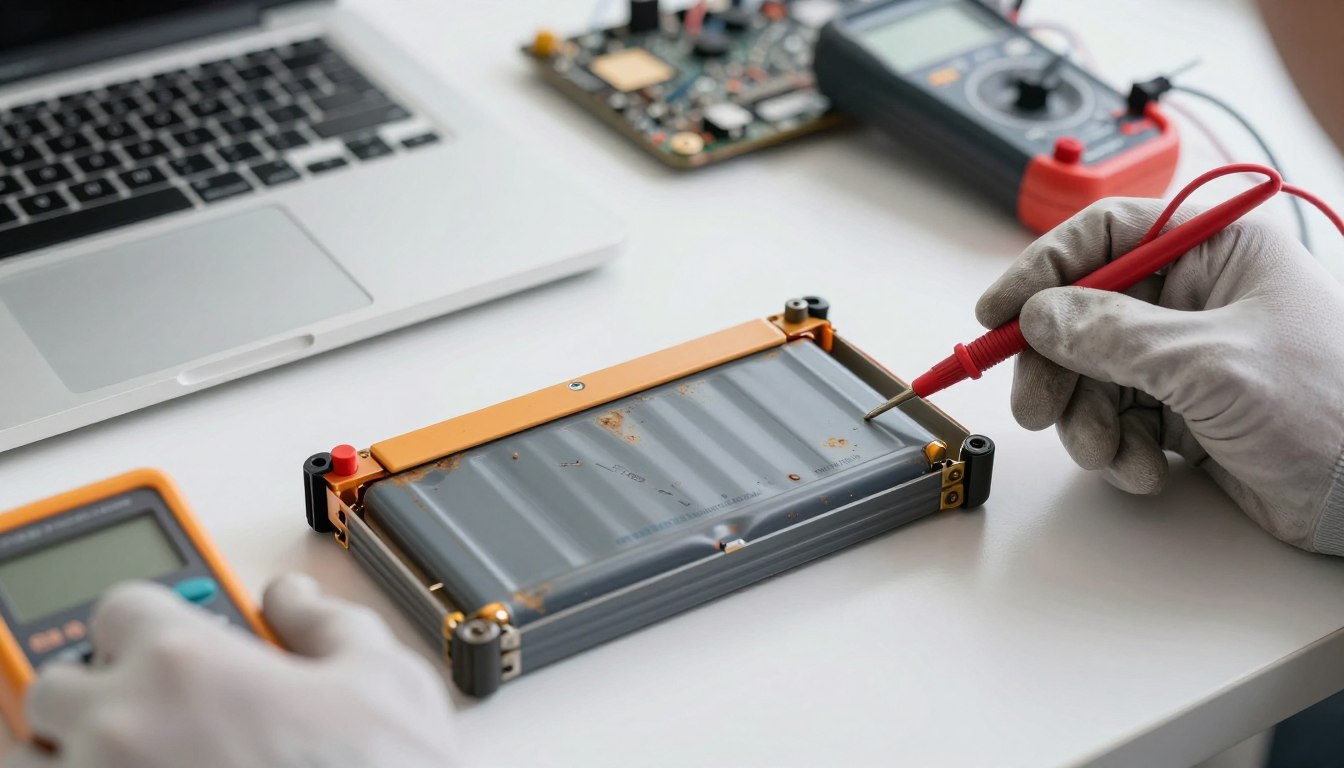
Replace the pack if reports show much lower capacity, runtime is sharply reduced, the cell is swollen, or the device shuts down repeatedly at the same level even after calibration.
Conclusion
Small, early swings in the displayed level usually reflect reporting behavior or short-term power use, not instant cell failure. Start by confirming active drains in Windows, then try quick fixes: lower screen brightness, pick a balanced power plan, close background apps, and unplug extras.
If the readout still seems wrong, generate a battery report and perform a calibration cycle. Those tests separate a gauge issue from real capacity loss.
When reports show large capacity decline and the device can’t hold a reliable charge, replacement is the practical long-term solution. Re-test after each change and log your results to see what actually helps.
Please share your thoughts below: which fix worked best and what symptoms did you see (fast percent change, shutdowns, or charging errors)?