Why Your Laptop Battery Drains Even When Plugged In
Is your laptop battery draining while plugged in? Find out the causes and solutions to this common problem in our troubleshooting guide.
Seeing the percent fall despite a power cord connected is alarming. This issue often feels like sudden failure, but it usually stems from how a device balances AC supply and stored energy.
Modern machines can run from the adapter, charge the cell, or blend both when demand spikes. If the system needs more power than the charger or adapter can provide, you may notice a short drop in charge.
That small loss can be normal under heavy load, but a steady decline at idle signals a real problem. We will explain charging basics, common causes, quick checks, and proven fixes to help you decide if the issue is workload, adapter mismatch, cell health, thermal limits, software, or hardware damage.
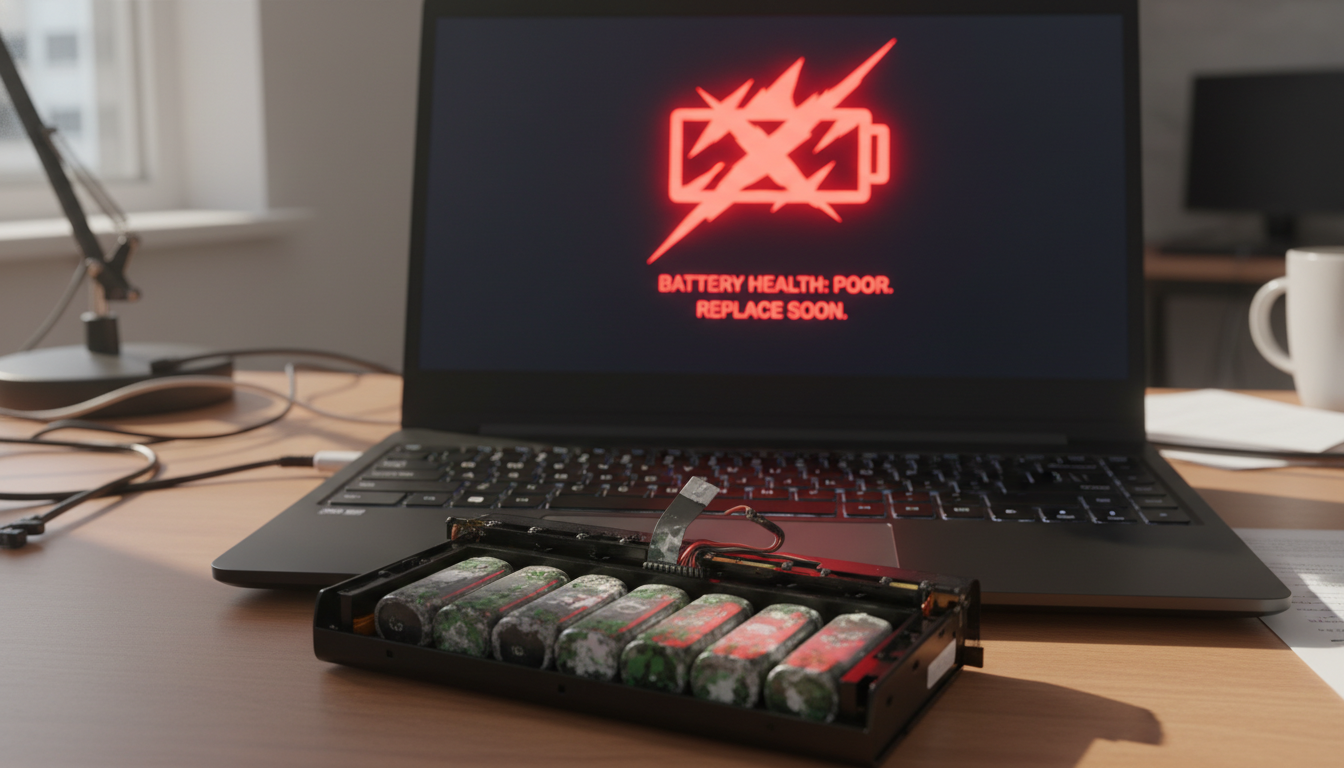
Safety first: if you see swelling, smell burning, or feel extreme heat, stop using the machine and get professional help right away.
Key Takeaways
- Minor percent drops can occur when power demand exceeds adapter output.
- Not every decline means immediate cell failure; it may be a power-delivery balance.
- Check adapter rating, workload, and thermal conditions before replacing parts.
- Sustained drain at idle is a sign to run deeper diagnostics.
- Stop use and seek support if the device shows swelling, burning smell, or extreme heat.
How power delivery works when your laptop is charging
Power routing inside a device decides whether the wall adapter runs the system, fills the cell, or blends both. The adapter supplies steady power to run components first. When there is extra headroom, the controller directs current to charging the cell.
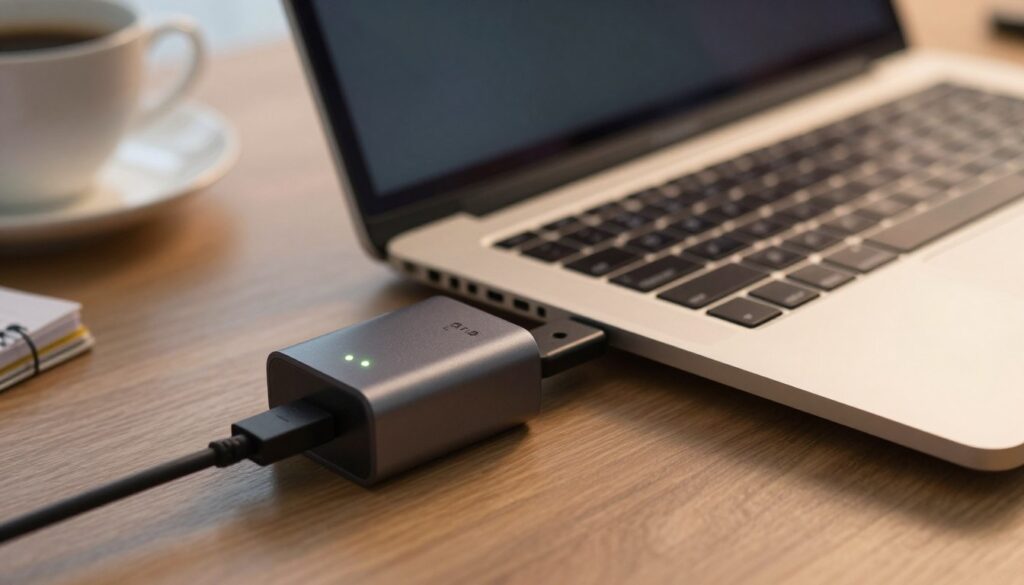
How the system balances adapter and battery under load
Under short CPU or GPU bursts, the power path can switch to a blended mode. That means the adapter supplies most energy while the cell makes up the difference for peak demand.
When a small drop can be normal during performance spikes
Turbo or boost modes can raise draw in seconds. If the adapter sits near its limit, you may see a brief percent dip. This is normal for heavy tasks like gaming, rendering, or driving an external display.
- Normal: tiny drops during short spikes that recover when demand falls.
- Warning: steady decline at idle signals a mismatch, thermal limit, or fault.
Key troubleshooting tip: check whether the drop happens only under load or also at idle. That difference points to workload vs hardware or software issues.
laptop battery drains while plugged in: the most common causes
A common cause of persistent percent loss is an adapter that cannot meet peak system demand. An undersized or worn charger may look fine but underdeliver current, forcing the cell to make up the difference.
Underpowered or failing adapter and wattage mismatch
Using a 45W brick on a machine rated for 65W–90W often leads to net power shortfalls. Worn cables, bent pins, or non‑negotiating USB‑C bricks can reduce available power even if the light shows green.
High-performance workloads that exceed adapter output
Gaming, rendering, or running VMs spikes draw. If percentage falls under load but stabilizes at idle, the adapter likely cannot keep up.
Battery health, calibration, and charging path faults
Age raises internal resistance and can misreport state of charge. Loose DC‑in jacks, solder fractures, or corroded ports cause intermittent swaps between AC and stored power.
- Peripherals: USB‑C hubs, bus‑powered drives, and phone charging add hidden draw.
- Thermals: High temps throttle charging to protect cells, so systems may still lose percent under heavy heat.
“Check whether the drop appears only with accessories or heavy apps; that clue narrows the root cause fast.”
Next: a few quick checks will help isolate adapter capacity, hidden power draw, or a hardware fault.
Quick checks to pinpoint the issue in minutes
A fast wattage check can save time and rule out common power problems. Start by comparing the charger’s printed output to the OEM spec for your laptop. A lower‑watt adapter often can’t keep up under load.
Inspect the charger and connector
Look for kinks, frays, heat marks, bent pins, or a loose USB‑C fit. Any wobble at the port can cause intermittent charging and stray power loss.
Cut immediate draw and run a simple test
Lower screen brightness, pause heavy apps, and unplug drives, hubs, and docks. On Windows, open Task Manager to spot high CPU or GPU usage from indexing or updates.
Controlled test: if you can, try a known‑good adapter of the correct wattage. Then watch whether the battery begins to charge or the percentage stabilizes at idle over a short time.
Interpretation: stabilizes at idle = likely workload or adapter limit. Drops at idle = possible adapter failure, port fault, cell health, or firmware/driver problem.
Fixes that work: software, firmware, and hardware solutions
Start with BIOS and driver updates; many power problems trace back to outdated firmware or drivers. Update the BIOS/UEFI first when charging behavior changed after a patch. Then install pending Windows updates and refresh chipset, GPU, and ACPI drivers to stabilize charging logic and power states.
Run diagnostics and verify results
Use built-in tools: run the OEM battery report or Windows power report and compare current capacity to design capacity. Look for downward trends that point to cell wear rather than software.
After updates, reboot and re-test at idle and under a repeatable moderate load. That quick verification shows whether the update fixed the issue or more work is needed.
Isolate with Safe Mode and calibration
Boot in Safe Mode to see if background apps or third‑party drivers cause excess draw. If the problem improves, focus on drivers and startup apps.
If reports look erratic, perform a gentle calibration cycle to re‑sync the fuel gauge. Note that calibration helps reporting but does not restore worn cells.
OEM settings, cooling, and when to seek hardware support
Check vendor charging limits or optimized charging features; some devices stop charging around 80–90% by design.
- Improve cooling: clean vents, keep fans clear, and elevate the rear to prevent thermal throttling that pauses charging.
- Escalate to support if you see a loose DC jack, port damage, adapter overheating, or swelling. These signs often need board, port, or cell replacement.
Mapping fixes to likely outcomes: firmware and driver updates fix many post‑update power issues; the correct‑watt adapter fixes load‑related percent loss; replacement solves low capacity and intermittent power-path failures.
Conclusion
,When charge drops despite a connected adapter, start by comparing workload, adapter rating, and cell health. Most cases point to adapter mismatch, heavy performance spikes, cell wear, thermal limits, or a faulty charging path.
Key difference: loss only under load usually shows adapter headroom or high draw. Loss at idle suggests adapter, port, or battery health issues or software/firmware faults.
Fast wins: confirm the correct adapter wattage, unplug high‑draw peripherals, lower immediate load, and re‑test over a short time. If the issue persists, update BIOS/UEFI, install chipset and GPU drivers, and apply OS updates to fix power‑management bugs.
If you see loose ports, overheating, swelling, or steady loss after these steps, contact support for safe hardware diagnosis and a durable solution.