Why Laptop Battery Charging Is So Slow
Discover why your laptop battery charging slow and learn effective troubleshooting steps to resolve the issue quickly. Improve your laptop's performance now.
What “laptop battery charging slow” looks like: you see long waits for percent gains or the device won’t rise above a low level during normal use. In most cases the cause is limited input power or a high power draw from apps or hardware.
Expectations for U.S. Windows users: modern systems may intentionally reduce charge rates to protect cell health or manage heat. That behavior is normal when the system detects high temps or heavy loads.
This guide follows a simple, safe path: check the charger, cable, and outlet; cut power draw; update Windows, drivers, and BIOS; then test health and temperature. The difference between slow charging and a device that drains while plugged in matters — the fixes are different.
Key Takeaways
- “Slow” often means low input power or high system draw, not always a failing cell.
- Start with the charger, cable, and outlet before deeper troubleshooting.
- Reduce background apps and avoid high-performance modes during charge.
- Keep drivers and firmware current to rule out software causes.
- Aim for stable charging behavior, not just speed, to extend lifespan.
How to tell if your charging speed is actually slow
A quick test can tell you whether your charge behavior is normal or indicates a problem.
Normal charging time vs. slow signs
Use simple benchmarks: when the device is idle, percentage should climb noticeably within 10–20 minutes. Moving from ~20% to ~80% typically takes 1–3 hours on a standard adapter for mainstream models.
Watch for clear signs: percentage barely rises over 20–30 minutes, charge only improves while asleep, or charge rate drops after a recent update.
Slow charging vs. draining while plugged in
“Slow charging” means the percentage increases slowly. By contrast, draining while plugged in means percent falls or stays flat — a sign the device uses more power than the adapter supplies.
Quick Windows checks
Hover the battery icon to confirm it says “plugged in” and whether it reads “charging.” Note any “not charging” messages.
Also check power mode: Best performance raises power draw and makes charging appear slower. Recall recent changes: Windows updates, new drivers, docks, or apps can cause new power use patterns.
“If heavy apps or external devices run during calls, the system may draw more power than the adapter can provide.”
Quick power and connection checks that impact charging speed
Start by checking the power connection and accessories that carry the most risk of mismatch. Small faults or the wrong adapter can cap input and make charging feel sluggish.
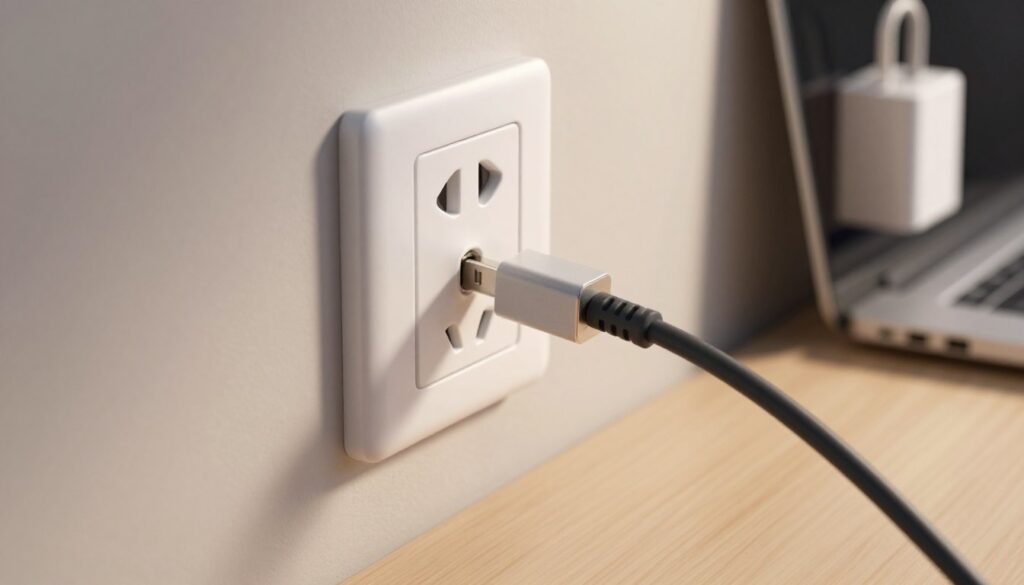
Use the original charger and cable
Use original or certified gear whenever possible. USB‑C power delivery relies on negotiation, and third‑party combinations often limit wattage.
Confirm adapter wattage and compatibility
Check the label on the device underside or the adapter brick to confirm required wattage. A lower‑watt adapter can cause slow charge or even drain while plugged in.
Inspect cords, ports, and the wall outlet
Look for frayed insulation, bent pins, loose fit, or debris in the port. Plug directly into a wall outlet rather than a power strip to avoid voltage drops.
Reduce extra load and know when to get support
Avoid charging phones or tablets from USB ports while you charge the main system. If the connector sparks, overheats, or feels loose, contact manufacturer support instead of repeating tests.
| Check | USB‑C (PD) | Barrel adapter |
|---|---|---|
| Common issue | Wrong cable rating or PD negotiation | Incorrect voltage/amperage adapter |
| Quick fix | Use original charger and charging cable | Match adapter wattage on the brick |
| When to seek support | Overheating cable or loose port | Sparking connector or intermittent contact |
Laptop battery charging slow due to high power consumption
High system draw can make the percent climb almost stop, even with a good adapter attached. Charging speed equals input power minus what the machine consumes, so heavy CPU, GPU, networking, or disk use reduces net charge to the cell.
Disable power-hungry features while charging
Quick wins: disconnect external devices, pause file sync, and turn off Bluetooth or Wi‑Fi if not needed. Unplug external drives and high-draw USB accessories while you charge.
Stop background apps in Windows Task Manager
Open Task Manager, sort by CPU, GPU, or Disk, and end nonessential background processes. Focus on applications that show sustained high usage.
Use Sleep, Hibernate, or shut down to charge faster
Sleep or hibernate reduces active power consumption and lets more charger output go to the cell. A full shutdown is the fastest practical option when you don’t need the device immediately.
Gaming and high-performance modes
Sustained GPU boosts and performance modes can exceed a lower-watt adapter’s supply. Pause gaming sessions or switch Windows from Best performance to Balanced or Best power efficiency to help the charge recover.
Sanity check: if charge improves when the device sleeps but is slow during use, the adapter is likely adequate and the workload is the problem.
System and firmware fixes: Windows updates, drivers, and BIOS
Before replacing hardware, update system components—many power issues trace to outdated firmware or drivers.
Why this matters: the firmware + drivers + Windows stack controls charger negotiation, thresholds, and reporting. Fixing software can restore correct behavior without hardware work.
Run Windows Update and optional packages
- Open Windows Update, install all recommended updates, and check “Optional updates” for firmware or driver packages.
- Restart to let new power-management components load.
Refresh battery-related drivers in Device Manager
In Device Manager, expand Batteries, then update or uninstall/reinstall Microsoft ACPI entries. Corrupt drivers can cause “plugged in, not charging” and similar issues.
Update BIOS carefully
Manufacturers release BIOS updates for USB‑C PD behavior, thermal tuning, and stability. Use the model-specific support page, follow vendor instructions, keep the system plugged in, and never interrupt a flash.
Tip: if this started after an OS or driver change, updating drivers and BIOS often resolves new compatibility issues. For work machines, coordinate with IT and the correct account before proceeding. Search the official support site for model-specific guidance.
Battery health, temperature, and diagnostics when slow charging persists
If earlier steps didn’t help, focus on battery health reports and thermal issues. These checks separate worn cells from software or thermal throttling.
Run vendor diagnostics first
Use the manufacturer’s tool (for example, MyASUS Battery Diagnosis) to surface faults, adapter detection errors, or charging limits. Vendor apps often show faults that generic tools miss.
Get a Windows battery report
Open a command prompt as admin and run powercfg /batteryreport. Review design capacity versus full charge capacity; a large gap indicates wear that affects charge time and overall performance.
Watch temperature and improve cooling
Heat throttles charging. Clean vents, use a hard surface, avoid direct sun, and consider a cooling pad if the system runs hot. Lower workload while charging to reduce thermal limits.
Safe Mode and calibration
Test charging time in Safe Mode to rule out third-party software. If percentage reporting jumps or drops, try a calibration cycle—but remember calibration fixes reporting, not true wear.
Decide next steps: good diagnostics + cool temps + Safe Mode still slow usually means port or adapter issues. Poor full charge capacity points to replacing the cell or contacting support.
Conclusion
The quickest path to a solution is simple: confirm the charger, cable, and adapter match the device’s power rating, plug into a wall socket, and cut background use before moving on to updates and diagnostics.
Key takeaway: many reports of slow charging are actually power budgeting problems — too little input power or too much system use. Using the correct charger can often fix the issue right away.
If charge improves while the system sleeps, focus on power draw and background apps. If it never improves, check connector fit, adapter output, and run health diagnostics to pinpoint faults.
Keep a stable setup: use compatible charger gear, avoid overloaded strips, and keep firmware and drivers current to reduce future trouble.
Safety note: stop using damaged cords or an overheating charger and contact manufacturer service if the port is loose or diagnostics report faults.