Why Gaming Laptops Wear Batteries Faster
Discover why gaming laptops experience gaming laptop battery wear faster. Learn the causes and solutions to extend your laptop's battery life.
What “gaming laptop battery wear” means in real terms is a steady drop in the maximum charge the cell can hold. It shows up as shorter run times over months, not an instant failure.
Many owners notice reduced runtime soon after purchase because high power draw and heat speed the aging process. That decline is different from a single session that drains power quickly.
This guide previews the main drivers: sustained high power, excess heat, charging habits, and how some reports overstate loss. You will learn how to check health stats in Windows, read the numbers, and decide whether tweaks or calibration make sense.
Our practical goal is simple: keep system performance high while slowing cell aging and avoiding needless replacements. Read on for clear, tested steps to protect runtime and extend device life.
Key Takeaways
- Wear means lower maximum capacity over time, not sudden failure.
- High power draw and heat are the biggest long-term drivers of decline.
- Short-term drains are different from capacity loss seen after months.
- Windows health reports help you interpret real condition and trends.
- Small changes to charging and cooling can slow aging and preserve life.
Why gaming laptops drain and degrade batteries faster than everyday laptops
Sustained, high-wattage tasks force key components to run near their limits for extended periods. That constant demand raises overall power draw compared with light web or office usage.
High CPU and GPU demand
Intense workloads push processors and graphics units to sustained high wattage. The result is higher continuous current from the cell and from the adapter when plugged in.
More frequent top-ups and cycles
Long sessions shorten run time, so users often plug in mid-play to keep going. Those partial charges add up into more cycles over months, even without full discharges.
Heat and compact design
Small chassis place the pack close to heat pipes and hot components. Higher average temperature raises chemical stress on the cell and speeds long-term capacity loss.
A performance profile can also raise voltages and boost behavior, increasing heat and strain even during non-play usage.
Next: heat is usually the dominant factor that accelerates long-term capacity loss and deserves a deeper look.
Heat is the biggest driver of battery wear during gaming
When internal temperatures stay high for long periods, lithium-ion cells age faster. Elevated heat speeds chemical reactions that reduce the cell’s maximum capacity over months, not just in one session.
How sustained high temps accelerate lithium-ion aging
Higher ambient temps increase internal corrosion and slow down useful life. That means less runtime and lower overall performance over time.
Why “hot while charging” is especially hard on battery health
Charging adds heat while the system already runs hot under load. The combination raises cell temperature and creates a worst-case environment for long-term degradation.
Common heat sources beyond the CPU and GPU
- VRM and power delivery zones near the battery area
- High-speed NVMe SSDs and cramped internal layouts
- Blocked vents, dusty fans, or soft surfaces that limit airflow
Signs your thermals are hurting the pack
If the chassis feels hot near the palm rest, fans spin constantly, runtime drops fast, or the pack is warm after charging, thermals are likely the issue.
Tip: Lowering average temps slows capacity loss more than tiny software tweaks. Audit cooling and placement before assuming the cell is defective.
Charging habits that speed up battery wear over time
How you charge each day shapes the pack’s future capacity more than a single long session. Small, repeated patterns matter most over months and determine whether the cell keeps usable life.
Why staying at maximum charge reduces long-term life
Keeping a pack at 100% for long periods raises internal voltage and chemical stress. That is worse when the chassis runs warm. Over weeks, parked full state plus heat accelerates degradation.
Why deep discharges cause real damage
Letting a lithium-ion run to near zero often shortens useful cycles. This is not conditioning like older NiMH cells; it creates stress and can reduce battery life.
Rapid charge and high-wattage chargers
Fast charging and high-wattage adapters save time but raise temperature during the charge window. Higher temp equals faster capacity loss, so balance speed against long-term health.
Practical rule: keep mid-range charges for daily use and charge to full only when you need longer time away from a power source.
| Habit | Short-term benefit | Long-term effect |
|---|---|---|
| Parked at 100% | Ready to go | Higher stress when warm |
| Deep discharge | Uses full runtime | Faster capacity loss |
| Fast charging | Less time plugged in | More heat during charge |
Next: we’ll define what numerical wear looks like so you can read capacity numbers instead of guessing.
What “battery wear” actually means for laptop battery capacity
Understanding how rated capacity compares to today’s full charge helps make reported numbers meaningful.
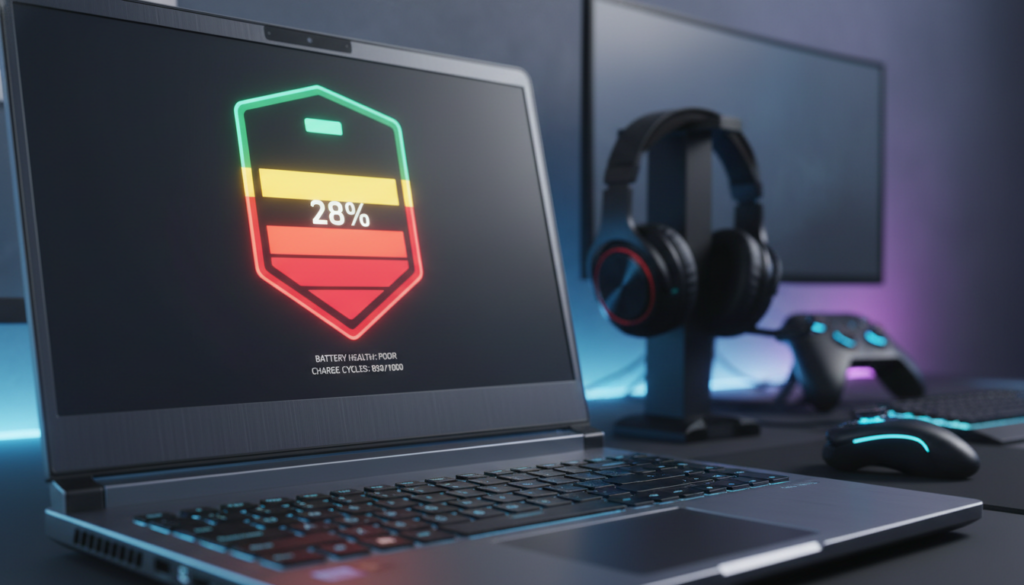
Design capacity vs full charge capacity
Design capacity is the energy the cell was built to hold when new.
Full charge capacity is what the pack can actually store right now.
How the gap becomes a wear percentage
The difference between design capacity and full charge capacity is the wear percentage.
Small percent losses matter. A 10% gap means the pack holds 90% of its original energy.
Translating capacity loss into hours
In similar use, a drop from 100% to 90% capacity usually means about 10% fewer unplugged hours.
High-watt draws make that loss feel worse. When components pull lots of power, each missing watt-hour shortens runtime faster than during light browsing.
Check the Windows report to see design and full charge numbers. Measure before you change settings so you can confirm whether tweaks actually improve battery life.
| Metric | What it shows | Practical meaning |
|---|---|---|
| Design capacity | Rated energy when new | Baseline for comparisons |
| Full charge capacity | Energy the pack holds now | Indicates current runtime |
| Wear % | Gap between the two values | Estimate of lost hours under similar load |
How to check battery health in Windows using a battery report
Use the built-in Windows report to capture capacity stats and the timeline of changes. The report gives clear numbers so you can prove whether a decline is real or just a measurement issue.
Run Command Prompt as Administrator
Open Start, type “cmd”, right-click Command Prompt and choose Run as administrator. Admin access avoids permission errors when saving the report to protected folders.
Generate the report
Type the exact command and press Enter:
powercfg /batteryreport
The command creates an HTML file you can open in any browser.
Find and open the file
By default the file saves to Windows\system32. Open File Explorer, paste that path, and locate the battery-report HTML. Double-click to open it in your browser for an easy read.
What to check in the report
- Design Capacity — the pack’s original rated energy.
- Full Charge Capacity — what it holds now; compare this to design to see loss.
- Capacity history — a timeline of past entries showing trends over weeks or months.
| Field | What it shows | Why it matters |
|---|---|---|
| Design Capacity | Rated energy at manufacture | Baseline for comparison |
| Full Charge Capacity | Current maximum charge | Shows real runtime potential |
| Capacity History | Recorded capacity over time | Reveals trends and sudden drops |
Tip: Record these numbers before you change power settings. That way you can measure improvements instead of guessing.
Next: the report may sometimes flag apparent loss that is a reporting error, not true decline. The following section explains when that happens.
When reported wear is a measurement problem, not real degradation
A fresh unit may report low capacity simply because the fuel gauge hasn’t learned its true range after shipping or storage. That can show up as a high wear percentage on day one even when the cell is healthy.
Why new systems sometimes show out-of-box errors
OEMs and transport conditions can leave the pack at a partial charge. The charge controller then misreads full points and reports inflated wear. Real examples include Dell XPS models: one XPS 13 9370 showed 8% wear, an XPS 15 9570 about 10%, and an XPS 15 9575 near 14.5% right out of the box.
How incorrect reporting shortens perceived runtime
If the system thinks the cell is smaller than it is, it may end the discharge curve early. That reduces reported battery life and leads the user to think there’s a fault when the result is a bad reading.
When recalibration helps — and when to avoid it
Quick rule: if a new laptop’s full charge capacity reads under ~95%, recalibration is reasonable. Calibration has fixed many reports: ~14% down to ~4%, ~10% to ~3.8%, and ~8% to ~4% in tested cases.
Warning: full discharges cause real strain. If the device is several years old and the percentage matches expected aging, skip calibration and focus on thermal and power fixes instead.
Next steps: try a careful recalibration only when the report seems wrong, then move to practical ways to cut load and heat if problems continue.
Gaming laptop battery wear: common causes you can fix today
Small, avoidable habits can add hours of usable life to your device each week. Focus on what runs in the background, which power profiles you pick, and simple display and peripheral choices.
Cut unnecessary background usage during sessions
Launchers, overlays, recording tools, and many browser tabs raise CPU use and power draw. That creates extra heat and drains the pack faster.
Do this: close unused apps, limit startup items, and disable overlays while playing. One change often makes a clear difference.
Power and performance settings that matter
Performance modes boost clocks and fan profiles. They improve frame rates but raise average temperature and long-term stress.
Use Balanced for routine work and switch to Performance only when the extra frames justify the added heat.
Manage display, refresh rate, and peripherals
Lower brightness and drop refresh rate when unplugged. Disconnect power-hungry USB devices if you do not need them.
One-step testing and measurement
Try one change at a time, then check the Windows report or system logs. This lets you see which ways actually reduce drain over the day.
How to calibrate a lithium-ion laptop battery safely (only when needed)
Calibrating a pack should be a troubleshooting step, not regular maintenance. Do it only when the report shows odd numbers or the charge percentage jumps unexpectedly.
https://www.youtube.com/watch?v=hSmI1VO0K4A
Important warning about calibration
Calibration needs a deep discharge and a full recharge. That process stresses cells more than normal partial cycles. Repeating it often reduces long‑term life.
When calibration makes sense
- New unit shows unusually low full charge capacity.
- Percentage drops or reporting is inconsistent.
- You suspect the fuel gauge is misreading the pack.
Charging thresholds and OEM tools
OEM utilities or BIOS limits can prevent a true 100% charge. If a tool caps charging at 80–90%, calibration fails because the cell never reaches full voltage.
Temporarily set charging settings to allow a full charge, run the deep discharge to forced shut‑off, then recharge uninterrupted. Afterward, restore protective limits for long‑term care.
| Step | Action | Why it matters |
|---|---|---|
| Verify report | Check Windows battery report numbers | Confirms whether calibration is needed |
| Adjust thresholds | Use OEM utility or BIOS to set 100% | Ensures a true full charge for accurate calibration |
| Deep discharge | Run until forced shut‑off (avoid frequent repeats) | Resets gauge but increases stress |
| Full recharge | Charge uninterrupted to 100% | Captures correct full charge capacity |
Battery calibration procedure using BIOS and a full charge cycle
A step-by-step calibration using BIOS and a full charge cycle yields clearer capacity readings. Follow this only when the Windows report and daily runtime suggest a reporting error, not routine maintenance.
Prepare: set charge limit to 100%
Temporarily set any OEM charge threshold to 100% or “Standard” so the cell can reach a true full point. Charge uninterrupted until the system shows full.
Discharge to forced shut‑off
Run normal use or a steady load until the device forces shutdown. Do not stop at sleep or hibernation; those states prevent the fuel gauge from relearning.
Use BIOS to avoid sleep and drain predictably
Reboot to BIOS and disable sleep states or wake timers. Leaving the system in BIOS ensures a clean drain and avoids OS power-saving quirks.
Cool‑down window before recharge
Wait 3–5 hours unplugged so the pack cools. Skipping this cool-down can worsen the reported capacity and skew the final result.
Full uninterrupted recharge and recheck
Charge without interruption to maximum, using the original charger if possible. When done, regenerate the Windows report and compare design vs full charge capacity to verify the calibration result.
“Only calibrate when numbers look inconsistent; repeated deep cycles add stress and shorten long-term life.”
| Step | Action | Why it matters |
|---|---|---|
| Set 100% | Disable OEM cap and charge fully | Ensures true full voltage for accurate calibration |
| Forced shut‑off | Discharge until system powers off | Prevents incomplete relearn from sleep/hibernation |
| BIOS mode | Run drain in BIOS to block OS sleep | Makes drain predictable and repeatable |
| Cool-down | Wait 3–5 hours unplugged | Reduces heat stress and avoids worse readings |
| Recharge & verify | Charge fully, then run Windows report | Confirms whether calibration fixed the issue |
Charging limit features, OEM utilities, and BIOS settings that protect battery life
Finding the right charge limit can be one of the easiest ways to protect long-term pack life. Many vendors hide these controls in system apps or the firmware menu.
Where to find charge behavior controls
OEM utilities like Dell Power Manager and Lenovo Vantage expose simple options to set limits or enable a protective mode.
Some models also add a control in the Bios or a battery management section. Check both the app and firmware if you can’t find it in Windows.
Standard vs capped modes and long-term impact
Standard usually allows full 100% charging for ready use. Capped modes (80% or 90%) reduce time at full voltage and help battery health over months.
For users who keep systems mostly plugged in, a cap reduces heat and cycle accumulation — a simple way to extend usable life.
If your machine lacks an explicit cap
Use any available option such as “stationary battery mode.” Improve cooling, avoid long storage at full charge, and make sure the original charger is used.
| Where | Typical option | Benefit |
|---|---|---|
| OEM app | 80% / 90% cap or Stationary mode | Less time at max voltage |
| BIOS | Charge behavior / Standard or Full | Allow full charge for calibration |
| No cap available | Thermal and usage changes | Reduce heat; avoid 100% storage |
How to extend gaming laptop battery life week to week
A few consistent actions every seven days can preserve capacity and reduce thermal stress. Small routines are easier to keep and show results over weeks rather than days.
Keep the system cool with airflow, cleaning, and smarter placement
Keep vents clear and use a hard surface during use. Soft surfaces block airflow and raise heat quickly.
Blow dust from intake fans every few weeks and check fan operation. Cooler operation slows chemical decline and keeps capacity higher over years.
Avoid running the pack to near-zero during normal use
Deep discharge events stress cells. Charge earlier and top up at 30–80% for routine use.
This reduces cycle stress and makes times between full charges longer without sacrificing daily run time.
Use plugged-in play wisely to cut cycle count and manage heat
Playing while plugged in prevents repeated full cycles, but pair that with added cooling. Poor thermal control while charging increases heat-related loss.
Track capacity over time to spot early problems
Run a health check every few weeks and log full charge values. Slow changes over years are normal; sudden drops often point to thermal faults, software issues, or service needs.
Set a monthly reminder to compare numbers at similar times so trends are meaningful and actionable.
Conclusion
, Practical steps beat panic: focus on heat control, sensible charging, and measured checks to protect a laptop battery. High power draw, sustained heat, and frequent top-ups explain why gaming systems age packs faster than everyday use.
Key takeaway: controlling temperature and limiting time at full charge deliver the largest long-term gains. Verify the issue with design capacity vs full charge numbers before assuming permanent damage.
Calibrate only for suspicious readings on a new device. Deep discharge can cause real damage, so use that fix sparingly.
Next day: reduce unnecessary load, pick balanced performance when you don’t need top speeds, and keep the system cool. Consistent care over months preserves usable runtime as the unit ages.