Why Laptop Fans Get Loud While Charging
Discover why you experience fan noise charging laptop and learn effective troubleshooting steps to resolve the issue. Get your laptop running smoothly again.
Why does a device sound louder when it’s plugged in? Many users hear a steady whoosh, sudden ramp-ups, or brief bursts as the system runs on AC power. This guide explains what that typical fan noise charging laptop means and what to expect.
In plain terms, performance often rises on direct power, which raises clock speeds and generates more heat. At the same time, the battery may warm while it tops up, prompting the cooling system to spin faster.
Some elevated sound is normal and protective. But repeated loud patterns can signal overheating or failing parts. This piece previews quick checks for placement and running programs, then cleaning, software updates, and hardware support steps if needed.
Our aim is to reduce unwanted sound without risking stability. Each step recommended here is reversible and safe, so you can restore quiet operation while keeping your system healthy.
Key Takeaways
- Plugging in often boosts performance and heat, which raises cooling activity.
- Battery warming during top-up can add to the thermal load.
- Some sound is normal; certain patterns may indicate trouble.
- Start with simple checks, then clean, update, and only then seek hardware help.
- Follow safe, reversible steps to lower sound without harming the system.
What changes when a laptop is plugged in and charging
When you plug the system into AC power, the machine often shifts into a higher performance mode to take advantage of the extra energy. This change affects the processor and graphics cores and raises overall thermal load.
Higher available power increases CPU and GPU activity
On mains power, the system may allow the cpu and gpu to run at higher boost clocks. That improves performance for gaming, video editing, and heavy apps.
More heat output prompts the cooling system to work harder
Higher clock rates produce extra heat. The cooling design ramps up airflow so components stay inside safe temperatures.
Battery and power circuitry add their own heat
The battery heats as chemistry accepts current, and adapters, VRMs, and charging ICs dissipate energy too. Together these sources raise internal temperature.
- User impact: The fan may ramp sooner on AC even at the same workload because the device is allowed to draw more power.
- Normal baseline: Louder operation is expected during heavy tasks like gaming or multi-tab video playback while plugged in.
When loud fan noise is normal vs a sign of a problem
Short bursts of loud operation often match heavy activity like updates, streaming video, background indexing, or brief rendering spikes. These ramps are usually temporary and help the device cool quickly during high usage.
Short bursts during updates or heavy tasks
Updates and indexing start CPU work even when you are idle. That can trigger quick ramps of the cooling system. This behavior is expected right after you plug in or when an app begins heavy work.
Persistent loud operation as overheating warning
Continuous high-speed running suggests the system cannot shed heat. Overheating reduces performance and shortens component life. If surfaces feel very hot or the device throttles, treat this as a potential overheating problem and seek help.
Screeching, grinding, or rattling that suggests hardware damage
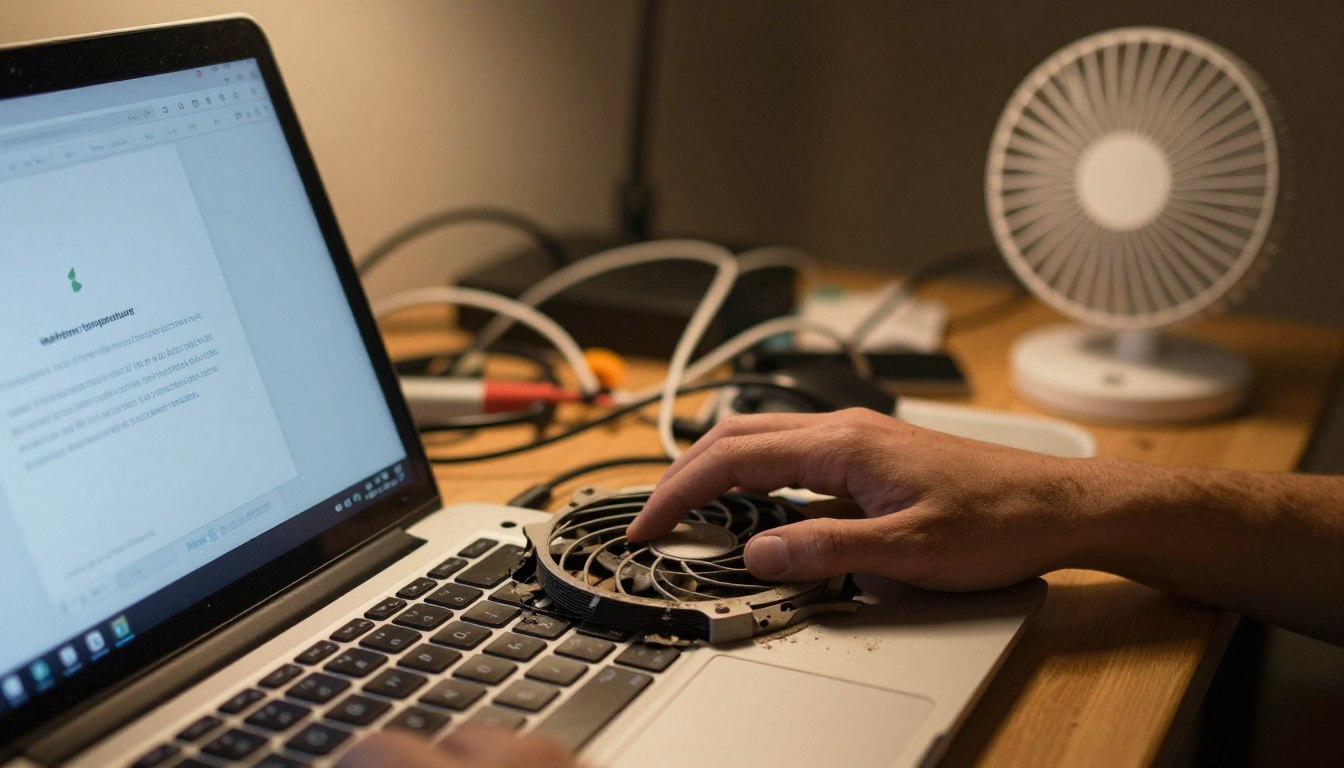
Squeals, grinding, or rattle usually mean mechanical wear, debris on blades, or bearing failure. These sounds are hardware red flags and often need inspection or repair rather than software fixes.
| Sound profile | Likely cause | Key signs | Recommended action |
|---|---|---|---|
| Short ramp-ups | Updates, video, rendering | Brief, tied to activity | Monitor processes; allow cool-down |
| Constant high-speed | Persistent overheating | Hot chassis, throttling | Check vents, reduce load, seek help if persists |
| Screech/grind/rattle | Mechanical damage or debris | Harsh, new, or worsening sound | Stop use and get hardware inspection |
Fan noise charging laptop quick checks before you troubleshoot
A few quick safety steps can rule out placement or airflow problems before deeper troubleshooting.
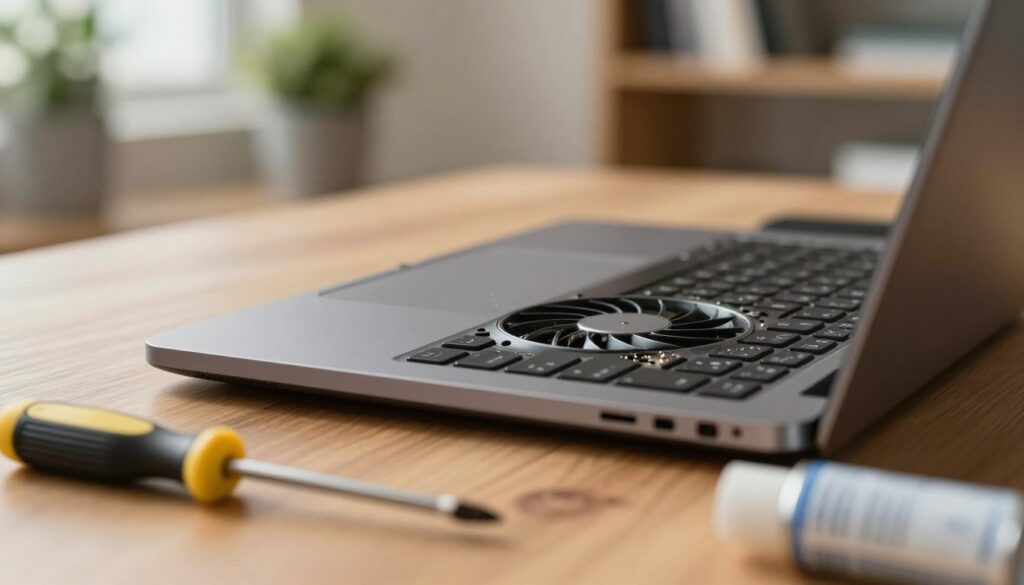
Save files, shut down safely, and use a stable surface
First, save your files and close active work. This prevents data loss if you need to power down.
If you plan to move or inspect vents closely, shut down and unplug the device.
Place the computer on a hard, flat surface to keep it steady and to allow proper air flow under and around it.
Confirm vents aren’t blocked by soft surfaces
Check that vents are clear of bedding, cushions, or clothing. Restricted vents reduce intake and exhaust air quickly.
Even a small obstruction can make the cooling system run harder. Fixing placement often fixes the immediate issue.
Note when the sound starts and what programs are open
Keep a short log: does the sound begin right when you plug in, or after a few minutes? What programs or background tasks are running?
This information helps decide if the cause is workload, placement, or a persistent issue requiring deeper steps.
| Quick check | What to look for | Next step |
|---|---|---|
| Save files & power down | No unsaved work, safe to inspect | Shut down and move to a hard surface |
| Inspect vents | Blocked by fabric or debris | Clear obstructions and retest on a hard surface |
| Record start timing | Immediate vs delayed start; active programs | Match timing to specific tasks or windows processes |
Airflow and placement issues that make fans louder while charging
Proper placement changes how air moves through the chassis and can cut temperatures fast.
Most machines pull cool air in through intake vents and push warm air out through exhaust vents. If either path is blocked, internal parts heat up quickly.
Use a hard, flat surface during regular usage and when plugged in. Soft surfaces like beds or couches soak heat and restrict flow. Asurion notes that a desk or ventilated stand often reduces fan activity right away.
Improve circulation with a stand and clear space
- Elevate the chassis to allow unobstructed exhaust.
- Keep a few inches clear behind and under vent areas.
- A small ventilated stand or desk mat prevents heat soak into the surface beneath.
| Scenario | Common issue | Quick fix |
|---|---|---|
| Desk at home | Rear vents close to wall | Pull device forward 2–3 inches |
| Coffee shop table | Small surface area, warm table | Use a slim stand or raised pad |
| On your lap | Soft fabric blocks intake | Place a tray or lap desk to keep vents open |
Better air flow lowers internal temperature. That means the cooling system runs less aggressively and you will notice less perceived noise when the machine is plugged in.
Dust and clogged vents that force the fan to work overtime
Dust builds slowly inside vents and on heat sinks, and over months it can cut airflow enough to raise operating temperatures. This change often makes the cooling assembly run more and for longer periods.
Common sources include pet hair, carpet fibers, and household dust carried by HVAC systems. Devices placed low on floors or near vents collect more debris, so check placement if dust returns quickly.
How to clean safely with compressed air
Power down and unplug before you start. Let the device cool to avoid thermal stress on components.
Use short bursts of compressed air at a slight angle into intake and exhaust grilles. Hold the can upright and avoid continuous blasts that can overspin the fan or force moisture inside.
“Power off, unplug, and use short, angled bursts of compressed air to clear dust — it’s simple and effective.”
Risks and recommended cadence
Avoid vacuuming vents, poking tools into grills, or holding compressed air too close. These actions can cause damage or push debris deeper into components.
Maintenance steps: do a quick vent clean about every six months in typical homes. Clean more often if you have pets or a dusty environment.
Cleaning often restores airflow and can reduce perceived operation during charging, but severe internal clogging may need a professional service.
High CPU load from background tasks that spikes heat and fan speed
Some apps quietly drive sustained processor activity, which raises internal temperatures fast. When the cpu stays busy, the cooling assembly responds to protect components. This effect becomes more noticeable while plugged in because the system often allows higher performance.
Check Windows Task Manager and sort by CPU
Open Task Manager: press Ctrl + Alt + Delete → Task Manager. Click the CPU column to sort processes by usage.
Watch processes for several minutes. Brief spikes are normal. A process pinned near the top repeatedly signals excessive load.
Close or remove programs that keep running
Identify runaway software, stuck syncing, or misbehaving browser tabs. Close the offending program and re-check CPU usage.
If it returns, disable startup items or uninstall unneeded programs to stop repeated background usage.
Common heavy workflows to watch
| Workflow | Why it raises CPU | Quick action |
|---|---|---|
| Video calls | Real-time encoding and camera use | Close meeting window or lower resolution |
| Many browser tabs | Background scripts and media | Close tabs or use a tab manager |
| Cloud sync or backups | Continuous file scanning and transfer | Pause syncing while plugged in |
Test changes one at a time: close an app, re-check Task Manager, and listen for any drop in fan activity. This isolates the cause without guessing.
Software, malware, and updates that can trigger overheating
Unwanted programs and malicious code can run unseen and keep the CPU or GPU busy. This sustained load raises internal temperature and forces the cooling system to work harder. Run basic checks before changing advanced settings.
Run a full antivirus scan to rule out unwanted programs
Start with a full system scan. Use a reputable antivirus and remove any threats found. Malware often mimics normal processes but keeps resources high.
Install OS updates for thermal and performance fixes
Apply Windows Update or macOS Software Update to ensure your device has the latest fixes. Updates can include thermal management improvements and changes to boost policies that affect heat and power use.
Update drivers and firmware that affect control and power
Check graphics, chipset, and BIOS/UEFI versions. Vendor power utilities and firmware can change fan control logic and charging behavior on AC power.
- Check current version numbers for OS and key drivers.
- Install one update cycle, restart, then re-test system behavior.
- Use only official vendor channels for firmware to avoid instability.
“Run a full antivirus scan and keep system drivers and firmware current — small updates often fix thermal and performance issues.”
Power and thermal settings to reduce fan noise while charging
Small changes to system profiles often lower sustained temperatures without sacrificing everyday performance. Start here only after you confirm clear vents and clean internals, since settings cannot fix blocked airflow.
Adjust Windows power mode to limit boost on AC
Switch from High Performance to Balanced or a custom plan that caps maximum processor state. Lowering the maximum CPU state on AC to 80–90% cuts heat and will often reduce fan activity while keeping usable performance.
Use vendor utilities and check BIOS/UEFI
Manufacturers (HP, Dell, Lenovo, ASUS, Acer) offer utilities with thermal profiles or “quiet” modes. Names differ by brand. Also scan BIOS/UEFI for conservative thermal or fan control options.
Document changes so you can revert them if behavior changes.
Review battery and charging settings
Features like charging thresholds, rapid charge, or optimized charging alter heat near the battery. Enabling a threshold or slower charge rate can lower local temperatures during long plugged-in sessions.
Consider a cooling pad or improved air
A raised stand or active cooling pad improves intake and exhaust. Extra airflow lowers internal temps, letting built-in controls run less aggressively.
Safety note: If new settings cause instability or unexpected throttling, revert to defaults and pursue hardware-safe fixes first.
Conclusion
Running on AC typically enables stronger performance states, so internal temps climb and the cooling system responds.
In short, systems often get louder while plugged in because they draw more power, boost performance, and create more heat that the fan must move. Clear vents, use a hard surface, and remove dust as first quick wins to cut thermal load.
Next, check resource use, stop unneeded background tasks, run malware scans, and keep drivers and firmware updated. If you hear grinding or rattling, treat that as a possible hardware issue noted by Asurion.
If simple fixes fail, contact manufacturer support or check warranty status (HP and others offer account tools). Follow this order: placement, cleaning, software, settings, then service.