Do Cheap Chargers Always Damage Laptop Batteries
Explore the cheap chargers myth and find out how to charge your laptop safely. Our how-to guide provides expert tips on protecting your laptop battery.
Do low-cost power adapters automatically harm a laptop battery? People ask this a lot today as technology and devices evolve. The “cheap chargers myth” is the simple idea that low price equals certain damage.
Modern laptops and phones manage charging with built-in safeguards like power negotiation and temperature monitoring. These systems usually stop drawing full power at 100% and slow charging as the cell fills.
Damage can mean reduced capacity, unexpected shutdowns, swollen packs, or thermal events. Many problems trace to uncertified accessories that lack safety features and generate heat or unstable power.
This guide will explain what truly wears batteries, when a low-cost charger is safe versus risky, and practical steps to protect your device. You’ll learn how to check cables, avoid heat extremes, and spot warning signs.
Quality here means certifications and standards support, not price alone. The article first covers real causes of battery wear, then safe vs risky options, and finally step-by-step safety tips and a checklist.
Key Takeaways
- Not all inexpensive adapters cause harm; unsafe, uncertified units pose the real risk.
- Heat is the main driver of battery wear, more than price alone.
- Modern devices have charging safeguards that limit damage when working correctly.
- Look for certifications and stable power delivery as signs of quality.
- Follow simple habits—avoid high temperatures, inspect cables, and heed warnings.
What Actually Harms a Laptop Battery vs What People Assume
Long-term exposure to high temperatures and deep discharges wears batteries far more than one accessory ever will. Modern devices manage charging, so single events rarely cause immediate failure. The real risks are sustained conditions that stress the cell over time.
Why heat is the real battery killer during charging and fast charging
Heat accelerates lithium-ion degradation. Charging in hot environments (above 35°C) or at 40°C can roughly double wear compared with charging near 25°C.
Fast charging itself isn’t inherently dangerous, but it raises temperature during the top-up phase. A hot room, blocked vents, or heavy CPU/GPU use while plugged in increases stress on the battery and shortens its lifespan.
“Charging systems monitor temperature and back off when needed to protect the cell.”
How modern devices regulate power to prevent overcharging and “overload”
Laptops and power adapters use negotiated communication to set current and voltage. The device decides how much power to accept and slows charging after mid-range to avoid overvoltage at 100%.
Using a laptop while charging is usually safe because the system balances load and charge. The main worry is added heat during heavy workloads, not automatic overload.
Why “more watts” doesn’t automatically mean faster (or riskier) charging
A higher-watt adapter only provides headroom; the laptop draws what its circuitry allows. If a brick is underpowered, your device may charge slowly or maintain battery level, but that behavior is power budgeting, not damage.
| Stress Factor | Effect on Battery | How Devices Help | Practical Tip |
|---|---|---|---|
| Sustained heat >35°C | Faster capacity loss, potential swelling | Thermal sensors reduce charging speed | Keep vents clear; avoid beds and hot cars |
| High voltage dwell at 100% | Increased chemical stress, reduced lifespan | Charge management lowers voltage near full | Use partial charges; unplug when practical |
| Deep full discharges | More cycle wear over time | Battery management reports state-of-health | Aim for 20–80% daily cycling when possible |
The truth is this: safe low-cost adapters follow standards and regulate power consistently. Risky units cut corners, add heat, and introduce unstable output—those are the ones that shorten battery life.
cheap chargers myth: When a Low-Cost Charger Is Safe and When It’s a Risk
Not all low-priced adapters are the same; some meet specs, others cut corners that risk heat and failure.
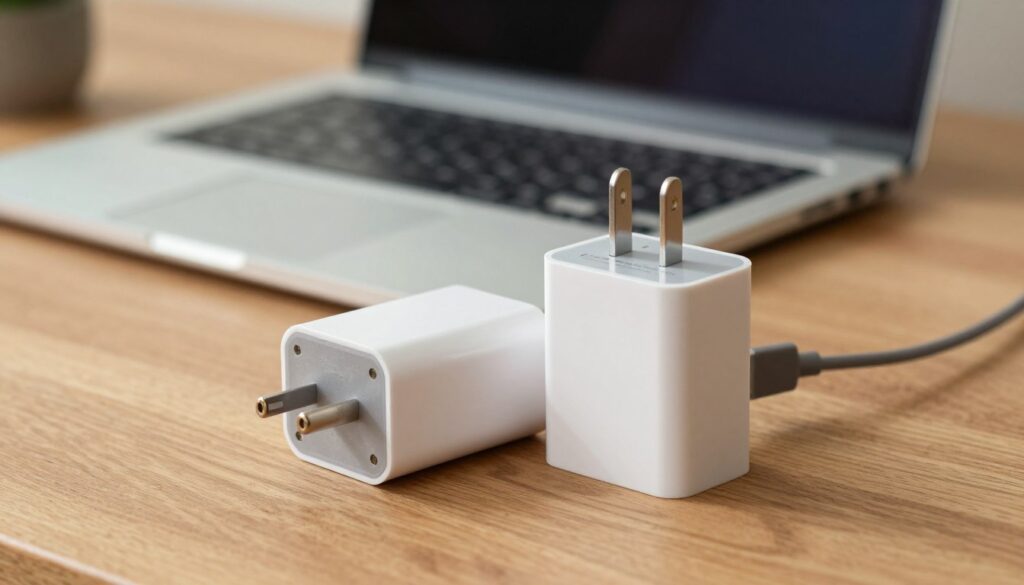
The difference often comes down to certification and internal design. Legitimate low-cost options may simply omit extras like braided cables or retail packaging. Risky knockoffs lack credible marks, show vague specs, or claim impossible output numbers.
The standards that matter
Look for recognized support for USB-C Power Delivery and matched voltage/current profiles. If a charger lists PD profiles that match your laptop, it is more likely to charge safely.
Poor regulation and how it fails
Uncertified units can produce voltage ripple, unstable current, or run hot. Those faults stress cells and shorten battery life. Repeated thermal cycling also raises the chance of immediate safety incidents.
Why the cable matters
Cables affect power stability as much as the brick. Gauge, connector quality, and PD e-marker chips determine whether a cable safely carries high wattage.
Quick inspection and home safety
- Watch for hot connectors, discoloration, odd smells, sparking, or intermittent charging.
- Avoid crushed cords, charging on soft surfaces, and damaged insulation.
- Electrical failures caused roughly 53,600 home fires in 2008—so visible wear is a real fire-risk sign.
Safe vs risk: inexpensive can be safe if it follows standards and comes from reputable brands with proper cables. Risk jumps when products are uncertified, use poor wiring, or show visible damage.
How to Charge Your Laptop Safely Using Third-Party Chargers and Accessories
Choosing the right adapter starts with matching your laptop’s power needs, not the biggest watt number. Verify the required wattage, connector type (USB‑C vs proprietary), and supported charging standards before you buy.
Match wattage and profiles
Find your laptop’s rated wattage in the manual or on the original adapter. Pick a charger that lists the same PD or vendor profiles so the device negotiates stable power and avoids stress.
Choose certified accessories and trusted brands
Prefer items with USB‑PD, UL, or similar marks. These standards signal regulated output and better quality regulation over marketing terms like “fast charge.”
Manage heat and daily routines
Keep vents clear, avoid soft surfaces, and unplug if the laptop gets unusually hot. Aim for partial charges (around 20–80%) to extend battery lifespan and reduce long periods at 100%.
When to stop and unplug
- Burning smell, buzzing, or visible swelling
- Repeated disconnects, frayed cables, or wobbly connectors
- Excessive heat under load—pause and let the device cool
“A compatible, well‑regulated charger and good thermal habits protect battery life more than price alone.”
Conclusion
What truly matters for battery health is regulation quality and temperature control, not price alone. Modern devices limit intake and slow at full charge, so the main risk comes from poorly made units that run hot or supply unstable power.
Quick decision framework: match wattage and PD profiles, prefer certified parts, and check that the charger and cable stay cool while charging.
Replace any unit that shows frayed insulation, loose connectors, discoloration, a burning smell, or becomes uncomfortably hot. Those signs point to real safety and home risk.
Protect battery life by avoiding heat, unplugging when practical, and using partial charges most days. A reputable third-party option can be safe and effective; uncertified knockoffs concentrate the danger.
One-minute checklist: confirm compatibility, ensure cool operation, and swap out damaged gear before you plug in.