How Charger Wattage Impacts Laptop Battery Heat
Understand the relationship between charger wattage and laptop battery heat. Get tips on choosing the right charger wattage for your laptop to avoid overheating.
Understanding how a charger’s output affects device temperature helps you pick the right accessory and avoid surprises. Watts measure the flow of power during charging, and the correct value can ease stress that leads to heat.
In everyday use, the real-world power draw and the charging source both shape battery temperature. Heat is normal to a degree, but mismatched gear, thin cables, or heavy workloads can raise temps and cause discomfort.
This short guide shows how to choose the right output and explains what happens when a supply is underpowered or oversized. It previews common ranges, label reading, watt calculations, and how USB-C Power Delivery negotiates safe levels.
Safety and compatibility matter: correct voltage, reputable brands, and proper cable ratings lower the chance of overheating. Also note that what the device is doing — streaming, meetings, or gaming — affects heat just as much as the charging number.
Key Takeaways
- Correct output reduces stress that contributes to heat.
- Heat comes from both charging and active use.
- Use proper voltage and quality cables for safety.
- USB‑C PD helps negotiate safe power levels.
- Typical ranges vary: mainstream devices use lower values; gaming systems use higher.
What “Wattage” Means for Laptop Charging and Heat
Watts tell you how fast energy moves into a device, and that flow affects heat during use.
In plain terms: wattage is voltage multiplied by current (V × A). It is the rate of energy transfer. More watts usually mean more power is moving through the system, and that extra flow often becomes heat the cooling system must shed.
Laptops do not pull one fixed number of watts. The actual draw changes moment to moment with CPU and GPU load, screen brightness, connected peripherals, and whether the battery is being replenished.
Charging adds work: energy must run the system and fill the battery at once. That dual demand raises internal temps compared with idle use.
- Light use (email, browsing): ~20–40W draw.
- Moderate use (streaming, multitasking): ~50–70W draw.
- Heavy use (gaming, video editing): 100W+ is common.
“Sustained heavy workloads push heat higher because components generate heat while the battery also receives charge.”
Tip: the adapter’s rated output is what it can supply, not what the system will always take. Confusing the two leads to poor buys and unexpected warmth, especially in thin systems with tight cooling.
Common Laptop Charger Wattage Ranges and What They’re Built For
Most supplies fit predictable output bands that align with thin notebooks, everyday systems, or high‑performance rigs.
Low‑watt options (30–45W) power ultralight notebooks and Chromebooks. These devices target basic tasks: web browsing, email, and streaming. Heat and draw are usually lower, so a modest supply is normal.
Mid‑range (45–65W and 65–90W) covers mainstream business and consumer systems. This band balances charging speed and sustained performance during multitasking.
High‑watt bricks (100–240W) are built for gaming and mobile workstations. These systems may demand many watts under heavy loads, and the supply must keep up to avoid battery drain while plugged in.
- How many watts a device needs depends on CPU/GPU class, display size, and whether it runs full performance on AC power.
- If the battery drops during gaming, the supply is often below the system’s demand.
- Use the range above as a sanity check; always confirm specs on your device or its original label.
“Match the output band to the device class — undersizing causes strain; oversizing is usually safe if the system negotiates power.”
How to Find Your Laptop’s Exact Power Needs (Without Guessing)
You can avoid mismatched supplies by verifying volts and amps before buying a replacement. Start by locating the word Output on the adapter label and read the listed voltage and current (amps).
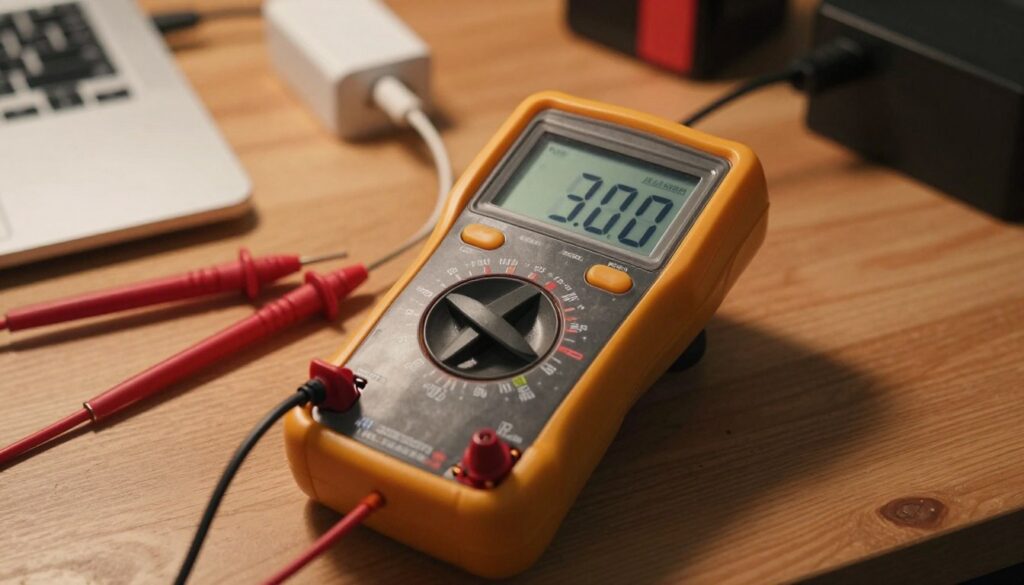
Reading the label and why volts matter
Look for the output line. Ignore the input numbers—those are for the wall side.
Voltage must match the device’s requirements. Current can be equal or higher to meet peak power needs.
Quick V × A math
Wattage = volts × amps. Example: 20V × 3.25A = 65W. Another: 19.5V × 4.62A ≈ 90W (rounded for marketing).
If the original charger is missing
Check the bottom panel for a model label. Then confirm specs on the manufacturer’s support page.
| Where to Check | What to Note | Action |
|---|---|---|
| Adapter label | Output V and A | Use V×A to get watts |
| Underside of device | Model number and power rating | Verify on manufacturer site |
| Support/spec page | Config-specific requirements | Document V, A, W for replacements |
“No guessing: wrong matches can cause slow charging, throttling, or excess heat.”
charger wattage laptop: How the “Right” Wattage Helps Control Battery Heat
When the adapter easily meets demand, the system runs cooler and more consistently under load. That balance reduces excess work inside the device and limits wasted heat.
Matching output to prevent strain, throttling, and heat buildup
Match or slightly exceed the original rating so the device has headroom during heavy tasks. A correct supply avoids frequent spikes that cause component stress and higher temps.
Insufficient power often forces the system to throttle. Reduced performance and longer charging cycles keep components warm for extended periods.
Why running and charging raises total power needs
Using the device while charging means the adapter must feed the system and top up the battery at once. That combined demand raises the total power draw and can push thermals higher.
- Right output = less wasted heat and steadier performance.
- Too little output = throttling, slow charging, and prolonged warmth.
- Plan for headroom if you multitask with an external display or heavy apps.
“Stable power delivery reduces spikes, cable heating, and unexplained temperature rises.”
Tip: match the original rating when possible, and consider a slightly higher option if you regularly multitask while plugged in. The next section shows what happens when output is too low and why that creates the most complaints.
When Wattage Is Too Low: Why Slow Charging Can Mean More Heat
When a supply can’t meet real-time demand, the device may slow how fast it accepts a charge and run warmer for longer.
How a tight power budget works
The system prioritizes running components first and reduces or pauses battery top-up when available power is limited. That trade-off is the core of the power budget problem.
User symptoms to watch for
Slow charging warnings, a falling battery percentage while plugged in, or sudden performance drops are common signs. You may also see the adapter feel hot if it runs near capacity for hours.
High-load examples and risks
Tasks like gaming, 3D rendering, or editing 4K video can push demand past 100W. Using a small phone charger or low-output USB-C supply for such work often causes slow charging and extra heat.
“An underpowered supply can overheat and increase long-term wear or damage to the adapter, cable, or battery.”
| Symptom | Cause | Quick fix |
|---|---|---|
| Slow charge warnings | Supply below required power | Test with original or higher-rated adapter |
| Battery drops while plugged | Demand > supply | Reduce load or use stronger supply |
| Adapter gets hot | Operating near limit | Replace adapter/cable and avoid heavy tasks while charging |
Quick troubleshooting: confirm required rating, try an equal or higher-capable unit, and swap suspect cables to rule out faults.
Is Using Higher Wattage Safe, and Does It Increase Heat?
Core safety idea: wattage is a capacity rating. Your system controls how much power it draws, so a higher-rated adapter does not force extra current into the device.
Why the device ‘pulls’ power
Modern electronics negotiate the current they need. The supply simply offers available power. If the voltage and connector match, the computer requests only the amount it requires.
Practical rule of thumb
Match the original rating when possible. If you want headroom for heavy multitasking, picking the next higher common option is a safe option.
- Ensure correct voltage and connector type or USB‑C PD compatibility.
- A higher-capacity unit can run cooler because it operates below peak output.
- Beware cheap, poorly built high-rated adapters — they may cause overheating or even damage.
“A compatible, slightly higher-rated supply usually adds stability without adding heat.”
USB-C Power Delivery and Smart Negotiation: Heat-Smart Charging in Modern Laptops
USB-C power delivery uses a digital handshake so the supply and the device agree on safe voltage and current before charging begins.
How negotiation selects the right level
The charger and the device exchange supported profiles. They pick a matched profile so the device draws only what it needs.
Modern PD standards, including PD 3.1, scale up to 240W for large workstations. That range helps ensure compatibility and safety across many devices.
Why one high-capacity supply can serve many devices
A high-quality USB-C unit can power a phone, tablet, or notebook because each device requests its own profile. The supply will not force extra current that could cause overheating.
- Negotiated output reduces inefficiency and wasted heat.
- Charging speed depends on both the charger and the device’s supported profiles.
- Cable rating and port sharing still affect real-world results.
“Stable negotiation prevents unsupported voltage profiles and helps avoid overheating.”
Next: we’ll cover cables, GaN efficiency, and how multi-port sharing changes heat and speed.
Charger, Cable, and Tech Choices That Reduce Overheating Risk
Small choices in cables and bricks can cut heat by reducing wasted energy along the charging chain.
Choosing the right USB-C cable rating
A weak or uncertified USB‑C cord can bottleneck charging, get hot, or force slow behavior when pushed near its limit.
Buy to the load: for 100W-class charging, pick cables labeled 100W / 5A. For newest high-power systems, choose 240W EPR-rated cables.
GaN tech: more efficiency, less wasted heat
Gallium nitride designs run more efficiently than older silicon bricks. That efficiency reduces heat inside the adapter and often keeps desk clutter cooler.
GaN units also tend to be smaller, which helps with travel and desk space while improving thermal performance.
Multi-port sharing and thermal trade-offs
When you plug multiple devices, total output is split. That can lower charging speed and shift heat between ports and the adapter body.
Example splits vary by model. A 65W dual-port unit might allot ~45W to a laptop and ~20W to a phone, but behavior depends on negotiation and active loads.
Safety features that matter
- Over-temperature protection to stop overheating.
- Overvoltage and short-circuit protection for stable output.
- Reputable certifications and tested thermal design.
“Improve efficiency in the cable and adapter chain to reduce wasted heat and give your battery steadier, more predictable charging.”
| Cable rating | Typical max output | Best use |
|---|---|---|
| Standard USB-C | ~60W | Phones, small tablets |
| 100W / 5A | 100W | High-performance phones, many notebooks |
| 240W EPR | 240W | Newest high-power workstations |
Final caution: avoid cheap, no-name adapters and cords. Poor thermal design and inconsistent output are common causes of overheating complaints and can stress batteries and devices over time.
Conclusion
A proper match between supply capacity and device draw is the single best step to reduce heat and preserve performance.
Match or slightly exceed the original rating so your laptop runs cooler during heavy tasks. Read the adapter label, use V × A to check the total, and confirm your device specs on the maker’s support page if unsure.
Higher-capacity units are usually safe when voltage, connector type, and USB‑C PD support align. They give headroom for demanding work and can reduce stress on the battery and internals.
Watch for slow charging alerts, a falling percentage while plugged in, or a hot adapter — these signs mean upgrade time. Use reputable chargers and correctly rated USB‑C cables to keep laptop charging stable and lower overheating risk.