What Battery Thermal Throttling Means on Laptops
Learn about battery thermal throttling on laptops, its causes, and how to manage it effectively. Understand the impact on performance.
Battery thermal throttling on modern laptops is a protective control loop that lowers clock rates and power draw when heat and power limits approach unsafe levels. Devices today are built for brief bursts of speed, but they must pull back under steady load because a thin chassis can only shed so many watts to the air before it saturates.
This guide shows how to identify what’s happening, confirm it with simple tools, cut down heat sources, and tune settings so steady performance lasts longer. You’ll learn to tell battery-driven limits apart from CPU or GPU-only slowdowns and get practical, reversible fixes.
Why this matters for users in the United States: remote work calls, gaming sessions, video editing, and AI-assisted tasks can all run long enough to hit these limits. Understand the central trade-off: peak speed for seconds versus stable performance for minutes or hours.
Note: throttling is usually the system doing its job to prevent damage. The steps that follow focus on safe, reversible adjustments like improving airflow, changing placement, using power profiles, and applying updates—not risky hacks.
Key Takeaways
- Throttling is a protection loop that cuts performance to stay within safe heat and power limits.
- You can confirm limits with monitoring tools and by comparing sustained vs burst loads.
- Everyday tasks like video calls and editing may reveal these limits on thin laptops.
- Focus on airflow, placement, power profiles, and updates for safe improvements.
- The core trade-off is short peak speed versus longer steady performance.
Battery Thermal Throttling on Laptops Explained
Laptops will sometimes cut performance to keep temperatures and power draw within safe limits. This is a simple protective process: sensors watch temperature, voltage, and power. When limits are reached, the operating system lowers CPU and GPU clocks so heat and current fall.
What this looks like: the machine shifts into a lower gear by reducing speed and power so heat stops rising. That change can be brief during short bursts or stay in place during long, heavy tasks.
How this differs from general heat control: when the trigger is the pack or its ability to deliver current, the device limits performance specifically to protect the pack and prevent sudden shutdowns. That contrasts with a CPU-only limit that responds to a hot chip.
Manufacturers add these limits to reduce wear, avoid dangerous temperatures, and cut the risk of swelling or failure. The system often watches several signals at once—so charging plus heavy use commonly causes the limit to appear.
- Plain-language: the laptop shifts to a lower gear.
- Triggers: pack temperature or power delivery, not just a hot CPU.
- Goal: safety and protection, not punishment.
Why Laptops Throttle When Batteries and Components Get Hot
A laptop’s run time at full speed depends on how quickly it can move watts out to the room. Components generate heat as they work, and the system must push that heat into surrounding air fast enough to stop internal temperatures from rising.
Heat generation vs dissipation
Chips produce power in watts; cooling must remove the same watts to hold steady temperatures. If dissipation lags, internal temps climb and the system reduces power to stabilize.
Thermal resistance and thin designs
Thermal resistance is the bottleneck along the path: die → TIM → spreader → case → air. Any weak link raises resistance and makes the laptop reach limits sooner.
Thin-and-light models spread heat across a slimmer chassis. That helps reduce hot spots, but it does not increase total dissipation capacity. Smaller heatsinks and fans cut sustained headroom.
Role of ambient air, ventilation, and chassis limits
Cooling depends on the environment. A warm room or blocked vents cuts air flow and lowers dissipation efficiency. Placing a laptop on a blanket or inside a tight sleeve traps heat and speeds up limit events.
Manufacturers also cap surface temperatures for safety and comfort. The system may lower power before internal parts hit worst-case levels so the case stays within safe limits.
| Factor | Effect | Practical tip |
|---|---|---|
| Heat generation (watts) | Raises internal temperature | Limit sustained high-load apps |
| Thermal resistance | Slows heat flow to air | Keep vents clear; avoid soft surfaces |
| Ambient air | Determines cooling efficiency | Work in a cooler, ventilated room |
| Chassis limits | Triggers early power reduction | Use cases that allow airflow; remove tight sleeves |
How Battery Thermal Throttling Works at the System Level
Modern laptops use a layered control loop to watch hardware and cut output before parts reach unsafe conditions.
Where the system gets its signals
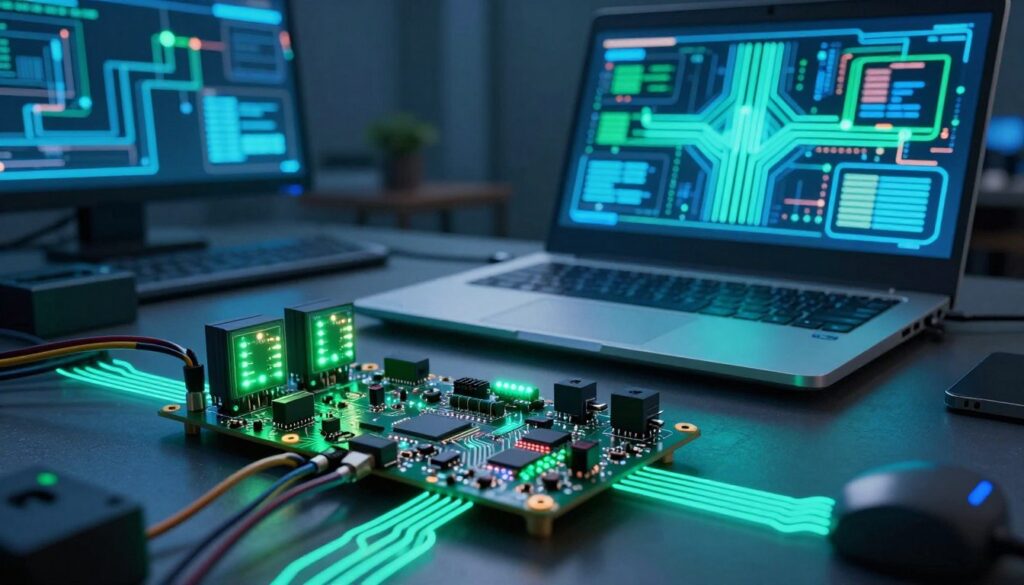
Devices read multiple sensors across the pack, motherboard, and voltage regulators. These sensors report temperature, voltage sag, and instantaneous power draw.
Firmware and the embedded controller collect telemetry and pass alerts up the chain so the OS can act quickly.
How the OS reduces clocks and power
The operating system enforces power limits that cap CPU package watts, GPU draw, and boost duration. When limits engage, the OS lowers clock speed and reduces core voltage to cut heat and power.
Burst performance vs sustained workloads
Short bursts let the chip hit high clocks for seconds. Over time, cooling and power systems saturate and the sustained state runs slower to avoid damage.
Protection goals and system-level process
This process protects components and the pack from damage or failure and keeps user safety in mind. The control chain is: sensors → firmware/EC/BMS → OS power policy → clock/voltage changes.
| Signal | What is limited | Why it matters |
|---|---|---|
| Sensors (temp, current) | CPU/GPU watts, boost time | Prevents component damage and instability |
| Voltage / sag alerts | Reduce peak draw; limit charging while in use | Avoids system failure and unsafe conditions |
| Firmware rules | Apply conservative power profiles | Maintain safety and system longevity |
Common Triggers That Push Your Laptop Past Thermal Limits
Everyday setups and habits combine to make a laptop reach protective limits. Small changes in workload, charge state, or room conditions can reduce steady performance.
Sustained high-load tasks
Long gaming sessions, extended Zoom calls with effects, video exports, code compiles, 3D renders, and local AI inference drive peak heat for minutes or hours. Duration matters: a moderate load for an hour can overwhelm cooling more than a short spike.
Blocked airflow and hot environments
Dust, clogged vents, soft surfaces, and cramped desks kill airflow. Hot rooms, working in a car, or patios push ambient temperature up and lower cooling headroom.
Charging while under load
Charging plus heavy use compounds heat. The pack and power delivery components warm as the CPU and GPU work, shrinking the margin before limits engage.
Age and internal resistance
As batteries age and cycles add up, internal resistance rises. That increases heat generation under the same draw and can cause more frequent slowdowns.
Safety note:
These controls aim to prevent dangerous temperature escalations, even though catastrophic failures are rare in normal laptops.
| Trigger | Why it matters | Quick fix |
|---|---|---|
| Sustained heavy apps | Keeps power and heat high over time | Limit background tasks; stagger workloads |
| Poor airflow | Reduces cooling efficiency | Clear vents; use hard, flat surfaces |
| Charging + heavy use | Combines pack and component heat | Pause charging during long sessions or lower profile |
| Age / cycles | Higher internal resistance → more heat | Check capacity; adjust power settings |
How to Tell If Your Laptop Is Throttling Due to Battery Heat
Watch for a clear pattern: a laptop that starts fast but slips into stuttered behavior after minutes is often signaling a power or heat control event. This performance reduction usually shows as abrupt frame-rate drops, sudden slowdowns, or growing lag during a session.
Performance reduction patterns
Typical signs include strong initial speed followed by intermittent stutter, then a steady lower pace. If the slowdown worsens the longer you run an app, that pattern suggests the system is enforcing sustained limits.
Temperature clues and chassis behavior
Feel for hot spots on the palm rest or underside and note fan behavior. Fans may ramp up hard, then settle into a loud, steady curve while the case stays uniformly warm — an indicator the cooling capacity is saturated.
What to check in monitoring tools
Verify that CPU/GPU clocks drop when the lag begins and that package power limits appear in telemetry. Look for rising cell temperatures and notifications about reduced draw or voltage sag.
Use hardware monitors, OEM utilities, and OS performance graphs to compare frequency, power, and temperatures over time. Also test plugged-in versus on-mobile power to see if charging state correlates with the issue.
Quick checks to avoid misdiagnosis:
- Confirm clocks and power limits fall at the same time as performance drops.
- Rule out background updates, malware, or a failing drive before blaming throttling.
- Compare plugged-in and on-battery runs to isolate delivery-related issues.
| Symptom | What to measure | Likely clue |
|---|---|---|
| Frame-rate drop after initial peak | CPU/GPU clocks, FPS over time | System reducing performance to meet limits |
| Warm palm rest or underside | Surface and pack temperatures | Pack-related heat affecting device output |
| Fans loud then steady | Fan RPM and sustained power draw | Cooling saturated; long-term reduction begins |
| Different behavior plugged vs on battery | Power delivery, charging state, clocks | Power limits or charging heat causing slowdowns |
What Battery Thermal Throttling Does to Performance and Battery Life
Prolonged high loads force the system to trade peak speed for steady-state stability. That swap affects both how fast tasks finish and how the pack ages over months of use.
Why frame rates drop and apps take longer
When clocks and power limits are capped, the CPU and GPU run fewer instructions per second. As a result, frame rates fall, exports take longer, and interactive apps feel sluggish.
In practice, short bursts still look fast, but sustained scenes reveal the slower cadence as the system holds lower frequencies to control heat and current.
Energy and efficiency trade-offs
Lowering instantaneous draw reduces heat and energy per second. But longer run time can keep total energy used similar or even higher.
This means efficiency gains from reduced wattage may be offset by extra time spent on the task.
Long-term effects on life and capacity
Repeated high temperature exposure speeds chemical wear in lithium cells and raises internal resistance. That leads to capacity fade and shorter battery life over years.
Charging while running heavy apps increases pack heat per cycle, which accelerates wear more than cool, light cycles.
| Impact | User effect | Practical tip |
|---|---|---|
| Performance reduction | Lower FPS, slower exports | Prefer stable settings for long sessions |
| Efficiency trade-off | Lower watts but longer time | Test task energy vs completion time |
| Capacity fade | Reduced usable life | Avoid repeated hot charging |
Takeaway: some throttling is normal under extreme loads. Aim for stable, sustained output for long sessions—consistent responsiveness often beats short-lived peaks.
How to Reduce Battery Thermal Throttling With Better Cooling
Small changes to airflow and workload often stop performance from sliding during long sessions. Focus on letting heat leave the case and on reducing how much heat the system makes. These two paths give the biggest, safest gains for sustained use.
Improve airflow and reduce resistance
Place the laptop on a hard surface so intake vents get fresh air. Keep vents unobstructed and leave a few inches of clearance at the rear exhaust path.
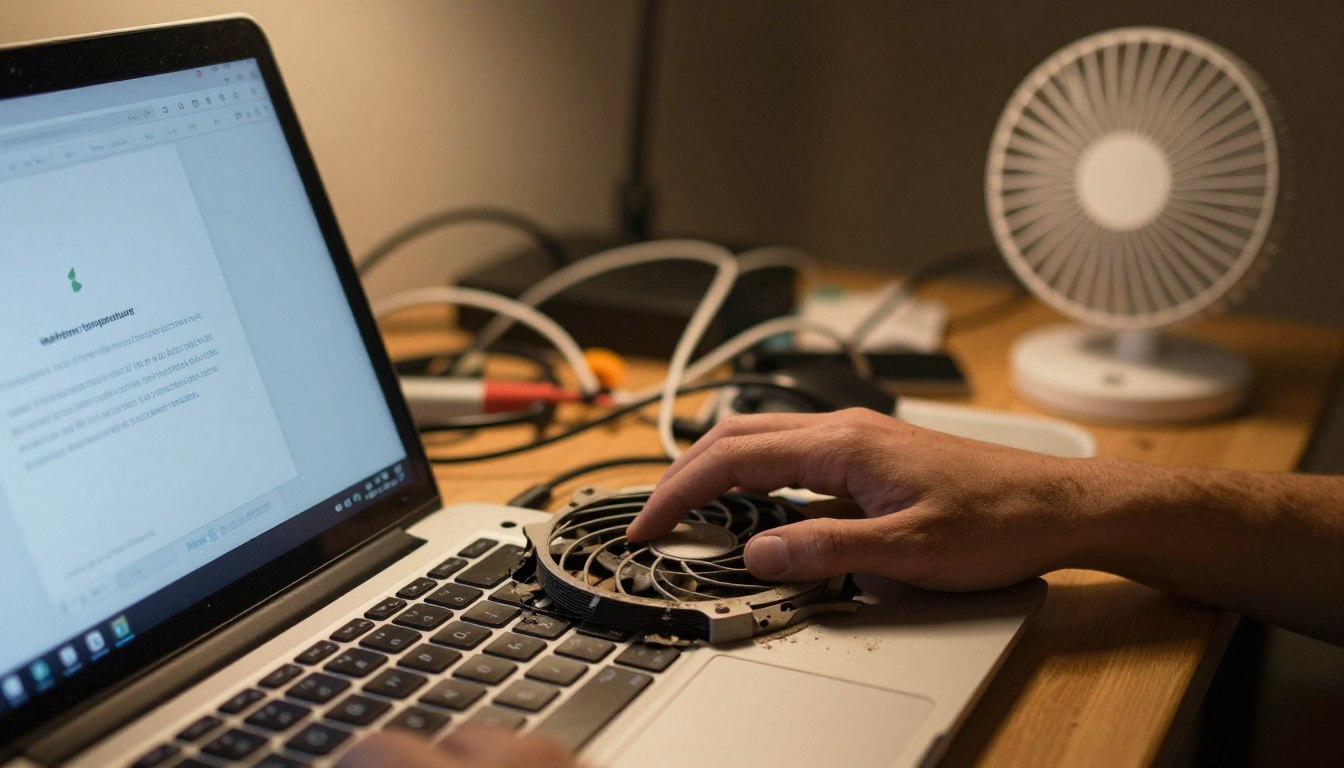
Dust increases thermal resistance. Clean vents and fans with compressed air every few months to restore dissipation and steady cooling.
- Slightly elevate the rear to improve bottom intake.
- Avoid lap, blanket, or soft-pad use that blocks air.
- Check exhaust paths for buildup or clutter on your desk.
Lower heat at the source
Reduce background apps, pause cloud sync during heavy work, and avoid running multiple sustained tasks at once. That cuts peak draw and slows heat buildup.
Stagger renders, downloads, and virtual machines so the device faces fewer simultaneous loads.
External cooling: when it helps and its limits
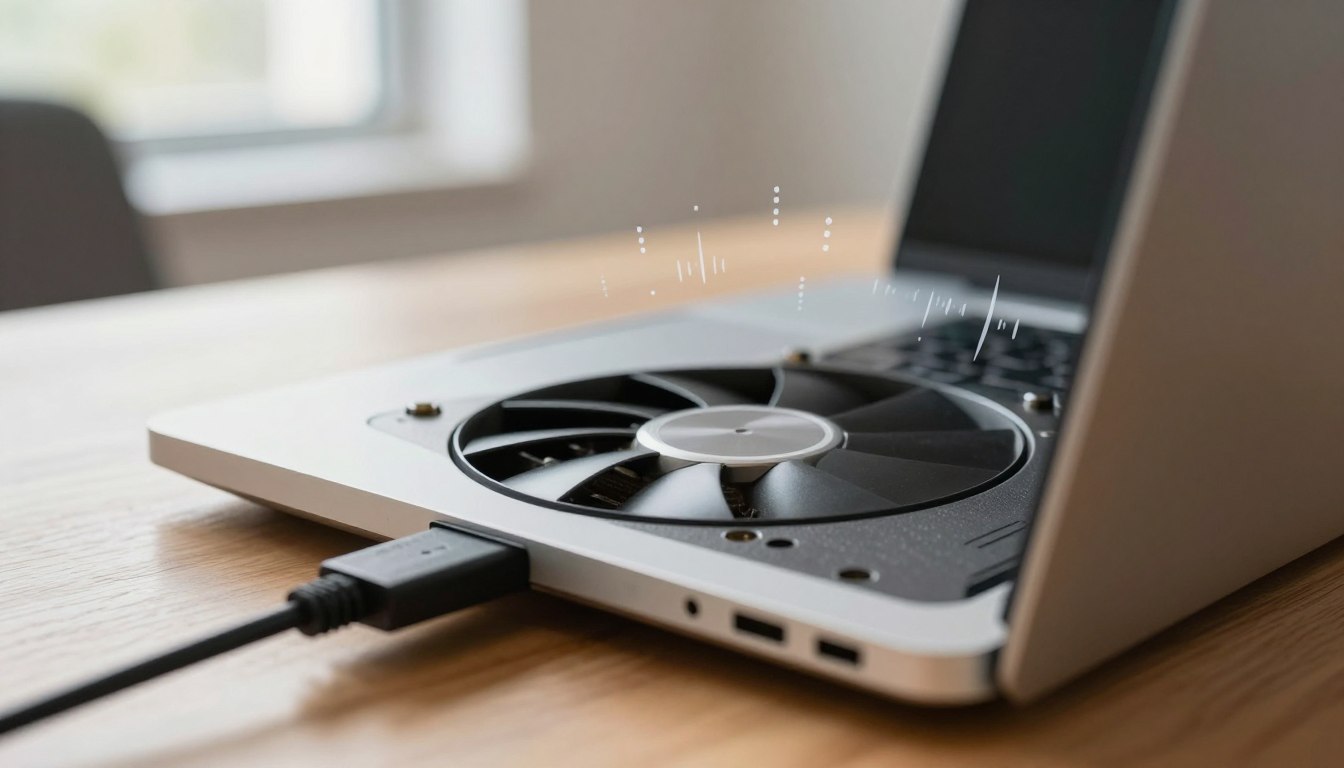
Cooling pads can aid devices with bottom intakes by raising flow and moving warm air away from the case. They do not change the internal heatsink size or fix a saturated chassis.
If room air is warm, extra fans only move warm air and may not stop protective limits under max sustained loads.
Create a repeatable cooling routine
Pre-cool the room, clear vents, start heavy work after the device is cool, and take short breaks every 30–60 minutes to let surfaces recover. Repeat this routine for long sessions to keep steady performance.
How to Manage Power, Charging, and Settings to Prevent Overheating
Smart power choices and safe charge habits cut heat and help your laptop run predictably. Take a measurement-driven approach: change one setting, run a test, and check sensor logs for clocks, power, and surface temps.
Safe charging habits that reduce heat buildup
Avoid charging the device under pillows or inside bags. Do not leave a plugged-in laptop baking in a hot car.
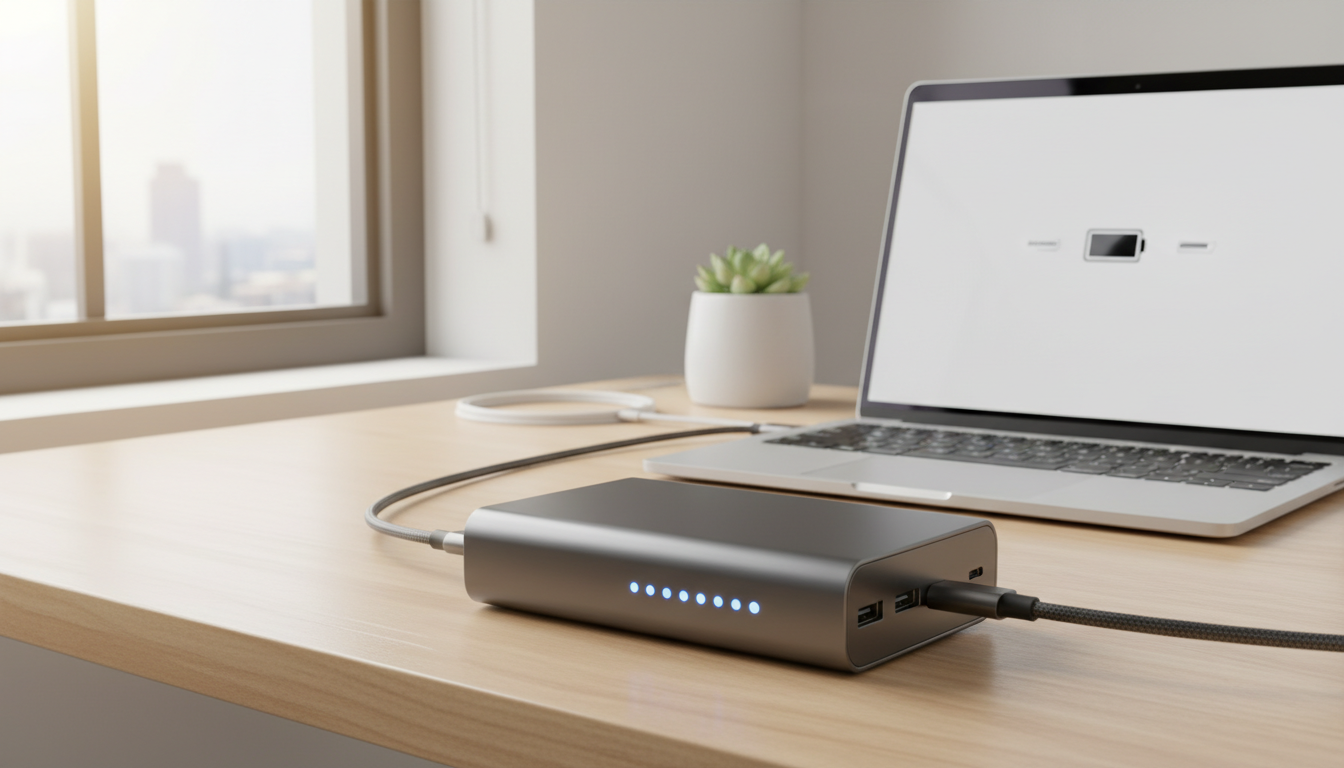
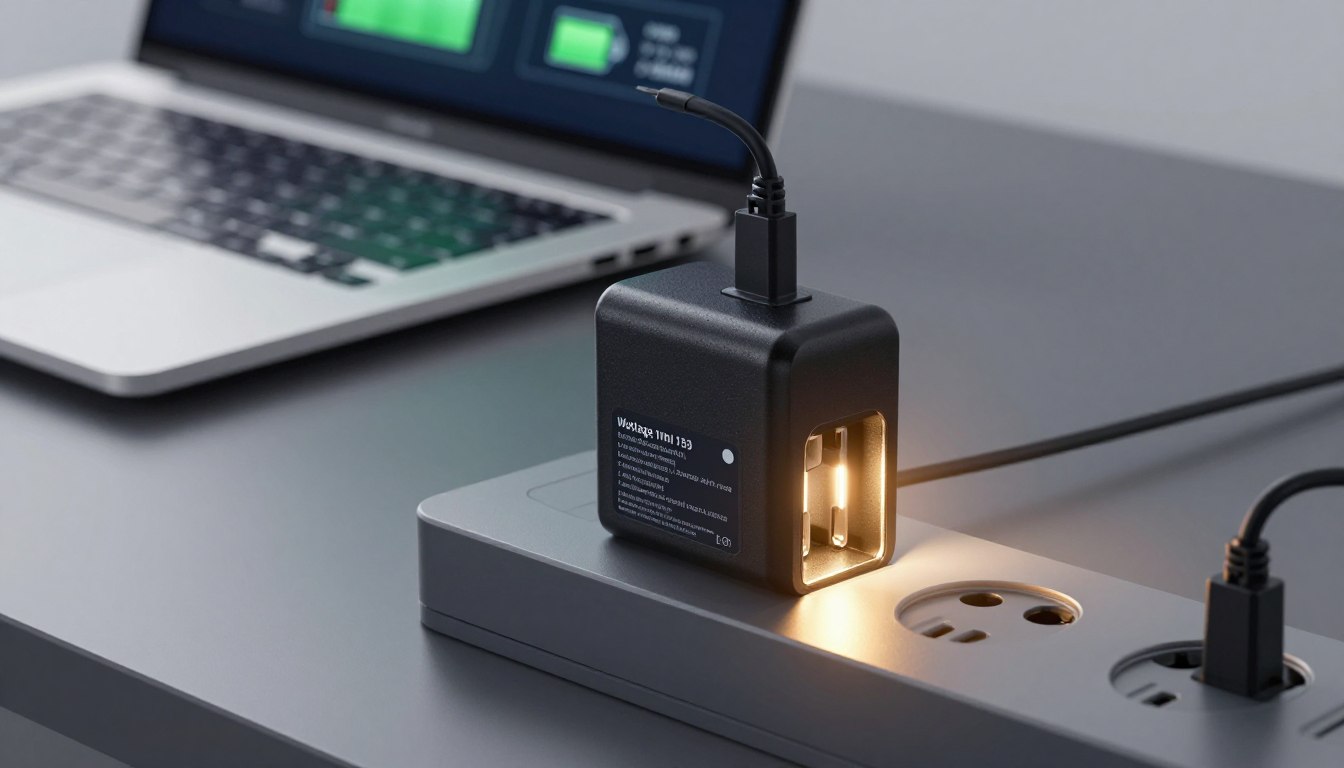
Use the OEM or a certified USB-C PD charger to keep voltage and current within designed ranges. Charging and heavy use together raise internal temperatures because cells and power delivery components both warm up.
Power profiles and limits for steady stability
Prefer a Balanced or power-saver profile for long sessions. Cap maximum processor state if you need sustained performance instead of short peaks.
Lowering game resolution or frame-rate caps cuts draw and prevents heat from accumulating across components.
Updates and firmware controls that help
Install BIOS/UEFI and driver updates from manufacturers to get improved fan curves and charging thresholds. OS updates can reduce needless background tasks that waste power.
Tip: Log sensors and watch sustained clocks and package power after each change to confirm real gains.
| Action | Why it helps | Quick check |
|---|---|---|
| Use OEM charger | Stable voltage and current | Lower charging heat |
| Balanced profile | Favors steady power over peaks | Sustained clocks stay higher |
| Firmware updates | Better fan and charge rules | Reduced surface temps |
Conclusion
A sudden drop from peak speed to a steadier pace often means the device is limiting performance to avoid damage.
In short: this protective response cuts peaks so cells and parts stay within safe limits. It trades top speed for longer, stable performance and better safety.
Diagnose first by watching clocks, power draw, and surface temps. Confirm the pattern—fast start, then slow—and use monitoring tools before changing settings.
Most effective fixes are simple: improve airflow, lower sustained load, avoid heavy use while charging in hot places, and keep firmware and drivers updated.
Expect limits on thin machines and in warm rooms. Pick one cooling change and one power-setting tweak, test the same workload, and iterate to improve sustained results and long-term battery life.