Why Laptop Batteries Swell Over Time
Understand the reasons behind battery swelling laptop and explore effective troubleshooting methods to address the issue and extend your laptop's lifespan.
What happens is simple: lithium-ion cells can produce gas as they age. That gas builds pressure inside a sealed pack and makes the device bulge. This change can alter the case, keys, or screen and affect how the device works.
Common causes include years of use, heat, frequent charging patterns, deep discharge, physical damage, or manufacturing defects. Outgassing is the technical name for this gas buildup.
Acting early matters. A swollen pack is not normal wear to ignore. It signals internal failure and may lead to leaks, pressure on parts, or fire risk even if the unit still powers on.
This guide will help you spot signs fast, understand likely causes, and take safe next steps. If you notice heat, smoke, or a chemical smell, seek professional help right away. Replacement is the proper fix; a swollen pack cannot be safely reshaped or reused.
Key Takeaways
- Gas buildup inside lithium cells causes the pack to expand.
- Heat, charging habits, age, damage, and defects are common triggers.
- Bulging is a safety hazard, not normal wear to ignore.
- Seek professional help if you detect heat, smoke, or odor.
- Replacement and safe disposal are the correct solutions.
What battery swelling means inside your device and why it’s a safety issue
Over time, the reactions that make power can leave byproducts that inflate the sealed cell. In a lithium-ion pack, electrodes and electrolyte take part in controlled chemistry to move charge. As the pack ages, those reactions become less complete and can form gas inside the cell.
How gas forms and stays trapped
Electrolyte breakdown and tiny internal faults create outgassing. A sealed pouch or case prevents escape, so pressure builds and the pack grows outward.
What expanding cells do to nearby parts
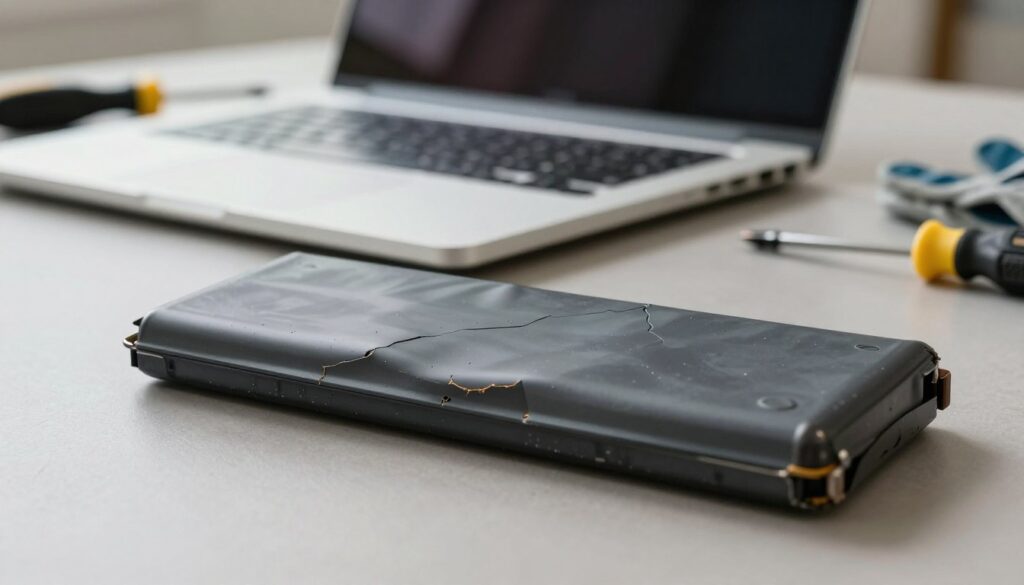
The expanding cells press on nearby components. That can push up the trackpad, lift the keyboard deck, or warp the display frame.
“Swelling is a sign of internal failure; treat it as a potential hazard and stop using the device.”
When the situation becomes dangerous
If you see heat, smoke, a strong sweet or metallic smell, or liquid leakage, the risk is urgent. A swollen battery can rupture, leak chemicals, or in rare cases catch fire.
- Do not keep charging the device.
- Do not press the bulge flat.
- Do not puncture the pack — puncture can start a thermal event.
| Symptom | Typical impact | Urgency |
|---|---|---|
| Raised trackpad | Click fails or feels uneven | Medium |
| Keyboard deck lift | Keys stick or feel loose | Medium |
| Chassis bulge | Case deformation, hinge stress | High |
| Heat or odor | Chemical fumes or smoke | Immediate |
Common causes of battery swelling laptop over time
Repeated electrical and thermal strain slowly changes cell chemistry and can produce trapped gas. Over time these changes add up and make a pack expand.
Natural aging is the baseline. Every cell has a limited number of effective cycles. Chemical wear from normal use degrades materials and raises the chance of gas formation.
How use and charging habits accelerate problems
Frequent full cycles and heavy workloads speed electrolyte breakdown and outgassing.
Constantly staying plugged in or repeated overcharging keeps the state-of-charge high. Heat from this state increases long-term wear.
Temperatures, storage, and physical damage
High temperatures and poor ventilation (blocked vents, soft surfaces, hot cars) multiply degradation rates.
Deep discharge, storage at 0% or 100% for long periods, and repeated extreme drain cycles also shorten life. Aim for mid-level storage around ~40% if you put a device away for weeks.
Physical impacts or crush pressure can tear layers and trigger internal shorts that lead to rapid gas release.
Defects and power management failures
Manufacturing flaws in cells can cause gas even with normal use. Repair experts often cite defective cells as a frequent root cause.
Poor management systems or faulty chargers allow uneven power flow. That behavior increases risk and can speed pack degradation.
| Cause | What happens | Risk level |
|---|---|---|
| Natural aging | Electrolyte breakdown, gradual gas formation | Medium |
| Overcharging / always plugged in | High state-of-charge + heat accelerates wear | High |
| High temperatures / poor ventilation | Chemical reactions speed up | High |
| Physical damage | Internal shorts, sudden gas release | Immediate |
| Defective cells / BMS issues | Uneven charging, outgassing even under normal use | Medium–High |
How to spot a swollen battery before it damages your laptop
You can spot early trouble by looking for uneven edges, a lifted base, or a misaligned hinge. A quick, noninvasive check can save parts and reduce risk.
Quick inspection checklist
- Set the device on a flat table—does it wobble or tilt?
- Look for a bowed bottom, separated seams, or gaps at the case.
- Check the screen and hinge for warping or extra tension.
Input and fit problems
Trackpad or keys may feel raised, fail to click, or respond unevenly. Buttons can stiffen and the keyboard deck might flex when pressed.
Performance and smell cues
Watch for overheating during light tasks, rapid drain, or erratic charging and percentage jumps. A sweet or metallic odor, or any residue, is a serious warning—waft air from a distance rather than leaning in.
| Sign | Why it matters | Action |
|---|---|---|
| Wobble / bulge | Case deformation | Stop use; power down |
| Raised inputs | Internal pressure on components | Plan removal |
| Heat / odor | Possible gas or leak | Isolate and seek help |
If you see visible bulging plus heat, smell, or smoke, do not continue testing. Power off and move to the safety and removal guidance in the next section.
What to do immediately if you suspect swelling
If you suspect a swollen pack, act quickly to cut power and reduce heat sources.
Power down and unplug. Shut the device off completely—do not put it to sleep. Unplug the charger and remove any peripherals to stop further power flow.
Do not charge. Charging raises internal temperature and can speed chemical reactions. That increases the risk of rupture or fire.
Isolate and ventilate
Move the unit to a non-flammable surface such as tile, concrete, or a metal tray. Keep it away from paper, curtains, upholstery, and solvents.
Open a window or move to a well-ventilated area to lower fumes. Keep people and pets clear and maintain a safe distance.
When to prioritize safety over removal
If the device feels extremely hot, emits smoke, or gives a strong chemical odor, do not try to remove the swollen cell. Distance yourself and call for professional help or emergency services if the situation escalates.
- Keep a clear exit path and avoid breathing fumes.
- If cool and only mildly deformed, plan for safe removal or scheduled repair.
- If severe, isolate and contact certified repair help immediately.
Safe removal options for a swollen laptop battery
Removing a swollen pack demands planning: know whether the pack is external or internal and gather the right tools.
External vs. internal removal
External packs are the easiest to remove—use release latches and follow the maker’s instructions. Older models often allow a quick, low-risk remove battery step.
Internal packs require opening the case and careful work. This process may need screws removed and adhesive softened without pressing the bulge.
Safety prep and power disconnect
Work in a well-ventilated area with gloves and eye protection. Use a non-flammable surface and keep a fireproof container nearby.
Power off fully and unplug. If you open the device, disconnect the battery connector from the motherboard before prying or lifting cells.
Tools, technique, and stop points
- Use precision screwdrivers and plastic prying tools or spudgers—avoid sharp metal that can puncture.
- Apply minimal solvent to release adhesive; use isopropyl alcohol cautiously.
- If smell, heat, or smoke increases, stop immediately and move the device to a fireproof place. Call a repair service if unsure or if the chassis is distorted.
After removal: place the pack on a non-flammable surface, away from metal objects, until you can hand it to a certified e-waste or repair center.
Replacement and disposal in the United States
Once a cell pouch has expanded, no home remedy will restore its original integrity. A swollen battery is a failed component and needs prompt replacement. Freezing, compressing, or trying to reform the pack is unsafe.
Why replacement is required
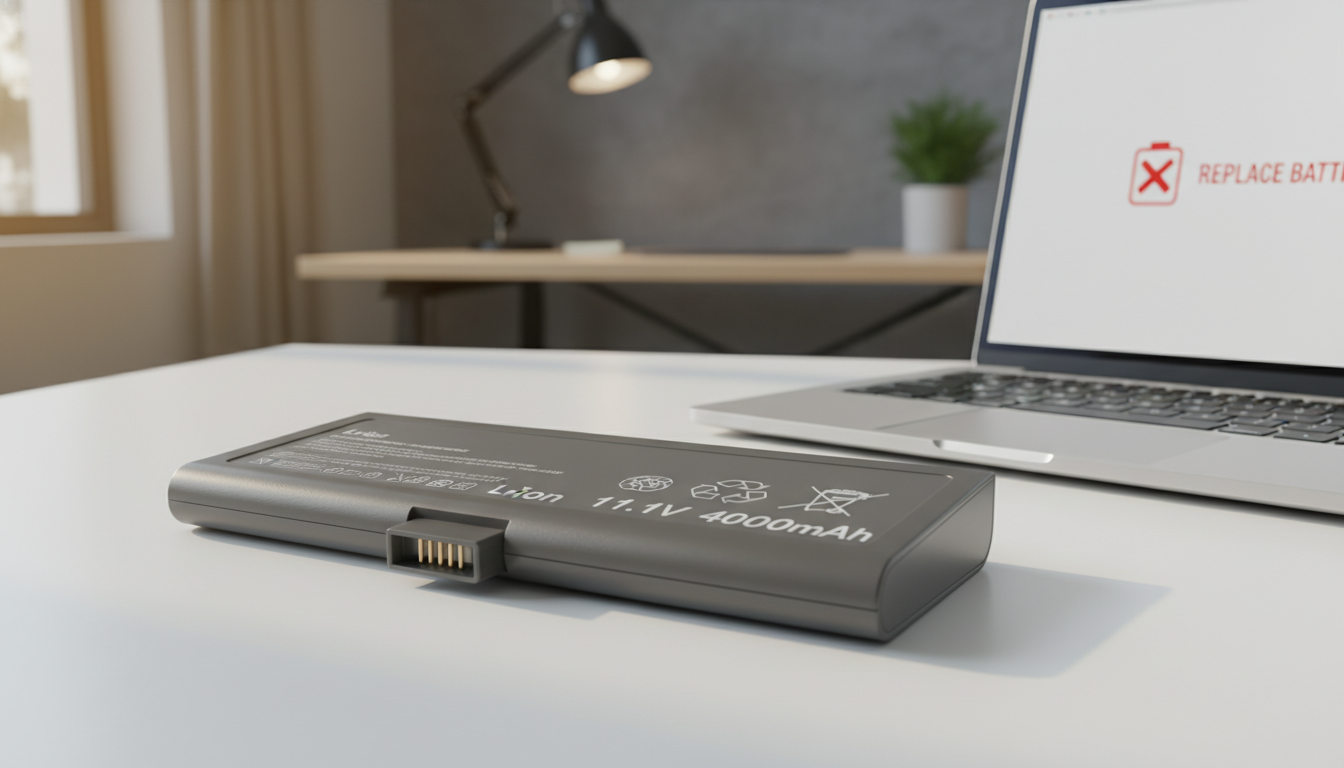
Replacement is non-negotiable: internal damage cannot be fixed. Choose an OEM pack when possible. Reputable third‑party units may work when they carry clear certifications and seller warranties.
Chargers, cables, and accessory safety
Avoid low‑quality chargers and damaged cables. Poor accessories cause uneven charging and raise the risk of accelerated wear or fire. Use the charger the maker specifies.
Short-term storage and safe disposal
If you remove a swollen battery and it is cool, store it in a cool, dry place away from sunlight and flammables. Keep contacts isolated from metal objects.
Do not toss the pack in household trash or mail it. In the US, take damaged cells to authorized e‑waste centers or Call2Recycle drop-off sites for proper recycling. If unsure, seek pro help to replace battery and handle disposal safely.
Conclusion
Visible case distortion is a clear sign the power cells inside are compromised. That condition — a form of battery swelling — is a safety issue that needs fast action. Continuing to use the device raises the chance of damage, fire, or other risk.
Watch for wobbling, bulging, raised keys or trackpad, overheating, or odd odors. If you see any of these, power down, unplug, and isolate the unit on a non‑flammable surface. Ventilate the area and keep people and pets away.
Do not puncture or force removal. Use proper tools or seek professional repair or service if unsure. Replacement is required for a swollen battery, and disposal must go through authorized e‑waste or Call2Recycle drop‑off sites in the United States.
Prevent future problems by avoiding high temperatures, using quality chargers, and handling devices gently over time.