Battery Saver Myths in 2026: Which Power-Saving Tips Waste Your Time
Battery advice for laptops spreads like gossip because it sounds simple and it gives people a sense of control. In 2026, the internet still rewards confident one liners, even when the tip is outdated or backwards.
I see the same battery saver myths laptop owners repeat in comments, TikTok clips, and even workplace IT chats. The problem is that modern laptops manage power in ways that make old tricks either pointless or actively harmful.
Some fake battery optimization tips waste time, and some quietly reduce performance while saving almost nothing. If you care about battery health, charging habits, and degradation, you need advice that matches how Windows 11, macOS, and current Intel and AMD platforms behave.
Why battery advice spreads faster than evidence
Most laptop battery life myths start with a true story from an older device, then get repeated as a rule for every machine. A 2013 ultrabook with a weak CPU and a dim panel behaves nothing like a 2026 OLED laptop with a 120 Hz refresh rate.
People also confuse saving energy with saving battery health, and those are different goals. Lowering power draw helps runtime today, while gentler charging and heat control helps degradation over months and years.
Another reason myths stick is that many changes feel effective because the screen gets darker or the fan gets quieter. Your brain treats that as proof, even if the battery drain graph barely moves.
Operating systems now do a lot of background scheduling, and they hide it behind friendly toggles. When someone flips a switch and sees one extra hour once, they assume the switch is magic forever.
Power measurements are annoying to do correctly, so bad advice never gets challenged. If you do not control brightness, workload, Wi Fi signal quality, and refresh rate, your results are mostly noise.
Vendors and accessory brands also push fake battery optimization tips because they sell certainty. A blog post that says “it depends” does not get shared like a post that says “always do this one thing.”
Myth: Aggressive app-killing always saves power
Force quitting apps feels productive, but on modern systems it often wastes energy by making the app cold start again. A cold start spikes CPU, storage, and sometimes network activity, which can cost more than leaving the app suspended.
Windows 11 and macOS both park background apps, throttle timers, and compress memory when they can. When you kill an app that was already idle, you are mostly feeding your own anxiety.
The real power hogs are the ones that keep doing work, like constant sync, media playback, or a runaway background process. You can spot them in Task Manager or Activity Monitor by watching sustained CPU usage, not by counting open windows.
App killers and “RAM cleaner” utilities are classic power saving mistakes because they fight the OS scheduler. They also break background rules for messaging apps, cloud drives, and VPN clients, which then reconnect and resync repeatedly.
If you want a practical rule, close apps that continuously do network or GPU work, and ignore the rest. I would rather disable one misbehaving browser extension than spend the day swiping apps away like it is a phone from 2016.
On Windows, use Settings, System, Power and battery, then Battery usage to find which apps drain the most over 24 hours. That screen cuts through laptop battery life myths because it shows cumulative drain, not a momentary spike.
Myth: Brightness alone determines battery runtime
Brightness matters, but it is not the whole story, especially with OLED and high refresh panels. A bright screen can be a big load, yet a busy CPU or a discrete GPU can dwarf it during real work.
A common power saving mistake is turning brightness down while leaving the refresh rate at 120 Hz and running a video call with background blur. Your eyes notice the dimmer screen, while the laptop keeps burning power on motion and compute.
| Setting or behavior | Why it drains power | Better move |
|---|---|---|
| 120 Hz refresh on battery | More panel updates and GPU work | Switch to 60 Hz for unplugged use |
| Video calls with blur effects | Constant CPU or NPU processing | Disable blur or use light background |
| Weak Wi Fi signal | Higher radio transmit power and retries | Move closer to router or use 5 GHz or 6 GHz |
| Many browser tabs with active scripts | Timers and background tasks keep waking CPU | Use sleeping tabs and trim heavy sites |
| External USB devices | Peripheral power draw and bus activity | Unplug what you are not using |
Myth: Every battery saver mode is equally effective
Battery saver toggles are not standardized, and vendors tune them for marketing as much as engineering. One laptop might cap CPU boost, another might just dim the screen and pause some sync, which leads to wildly different results.
On Windows, Battery saver usually reduces background activity and pushes the system toward lower power states, but it does not fix a bad workload. If your browser is decoding 4K video in software, Battery saver is a band aid.
macOS Low Power Mode changes CPU behavior, reduces display refresh on some models, and can limit background tasks, but it still depends on what you run. People treat it like a universal cure, and that is how battery saver myths laptop threads keep growing.
OEM tools can also stack on top of the OS, and that is where confusion starts. If Lenovo Vantage, Dell Power Manager, or ASUS MyASUS adds its own profile, you can end up with conflicting limits that feel sluggish without saving much.
Some modes are aggressive about lowering peak performance, which can backfire if tasks take longer to finish. A CPU that sprints and sleeps can use less total energy than a CPU that crawls for twice as long.
The only way to judge a mode is to test your own workload, like two hours of writing with Wi Fi, then two hours of video meetings. If a mode hurts responsiveness but saves only a few percent, it belongs in the fake battery optimization tips pile.
Myth: Browser choice never affects battery life
Browser choice can absolutely affect battery life, mostly because the web is a mess of scripts, ads, autoplay media, and heavy CSS. Two browsers rendering the same page can schedule work differently, and that changes how often the CPU wakes up.
On Windows, Edge often benefits from tighter integration with power policies, sleeping tabs, and video decode paths. Chrome has improved a lot, but I still see cases where one misbehaving tab keeps the CPU from dropping into deeper idle states.
Firefox can be great, but extensions and settings matter more than brand loyalty. If you install three ad tech blockers, a coupon injector, and a sidebar AI assistant, you built your own battery drain machine.
Streaming video is where differences show up fast because hardware decode support and codec choices vary. If your browser falls back to software decode for AV1 or high bitrate VP9, your fans tell you the truth even if the battery icon lies.
Web apps that run like desktop apps, such as Slack in a browser tab or heavy Notion pages, can keep timers firing constantly. This is one of those laptop battery life myths that survives because people test with a blank tab instead of their real day.
If you want a clean test, pick one work session, keep the same sites, and compare battery percentage drop per hour at the same brightness and refresh rate. You will learn more in one afternoon than from a year of comment section advice.
Why charging myths refuse to die in 2026
Charging myths stick because batteries are invisible, so people invent rules to make them predictable. The classic advice to “always drain to zero” is one of the worst battery saver myths laptop owners still repeat.
Lithium ion batteries do not like deep cycles, and they do not like heat, and they do not like sitting at 100 percent for long stretches. Modern laptops manage charging better than they used to, but they cannot rewrite chemistry.
Another myth is that fast charging always ruins your battery, which is too simplistic. Fast charging increases heat and time at higher voltage, but many laptops taper current and manage temperature to keep it within safe limits.
The biggest driver of degradation for many users is leaving a hot laptop plugged in at full charge while running heavy workloads. If your machine bakes on a blanket during gaming or video editing, your battery ages faster than any charger choice.
Smart charge limits are one of the few features that really help battery health, like 80 percent caps in Lenovo, Dell, ASUS, HP, and Apple optimized charging behavior. People ignore these because they chase runtime today and forget they are trading away capacity tomorrow.
If you mostly use your laptop at a desk, set a charge limit and stop worrying about micro managing every percent. That habit beats most fake battery optimization tips because it reduces high voltage time without changing your workflow.
Power saving mistakes that look smart but backfire
One popular mistake is disabling Wi Fi and Bluetooth as a default, then relying on your phone hotspot all day. Hotspots often run at higher radio power and worse efficiency, so you can drain both devices faster.
Another mistake is using third party “battery optimizer” apps that promise automatic tuning. Many of them spam notifications, run background services, and keep the system awake, which is almost funny if it was not so common.
People also disable Windows Search indexing, telemetry, and security scans without understanding the trade. You can save a tiny bit of power on a bad day, but you can also slow down searches, break updates, or miss malware, which is a terrible trade for minutes of battery.
Cranking the CPU to a fixed low limit is another trap, especially on modern chips with efficient boost behavior. If the laptop finishes a task quickly and returns to idle, it can use less total energy than a slow, steady grind.
Turning off hardware acceleration in browsers and apps is a sneaky one because it can shift work from an efficient media block to the CPU. When someone says their laptop runs cooler after disabling acceleration, they often just made video playback less efficient and lower quality.
These are the kinds of laptop battery life myths that survive because they are easy to explain in one sentence. Real power management is boring, and boring does not go viral.
A data driven checklist for real battery savings
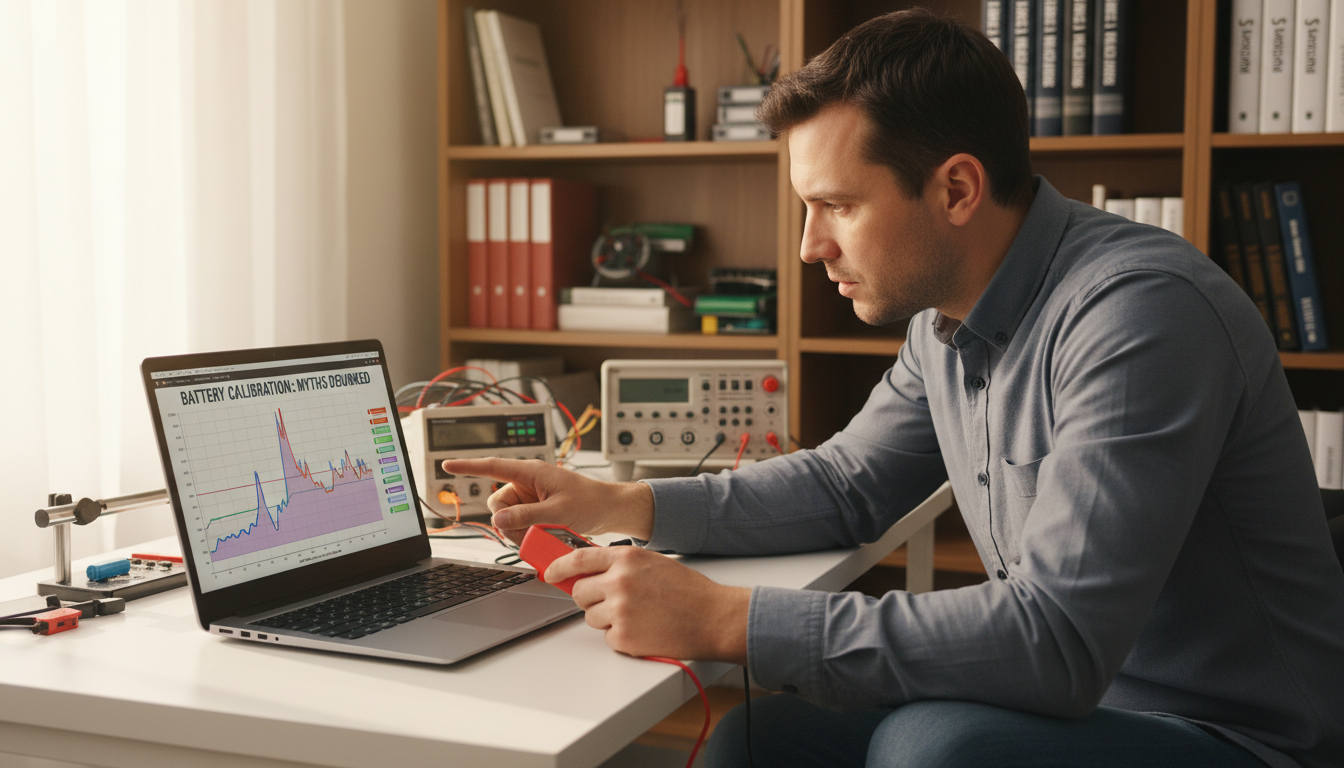
If you want real gains, start by measuring battery drain per hour during your normal work, not during an artificial test. Use the built in battery usage screens and watch for sustained CPU, GPU, or network activity that does not match what you are doing.
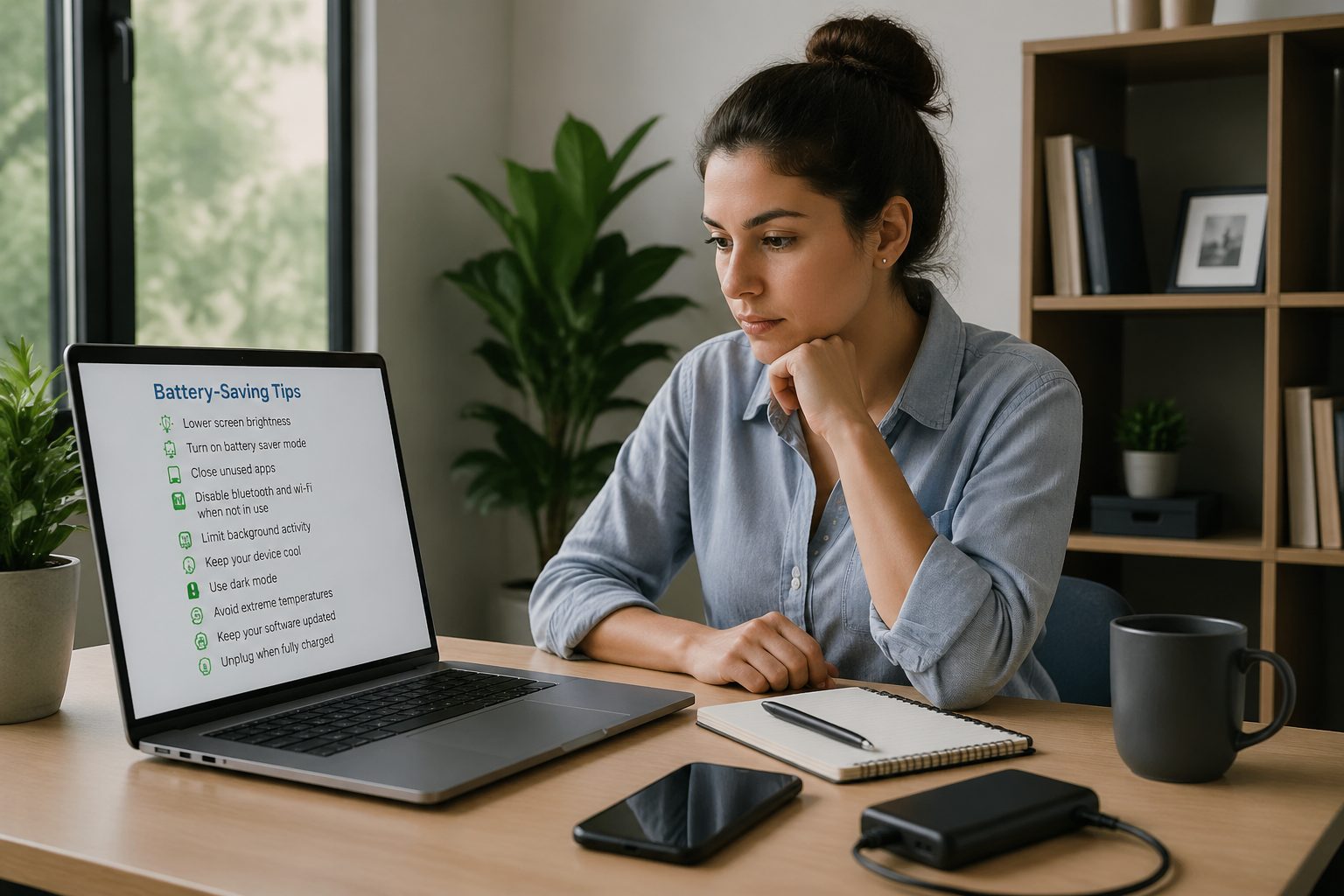
The checklist below focuses on changes that usually beat battery saver myths laptop advice because they target the biggest drains first. You can do most of them in minutes, and you can undo them if they annoy you.
- Set refresh rate to 60 Hz on battery
- Enable sleeping tabs and remove heavy extensions
- Use a charge limit around 80 percent for desk use
- Lower video call effects, especially background blur
- Check per app battery usage and uninstall the worst offenders
- Turn off keyboard backlight when you do not need it
- Keep vents clear and avoid heat soak while plugged in
How to test battery tips without fooling yourself
Most people test a tip once, on a different day, with a different workload, then claim the tip works. If you want evidence, you need repeatable conditions that make the change the only meaningful variable.
Pick a two hour window and run the same routine, like writing in Google Docs, ten minutes of YouTube, and a short Teams call. Lock brightness, lock refresh rate, and keep the same Wi Fi network so you are not chasing random variance.
On Windows, log battery percentage at start and end, and also note average CPU in Task Manager for the session. If CPU sits at 10 to 20 percent for no reason, you found a real drain that no generic battery saver toggle will fix.
On macOS, watch Activity Monitor Energy and look for apps with high energy impact that persist. If an app spikes once and then goes quiet, it is usually not worth obsessing over.
Run the test twice for each change, because one run can be skewed by updates, indexing, or a background sync burst. This simple habit kills a lot of fake battery optimization tips because they cannot survive a second pass.
Do not ignore temperature when you test, because heat changes fan behavior and charge efficiency. If your laptop sits on a soft surface, fix that first, since cooling improvements can look like power savings.
Battery health basics that matter more than hacks
If your goal is battery health, your enemy is time spent hot and full, not whether you closed three background apps. Degradation is chemical wear, and it speeds up when the battery sits at high voltage in a warm chassis.
Use a charge limit if your laptop offers it, and if it does not, consider unplugging once it reaches full during long desk sessions. You do not need to babysit it hourly, but you also do not need to keep it pinned at 100 percent for weeks.
Try to avoid heavy workloads while charging in a hot room, because heat stacks fast when the CPU and charger both add warmth. If you game or render video, do it with good airflow and consider a stand that improves intake.
Calibrating the battery gauge is different from conditioning the battery, and people mix those up constantly. A full discharge every few months can help the percentage estimate, but doing it often is one of the more stubborn laptop battery life myths.
Keep your system updated, because firmware and driver fixes can change idle drain and sleep behavior. I have seen BIOS updates fix modern standby drain that users blamed on “bad batteries” for months.
If your battery capacity drops fast, check cycle count and maximum capacity in your OS tools before blaming your charger. Sometimes the battery is simply aging, and no battery saver myths laptop forum can negotiate with chemistry.
What I ignore when someone shares a “secret” battery trick
I ignore any tip that uses the word always, because laptops vary too much by panel, CPU, and firmware. I also ignore tips that require ten registry edits, because the odds of meaningful savings are low and the odds of breaking something are high.
If a trick depends on a cleaner app, a booster, or a mysterious background service, I assume it is a scam until proven otherwise. Those tools are a steady source of fake battery optimization tips that look technical but behave like adware.
I also distrust screenshots of one big battery estimate, because estimates swing with workload and they can be wrong. A laptop that says “9 hours remaining” can still die in four if you start a call, open a heavy spreadsheet, and crank brightness.
If someone claims a tip saved 30 percent battery but they did not mention refresh rate, codec, or Wi Fi conditions, the claim is not useful. The web loves dramatic numbers, and that is why power saving mistakes keep getting recycled.
The best tips are boring, like reducing background sync, fixing a runaway process, and keeping the machine cool. Boring advice does not trend, but it keeps your battery healthier and your runtime predictable.
If you want one filter for battery saver myths laptop content, ask whether the tip reduces actual work done by the CPU, GPU, radio, or panel. If it only changes a label or a feeling, it probably wastes your time.