Should You Keep Battery Saver Always On
Learn if you should keep battery saver always on and discover tips to maximize your device's battery life effectively.
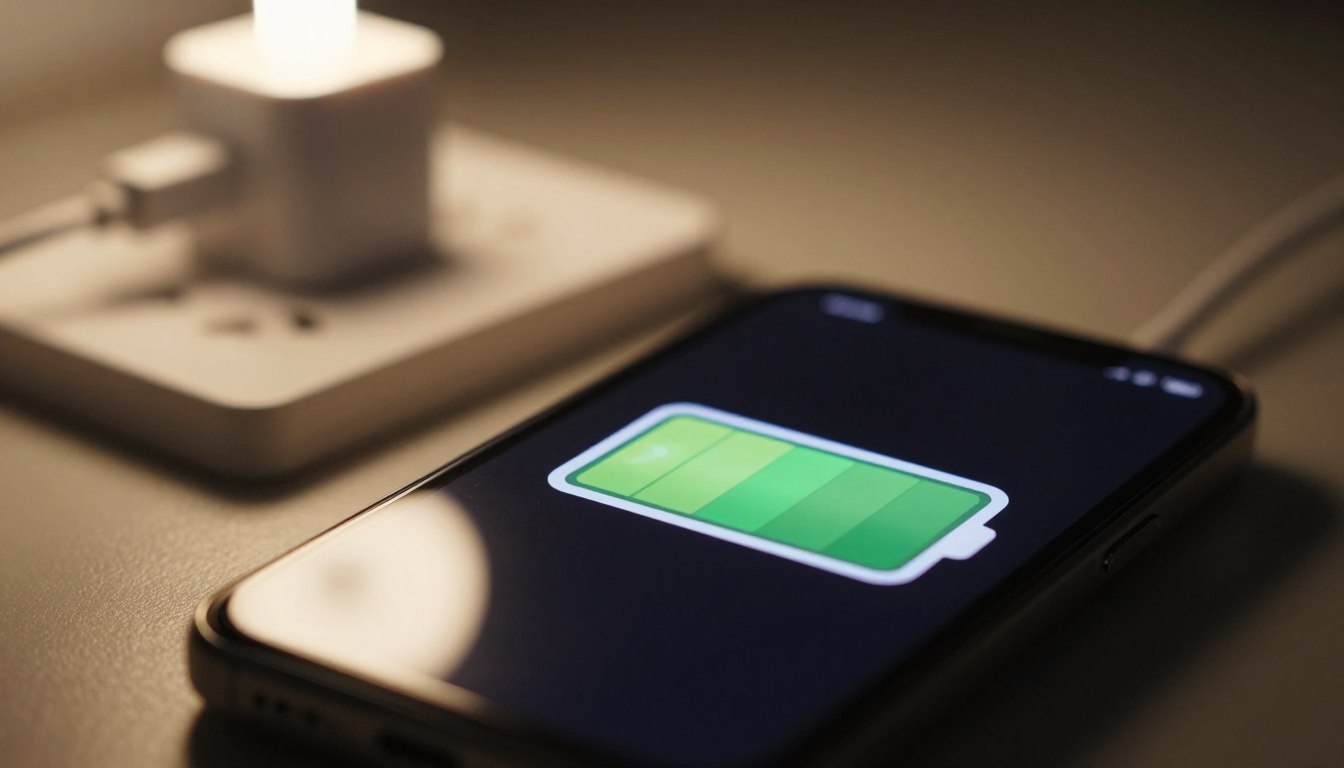
Battery saver always on means your phone runs a power-focused mode all day instead of just when charge is low.
This mode reduces background activity, limits visual effects, and cuts some network checks. It can extend battery life but also changes notification behavior and app performance.
Results vary by device. Models like Pixel include Automatic and Extreme options, while Samsung offers Power saving choices you can tweak in settings. Signal strength, screen brightness, and app usage shape how much extra life you get.
Who benefits? People away from chargers or those who prefer fewer background tasks. Who may not? Users who need instant alerts, real-time sync, or peak performance for games and rideshare apps.
This guide explains what the mode changes, when an always-on approach helps or hurts, how to automate it on Pixel and Galaxy phones, and smarter ways to save power. The recommended path is to schedule the feature by percent and whitelist essential apps instead of leaving it enabled for every scenario.
Key Takeaways
- Keeping power mode active extends run time but can delay notifications and background sync.
- Impact depends on device model, signal, brightness, and the apps you use most.
- Pixel and Samsung offer automation and stricter options for extra savings.
- Scheduling by percentage and whitelisting essential apps balances life and performance.
- Use targeted settings and habits for better results than a permanent low-power state.
What Battery Saver Changes on Your Phone
A reduced-power profile alters app refresh, notifications, and some network features to stretch run time.
How to tell when the mode is active
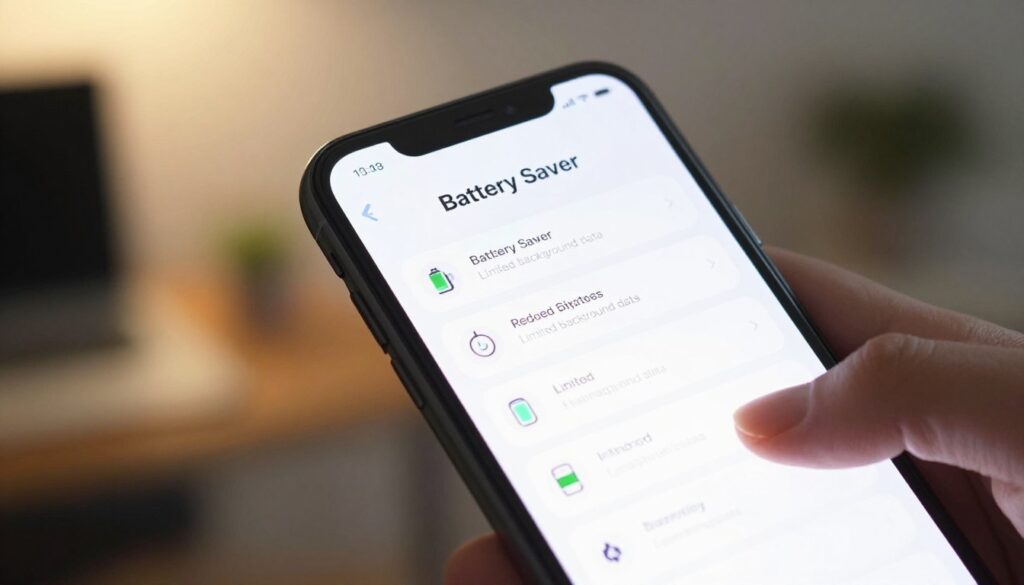
On Pixel phones an indicator appears at the top of the screen and you can toggle the feature from Quick Settings. Check the status icon to confirm the mode is running before troubleshooting missed alerts.
Standard limits for apps, background activity, and notifications
Standard mode limits background activity so apps do not run freely. Content like email and news refresh mainly when you open the app.
Low-priority notifications may be delayed, which can change how quickly you see non-urgent alerts.
Location services when the screen is off
On Pixel devices location services stop while the screen is off. This affects background tracking for fitness apps, smart-home triggers, and some safety services.
Display and performance trade-offs
Standard mode enables Dark Theme, dims the wallpaper, and turns off “Always show time and info.” On Pixel 4+ it disables Smooth Display to lower power draw.
Connectivity and surprising impacts
Some 5G-capable Pixel phones may switch to 4G while this mode runs. That can reduce speed and affect data-heavy apps in certain areas.
When Extreme mode makes sense
Extreme mode pauses most apps (no notifications), slows CPU processing, and disables extra scanning and tethering. Use it when you need maximum life and can tolerate strict limits.
Note: Both Standard and Extreme keep core system apps—Phone, Messages, Clock, Settings—working so the device stays usable for essential tasks.
Battery saver always on: When It Helps vs When It Hurts
Keeping a low-power profile day-to-day can stretch usage, but it changes how apps and alerts behave.
https://www.youtube.com/watch?v=F6F1pOfyrYo
When it helps
Long travel days, conferences, and commutes are good times to leave this mode active. Weak-signal areas also benefit because the phone avoids frequent reconnect attempts.
The gain comes from fewer background wake-ups, reduced refresh cycles, and dimmer display features. Those cuts add up to measurable extra life without much downside if you mainly use messaging or light browsing.
When it hurts
The setting can delay notifications and stop background refresh for email, news, and some third-party services. Time-sensitive alerts—work chat, rideshare pickup messages, delivery updates, and banking fraud notices—may arrive late.
Picking Standard vs Extreme
Standard is best as a default: it stretches the day but keeps core functions usable. Extreme suits emergency cases (single-digit charge) because it pauses most apps and cuts performance.
Rule of thumb: use Standard for regular use and switch to Extreme only when the level is very low or you need maximum runtime. If you spot late alerts or missed updates, the mode may be too strict for your needs.
How to Turn On Battery Saver Automatically (Pixel and Samsung Galaxy)
You can schedule low-power modes so your phone flips into energy-saving behavior automatically at a chosen level.
Pixel quick toggle and schedule
Quick tap: swipe down from the top and tap the battery saver tile to switch the mode on or off without opening menus.
Set a schedule: open Settings > Battery > Battery Saver > Schedule and reminders. Enable Turn on based on battery level and pick a percentage that fits your day.
- Choose 30–40% to keep the phone lasting longer with fewer surprises.
- Pick 15–20% if you want protection only near the end of the day.
Pixel reminders and Extreme
Enable Turn off at 90% to have the mode end automatically while charging. You can also get reminders at 20% and 10%.
For extreme savings use Settings > Battery > Battery Saver > Extreme Battery Saver and select essential apps. Paused apps stop notifications until you unpause them.
Samsung Galaxy controls
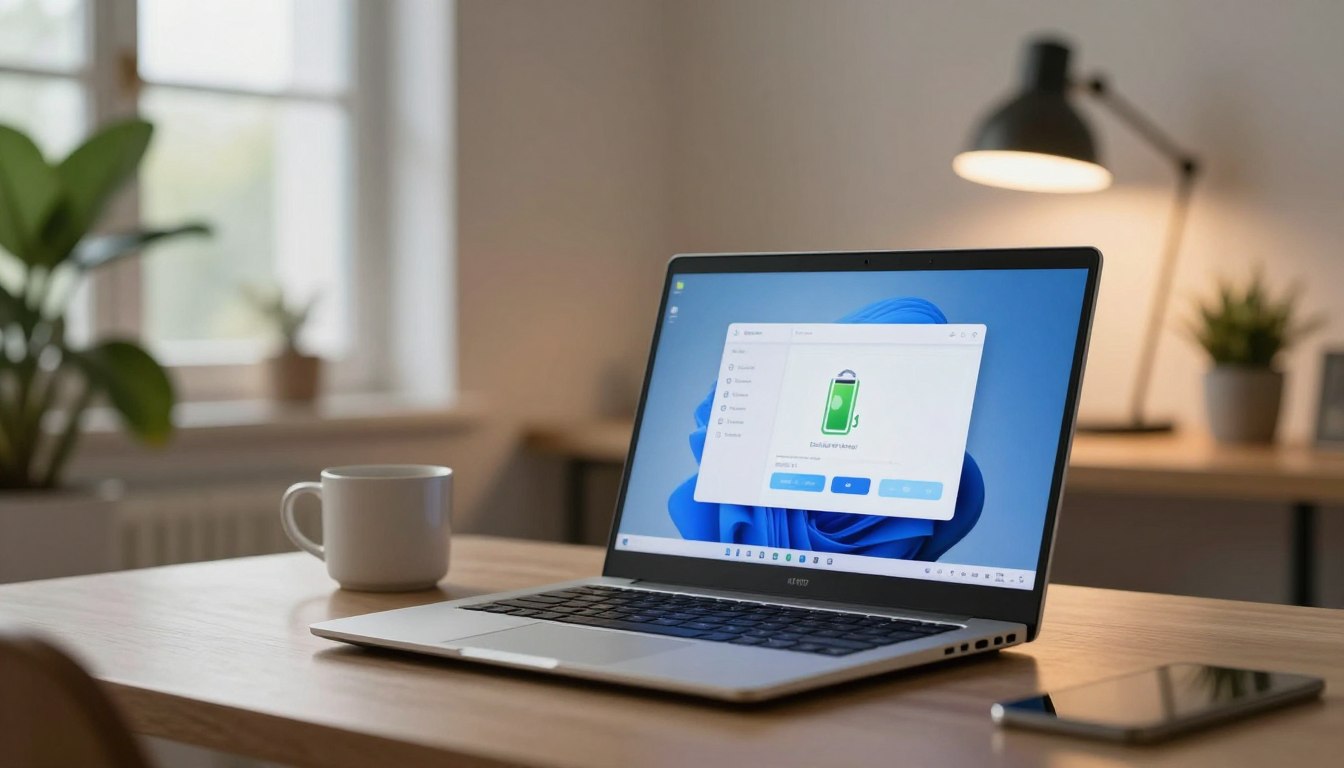
Go to Settings > Battery and device care > Battery and toggle Power saving to apply system limits.
Use Background usage limits to place apps in Sleeping or Deep sleeping apps. Add only critical services to Never sleeping apps because they increase background drain.
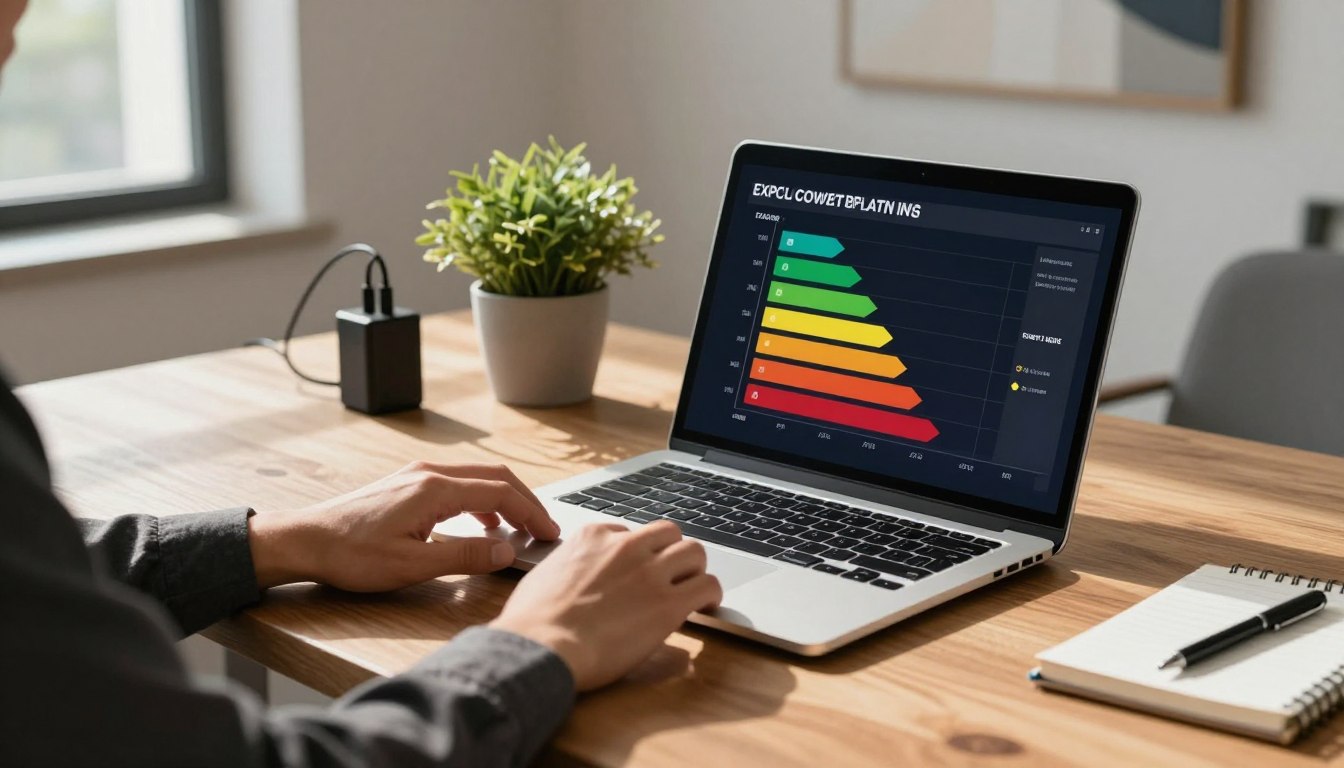
Tip: Check the built-in battery usage graph after changes to confirm which apps still drain power and adjust lists as needed.
Better Ways to Save Power Without Keeping Battery Saver On All the Time
Small, targeted tweaks often save more power and keep your phone working the way you expect. Use focused changes to extend battery life without sacrificing core features.
Reduce screen drain
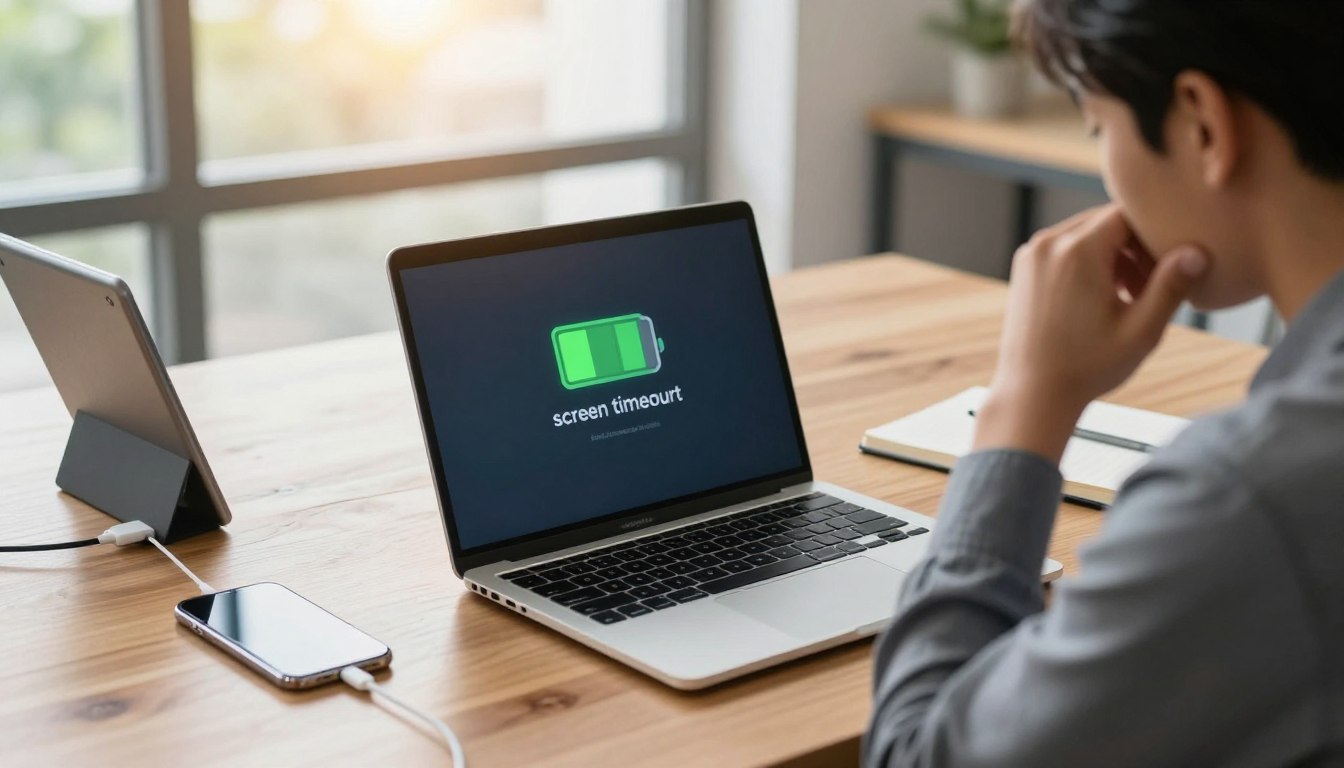
Lower brightness, shorten the screen timeout, and enable a dark theme. These moves cut the screen’s draw, which is usually the top reason for high usage on AMOLED devices.
Cut lock-screen features
Disable the Always On Display and extra lock-screen widgets. Fewer active pixels mean less constant drain across the day.
Manage apps and notifications
Check your device’s battery usage to find the top apps. Limit background refresh, revoke needless permissions, or uninstall apps you rarely use.
Trim background wake-ups
Reduce notification categories and turn off Hey Google detection if you don’t use it. Fewer interruptions mean fewer background wakes and better life between charges.
Wireless, refresh rate, and small drains
Turn off unused Bluetooth and limit location services when not needed. Lower the display refresh rate and turn off keyboard sounds and haptics to stop small, repeated drains.
“Targeted settings keep your device fast and reliable while helping it last longer.”
Conclusion
For most users, the smart choice is to automate low-power behavior rather than run it constantly. That trades fewer surprises for preserved alerts and smoother app sync.
Use your phone’s settings to trigger the feature at a chosen percentage. On Pixel you can set it to turn off at 90% and use Extreme to pause apps when needed. Samsung’s Power saving plus Background usage limits let you mark essential apps as Never sleeping.
Default plan: run Standard mode for everyday saving and switch to Extreme only at very low charge. Finally, keep a short checklist: lower brightness, shorten timeout, disable Always On Display, trim notifications, and review app usage regularly.