What Laptop Battery Health Percentage Really Means
Understand the importance of battery health percentage for your laptop's battery life. Find out how to check and maintain your laptop battery's health.
Understanding this number helps you plan when to replace a laptop cell and how long a charge will last. Think of it as the device’s current charge capacity compared to when it was new. This simple ratio matters more than a single-day reading because it shows long-term wear.
All modern laptops use lithium-based cells, and gradual decline is normal. A common rule of thumb from many makers treats about 80% of original capacity as the point to consider replacement.
Declining capacity affects real-world life: it cuts the time you can work unplugged and can make the level drop faster during web browsing, video calls, or document work. This guide shows how to check status on Windows and macOS, explains capacity and cycle count, and decodes labels like Good or Service Recommended.
Key Takeaways
- Battery health percentage shows current charge capacity vs. new capacity.
- Most lithium devices wear down; slow decline is normal.
- Capacity and cycle count are the main measurable stats to watch.
- Learn where to find status on Windows and macOS settings.
- Goal: slow wear, stabilize daily life, and plan timely replacement.
Battery health vs. battery percentage: what your laptop is really telling you
A full bar on your screen can hide a smaller truth: the number shown for remaining charge is a momentary gauge, not a measure of long-term capacity. One reads “today”; the other compares current storage to when the pack was brand new.
Maximum capacity compared to new
Maximum capacity is like a gas tank that slowly shrinks. When your device reports 100% charged, that fill may hold less energy than it did out of the box.
Why this matters for time unplugged and performance
Reduced capacity shortens run time and can cause steeper voltage drops under load. Older systems may throttle or act unpredictable when power delivery falters, hurting overall performance.
The two stats that explain most wear
Maximum capacity and cycle count tell the story. Capacity shows how much charge remains compared to design. Cycle count tracks how many full-equivalent charges the unit has seen.
| Metric | What it shows | Why it matters |
|---|---|---|
| Maximum capacity | Current charge stored vs. design | Predicts run time and long-term decline |
| Cycle count | Accumulated full-charge equivalents | Helps estimate remaining lifespan |
| Immediate percentage | Charge left right now | Useful for short-term planning only |
What “battery health percentage” means for capacity and lifespan
Think of the reported figure as a snapshot that compares today’s stored charge with the original design capacity.
Design capacity is the factory-stated maximum energy the pack could hold when new. Full charge capacity is what it can hold now. These are the labels you’ll see in Windows reports and many vendor tools.
How the percentage is calculated
Compute the value as (Full Charge Capacity ÷ Design Capacity) × 100. That gives the battery health percentage you read in reports.
Why capacity drops and how cycles add up
Decline happens slowly with age and use. It can fall faster after heavy loads, heat, or a recalculation by firmware.
Partial use adds to wear. For example, 60% one day plus 40% another equals one full cycle. Over many cycles, total capacity and lifespan fall.
| Term | Meaning | Impact |
|---|---|---|
| Design capacity | Factory maximum stored energy | Baseline for comparisons |
| Full charge capacity | Current stored energy | Determines run time today |
| Cycle count | Accumulated full-equivalent cycles | Predicts remaining lifespan |
As capacity declines you’ll see shorter unplugged life and more frequent charging. The next sections show how Windows and macOS expose these same numbers in their reports and settings.
How to check battery health on a Windows laptop using Battery Report
The built-in Windows report translates raw power data into readable sections you can use to track wear.
Generate the report: Open Command Prompt or PowerShell (run as administrator) and type powercfg /batteryreport. Press Enter and note the file path Windows returns.
The report is usually saved under C:\Users\your-account\battery-report.html. Open that HTML file in any browser to see clear tables and charts.
Where to start in the report
- Open Installed batteries first to see design capacity and full charge values.
- Then review Recent usage and Battery usage to spot high-drain sessions.
Read Installed batteries and compute a simple metric
Find Design capacity and Full charge capacity. Divide full charge by design capacity and multiply by 100 to get a quick health figure.
“Keep periodic reports—trends matter more than a single snapshot.”
Use cycle count and usage history
Cycle count and the Recent usage table explain sudden drops in battery hold. Many deep discharges or heavy workloads raise wear quickly.
| Report area | What to check | Why it helps |
|---|---|---|
| Installed batteries | Design capacity, Full charge capacity | Calculate current condition and maximum capacity |
| Recent usage | High-drain sessions, timestamps | Shows when hold drops and which tasks caused it |
| Battery usage | Per-app energy use | Identify an app or screen setting that drains charge |
Practical tip: save the HTML file, rerun the command every few months, and compare the numbers over time. If specific software or the screen causes fast drain, adjust settings or close the offending app to improve battery hold and extend useful life.
How to see battery health on a Mac in System Settings
System Settings > Battery is where macOS shows a concise view of condition and long-term metrics. Open Settings, choose Battery, then click Battery Health or Battery Condition to see the status.
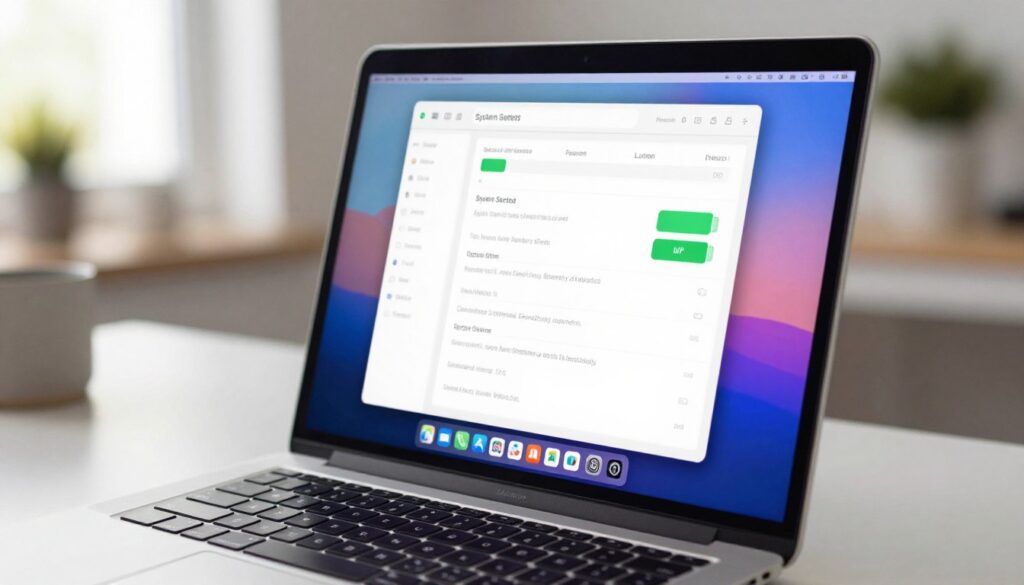
Find Battery Condition and what it means
Battery Condition commonly reads “Normal” or “Service Recommended.” Normal means expected wear but stable daily performance and typical time between charges.
Check maximum capacity and cycle count
Within the same panel you can often see maximum capacity and cycle count. These two numbers explain long-term battery performance: higher cycles and lower capacity mean less run time.
When “Service Recommended” appears
Service Recommended indicates reduced time unplugged and more frequent charging may be needed. The Mac usually keeps working, but plan inspection or replacement if real-world use suffers.
“Watch trends, not a single reading; capacity and cycles together tell the full story.”
- If status is Normal: monitor numbers over months.
- If Service Recommended and you notice poor performance: consider service.
- Good charging habits—avoid constant 100% and extreme heat—slow further wear.
Compared to Windows reports, macOS presents a simpler view, but the core ideas—capacity and cycles—drive the same decisions about service and replacement.
Brand tools and firmware checks that show deeper battery information
When OS reports disagree, vendor utilities and firmware views act as a useful second opinion.
Why use maker tools? They often include manufacturer-calibrated diagnostics that reveal more specific labels and charging features than generic system reports. This helps when updates or odd drain patterns make software readings look inconsistent.
Check health in BIOS/UEFI
Boot into BIOS/UEFI (commonly via F2) for a firmware-level view. The on-screen indicator can confirm whether the status shown by apps is a simple reporting glitch or a real issue at the hardware layer.
Dell methods to verify condition
On Dell systems use SupportAssist, Dell Power Manager (Battery Information), and Dell Optimizer (Power → About my battery). These tools list device-specific metrics and labels like Excellent, Good, Fair, Poor, or Unknown.
Run on-board diagnostics to confirm hardware faults
Use the one-time boot menu (often F12) and select Diagnostics. After tests finish, note the diagnostic codes and the reported condition.
Practical tip: Capture screenshots or notes before you contact support. Documented results speed up troubleshooting and help decide if you need a repair or replacement.
How to interpret your results and improve battery health going forward
Interpreting your report is about turning raw numbers into useful decisions for daily use and long-term planning. Read the figures, then choose simple steps that match how you use the device.
What the ~80% maximum capacity threshold means
When maximum capacity falls near 80%, expect noticeably shorter run time. The laptop still works, but plan a replacement or budget for service soon.
Common status labels and next actions
Excellent/Good: monitor and reduce extreme charging. Fair: tweak power and screen settings. Poor/Service Recommended: schedule service or prepare for replacement.
| Status | Typical action | Result to expect |
|---|---|---|
| Excellent | Keep current habits; minor tweaks | Stable runtime |
| Good / Normal | Lower peak charge periods | Slightly less run time |
| Fair | Use power saver; plan inspection | Shorter time between charges |
| Poor / Service Recommended | Repair or replace soon | Unreliable hold |
Practical tips: charging, temperature, and apps
Operate mostly between 20% and 80% to slow wear. Avoid leaving at full charge for long periods.
Keep vents clear and avoid high heat while charging; temperature spikes speed capacity loss.
Use Windows power modes, lower screen brightness, and close background apps that show high battery usage to extend time between charges.
Calibration and storage
If readings seem off, calibrate once in a while. For long storage, leave the device near 50% in a cool, dry place.
Re-check reports after a few weeks of changes to see measurable improvements.
Conclusion
Use system reports to turn raw metrics into clear actions for better runtime and device longevity. Check the Windows Battery Report or macOS System Settings to see current capacity and any condition labels.
Core takeaway: the “battery health percentage” is a long-term capacity metric, not the momentary charge shown on the screen. Focus on capacity and cycle trends when deciding whether to adjust settings or plan service.
Control heat, avoid constant full charges, and use power-saving modes to protect run time. Keep screenshots or saved reports so changes are based on evidence. If performance problems persist and the numbers confirm poor battery health, arrange a replacement through the maker or a trusted service.