How Many Charge Cycles a Laptop Uses Per Year
Learn how many battery cycles per year your laptop uses and how to extend its lifespan. Follow our how-to guide for optimal laptop battery maintenance.
This introduction explained what a cycle count meant and why it mattered for laptop runtime and long-term performance.
Think of the cycle count like an odometer that tracked cumulative use. When a device used the equivalent of 100% of its energy, that logged as one full cycle. Partial discharges added up, so many short top-ups still contributed to the total.
Readers were shown how to estimate annual usage with simple math: multiply typical daily discharge by days of use, then divide by 100 to get a rough number of cycles. This estimate could be compared with the system-reported number to see real wear.
Why it mattered: more cycles and greater age lowered runtime and reduced capacity over time. The guide that followed promised clear steps for macOS and Windows to find the actual figure, interpret results, and adjust habits to protect long-term performance.
Key Takeaways
- One full cycle equaled 100% cumulative use, not a single plug-in event.
- Short top-ups still added to the total and affected lifespan.
- Estimate annual cycles with daily discharge math, then check your device.
- Higher cycle counts and age typically reduced runtime and capacity.
- The guide covered macOS and Windows steps to find and interpret the number.
What a “charge cycle” really means for your laptop battery
A charge cycle is a running tally of energy used — it sums partial drains until they equal a full discharge.
Plain definition: A cycle means the cell has delivered 100% of its usable energy in total, even if that use happened across several short sessions.
Example one: you use 30% one morning, 30% that afternoon, and 40% the next day. Those adds equal one full cycle.
Example two: 60% drain on Monday and 40% on Tuesday also count as a single cycle. A single plug-in does not define the event.
That’s why counting how often you plug in can mislead. The cycle count tracks actual throughput of the pack, not habits about charging frequency.
Think of the metric like an odometer: higher totals mean more wear and generally lower maximum runtime over the device life cycle.
Modern lithium cells accept partial charging as normal, so topping up often won’t automatically harm the unit. The next section links accumulated cycles to how capacity and real-world runtime change over time.
Why cycle count affects battery life, capacity, and long-term performance
Two numbers tell most of the story: the original capacity (what the pack held new) and the full charge capacity (what it holds now).
Original capacity is the spec you saw at purchase. Full charge capacity appears in system reports and drops as the cell ages.
The gap between these values widens as usage adds up and as the unit experiences calendar aging. That reduced capacity shortens usable runtime and can lower peak performance under heavy load.
- 80% benchmark: Manufacturers often rate lithium packs to retain about 80% after a stated cycle life. Many consumer devices aim for 300–500 before reaching that level, while some laptops target ~1,000.
- Practical impacts: You may see faster drops from 30% to 10%, unexpected shutdowns under load, and more time tethered to a charger.
- Not only throughput: Calendar aging, heat, and storage state also reduce health independently of use.
Think of cycle count as the easiest measurable input. The outputs that matter are capacity and real-world performance, which together define useful lifespan.
How to estimate battery cycles per year based on your usage
Estimate annual wear by tracking how much charge you use each day and turning that into a simple total.
Simple daily-discharge method
Step 1: Note your typical daily discharge percentage (for example, ~40%).
Step 2: Divide that number by 100 to get cycles per day, then multiply by 365 for an annual estimate.

Quick conversion examples
| Daily drain | Cycles/day | Approx. annual number |
|---|---|---|
| 25% | 0.25 | ~91 |
| 50% | 0.50 | ~183 |
| 80% | 0.80 | ~292 |
Usage scenarios and top-ups
Light use: Mostly plugged in, brief meetings — low annual total.
Moderate use: Hybrid days with a few hours unplugged — a mid range result.
Heavy use: Travel or long mobile days — expect the highest total.
“Partial top-ups are summed as throughput, not a penalty for plugging in often.”
Note the estimate is imperfect: screen brightness, workload, age, and hot conditions change the real number. Compare this estimate to your system report and adjust habits if you see faster accumulation than expected.
How to find your laptop’s cycle count data on macOS and Windows
Open your system tools to pull the definitive count and capacity stats stored by the firmware.
On macOS: Apple menu → System Information (or About This Mac → System Report) → Power.
Locate “Cycle Count” and the condition or health fields. Record the cycle number, full charge capacity, and any condition notes that mention service.
What to capture on a Mac
- Cycle Count (the raw number the system reports).
- Full charge capacity and design capacity for context.
- Condition status and any service recommendations.
Windows: generate and read a battery report
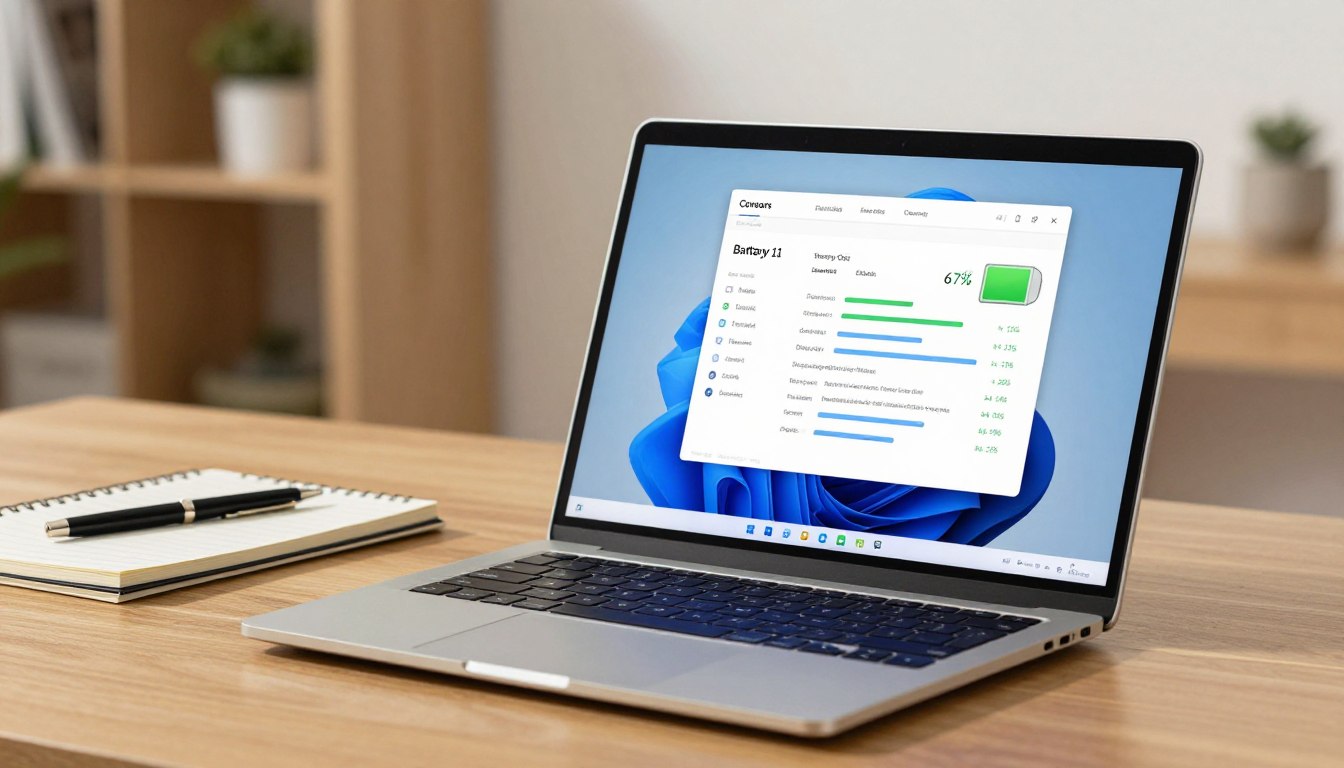
Open Command Prompt as Administrator and run: powercfg /batteryreport. This creates a battery-report.html in your user folder. Open it and find the “Installed batteries” section for cycle and capacity figures.
| Field | What it shows | Why it matters |
|---|---|---|
| Design capacity | Original energy spec | Baseline for comparing current health |
| Full charge capacity | Current maximum charge | Shows loss of capacity over time |
| Cycle count | Total throughput logged | Indicator of wear from use |
“Record the number and date to track how fast health changes; retest in a few months to estimate monthly wear.”
Note: some Windows models may not report a cycle number depending on firmware, but the report still shows capacity trends and useful power data. Use these system numbers as your baseline to judge if current charging and usage habits are sustainable.
How to interpret your results against manufacturer cycle life and real-world aging
A practical way to judge wear is to compare your recorded total with what manufacturers promise for typical use. Use that as a benchmark, not a strict expiry date.
What “good” looks like at one year. If your device logs roughly 100–200 of use, that often matches moderate mobile use. At this stage, most devices still show healthy capacity and solid performance.
At three years and beyond. Expect some decline toward the ~80% capacity point many manufacturers reference. A laptop with moderate counts can still feel worn if it spent lots of time at high temperature or parked at full charge.
Three quick checks to judge condition
- Number: Note the reported total and compare it to the maker’s cycle life rating.
- Capacity: Compare current full charge to the original design capacity.
- Performance: Test real-world battery life with your typical tasks.
Calendar aging vs throughput: even with low throughput, chemical changes over time reduce capacity. Time, heat, and storage state all factor into longevity alongside use.
“Treat manufacturer cycle life as guidance; longevity depends on how you charge, store, and use the device.”
Next: We’ll examine the main drivers that increase throughput and accelerate decline so you can spot which apply to your usage and adjust accordingly.
Factors that increase cycles and accelerate battery health decline
Usage patterns, heat, and charging speed together decide how costly each use becomes for the pack.
https://www.youtube.com/watch?v=VWUd7KcqsPE
Depth of discharge is the percent you drain before recharging. Deeper discharge (near 0%) stresses lithium cells more than shallow top-ups. That means deeper draws reduce useful capacity faster even if the raw cycle count looks similar.
Time at extreme levels matters. It is not only hitting 100% or 10% that harms a cell; it is how long the pack sits near those states. Extended exposure at very high or very low state of charge speeds decline.
Heat and thermal stress
High temperatures amplify chemical aging. Intensive tasks like gaming or rendering while plugged in raise internal temps. Soft surfaces trap heat and make the problem worse.
Charging power and fast-charge impact
Real-world EV data shows higher-power, high-frequency fast charging links to faster capacity loss. While laptops differ, the underlying lithium stress—heat and high charge rates—points to the same risk.
| Factor | What it means | Impact | Mitigation |
|---|---|---|---|
| Depth of discharge | How far you go before recharge | Greater stress, faster capacity loss | Top up at mid-range |
| Extreme charge levels | Time spent near full or empty | Accelerated aging | Avoid long storage at 100% or 0% |
| Heat / temperatures | Sustained high temps during use | Multiplies degradation | Improve airflow, avoid hot cars |
| High charging power | Frequent fast charging | Faster annual capacity loss (directional) | Use lower power when possible |
“Stress multipliers like heat and high-power charging make each full use ‘cost’ more capacity over time.”
Charging habits that reduce cycle stress without sacrificing convenience
You can protect long-term health by aiming for steady mid-range charge levels most of the time.
Target a practical middle range instead of constant 0% to 100%
A flexible 20%–80% operating level keeps wear low while staying convenient. Treat this as a soft rule, not a strict mandate.
Keeping the pack between these levels reduces time at extremes and cuts deep-discharge stress. That helps battery health and extends usable life without extra effort.
Use optimized/adaptive charging
Enable any optimized charging feature your laptop offers. These tools learn your schedule and limit time the cell sits at 100% during overnight charge.
They are a low-effort way to keep battery health higher over many months and to still leave with a full charge when needed.
When a full discharge makes sense (calibration)
Do a full discharge then full charge only if the percentage reads incorrectly or the device shuts down unexpectedly. This resets the reporting system but does not improve chemistry.
Least-effort habit: plug in when convenient, avoid routine deep drains, and don’t obsess over short top-ups — partial charges are already handled by lithium chemistry.
These small shifts slow capacity loss and help you keep battery usable runtime higher over the life of the laptop. For device policies, see our privacy policy.
Device and environment tweaks that help keep battery capacity higher for longer
Minor setup and habit changes can cut heat and high-power stress, helping preserve capacity and extend longevity.
Reduce heat while charging and during heavy workloads
Place your laptop on a hard surface and keep vents clear. Soft surfaces trap heat and raise internal temperatures fast.
Elevate the rear edge slightly to improve airflow during long renders or gaming sessions. Avoid blankets, couches, or laps when plugged in.
Why it matters: running CPU or GPU-heavy tasks while the system charges combines two heat sources. That extra load speeds wear and reduces usable capacity over time.
Choose slower charging when you have time
Use a lower-wattage charger or a standard mode for desk days and reserve high-power charging for urgent top-ups.
A simple rule: if you will be parked for hours, pick the lowest charger that meets your schedule. Fast charging is for quick turnarounds, not every session.
Also consider workflow tweaks: pause heavy renders while plugged in or switch to balanced power settings to cut sustained thermal load.
“Reduce unnecessary high-power sessions to limit avoidable heat and stress, preserving capacity over multiple years.”
Conclusion
To conclude, pair your rough annual estimate with the system data to get a clear picture of wear.
Remember the core method: estimate annual use from daily discharge, then check the device report on macOS or Windows to validate that number and current capacity.
Key idea: the count measures total throughput, so many short top-ups do add up but plugging often is not automatically harmful. What matters is how much energy the pack delivers and the conditions it faces.
Two main drivers affect long-term outcomes: how many cycles accumulate and how stressful each cycle is because of heat, deep discharge, or long time at extreme states.
Simple checklist: aim for a mid-range charge most days, enable optimized charging, avoid routine full discharges, and keep the machine cool during heavy or charging-heavy sessions.
Track the report and capacity a few times annually. Expect normal aging, but small habit and environment changes reliably slow decline and keep everyday usability higher.