Why a Laptop Battery Can Die Suddenly at 30 or 40 Percent
Discover why your laptop battery dies suddenly at 30 or 40 percent. Learn the causes and solutions to this frustrating issue.
Many people report an abrupt power loss when their device shows 30–40% charge. This feels like a hard-off, not a graceful shutdown. Real-world reports often note the issue appears or worsens after a Windows update.
What readers should expect: this is a troubleshooting guide that separates a charge-reporting problem from a true capacity failure.
The issue is common in the past few months because power management tweaks, aging cells, and increased background load can make the on-screen percent misleading.
At a basic level there are two buckets of causes. One: the cell pack can’t deliver enough power under certain loads. Two: the system misreads remaining charge and cuts power early.
Time matters. Sudden shutdowns that show up after months of stable use often point to gradual degradation or a system-level change like a driver or firmware update.
What follows: quick checks first, then common root causes, Windows-focused fixes, and clear guidance on when replacement is the only realistic option. The goal is practical information you can use right away.
Key Takeaways
- Sudden shutdowns at mid charge can be either a reporting error or real capacity loss.
- Recent updates and background load often reveal hidden weaknesses over months.
- Start with quick checks to rule out software or calibration issues.
- Know the two root buckets: power delivery limits or incorrect state reporting.
- The article shows step-by-step fixes and when to consider replacement.
Symptoms and quick checks when a battery shuts off around 30-70% charge
An abrupt off at mid‑range charge usually points to either a reporting error or a power delivery problem. This matters because a true low‑charge shutdown follows warnings, dimming, and an orderly hibernate or shutdown sequence.
What to note immediately: record the percent shown at the instant of power loss, how many minutes it ran since unplugging, and whether the machine stays on when plugged in.
Make sure you run three quick checks: confirm it runs normally on AC power, reboot and see if it dies again at the same percent, and fully charge once to see if the fault repeats mid‑charge.
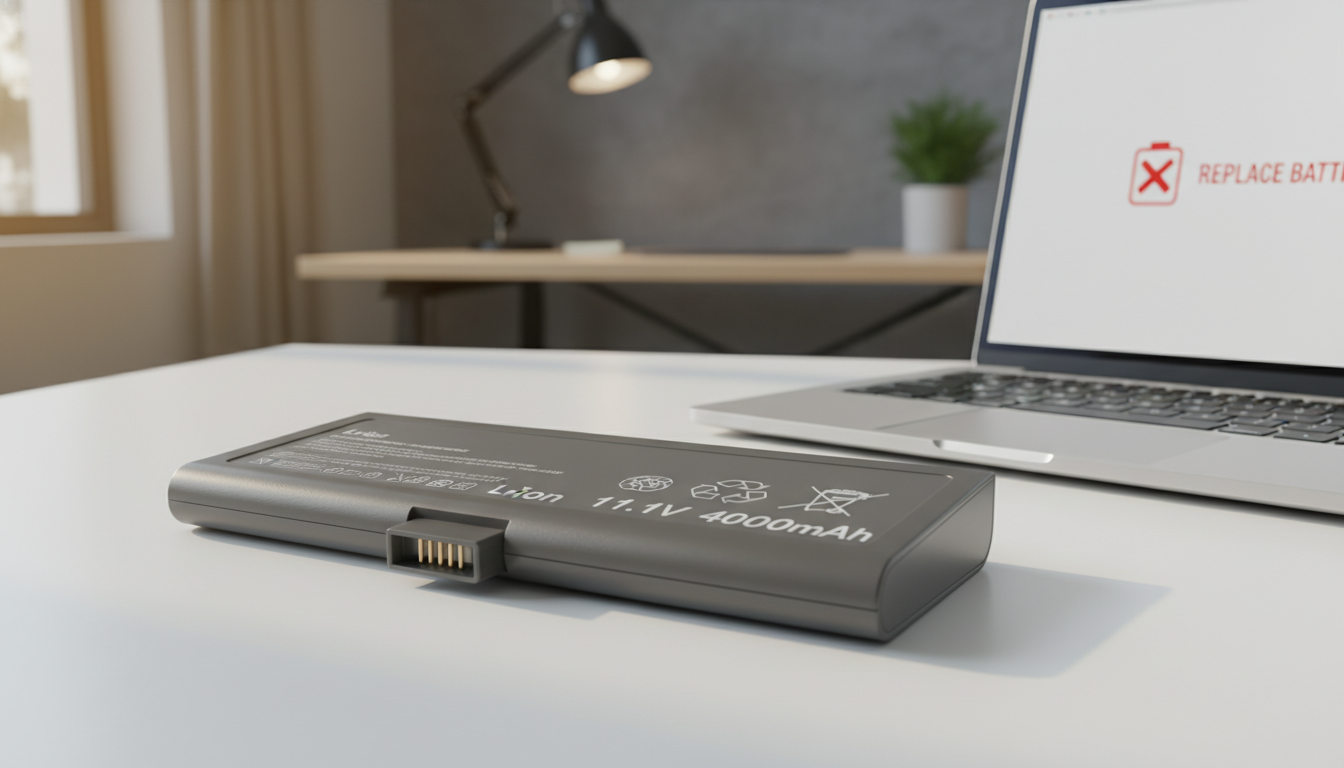
In one Toshiba Portege R930 case, the unit shut off around 60–70% after Windows 1909. Replacing with a new battery produced the same problem, which suggests the fault sits in the system — firmware, drivers, or power settings — not the cells.
Isolation steps: test at minimum load (lower brightness, close apps) then under heavier load. If the shutdown threshold shifts with load, the cells may not deliver required power. If it repeats at the same percent regardless, suspect meter calibration or system power thresholds.
These observations save time and prevent needless part swaps. They also point to the next steps: root causes and Windows‑specific fixes.

Why your laptop battery dies suddenly: the most common causes
Meter errors vs. real capacity loss are the first items to consider. A miscalibrated charge meter can report 40–70% while the cells reach their low‑voltage cutoff under load.
Degradation over months or years means worn cells can hold charge but drop voltage quickly when stressed. That makes the on‑screen percent misleading and can cause abrupt shutdowns.
Windows updates and system changes sometimes alter power management, sleep thresholds, or driver behaviour. If the issue started after an update, the OS may be enforcing a premature cutoff.
- Corrupted firmware or drivers: faulty power drivers can misread remaining time and trigger early shutdowns.
- Background processes: many apps or hidden tasks spike CPU/GPU draw and shorten usable run time.
- High power settings and hardware: maximum brightness, keyboard backlight, and High‑Performance mode raise current draw and expose weak capacity.
- Peripherals and networks: USB devices, Bluetooth accessories, and heavy Wi‑Fi use add continuous drain.
If the device stays on when connected to a charger but fails on battery, you’re likely facing a power delivery limit, meter calibration issue, or a system‑level control problem — not a random crash. Many of these causes are reversible with settings, driver, or firmware fixes; true capacity loss points toward replacement.
| Cause | Symptom | Quick test | Likely fix |
|---|---|---|---|
| Meter calibration | Repeats at same percent | Full charge, discharge test | Calibrate or reset power gauge |
| Cell degradation | Rapid voltage drop under load | Run at low vs. high load | Replace pack |
| Windows/driver changes | Starts after update | Boot in safe mode, check drivers | Roll back or update drivers |
| High draw from settings/peripherals | Shorter run time with devices on | Disconnect accessories, lower brightness | Adjust settings, remove peripherals |
Fixes to try in Windows to stop sudden shutdowns and improve battery life
Try fast, targeted Windows adjustments to reduce load and test whether the shutdown percentage moves. These steps often reveal if the problem is a meter error, a power delivery limit, or real capacity loss.
Adjust power and sleep settings
Switch from High Performance to Balanced in Settings > System > Power & Sleep. This lowers peak draw and can stop mid‑charge cutoffs.
Set reasonable screen and sleep timers and enable Battery Saver. These reduce sudden spikes that trip low‑voltage cutoffs.
Quick drain reductions
Lower display brightness via Settings > System > Display and turn off keyboard backlight. These are constant loads that often push a weak pack over the edge.
Disconnect peripherals and manage networks
Unplug USB drives and dongles, and disable unused Wi‑Fi or Bluetooth. Each accessory adds draw and can shorten usable life between charges.
Find and stop hungry apps
Use Settings > Privacy > Background Apps to remove permissions for nonessential apps. Then open Task Manager (Ctrl+Shift+Esc) and end high‑usage processes.
When to check firmware and drivers
If the problem started after an update or persists after tuning, update or reinstall chipset and power management drivers. Check the vendor site for BIOS/firmware updates.
Deciding on replacement
Test after each change: run from fully charged to the failure zone to see if the shutdown point shifts.
If mid‑charge shutdowns repeat, capacity is low, or the device only runs on a charger, consider a replacement and review warranty options.
| Action | Where | Why it helps |
|---|---|---|
| Change power plan | Settings > System > Power & Sleep | Reduces peak current draw and avoids low‑voltage cutoffs |
| Lower brightness / turn off backlight | Settings > System > Display / vendor keys | Removes constant high draw from the display |
| End background apps / processes | Settings > Privacy & Task Manager | Stops hidden tasks that spike CPU/GPU use |
| Update drivers / BIOS | Manufacturer support site | Fixes firmware or driver issues that misreport charge |
Conclusion
When a device cuts out near half charge, treat it as a diagnostic case: the on‑screen percent can be misleading, and the fix depends on whether the issue is meter calibration, load, or true cell wear.
Start by observing patterns — note the exact percent at shutdown, runtime, and recent changes. Reduce draw, test with minimal load, and adjust Windows power settings to see if the problem moves.
If the machine stays on when plugged in but shuts off on battery, that key clue narrows the fault to power delivery or how the system interprets charge, not a random crash.
Keep testing for a few months while logging results. If tweaks stop abrupt cutoffs, keep optimizing; if the fault stays consistent, plan service or replacement and use your notes as supporting information.
Next steps: record shutdown data, apply fixes methodically, and contact the vendor or consider a new laptop battery if life and tests point to true degradation.