Laptop Battery Only Lasts One Hour: What to Check First
Troubleshoot why your laptop battery lasts only 1 hour. Find out what to check first to restore your battery's health and optimize its performance.
If your device runs out of power in about an hour, this guide helps you find the cause without guesswork. That short runtime often means one of three things: unusually high power draw, a misbehaving app or peripheral, or reduced battery capacity from age.
Start by isolating which category fits your case. A one-hour life can be normal under heavy load, but it is a red flag for light browsing or document work. We’ll define a realistic baseline for your specific model so you know what to expect.
Problems that seem like software — settings, background tasks, or drivers — can mimic hardware failure. Avoid guessing. Collect objective power and usage data first, then act on facts.
Many people search community threads for quick fixes, but archived posts and blanket replies often miss the real cure. If you see confusing notes like commentsno comments or comments anonymous, you can still diagnose the problem by gathering clear information.
We’ll start with Windows power diagnostics, then apply the highest-impact OS and browser tweaks, check health metrics, and advise when to contact Microsoft Support or your maker.
Key Takeaways
- One-hour runtime can be due to power draw, rogue apps, or aging battery.
- Measure real-world usage to set a baseline before troubleshooting.
- Check Windows power tools and browser settings first for quick wins.
- Avoid relying on archived community threads for one-size-fits-all fixes.
- Gather objective data before escalating to support or the manufacturer.
Quick diagnosis when your laptop battery lasts 1 hour
A quick, focused test can tell you whether extreme drain is normal for the task or a sign of a fixable issue. Start from a true full charge, then run your usual workflow and note the hours of runtime, screen brightness, Wi‑Fi/Bluetooth, and whether the device is idle or active.

Confirm the baseline
Record runtime from a real full charge while doing typical work. This gives a fair baseline for what “normal” battery life looks like for your use.
Use Windows Power & Battery
On Windows 11 go to Settings > System > Power & Battery > View Detailed Info. That view shows which apps or processes draw the most power over recent hours.
Interpret the results
| Pattern | Likely source | Next step |
|---|---|---|
| High drain during browsing | Browser or many tabs | Close tabs, enable sleeping tabs |
| Peak drain during play | Gaming or 3D apps | Accept shorter runtime; lower settings |
| Single lightweight app spikes | Misbehaving process or driver | Update or remove the app; contact support |
“Documenting what you see — screenshots and notes — becomes the answer when you escalate to support.”
Immediate steps: update the problematic app, disconnect peripherals, or uninstall if needed. Keep notes as the primary source for any later support case.
Fix the most common drains in Windows settings and everyday use
Small changes in power mode and app behavior often produce the biggest runtime gains. Start with a few simple steps and check results after each change.
Adjust power mode and battery-saving settings
Pick a power mode that fits your work: Balanced or Better Battery for most office tasks, Performance only when needed. Enable saving thresholds in windows Settings so the system cuts background activity at a chosen charge level.
Browser tuning for Edge and Chrome
Enable sleeping or hibernating tabs and disable heavy extensions. This cuts CPU wakeups and reduces web app draw that often eats runtime.
Limit background applications and startup
Use Task Manager to disable unnecessary auto-start apps. Remove or restrict apps that keep the CPU active when idle.
Why life can drop after a reinstall and driver issues
A clean windows install removes extras, so runtime can improve briefly. Over time, cloud sync, utilities, and driver or update changes bring processes back. If a new driver causes drain, roll back or install the vendor update and retest.
- Follow these steps one at a time.
- Measure runtime using the same test from Section 2.
- Use charge-limiting tools sparingly to protect long-term capacity.
Check battery health and when to involve manufacturer support
https://www.youtube.com/watch?v=Ss7cn0eq2s0
A short runtime that won’t improve after tuning often signals a hardware decline rather than a settings hiccup.
Clear signs of a failing pack versus settings problems
- Rapid percentage drops at light load or unexpected shutdowns.
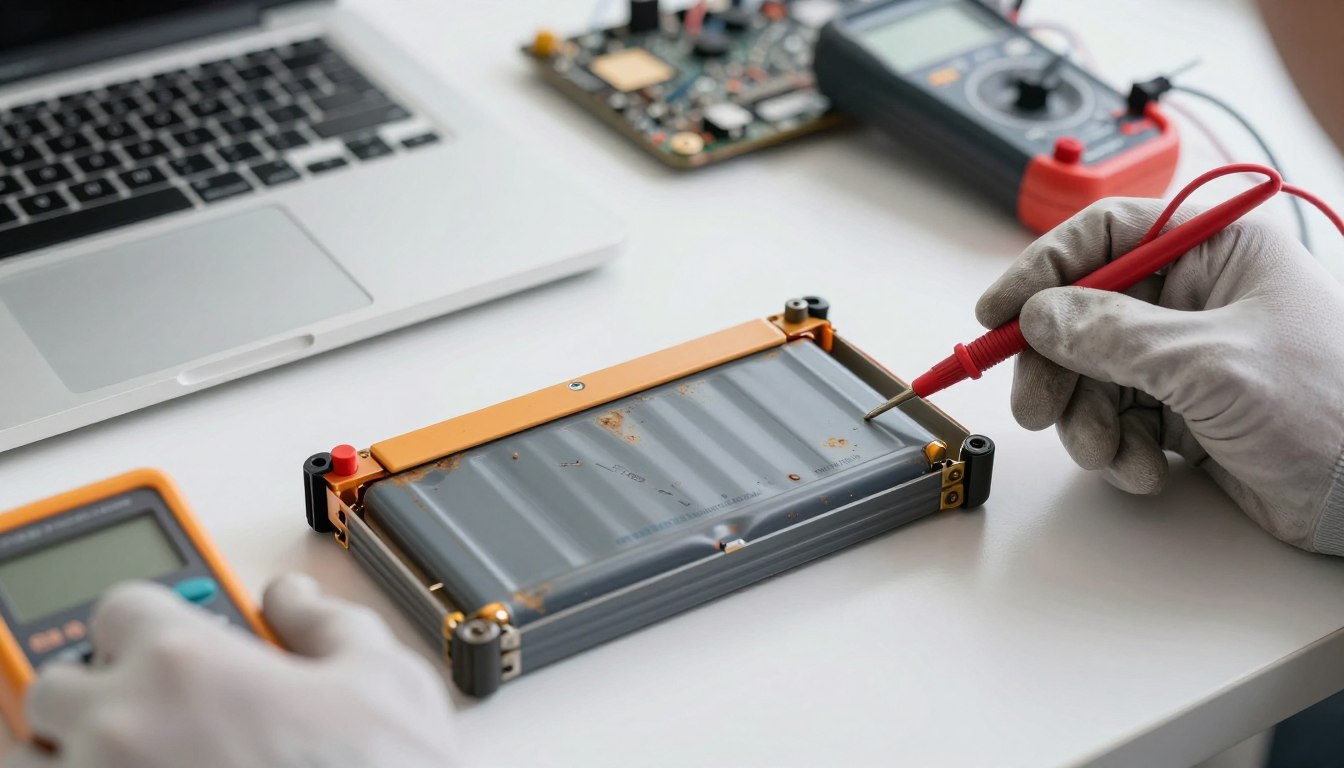
- Visible swelling, overheating, or a big gap between “full” and real-world runtime.
- Persistent high drain after software tweaks and driver rolls.
Capacity and age explained plainly
Capacity is the maximum energy the cell can hold. It falls with charge cycles and time. After about three years of daily use, noticeable runtime loss is common even when settings are correct.
How to confirm capacity is the limit
- Generate a Windows battery report and read “design capacity” vs “full charge capacity.”
- Run the maker’s diagnostic tool and compare results to the report.
- If full charge capacity is much lower than designed capacity, capacity is the limiting factor.
When to use Microsoft Support and when to contact the maker
Use Microsoft Support guidance — such as “Caring for your battery in Windows” — as the authoritative source for Windows-level care. If diagnostics show degraded capacity, power drain persists after clean troubleshooting, or the device is under warranty, contact the maker.
Example: HP recommends signing in or creating an account to reach support faster, view a device dashboard, check warranty status, and track case progress.
What information to gather before you call
- Windows battery report and screenshots of Power & Battery “View Detailed Info”.
- Recent driver/update history and a short list of troubleshooting steps you already tried.
- Model, serial, and any diagnostic logs the maker requests to speed a solution.
Conclusion
Conclude with a quick checklist that helps you decide whether configuration or service is the right path.
Confirm a measured baseline run, then use Windows power reports to find the top draw. Tackle clear fixes first: pick a balanced power mode, enable sleeping tabs, and stop unnecessary background apps. Update or roll back drivers and retest after each change.
If the drain traces to one app or peripheral, the solution is usually configuration, updates, or removal. If capacity is clearly reduced, plan for service or replacement.
For noisy forum threads or confusing comments, use the system reports as the default source of truth. If you still have a question, gather screenshots, timelines, and logs, then contact Microsoft Support or your maker—see their about us page for contact options and case tracking.