Laptop Battery Stuck at 0 Percent While Plugged In: What It Means
Is your laptop battery stuck at 0 percent even when plugged in? Discover the reasons and step-by-step fixes in our comprehensive troubleshooting guide.
This issue means your device is getting AC power but the battery won’t accept a charge or Windows reports it incorrectly.
In plain terms, the system can run on external power while the internal cell remains unfilled. That difference matters: running on AC power is not the same as the unit charging.
Common causes include a faulty charger or port, an aged cell, driver or firmware faults, power management conflicts, overheating, or physical damage. This symptom can show up across HP, Dell, Lenovo, and others even when the root cause varies.
Immediate priorities are protecting your data and preventing sudden shutdowns if the cell is truly dead. The guide that follows will help you isolate whether the charger, the pack, the charging circuitry, or Windows drivers are to blame.
We focus on Windows tools and built-in diagnostics, starting with quick hardware checks, then OS checks, Device Manager steps, BIOS/chipset actions, and finally replacement choices.
Key Takeaways
- Being on AC power doesn’t guarantee the internal cell is charging.
- Quick checks can separate charger and port faults from software issues.
- Drivers, firmware, and power settings often cause false charge reports.
- Protect data—an actual dead cell can cut power instantly when unplugged.
- This guide uses Windows built-in tools before suggesting replacements.
What it means when your laptop shows 0% while plugged in
A zero reading while connected usually points to either a hardware fault or software that fails to recognize charging.
Common causes fall into clear categories: a bad charger may power the device but not deliver the correct wattage; a worn battery can refuse to accept current; a damaged charging port causes intermittent contact; and outdated drivers or BIOS versions can misreport status.
Typical signs help narrow things down. You might see “plugged in, not charging,” an LED that never changes, sudden shutdowns when unplugged, or charging only at certain angles if the port shows wear or damage.
Adapter wattage and ID matter. Many models check the charger type and will limit or block charging if the supply is underpowered or not recognized. Notably, some Dell machines refuse to charge with non‑genuine adapters even when the plug fits.
Firmware and BIOS can influence charging behavior. Older firmware versions sometimes contain bugs that affect detection or control. That makes an update a possible solution, but first decide if the device runs without the adapter. If it cannot, the battery may be at end of life; if it runs but won’t charge, focus on detection, the charger, or the port.
Quick power and hardware checks before changing Windows settings
Start with simple power checks: many charging-report problems come from the cord, brick, or outlet rather than Windows. A brief physical sweep takes little time and often finds a quick solution.
Confirm the power cable and charger
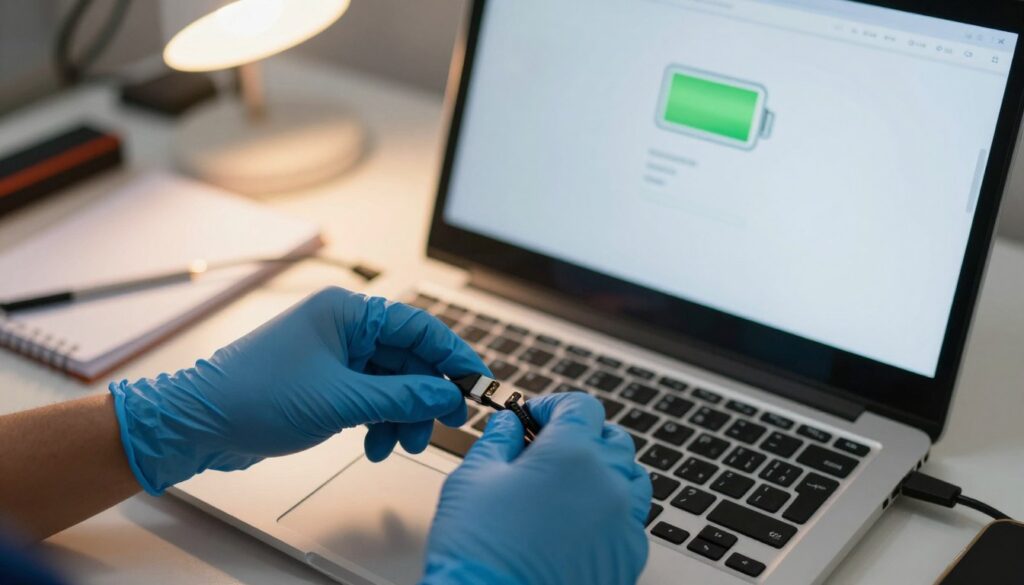
Ensure the power cable is fully seated in the adapter and the adapter plugs snugly into the device. Read the label on the charger to confirm the correct wattage and voltage; mismatched supplies can prevent proper charging.
Try a different outlet and bypass strips
Plug directly into a wall outlet, not a power strip. If the issue persists, move to a second outlet to rule out a bad receptacle or low voltage that reduces charge rate.
Inspect connectors and remove peripherals
Look inside the charging port for dust, lint, bent pins, or heat discoloration. Clean gently with a lint-free swab.
Disconnect USB drives, phones, docks, and other devices that increase draw. These peripherals can hide the real power problem.
Cross-check with a known-good charger
When possible, test a correct-spec charger or try your charger on another compatible laptop. Record whether the percentage moves, the charging icon appears, or the device shuts off instantly when unplugged. These notes guide the next troubleshooting method.
laptop battery stuck at 0 percent on Windows: run diagnostics and built-in troubleshooters
Start with Windows tools to learn whether the issue is hardware, software, or excessive load. These checks give data you can act on quickly.
Generate a battery report
- Open Command Prompt as Administrator.
- Type
powercfg /batteryreportand press Enter. - Open the shown battery‑report.html from the file path to review capacity and usage.
Interpretation tips: compare design capacity vs. full charge capacity. If full charge is much lower, health is poor and replacement is likely. Look at recent usage and charge cycles to spot abnormal drain.
| Report Field | What it shows | Action |
|---|---|---|
| Design Capacity | Original maximum charge | Use as baseline for health |
| Full Charge Capacity | Current max charge | Replace if far below design |
| Recent Usage | Charge/discharge events | Detect abnormal drains |
Run the Power troubleshooter
Go to Start > Settings > Update & Security > Troubleshoot > Power > Run the troubleshooter. It flags misconfigured power management and driver handling that affect charging.
Check app drain while plugged in
Open Settings > System > Battery > Battery usage by app. Also review Settings > Privacy > Background apps and disable high‑drain apps temporarily.
“The report and Settings pages tell you if this is health decline, software mismanagement, or an abnormal load.”
Fix battery and ACPI driver problems in Device Manager
A quick Device Manager fix can resolve many false charging reports without opening the case. Driver miscommunication with the charging controller often causes Windows to show no charge or “plugged in, not charging.”
https://www.youtube.com/watch?v=wrSdvRbuTp0
Update the Microsoft ACPI‑Compliant entry
Press Windows key + X > Device Manager. Expand Batteries and right‑click the Microsoft ACPI‑Compliant item.
- Select Update driver. Being online helps Windows fetch the latest components.
- Follow prompts to search automatically for updates.
Uninstall and let Windows reinstall the driver
If updating does not help, right‑click the Battery entries under Batteries and choose Uninstall device. Only remove items listed in that section.
Restart the computer so Windows detects and reinstalls the device drivers automatically. Wait a few minutes on AC power after reboot; readings can take time to refresh.
Success looks like: the icon shows charging, the percentage moves off zero, or “plugged in” changes to a charging state. If not, proceed to chipset and BIOS updates.
Reset power, update chipset drivers, and consider a BIOS update
Now move into deeper troubleshooting: draining residual power and refreshing core system code. Attempt these steps only after you finish charger, port, and Windows diagnostics.
Perform a power button reset
- Shut down the device and disconnect the charger.
- If removable, remove the battery. If not, skip to step 3.
- Press and hold the power button for about 30 seconds to drain residual charge.
- Reinstall the battery, reconnect AC, and boot. Recheck charging behavior.
Update chipset drivers
Chipset drivers control communication between the power circuitry and the OS. Old or wrong packages can cause charging problems even when Windows looks normal.
Download chipset drivers from the manufacturer’s support website for your exact model and OS. Install the package, reboot, and verify if the percent moves or the icon changes.
Consider a BIOS or firmware update
Only update the BIOS when release notes mention power or charging fixes or you confirm a firmware‑level bug. Check your current BIOS version in setup, compare it to the vendor’s latest, and use the exact update file for your model.
“Do not interrupt a BIOS update — losing power mid‑update can render the system unbootable.”
Common BIOS entry keys include F2, F10, Delete, and Esc. Before updating, ensure stable AC power, avoid storms, and follow the manufacturer’s instructions precisely to avoid damage.
Conclusion
Begin with quick hardware checks, then use Windows diagnostics, refresh drivers, and finish with power resets or firmware updates.
Follow the path you already used: confirm the charger and cable, run built‑in diagnostics and battery reports, refresh Device Manager entries, then try a power button reset and chipset/BIOS updates.
Most cases fall into three categories: the battery is failing, the charger or charging path is inadequate, or Windows/firmware misreports charging. If a report shows very low capacity or the system dies the moment you unplug, replacement is likely.
Before buying parts, test with a known‑good, correct‑watt charger (genuine when required). Seek professional help for visible port damage, bent pins, corrosion, or suspected board faults.
Quick checklist any time: check the wall outlet, reseat the cable, reduce background load in Settings, and keep drivers and firmware current.