How Windows Battery Saver Actually Works
Learn how to use Windows Battery Saver to extend your laptop's battery life. Discover tips and tricks for optimizing battery performance with this feature.
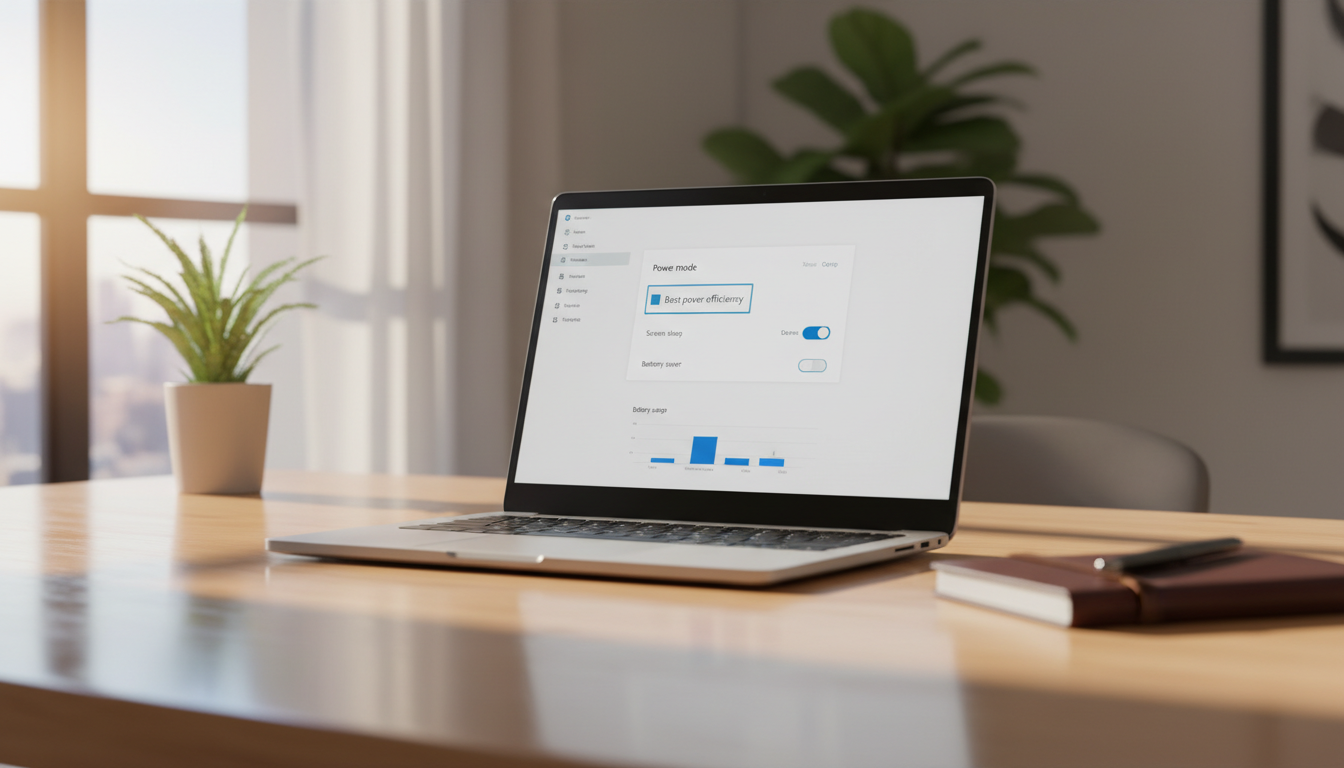
Windows battery saver helps reduce power use so your laptop lasts longer when you are away from a charger. It cuts some background activity and dials back performance to save energy. The feature exists to ease battery anxiety and give you simple control over runtime.
The mode trades off speed for longer battery life, and that trade-off is adjustable in system settings. You will learn how to toggle the feature, set it to trigger automatically, and confirm it is active. This guide also covers quick toggles, settings-based control, and command-line options for admins or script fans.
Keep in mind that display brightness and sleep rules are often the biggest way extend battery wins. Newer builds emphasize energy savings and may call features different names, but the core goal stays the same: preserve power without blocking essential tasks.
Key Takeaways
- What it is: a tool to reduce energy use and extend battery life on the go.
- How it works: limits background tasks and lowers performance when active.
- Options include quick toggles, automatic triggers, and command-line control.
- Screen brightness and sleep settings are often the best way extend battery.
- Feature names may vary across builds, but intent remains energy savings.
What Battery Saver Does in Windows and What Changes Behind the Scenes
When the power-saving mode is active, the system quietly limits background tasks and trims push alerts to stretch runtime.
Behind the scenes: the OS reduces background activity for selected apps and cuts down notifications that run in the background. That lowers overall power draw and helps extend battery life during long stretches away from a charger.
Performance trade-offs: to save energy, the system shifts its performance budget. Some apps may feel slower, web pages may update less often, and heavy tasks can take longer. This is intentional to prioritize longer run time over peak speed.
- Only on battery power: the mode can be enabled while unplugged; it is not available when the device is plugged in. This explains why the toggle sometimes seems missing.
- Auto-off: it disables itself immediately after you plug the PC in, so full performance returns automatically.
Use this mode when commuting, in meetings, or traveling. Avoid it during gaming, video editing, or long compiles when system performance matters. Next, learn quick ways to toggle the feature from the taskbar and Settings.
How to Turn Battery Saver On or Off from the Taskbar and Settings
You can flip the power-saving mode on or off in seconds from the taskbar or the main Settings app. Use whichever path is fastest for your workflow.
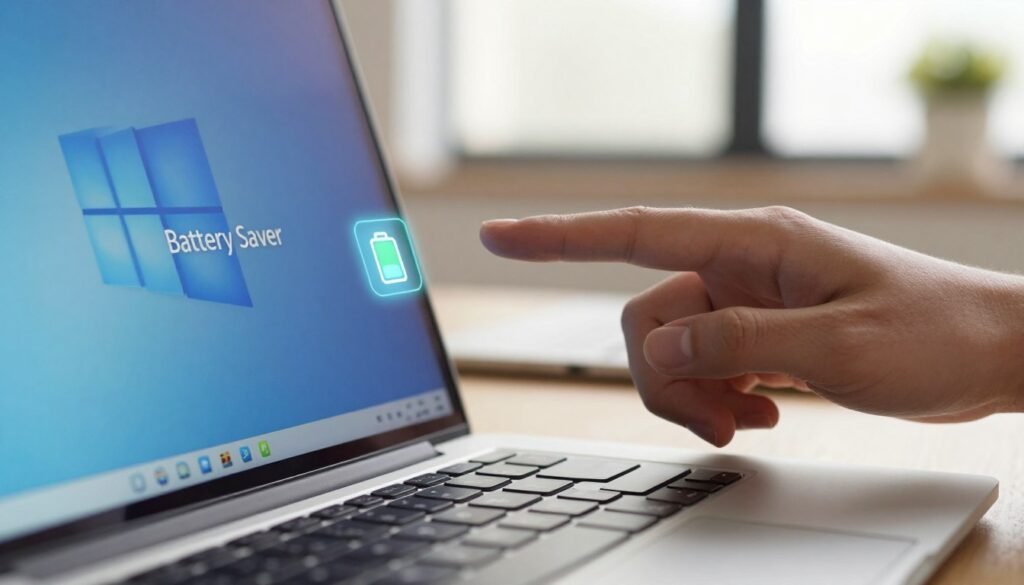
Quick Settings toggle on the taskbar
Click the Wi‑Fi / sound / battery area or press Win+A to open Quick Settings. Tap the Battery saver button to turn the mode on or off.
The button highlights when enabled. The taskbar battery icon also shows a small leaf overlay so you can confirm status at a glance.
Using Settings for full control
Press Win+I → Settings → System → Power & battery. Expand Battery saver and choose Turn on now or Turn off now.
This view shows related options like brightness reduction and the automatic threshold, which helps when troubleshooting why the toggle might not work.
“If the toggle is missing, confirm the device is running on battery power; the mode can’t enable while plugged in.”
| Quick Check | What to look for |
|---|---|
| Icon indicator | Leaf overlay on the taskbar battery icon |
| Power state | Device must be unplugged to enable the mode |
| Settings path | Settings → System → Power & battery → Battery saver |
How to Make windows battery saver Turn On Automatically
Set a threshold once and the system will switch modes automatically as your charge falls below that level.
Why automate: automation means the mode activates when you are busy, so you do not need to remember to toggle it during travel, meetings, or long work sessions. This protects runtime and helps maintain steady battery life without interrupting your workflow.
Set the “turn battery saver on automatically at” percentage
Open Settings → System → Power & battery. Expand Battery saver and choose Turn battery saver on automatically at. Options include Never, 10%, 20%, 30%, 40%, 50%, or Always.
Choose a threshold for your usage and performance needs
By default the threshold is 20%, which balances battery life gains without cutting performance too early.
- Pick 30–50% if you need predictable longevity for long trips or mixed usage time.
- Pick 10–20% if you prefer full performance until the charge is genuinely low.
In practice, when the charge falls below your chosen percentage the feature engages. It will stop applying once you charge above that level and will turn off immediately when the device is plugged in.
Scenario tip: for a commute day choose 40% for steady runtime; for a desk day pick 15–20% to prioritize speed. If you manage devices or script setups, note that the same threshold can be set with powercfg for automation and IT policies.
Command-Line Control with powercfg in PowerShell or Windows Terminal
An elevated Terminal session lets you set the automatic trigger without opening multiple Settings pages. This is useful when you must standardize an option across many PCs or apply a setup checklist quickly.
Set the automatic threshold with ESBATTTHRESHOLD
Run an admin PowerShell or Command Prompt (open power as administrator) and use this exact command:
powercfg /setdcvalueindex SCHEME_CURRENT SUB_ENERGYSAVER ESBATTTHRESHOLD <percentage>SCHEME_CURRENT targets the active plan, SUB_ENERGYSAVER is the subgroup, and ESBATTTHRESHOLD sets the automatic trigger percentage.
Common values and what they mean
- 0 = Never (off)
- 20 = Default Windows behavior
- 100 = Always on when on battery
After running the command, verify the change in Settings > System > Power & battery. This updates when the feature will turn battery saver automatically, rather than forcing it on immediately.
Test thresholds before wide deployment; an Always setting can reduce performance more often than expected.
Battery Saver Settings That Matter Most for Battery Life
Small changes in display and timeout options often yield the biggest gains in portable runtime.
Lower screen brightness and why the display dominates
The display draws continuous power, so reducing brightness is one of the fastest ways to extend life without changing your apps.
Enable “Lower screen brightness while in Battery Saver” under Settings > System > Power & battery to dim the screen (commonly up to ~30%). Expect a visible drop in screen brightness when the mode turns on.
Sleep and screen timeouts that balance savings and convenience
Tune display and sleep timeouts to save energy while keeping usability. Shorter timeouts cut wasted draw, but slightly longer values help when you take quick notes or follow meetings.
Modern Standby devices wake quickly, so tighter sleep rules often give big savings with little frustration.
Energy Saver naming and changed behavior in newer builds
In some Windows 11 releases the feature is labeled Energy Saver. In newer builds (26002+) Energy Saver may apply even when plugged in to reduce system energy use on desktops or always-on setups.
Microsoft Edge efficiency mode during Battery Saver
When the mode is active, Microsoft Edge typically enables Efficiency mode to cut browsing power. You’ll see a filled heart pulse icon when Edge reduces background tab work and visual updates.
“Dim the display first, tune sleep/display timers second, then use Energy Saver strategically based on whether you are mobile or plugged in.”
- Quick checklist: dim brightness first, adjust display and sleep timeouts next, then choose Energy Saver or Battery Saver depending on mobile usage.
- Focus on display and timeouts — they usually beat small background tweaks for real-world runtime gains.
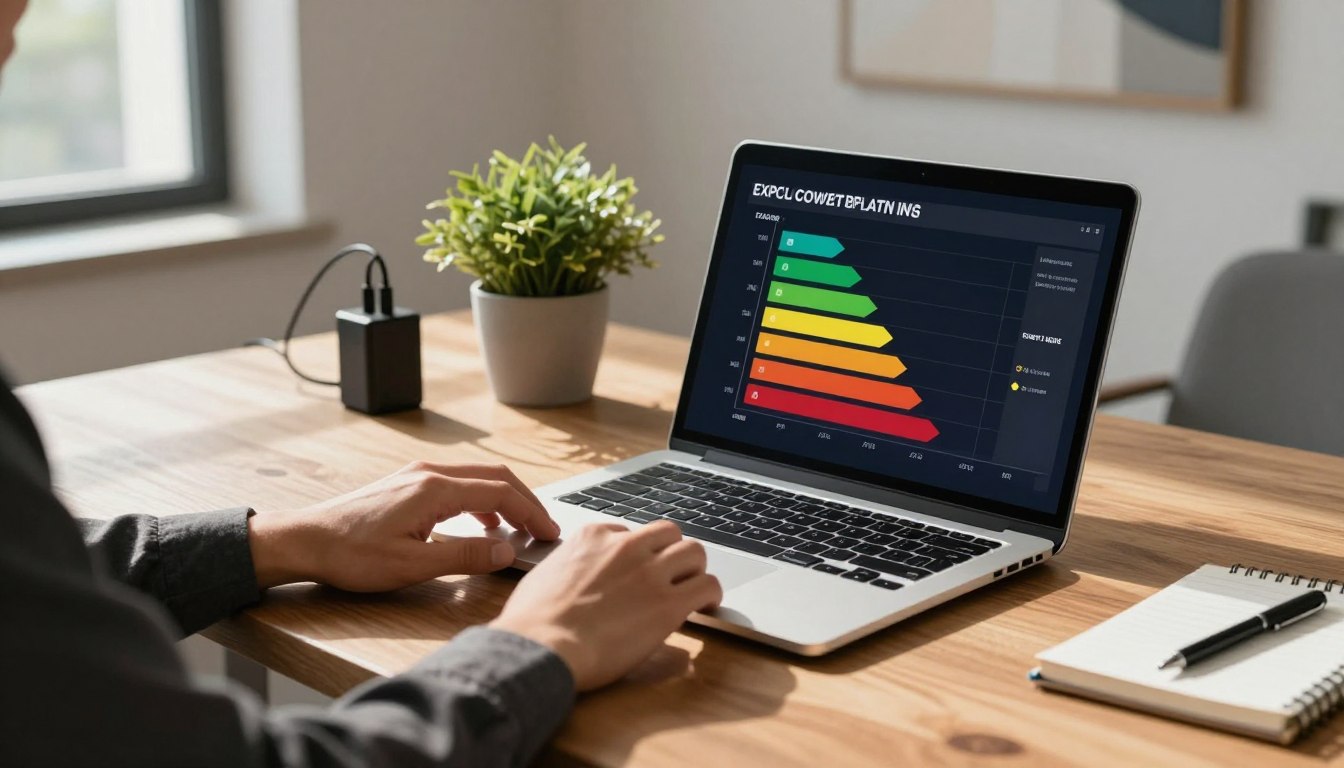
Measure What’s Draining Your Battery: Reports, History, and Per-App Usage
Start measuring actual drain with a system report so you can act on facts instead of guesses.
Create a battery report with Command Prompt
Open Run, type cmd, and press Enter to open command prompt. Run:
cd %temp%
powercfg /batteryreport
The file battery-report.html appears in that folder. Open it in a browser to view usage charts, capacity history, and life estimates.
Interpret design capacity vs full-charge capacity
Look under Installed Batteries for Design Capacity and Full Charge Capacity. Compare them to check battery health: a large gap means noticeable degradation.
If full-charge capacity drops month over month, expect shorter real-world life even with the same usage.
Use Settings to review battery usage per app
Go to Settings > System > Power & battery > Battery usage. Filter for 6 hours, 24 hours, or 7 days to see battery usage per app.
- Move the HTML report to Documents and rename it to keep historical records.
- When an app shows high usage, limit background permissions or switch to a lighter workflow.
- If per-app drains look low but discharge remains high, lower display brightness and shorten timeouts.
Conclusion
Use a few simple controls and checks to make sure your laptop gives you extra run time when it matters. Windows battery saver extends battery life by limiting background activity, cutting notifications, and reducing display brightness while trading off some performance.
The fastest ways to extend battery: tap the taskbar button, enable lower brightness in the mode, and shorten screen and sleep timeouts to cut display drain. Open Settings > System > Power & battery to set the automatic threshold that matches your time away from outlets.
Verify the mode with the taskbar icon, and measure real drains with a battery report and per-app usage before changing habits. Some systems label it Energy Saver, but the goal is the same—extend battery life by adjusting system power and display behavior.
Decision rule: prioritize display and brightness for maximum longevity; raise thresholds if you need full performance until charge is low.