How Multitasking Impacts Laptop Battery Health
Learn how having many apps running affects your laptop's battery health and discover tips to optimize battery life for better performance.
Multitasking on modern machines means keeping many programs open while background processes run without your input.
This guide will show what causes fast drain, how to cut unnecessary load, and how to protect long-term battery health by avoiding excess heat and frequent deep discharge.
Expect runtime to vary with CPU and GPU load, screen brightness, wireless radios, and how many apps run at once. Heavy-loading programs increase heat and fan activity and can mimic hardware faults.
We lay out a clear troubleshooting path: watch charge patterns, check per-app usage, limit background tasks, and tweak power and system settings. The focus is on built-in tools in Windows 11 and macOS so you can act without extra utilities.
Real examples include dozens of browser tabs, chat clients, cloud sync, and ongoing video calls — classic many apps battery laptop scenarios that push current draw up. Reducing sustained high load helps both short-term run time and long-term health.
Key Takeaways
- Multitasking means foreground programs plus background processes that use system resources.
- Identify which programs draw the most power by watching per-app reports.
- Lowering screen brightness and stopping background sync reduces immediate drain.
- Built-in tools in Windows 11 and macOS let you act without third-party software.
- Avoid sustained high load and heat to protect long-term battery health.
Why multitasking drains battery life and can affect long-term laptop battery health
When more processes run at once, total power draw climbs and charge depletes faster. This happens because the CPU schedules extra threads, the GPU increases compositing and acceleration, and memory pressure forces more disk and network work.
Background activity can be deceptive. Programs that are minimized still sync, index, and check for updates. Those tasks add steady power usage even when you are not actively interacting with the program.
Higher power leads to heat. The system raises fan speed to cool components, and fans themselves draw additional power. That combination shortens immediate battery life and can raise long-term wear if heat repeats often.
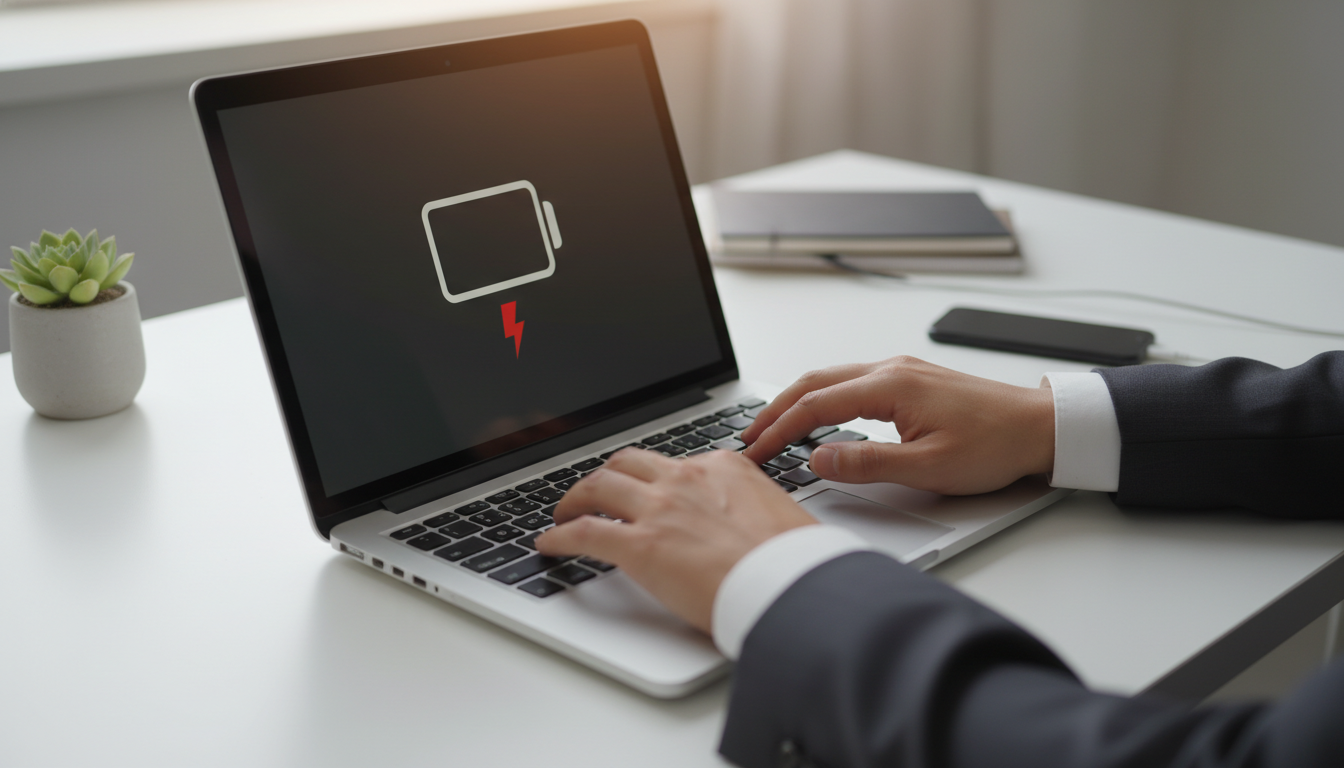
- Signs of heavy load: percentage drops faster than usual, the case feels warm, and fans run loudly.
- High-drain categories: browsers with many tabs, video editors, and conferencing tools.
| Component | What increases | Typical effect |
|---|---|---|
| CPU | Scheduling, cores active | Higher power draw, heat |
| GPU | Rendering, hardware accel | Shorter runtime, warmer chassis |
| Memory & Storage | Swapping, disk I/O | More power usage, slower response |
| Network | Sync and streaming | Continuous power drain |
many apps battery laptop: the fastest way to pinpoint what’s draining power
Begin with a timeline of how your charge level changed in the last hours and last days to find drain patterns.
Diagnosis by pattern beats guessing. Compare the battery level drop for the last hours against the last days. Look for sudden steep declines that match specific sessions or steady declines that suggest ongoing background use.
Normal use shows a steady, gradual decline during active time. Abnormal behavior has sharp drops soon after launching a heavy task or during defined time windows.
- Match spikes to events: video calls, large uploads, external display use, or travel with brighter screen settings.
- Remember that cumulative moderate drain from several open programs can equal one big power hog.
- Check metrics immediately after a heavy session so the last hours view captures the culprit.
- Review the last days for recurring spikes; these point to a persistent background process or startup item.
Next, the guide shows exact steps in each operating system to see per‑app usage and compare in use versus background consumption.
How to see which programs use power in Windows 11
Open the Settings app to get a clear view of per‑program consumption. This lets you spot what runs in the foreground and what uses power while idle.
Check Battery Usage in Settings
Go to Start > Settings > System > Power & Battery > Battery usage. The graph ties usage to the charge level across the chosen window.
Switch the view between Last 24 hours and Last 7 days to tell if a high use event is one‑off or recurring.
Sort and manage background activity
Sort the list by Overall usage, In use, Background or Name to isolate culprits. Use the three dots menu next to an entry to open Manage background activity.
When available, set Let this app run in the background to Never for programs you do not want running when closed.
Real‑time checks and a full report
Open Task Manager, choose Processes, and enable the Power Usage column. The Very High / High / Low labels show current drain so you can act immediately.
For deeper data, run PowerShell as Administrator and execute:
powercfg /batteryreport /output "C:\battery-report.html". Open the generated HTML to review charge cycles, recent usage, and design capacity.
| Tool | Where to open | What to look for |
|---|---|---|
| Settings app | Start > Settings > System > Power & Battery | Battery usage graph; switch Last 24 Hours / Last 7 Days |
| Three dots menu | Entry beside each app in Battery usage | Manage background activity → set to Never |
| Task Manager | Right‑click Start > Task Manager > Processes | Enable Power Usage column to see real‑time drain |
| PowerShell report | Run as Administrator | powercfg /batteryreport → full HTML report with health data |
Decide whether to close, restrict background rights, or uninstall an app if it repeatedly ranks high in usage. These steps help improve immediate runtime and protect long‑term battery life in Windows.
How to track battery usage on macOS and manage background apps
macOS provides quick visual cues to find what is using energy right now.
Fast check: click the menu bar battery icon to see which open programs are labeled “using significant energy.” This often exposes browsers or pro software immediately.
Open Battery Settings to view drain for the last 24 hours or the last 10 days. The shorter span shows situational spikes. The longer span shows habitual drain.

Use Activity Monitor
Launch Activity Monitor and choose the Energy tab. Compare the current Energy Impact value to the “12 hr power” column to find persistent high users.
Control background permissions
Go to System Settings > General > Login Items & Extensions to disable items that do not need to run in the background. This reduces using battery while the machine seems idle.
| Check | Where | When to act |
|---|---|---|
| Menu bar icon | Top right menu | Quickly spot “using significant energy” entries |
| Battery Settings | System Settings > Battery | Compare 24‑hour vs 10‑day trends |
| Activity Monitor | Applications > Utilities | Identify current and 12‑hr energy impact |
| Login Items & Extensions | System Settings > General | Disable unneeded background launchers |
If one app dominates energy use, reduce its workload, close it when idle, or remove unneeded extensions. Turning on Low Power Mode and dimming the screen are practical energy saver options for short sessions.
How to manage background activity and settings to extend battery life
A few settings and cleaner multitasking habits stop unseen processes from wasting charge.
Reduce tab and app sprawl. Keep fewer simultaneous programs and close unused browser tabs. Fewer always‑on helpers lowers background activity and improves battery life quickly.
Turn on energy features and apply recommendations
In Windows, go to Settings > System > Power & Battery > Energy Recommendations. Apply suggested fixes to get quick wins without deep tuning.
Use Battery Saver and set thresholds
Enable Battery Saver when on battery and configure an automatic threshold so it turns on before the charge gets critical. This reduces CPU wakeups and background work.
Pick the right power mode and system habits
Choose Best power efficiency under Power Mode to lower peak draw during travel or long meetings. Restart periodically to clear stuck processes and disable unused radios like Bluetooth or Wi‑Fi via the Action Center.
When to remove an app for good
If an installed program shows up repeatedly in battery usage or runs persistent background tasks, uninstall it via Settings > Apps > Installed Apps. That is the most permanent way to stop unwanted background activity and reduce long‑term heat and wear.
Handling high-drain workloads like video calls without wrecking battery life
Video calls keep several subsystems active at once, turning a casual session into a high-drain workload.
Why conferencing software cuts runtime
Continuous camera capture, real-time encoding/decoding, audio processing, and steady network streaming keep the system busy. That sustained work raises power draw and produces heat.
Expect runtime to fall sharply: video conferencing can reduce run time by up to 65% versus normal use, which impacts short-term runtime and long-term battery health.
When to plug in AC power
If you expect a long meeting or other CPU‑intensive session, use AC power to protect productivity and avoid deep charge loss. Keeping the adapter connected preserves charge cycles and reduces wear on the internal cell.
Quick checks and low‑impact mitigations
Open Task Manager and look for High or Very High power usage on the conferencing entry to confirm the culprit.
- Lower screen brightness and close extra programs and browser tabs.
- Pause background sync and stop unneeded services to lower heat and fan spin.
- Keep only the meeting client and notes open to limit load and improve the charge level.
Lower sustained heat and fewer peaks help maintain long-term laptop battery performance by reducing thermal stress and repeated deep discharge.
Conclusion
,
A clear plan—check history, isolate high consumers, and enforce background limits—keeps performance stable and heat low.
Main takeaway: multitasking raises combined CPU, GPU, and network draw, so managing what runs is the fastest way to cut drain and protect long-term battery health.
Follow this order: review battery usage history, find the top drainers, restrict background activity, then tweak system settings for efficiency.
On Windows use Settings’ battery usage view, Task Manager Power Usage, and the battery report for deep insight. On macOS check the menu bar “significant energy,” Battery Settings trends, Activity Monitor’s Energy tab, and Login Items & Extensions to control background rights.
Small choices add up: fewer tabs, fewer startup items, lower brightness, and enabling efficiency features extend device life.
For long video calls or heavy sessions, plug into AC power to stabilize performance and reduce strain on cell life.