How Wi-Fi and Bluetooth Affect Laptop Battery Life
Explore the relationship between wifi bluetooth battery and laptop battery life. Find out how to maximize your laptop's battery performance.
What “wifi bluetooth battery” means here is simple: always-on wireless radios change how long your laptop runs. These signals use power while you work, travel, or stream, and some devices draw more than others.
This page focuses on practical, product-oriented description. You will get clear advice on what drains a laptop battery and which tools or settings help preserve power without losing connectivity.
Wireless radios are only one part of the picture. App use, screen brightness, and CPU load also affect batteries. Environment and habits change real-world runtime across hours and days.
We will compare radios and accessories like mice and headphones, and explain why active devices use more power than idle links. The article then shows how to monitor health, pick smart settings, and choose accessories to extend usable time.
Key Takeaways
- Always-on wireless features can cut runtime, but they are not the only drain.
- Practical settings and accessories can preserve power without losing key connections.
- Monitor power and health signals to spot issues early.
- Device type matters: active peripherals draw more than idle links.
- Smart habits at home and on the road extend usable hours across days.
What Actually Drains Laptop Battery When Wireless Is On
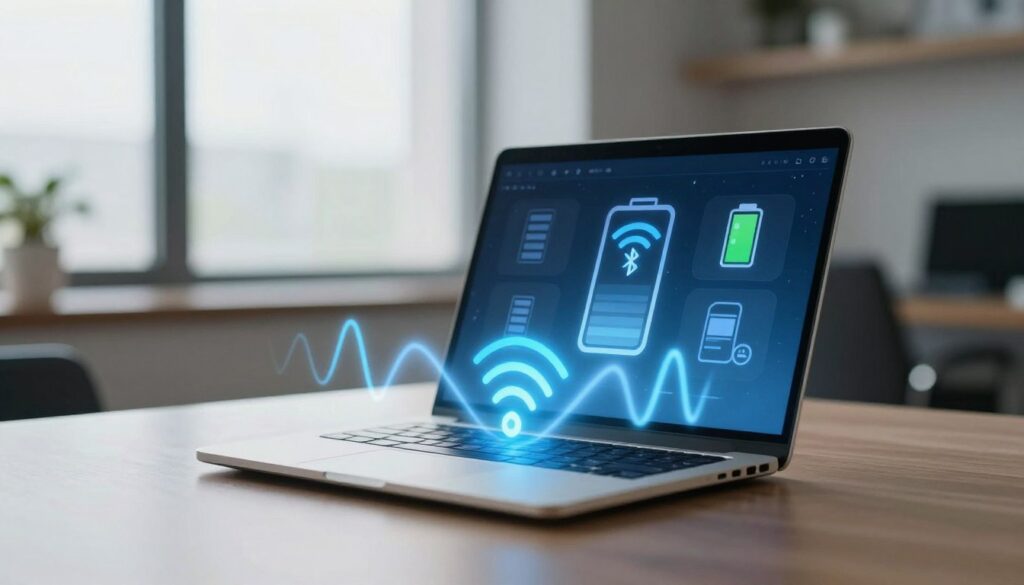
A wireless radio can seem harmless, but it adds steady draw to overall runtime. Small wake events, background sync, and the radio staying active all take power even when you are idle.
Network radios and background activity
Periodic syncs and push notifications wake the system. Each wake uses processor cycles and network transmission, which raises instant power use and shortens run time.
Scanning, pairing, and connected peripherals
Idle scanning costs a little continuous current. When peripherals stream audio or input, the draw climbs with data rate and device type. A connected mouse has a far smaller effect than an active headset or external controller.
Signal strength, distance, and system-wide effects
Weak links force radios to boost transmit power and retry packets. That increases discharge and can trigger CPU/GPU work for cloud sync or calls, multiplying the effective drain.
Chemistry and heat basics
Most laptops use lithium cells. Compared to lead types, lithium tolerates partial charges and lasts longer under frequent cycles. Heat and high temperature accelerate aging and reduce immediate efficiency, so heating shortens useful capacity.
| Contributor | Typical impact | Mitigation |
|---|---|---|
| Radio active / syncs | Medium | Limit background apps, use focused profiles |
| Peripheral streaming | High | Prefer low‑rate devices or wired options |
| Weak signal | High | Move closer or improve placement |
| Heat | Long‑term capacity loss | Improve cooling, avoid hot surfaces |
Next: learn how to watch state of charge, voltage trends, and thermal data so you can stop guessing and act on real metrics.
wifi bluetooth battery: Monitoring Power, Voltage, and Temperature for Better Battery Life
Seeing the right numbers makes it easy to act. Remote telemetry turns vague runtime problems into clear signals you can respond to from your phone.
https://www.youtube.com/watch?v=0WPgVNhSMGE
Remote monitoring on a phone
Most laptops report runtime with software estimates, but true electrical metrics often come from an embedded BMS or an external module that exposes data over a wireless link.
On a phone you can view state of charge, voltage, current, temperature, and a simple health score. Apps like Abyss Battery show these metrics and can push alerts for abnormal readings.
Early issue detection and protection
Rising temperature or sustained high current triggers warnings. Those alerts act as protection and can prevent overcharging or heat‑related capacity loss.
What telemetry can — and can’t — tell you
Trend lines validate whether changes really reduce power draw. Voltage dips under load hint at degraded cells, but telemetry alone can’t always name the specific app or radio causing the drain without OS diagnostics.
- Use trends to test tweaks (reduce scanning, limit syncs).
- Check alerts to avoid long‑term damage from heat or improper charging.
- Confirm module compatibility before buying a monitor.
How to Maximize Battery Performance Without Giving Up Wi‑Fi or Bluetooth
Smart settings let you retain connections without paying for wasted power.
When to toggle radios and when to keep them on
Keep wireless on for low‑energy peripherals like BLE mice and keyboards. These devices draw very little and improve workflow.
Turn radios off when you aren’t using paired accessories or when repeated scanning and pairing cycles occur. That reduces steady discharge.
Practical network adjustments
Disable auto‑join for poor networks and limit background sync on metered connections. Use airplane mode plus wireless only when you need a single link.
Charging, thermal care, and protection
Avoid keeping a laptop at 100% all the time. Use optimized charge features and partial state of charge use to extend long‑term lithium health over days and years.
Improve airflow, avoid soft surfaces, and use a stand to lower temperature and prevent thermal throttling that increases total power use.
Hardware insight and purchase tips
| Spec | Example |
|---|---|
| Working voltage | 2.3V–3.6V |
| Active current | ~40mA |
| Sleep current | ~1mA |
Choose a module type that matches your interface, check case fit, and verify pin and connector compatibility before purchase to avoid installation issues.
Measure results: track runtime and temperature after changes to confirm lower discharge and improved protection.
Conclusion
, How you manage connections and heat determines whether a laptop keeps working through the day.
In short: radios and background syncs can shorten run time, but the real impact varies with signal quality, app behavior, and peripherals.
Track state of charge, temperature trends, and charging patterns to get a clear description of what costs power. Simple monitoring tools — like phone apps that surface health signals — help you act where it matters.
Consistent habits at home and on the road preserve capacity over years. A well‑managed lithium battery and modest thermal control cut wear on lithium cells and reduce heating.
Next step: choose compatible monitoring tools or accessories that match your device and travel needs to protect runtime and extend component life.