How Long Laptop Batteries Are Designed to Last
Understand the average battery lifespan laptop and learn how to optimize it with our expert guide. Get the most out of your laptop's battery.
Real-world expectations matter more than ad copy. Modern notebooks with lithium cells typically aim for about 2–5 years of useful service, or roughly 300–1,000 charge cycles. In everyday use, many models keep close to 80% capacity after around 500 cycles.
This guide breaks the topic into three practical benchmarks: years of service, charge cycles, and daily runtime in hours. That makes it easier to compare marketing claims with what you’ll see on your own device.
Expect gradual decline in capacity over time — this is normal for lithium-based cells and not usually a defect. How long a device runs now versus later depends on temperature, charging habits, workload, and the pack’s watt-hours.
This article is for students, remote workers, travelers, gamers, and office users who want clear answers. Later sections show how to check health on Windows and macOS, boost runtime without buying gear, and decide when replacement is the safer choice.
Key Takeaways
- Realistic service: most devices last about 2–5 years under typical use.
- Three benchmarks to watch: years, charge cycles, and hours per charge.
- Capacity drops gradually — a 10-hour device can run closer to 8 hours later.
- Main drivers of decline: temperature, charge habits, workload, and Wh.
- The guide includes practical checks and fixes for Windows and macOS.
What “battery life” vs. “battery lifespan” means for a laptop battery
Understanding what battery life and lifespan mean helps you set realistic expectations for daily use and long-term care.
Daily runtime in hours versus long-term health
Battery life is simply how many hours a device runs on one charge. It changes with screen brightness, apps, and workload.
Long-term health is a percent: current max capacity compared to the design capacity. That percent tells you more than the tiny icon in the corner.
Why capacity loss is normal with lithium chemistries
Most modern laptops use lithium-ion or lithium-ion polymer type cells. These cells slowly lose capacity through normal chemical aging.
Two users can see the same runtime today but very different long-term results if one runs hot or fully discharges often.
| Term | What it measures | Practical meaning |
|---|---|---|
| Battery life | Hours per charge | How long you can work between charges |
| Health (capacity %) | Current vs design capacity | Predicts remaining useful years and cycles |
| Type | Chemistry | Lithium chemistries age gradually with use |
Note: Cycle count and operating temperature are the most repeatable predictors of long-term performance. Later sections explain how to track both.
Battery lifespan laptop: average expectations in years, hours, and charge cycles
When planning how long a device will serve you, three metrics give the clearest picture.
Typical design targets
Average service commonly falls between about 2 and 5 years. Manufacturers often design packs to handle roughly 300–1,000 charge cycles, with higher-end models aiming at the upper end of that range.
What a retained 80% capacity after ~500 cycles means
80% capacity after ~500 cycles is a practical benchmark. It means a device that ran 10 hours new will likely run closer to 8 hours under the same workload once it reaches that cycle count.
Typical runtime range today
Expect real-world runtime of roughly 4–12 hours. Thin-and-light systems with efficient processors sit near the top of that range. Gaming and workstation designs land toward the lower end due to higher power draw.
- Charge cycles measure cumulative energy used, not plug counts—partial discharges add up.
- Power draw from CPU/GPU, display brightness, and radios drives day-to-day time differences.
- If you need a full long laptop day away from outlets, check battery capacity (Wh) and efficiency, not just claims.
| Metric | Typical Range | Practical takeaway |
|---|---|---|
| Years of service | 2–5 years | Plan replacements around this window for steady performance |
| Charge cycles | ~300–1,000 cycles | Higher-quality packs tolerate more cycles before major decline |
| Runtime today | 4–12 hours | Depends on model class and daily workload |
| Capacity after ~500 cycles | ~80% | Expect ~20% drop versus new under same use |
How charge cycles work and why they matter for battery health
Charge behavior determines much of a pack’s practical durability over years of use. Understanding cycles helps you make small choices that add up to more reliable battery health.
What counts as a full charge cycle
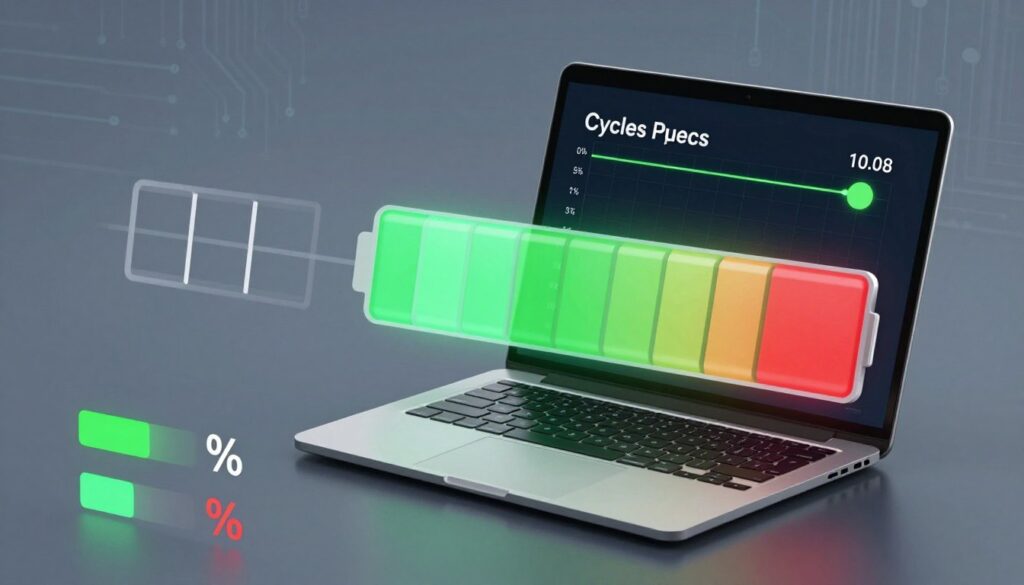
A full charge cycle equals using 100% of capacity, but that can come from partial draws. If you use 50% today and 50% tomorrow, that equals one full charge.
Why deep discharges cause more stress
Draining near 0% repeatedly places extra chemical stress on cells. Deep discharge events accelerate capacity decline faster than many shallow draws.
Practical targets and daily workflow
Target range: keep charge roughly between 20% and 80% when practical. Occasional full charge is fine.
- Top up during breaks rather than waiting to panic-drain.
- Use conservation or charging limits if your system offers them.
- Fewer deep cycles usually means more usable cycles before noticeable decline.
Quick myth check: you do not need to drain to 0% to calibrate most modern systems. Later sections show tools that report actual wear and cycle count.
Heat, cold, and storage conditions that shorten or extend lifespan
Temperature and storage matter more than you might expect for keeping cells healthy over years of use. Aim for stable, moderate rooms to balance daily performance and long-term life.
Best operating temperatures
Most lithium-based packs work best around 68–77°F. That range gives steady performance without speeding chemical wear.
When heat becomes damaging
Exposure above about 95°F accelerates degradation. Hot cars, sunlit desks, and blocked vents raise internal temps and reduce overall lifespan.
Cold-weather effects
Cold can cause a temporary drop in battery life and reduce power delivery. These effects usually reverse once the device warms to normal range.
Storage and short-term safeguards
For multi-day storage, set charge to roughly 50% and keep the device in a cool, dry place. Avoid long storage fully charged or at 0%.
- Do not leave devices in parked cars on hot days.
- Keep vents clear; use a stand for airflow during heavy use.
- Treat cold drops as temporary, but treat heat as a long-term health risk.
Usage patterns that drain battery life faster on a single charge
How you use a device on any given day has the biggest impact on how long a single charge will hold. Different usage patterns create very different energy demands.
High-power workloads and why they matter
High-power tasks like gaming, video editing, and 3D rendering push the CPU and GPU hard. That raises heat and draws much more power than simple apps.
Result: runtime can drop by 50–75% versus light use. Heavy scenes, high frame rates, and complex effects all cut available hours.
Streaming, playback, and light productivity
Streaming video and online playback use steady decoding plus network radios. That usually draws more energy than email, documents, or web browsing.
Think of continuous video as a low-level constant drain while light productivity has many idle moments that save power.
- CPU/GPU load and screen brightness are the main drivers of power draw.
- Higher resolution and refresh rates shorten run time noticeably.
- Background sync and open tabs add hidden drain and reduce performance.
Quick adjustments: switch to a balanced power mode when unplugged, lower refresh rate, dim the screen, and close unused apps. These steps extend single-charge time and reduce how often you must recharge.
Frequent fast drains mean more recharges. That adds to total cycle accumulation and affects long-term pack life, so managing usage today helps preserve performance tomorrow.
How to check laptop battery health with built-in system tools
OS-level diagnostics provide the best first look at current capacity and wear trends. These built-in reports give straightforward information you can act on. Start here before buying tools or replacements.
Windows reporting for capacity and wear indicators
On Windows, generate a battery report to see design vs current capacity, recent usage, and charge cycles. The report shows trends over time so you can spot accelerated wear.
Look for a sharp drop in current maximum capacity versus design capacity and rising cycle counts. Those signs mean reduced runtime in daily use.
macOS health status and cycle count
macOS exposes a Health status and the exact cycle count in System Settings > Battery. That status overlays simple labels like Normal, Fair, or Poor.
Compare the cycle number and percent of design capacity to your typical unplugged hours to judge whether the device still meets your needs.
When “Fair” or “Poor” signals it’s time to plan replacement
Seeing Fair or Poor often correlates with noticeable runtime loss. For mobile-heavy users, this is a cue to plan a replacement soon.
If reports also show overheating, instability, or rapid drops in % capacity, treat that as a safety flag and act faster.
| Report item | What to check | Why it matters |
|---|---|---|
| Design vs current capacity | Percent of original Wh retained | Predicts real-world runtime loss |
| Cycle count | Total full-equivalent cycles | Higher cycles usually mean more wear |
| Health status / labels | Normal, Fair, Poor | Quick signal for replacement planning |
How to improve day-to-day laptop battery life without new hardware
Simple habits and system options let you extend time away from an outlet without new hardware. These tweaks focus on the biggest drains first so you see real gains fast.
Screen brightness and display settings
Lowering screen brightness is the single highest-impact change. The display often draws more power than CPU or SSD under normal use.
Also shorten screen-off timers, enable adaptive brightness when available, and lower refresh rate on high-refresh panels to save energy.
Power modes and performance trade-offs
Use a power-saving or “Best power efficiency” profile when unplugged for travel. Choose balanced mode for mixed tasks to keep usable speed with better runtime.
Background apps and startup items
Close or pause apps that run in the background and stop unnecessary startup programs. Pause cloud sync and disable unused radios like Bluetooth to cut hidden draw.
Quick checklist
- Reduce screen brightness to a comfortable minimum.
- Shorten idle screen-off and sleep timers.
- Use power-saving performance profiles when mobile.
- Limit startup items and background sync.
- Turn off keyboard backlight and radios you don’t need.
| Tip | What it changes | When to use |
|---|---|---|
| Lower brightness | Reduces display draw | All day mobile use |
| Short screen-off timer | Less wasted on idle | When reading or in meetings |
| Power-saving profile | Limits CPU/GPU peak | Travel or long sessions |
| Pause cloud sync | Stops background CPU/network use | On limited connections |
When to replace your laptop battery and what warning signs to take seriously
Watch for clear warning signs that signal it’s time for a replacement rather than a temporary fix. Small issues can be fixed, but some symptoms mean you should act quickly.
Performance indicators to watch
Major runtime drop: If your device runs far shorter than normal, especially below about 80% of original capacity, plan a replacement.
Unexpected shutdowns: Frequent power-offs when the indicator still shows charge suggest failing cells or calibration faults.
Charging and charge problems
Slow charging, an inability to reach a full charge, or rapid drain while idle are warning signs. These can point to aging cells or charging-circuit faults.
Physical safety signs
Do not ignore swelling, bulging, or excessive heat. Stop using the device, unplug it, back up data, and power down immediately.
“If you see any physical deformation, treat it as a safety issue and seek professional replacement right away.”
- Back up important files before servicing.
- Contact the manufacturer or an authorized repair center for a compatible replacement.
- Avoid puncturing, compressing, or continuing to use a swollen pack.
| Warning sign | What it means | Immediate action |
|---|---|---|
| Runtime | Reduced practical use time | Plan replacement; backup data |
| Unexpected shutdowns | Cell instability or reporting errors | Stop heavy use; check diagnostics |
| Slow / won’t reach full charge | Charging or cell aging issue | Test with original charger; seek repair |
| Swelling or heat | Safety risk | Power down and contact service |
Battery replacement and charging best practices that protect performance
Good parts, correct chargers, and sensible charging habits all add up to steadier power and fewer surprises.
Use OEM or OEM-compatible packs. Properly matched parts fit the chassis, talk to the power-management system, and reduce the risk of odd charging behavior. Generic cells or poorly fitted packs may trigger warnings, slow charging, or reduced performance.
What to expect from charging times
Most systems take about 3–4 hours for a full charge under standard charging. Models with fast-charge support commonly reach ~80% in roughly an hour.
Using the device while plugged in
It is generally safe to use a device while it charges. Modern systems stop active charging once full and run from the adapter to avoid overcharge. If you see thermal warnings, pause heavy workloads until the system cools.
Understanding Wh and runtime
Battery capacity in Wh measures stored energy. Higher Wh yields more hours under the same workload.
Example: a 53Wh pack often delivers about 65% more runtime than a 32Wh pack when other factors match.
Pick the right charger wattage
Match the manufacturer’s recommended wattage. Undersized adapters cause slow charging and may throttle performance. Overpowered chargers should be supported by the device; otherwise, they can trigger errors or warnings.
Simple habits to protect long-term performance
- Avoid sustained high heat while charging.
- Enable charge-limit or conservation modes if available.
- Keep firmware and power-management drivers updated.
Bottom line: you can’t stop chemical aging, but correct parts and smart charging choices slow avoidable decline and keep your device safer and more reliable.
Conclusion
The bottom line: how you treat charging, heat, and workloads sets real expectations for device life.
Most users should plan around a multi-year window—roughly 2–5 years or 300–1,000 cycles—with many packs holding about 80% capacity after ~500 cycles.
Practical habits matter: avoid sustained high heat, keep charge in moderate ranges when practical, and use power modes plus lower brightness to cut unnecessary drain.
Run a built-in health check (Windows report or macOS cycle count) so decisions rest on capacity and cycles, not guesswork. If your system no longer meets mobility needs or shows unstable charging or shutdowns, plan service or replacement.
Safety first: stop using any unit that swells, bulges, or runs unusually hot and contact official support.
Do one optimization today (brightness or power mode) and run a health check this week to extend usable hours on a long laptop day.