Do Partial Charge Cycles Count as Battery Wear
Find out if partial charge cycles laptop count as battery wear. Explore the effects of partial charging on your laptop's battery and learn how to prolong its lifespan.
Publicidad
Are short top-ups wearing down your device? Many people wonder if tiny fills add up the same as full drain-and-refill patterns. This intro explains the basics so you can make smart choices for daily use.
Charge cycle means using 100% of available energy, not just a single plug-in. Small sessions add together and can equal a full cycle over time. That reality helps explain why a battery can slowly lose maximum runtime and capacity.
For modern lithium-ion cells, heat and long spells near full states speed wear more than frequent short top-ups. In practice, staying in moderate ranges often keeps battery performance and life steadier.
This guide will define cycle terms, separate cycle-related aging from calendar aging, and give clear, US-focused tips for daily power habits, cooling, and monitoring to protect battery health without extreme babysitting.
Key Takeaways
- Short top-ups do count, but usually as fractions of a full cycle.
- Heat and staying near full levels wear a battery faster than modest use.
- Keeping the cell between mid ranges can extend useful battery life.
- You’ll learn how to monitor battery health and cycle count simply.
- Practical habits help maintain battery performance for work and travel.
What a “Charge Cycle” Really Means on a Laptop Battery
Think of a cycle as an odometer for energy: it records total battery throughput, not each plug-in. A single cycle is logged when you have used 100% of the pack’s capacity cumulatively. That can happen in one long run or several short sessions.
How the system tallies cycle count
Laptops and their operating system track energy draw as a running tally. Partial discharges are stored as fractions until they sum to one full cycle. The device count updates when the total reaches that 100% threshold.
Examples that make the math simple
- 60% used today + 40% tomorrow = 1 full cycle.
- 50% + 50% in two sessions = 1 full cycle.
- 25% used four times = 1 full cycle.
Why plugging in more often isn’t the same as more cycles
Connecting the adapter alone does not add to the cycle count. It’s the actual energy you draw that increases the tally. Short top-ups at a desk often keep usage low and can be gentler on battery stress even as fractions of cycles accumulate over time.
Do partial charge cycles laptop count as battery wear?
Short answer: Yes — small top-ups are recorded as fractions toward a full cycle because systems track total energy used.
Yes, but only as fractions of a full cycle
Using 30% of a pack is roughly 0.3 of a cycle. The device adds those fractions until they hit 1.0, then the cycle count increases.
Why small top-ups are usually gentler than 0–100%
Depth of discharge and temperature determine how much wear a cycle causes. Smaller swings, like 40% to 80%, create less stress on the cell than repeated full-range runs.
There is no memory effect in modern lithium-ion batteries, so full drain routines are unnecessary for longevity. Full discharges are only useful now and then to check calibration.
- Example: running from 80% to 50% and topping up is kinder than draining to 5% regularly.
- As maximum capacity declines, the same workload feels heavier and cycles add faster.
| Pattern | Typical stress | Battery type | Practical tip |
|---|---|---|---|
| Frequent mid-range top-ups | Low | lithium-ion batteries | Keep between 20%–80% |
| Regular deep discharges to 0–5% | High | lithium-ion batteries | Avoid unless calibrating |
| Fast charging to full | Medium–High (heat) | batteries with high-current input | Use slower modes when possible |
Next, we’ll look closer at depth of discharge, high state of charge, heat, and fast charging as the real drivers of long-term wear.
What Actually Wears a Lithium-Ion Laptop Battery Over Time
Most capacity loss comes from how deeply and how hot a pack is used over time. That simple rule helps explain why two users with the same cycle count can see very different aging.
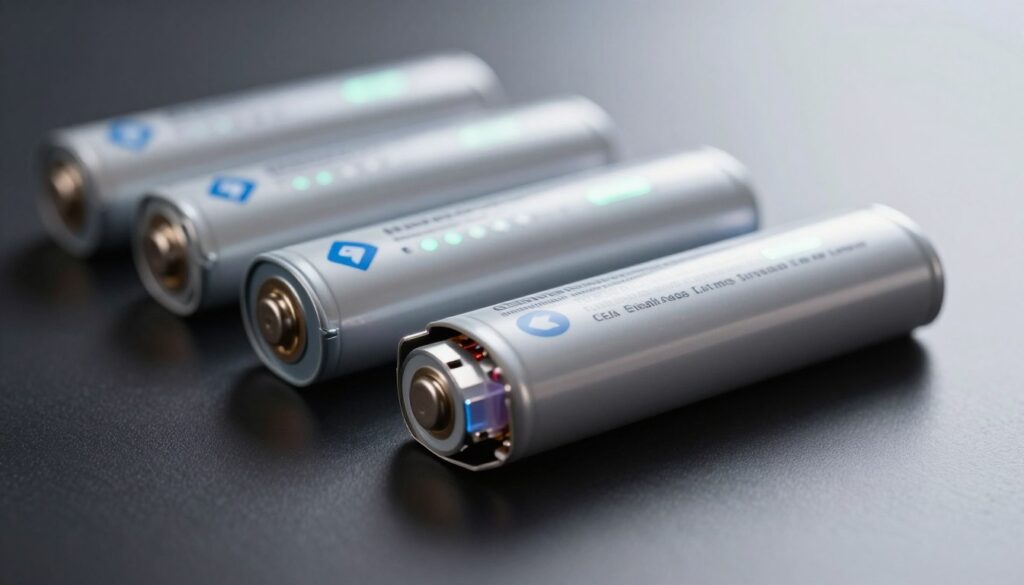
Depth of discharge and why smaller swings reduce stress
Depth of discharge (DoD) means how much energy you remove before topping up. Smaller swings put less stress on electrode materials.
Shallow use—keeping the cell between mid ranges—lets a battery survive far more total throughput than repeated full drains. In plain terms, many short drops add up, but each shallow drop causes less wear.
High state of charge and dwelling near full
Sitting near 100% raises chemical stress inside cells. That stress grows when a device rests at a high level while warm.
Avoid long periods at full if you want to protect capacity. Many manufacturers now include conservation modes that limit top voltage for this reason.
Heat as the primary accelerator of capacity loss
Temperature is the biggest multiplier of aging. Running heavy apps like gaming or sustained video calls pushes internal temperatures up and speeds capacity loss.
Above roughly 95°F, degradation accelerates noticeably. Good ventilation and avoiding heavy workloads while plugged in reduce that thermal load and protect performance over time.
Fast charging, high current, and extra thermal load
Fast charging is handy but brings higher current and extra heat. When possible, use slower charging to lower stress and extend useful life.
| Factor | Effect on aging | Practical tip |
|---|---|---|
| Deep discharges (high DoD) | High stress, faster capacity loss | Top up more often; avoid regular 0–5% runs |
| High state of charge dwell | Increased chemical stress | Use 80% limits for daily use |
| Elevated heat | Major accelerator of wear | Keep airflow clear; avoid heavy tasks while charging |
| Fast charging | Moderate–high stress via heat | Choose slower modes when time allows |
Bottom line: aging is multi-factor. The same number of full counts can mean different outcomes depending on DoD, voltage level, and temperature. Later sections explain how to limit top levels, manage heat, and tune power settings to reduce overall stress.
Battery lifespan expectations and what the numbers mean in real life
Real-life battery longevity depends on how you use and care for the pack, not just the printed spec.
Many manufacturers list a conservative battery lifespan of roughly 300–500 cycles. That range helps set buyer expectations for average consumer devices.
Some packs can last closer to ~1,000 cycles. Better battery quality, lower depth of discharge, solid thermal management, and avoiding long periods at full state all help a battery last long.
How numbers translate to daily use
If you unplug once per workday, 300–500 cycles is about a year to two years of normal wear. Light office use with many short top-ups reduces depth of discharge and can stretch life.
Travel-heavy users who run the pack down most days will hit the number sooner. The same numerical count can produce different results depending on temperature and workload.
Battery health, capacity, and real-world runtime
Battery health is usually shown as a percentage comparing current maximum capacity to original capacity. For example, 80% means the pack now holds 80% of its design capacity.
That percentage affects runtime and performance. At ~80% many users notice shorter battery life during heavy tasks, while light browsing often still feels acceptable.
| Metric | What it means | When you notice |
|---|---|---|
| Cycle count | Number of full equivalent uses | Useful but not complete diagnosis |
| Maximum capacity | Current usable energy vs original capacity | Runtime drops become obvious below ~80% |
| Battery quality | Manufacturer design and cell chemistry | Helps some packs reach ~1,000 cycles |
Cycle count and health metrics are helpful tools, but they don’t tell the full story alone. Next, learn a simple habit—limiting the top and bottom of the range (like 20–80)—that can slow capacity decline without much hassle.
Use the 20-80 rule to reduce battery wear without losing convenience
Keeping your pack between about 20% and 80% most days is an easy habit that helps preserve capacity. This guideline reduces chemical stress by avoiding deep drops and long stays at full.
Why it helps: Staying in the mid range lowers stress on electrodes and slows capacity loss. For many users, this approach supports better battery health without complex management.
How conservation modes and adaptive charging work
Many vendors offer battery management options (Dell, Lenovo, ASUS, HP and others). These utilities limit top level to around 80% for daily plugged-in use.
Adaptive charging features learn your routine. They delay the final top up so the pack spends fewer hours at full charge.
When to top up to 100%
Charging to full makes sense before travel or long meetings. Do it shortly before you leave, not the night before, to cut dwell time at 100%.
Practical routine template
- Desk days: cap at ~80% for regular use.
- Travel days: allow a full charge just before departure.
- Enable optimized charging where available to automate protection.
Trade-off: Capping reduces immediate runtime slightly but helps preserve battery health over months and years. Small changes to charging habits are one of the simplest ways to extend usable life.
Keep heat under control to protect battery performance and capacity
Heat drives chemical reactions that reduce capacity faster than regular use alone. Lithium-ion packs do best between about 68–77°F and usually operate safely down to 32°F. Sustained conditions above ~95°F speed irreversible loss of maximum capacity even if the system seems to run fine.
Ventilation basics
Use hard, flat surfaces and avoid beds or couches that block vents. Keep intake and exhaust paths clear and clean dust from fans regularly.
High-heat scenarios and mitigation
Gaming, video editing, and long video calls push components and warm the battery compartment. That high power draw plus ambient heat creates extra stress.
- Use a stand or cooling pad to boost airflow.
- Move to external monitor and keyboard to keep the device raised.
- Prefer slower charging modes when available to cut thermal load.
Cold weather effects
Cold reduces apparent capacity and can slow or pause charging until cells warm up. Performance usually bounces back once temperatures return to normal.
Bottom line: manage temperature and airflow. Lowering heat preserves battery performance and helps retain useful capacity over time.
Optimize power settings to lower energy demand and battery stress
Tweaking your system power plan can cut energy draw and keep internal temperatures lower. These changes reduce how hard the battery works and cut heat, which helps preserve capacity over time.
Choosing the right profile on Windows or macOS
Windows: pick “Best power efficiency” or enable Battery saver for light use. This lowers CPU speed and background activity.
macOS: use Low Power Mode to reduce system performance and extend battery life during long sessions or travel.
Display brightness and background apps
Display brightness is often the single biggest consumer of battery power. Reduce brightness until the screen is comfortable indoors.
Audit background apps and startup items. Stop or remove apps that run network tasks or heavy CPU cycles when idle.
Wireless radios and connectivity
Turn off Bluetooth when not needed and avoid weak‑signal areas. Poor Wi‑Fi increases radio energy use and raises stress on the pack.
| Setting | When to use | Effect on power | Quick tip |
|---|---|---|---|
| Best power efficiency / Low Power Mode | Daily office use, travel | Reduces CPU and background energy use | Enable automatically on low battery |
| Lower display brightness | Indoor work, reading | Big drop in display power draw | Adjust to comfort, not a fixed percent |
| Disable Bluetooth / limit Wi‑Fi scanning | When not pairing devices | Stops idle radio energy draw | Turn off in settings or Control Center |
| Manage startup apps | Every few weeks | Less background CPU and network use | Uninstall or disable unnecessary apps |
Quick checklist: enable an efficient power profile, lower brightness, close background apps, disable unused radios, and prefer slower charging when practical. These steps cut energy use and heat, helping battery life and long‑term performance for your device.
Charging habits that extend laptop battery life day to day
Small daily top-ups usually do less lasting harm than repeated deep discharges, especially when heat is managed.
Smarter top-ups vs deep discharges
Frequent, shallow refills are generally kinder to a modern battery than regular runs to very low levels.
Avoid letting the pack fall below ~20% repeatedly. That reduces stress and helps the pack last long.
When to use slower charging to reduce heat
Fast charging speeds up throughput but raises internal heat. If your device runs warm while plugged in, pick a lower-watt adapter or a slower setting.
Slower power input cuts thermal load and lowers chemical stress during daily use.
Leaving your device plugged in: what’s safe and what to avoid
Keeping the system plugged in is usually safe because charging stops at full. Long dwelling at 100%, especially in warm conditions, increases wear.
Enable vendor conservation features to cap top levels near ~80% for desk use. That is one of the easiest ways to protect capacity without fuss.
Practical routine: plug in when convenient, stay in the mid range, use slower charging if warm, and enable battery management. Small, steady habits beat perfection for extending battery life.
Monitor battery health and cycle count to catch wear early
Regularly checking your pack’s stats helps you spot unusual wear before it limits daily use.
Why monitoring matters
Battery health and the cycle count reveal if decline is steady or unusually fast.
That distinction helps you find causes like heat, heavy workloads, or high top‑end dwell times.
How to check cycle count on macOS
Open the Apple menu, hold the Option key, choose System Information, then select Power.
Look for “Cycle Count” and the Condition/Health fields to see current status and notes from the system.
How to generate a Windows battery report
Run Command Prompt as Administrator and execute powercfg /batteryreport.
Open the created battery-report.html and find the cycle count and full charge capacity entries under the battery section.
Tracking capacity versus design over time
Record “design capacity” and “full charge capacity” monthly or quarterly.
If full charge capacity falls toward or below ~80% of the original capacity quickly, suspect thermal or usage stress rather than normal aging.
| What to track | Why it matters | Action |
|---|---|---|
| Cycle count | Shows energy throughput | Check monthly |
| Full charge vs design | Measures capacity loss | Log trends |
| Condition/Health | OS-level assessment | Adjust settings or service |
Replacement readiness: consider a swap when runtime no longer meets daily needs and maximum capacity sits well below original capacity.
Conclusion
Topping up now and then contributes to total energy throughput, but it does not cause outsized wear by itself. Partial fills count as fractions toward a full cycle, and frequent short refills are usually gentler than repeated deep runs.
The real drivers of wear are heat, long time spent near 100% state, deep discharges, and high‑current or fast charging that raises temperatures. Managing those factors preserves battery health and runtime.
For everyday use aim for roughly 20–80% most days, top to 100% only before travel, and keep airflow clear during heavy work. Enable vendor conservation and optimized charging tools to automate protection.
Track the cycle count and full‑charge capacity versus design capacity to see progress. Pick one change today and re‑check metrics in a few weeks to confirm improvement.