Battery Cycles vs Heat: Which Damages Batteries More
"Discover the impact of cycles vs heat laptop on battery longevity. Learn how to optimize your laptop's battery life with our expert guide."
Why does a device that once lasted all day now die faster? The short answer: wear from repeated charge use and elevated temperature often act together to cut usable runtime.
Lithium-ion notebook cells commonly provide 300–1,000 full charge cycles before noticeable decline. Many users see runtime drop once battery health falls below about 80% of original capacity.
Temperature is a key accelerator. Cells run best between ~32°F and 95°F, with an ideal zone near 68–77°F. Risk rises sharply above ~95°F as chemical aging speeds up.
This short guide will help you tell whether cycle wear or temperature is the bigger culprit for your device. You will learn simple, platform-agnostic checks for cycle count and capacity, and practical habits to extend usable life for 2–4 years or more.
Goal: keep more runtime without losing convenience by controlling charge level, lowering temps, and tracking real data instead of guessing.
Key Takeaways
- Repeated charge use and high temps both reduce battery lifespan.
- Expect 2–4 years of good service depending on use and temperature.
- Watch for capacity under ~80% as a sign of meaningful decline.
- Keep devices cool and avoid full charges at high temp to slow aging.
- Use platform tools to check cycle count and capacity before replacing.
How Laptop Battery Health Works in Modern Laptops
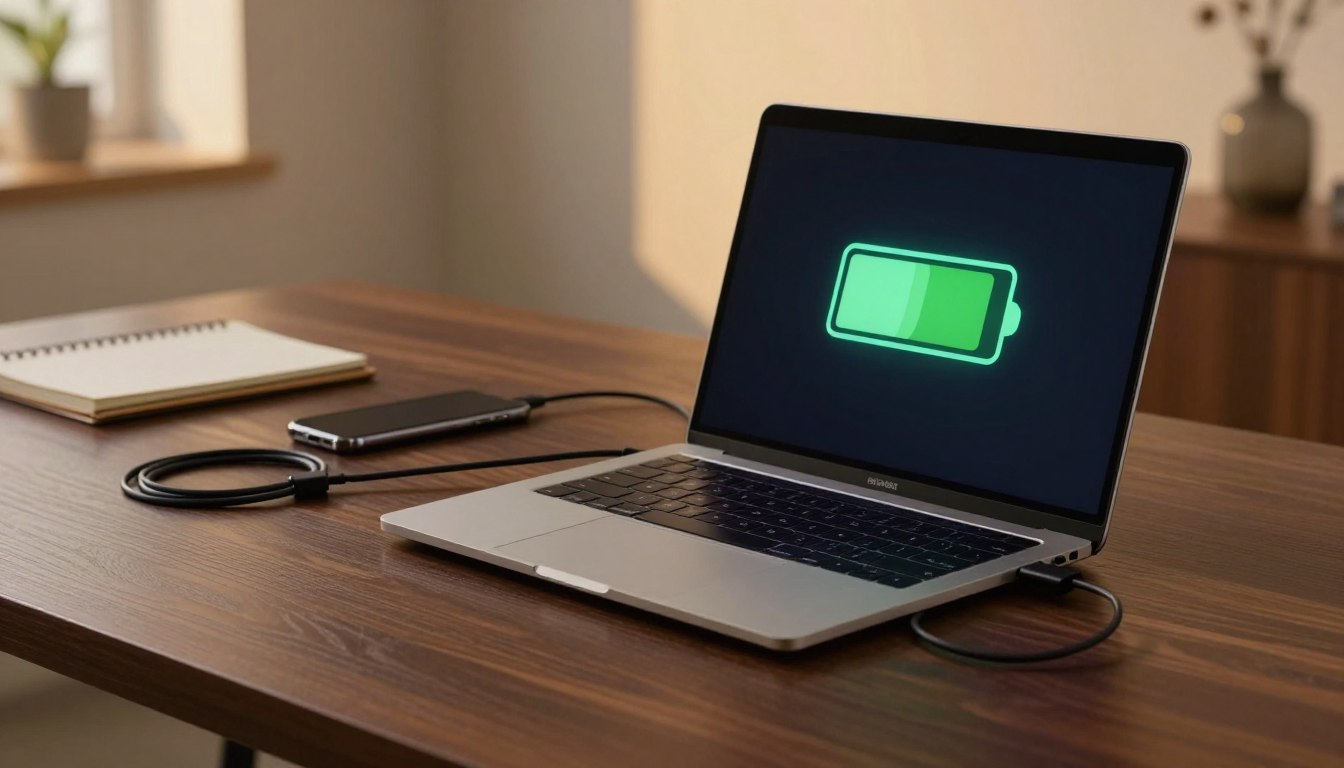
A battery’s health is simply the percentage of the original energy it can still store. That percentage compares current full charge capacity to the design capacity set when the pack was new.
What capacity loss means: lower capacity leads to shorter runtime, more frequent charging, and sometimes throttled power when the system protects itself. Users often notice changes once health falls below ~80%.
Charge use and internal wear
A charge cycle is cumulative: two 50% discharges equal one full cycle. Partial use still adds up, so avoiding 0% doesn’t eliminate wear.
With each cycle, electrodes inside the cells change and efficiency drops. That internal wear reduces capacity and harms long-term battery performance.
Temperatures and safe ranges
Lithium-ion cells prefer moderate temperatures. The safe operating band is about 32°F to 95°F, with an ideal range near 68–77°F. Higher temperatures speed chemical aging and lower usable life.
| Metric | What to check | Why it matters |
|---|---|---|
| Design vs full charge capacity | Percent remaining (battery health) | Shows wear and remaining runtime |
| Cycle count | Total cumulative cycles | Predicts remaining lifespan |
| Temperature under load | Degrees during heavy use | High temps accelerate capacity loss |
cycles vs heat laptop: What Causes More Battery Damage in Real Life
When a pack runs hot, its internal chemistry ages much faster than with normal use. That warming speeds reactions that lock in permanent capacity loss, especially above ~95°F.
Calendar aging (time plus warm conditions) and cycle aging (repeated charge discharge) both matter. Real-world damage is usually a mix: warm storage or heavy use accelerates both processes.

Why high temperatures matter
Above ~95°F, reactions speed up, internal resistance rises, and long exposure can permanently reduce battery lifespan. Even modest cycle counts can look worse if the system runs hot daily.
How use wears cells
Each full discharge stresses electrodes and builds up less-efficient layers. Deeper discharges increase wear per cycle and cut useful lifespan faster.
When one dominates the other
- Cycles matter most for frequent travelers and devices used on battery often.
- Heat dominates for gaming or poorly ventilated machines that run hot every day.
Performance workloads are the double hit: high power draw raises temperature and speeds cycle accumulation. Being laptop plugged can cut cycle counts but still creates high-state-of-charge stress if the device sits at 100% in a hot environment.
Takeaway: balance smarter charging habits with cooling and ventilation to meaningfully extend battery lifespan.
Use Charge Cycles Smarter to Extend Battery Life
Small changes to when and how you charge make a big difference in pack longevity. Aim to keep the charge between about 20% and 80% most of the time. This middle range reduces the low-voltage and high-voltage stress that speeds aging.
The 20–80 rule to reduce stress and slow capacity loss
Keep the battery in the middle range when you can. That balance extends battery life while still giving usable runtime for daily tasks.
Why deep discharges below 20% shorten lifespan
Dropping under 20% forces tougher chemical cycles. Repeated deep discharges add wear and shorten usable time over months and years.
Fully charged habits and high state-of-charge stress
Sitting at a full charge may feel safe because devices avoid overcharging. Still, a fully charged state raises aging stress if the device stays at 100% for long periods.
Charging speed and heat: trade-offs
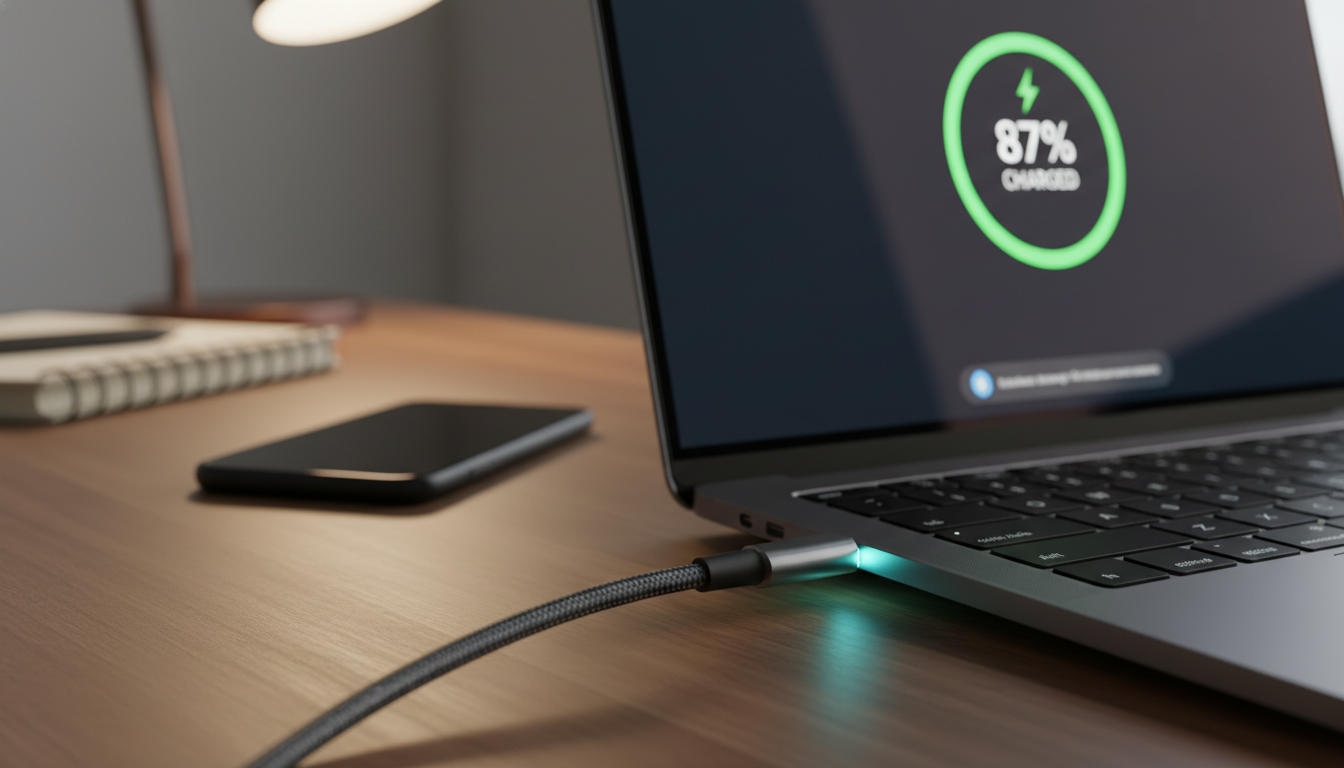
Fast charging is convenient but often raises temperature and internal strain. When time allows, slower charging reduces heat and slows degradation.
Practical plugged-in strategy
- Enable conservation or charge limit modes (often ~80%).
- Plug in for long sessions but avoid leaving the pack fully charged all day.
- Top up in short bursts, use battery saver when you need extra time.
Reduce Heat Stress That Harms Laptop Batteries
Hot spots in everyday settings can push a device into damaging temperature ranges in minutes. Short exposure in a warm car, on a sunny windowsill, or above a heating vent can raise internal temperatures quickly and speed chemical aging.
Environmental traps to avoid
Do not leave laptop in parked cars or direct sun. Even brief exposure raises battery temps into harmful ranges.
Avoid placing devices near HVAC vents or ovens. These hot environments accelerate long‑term capacity loss.
Why ventilation matters
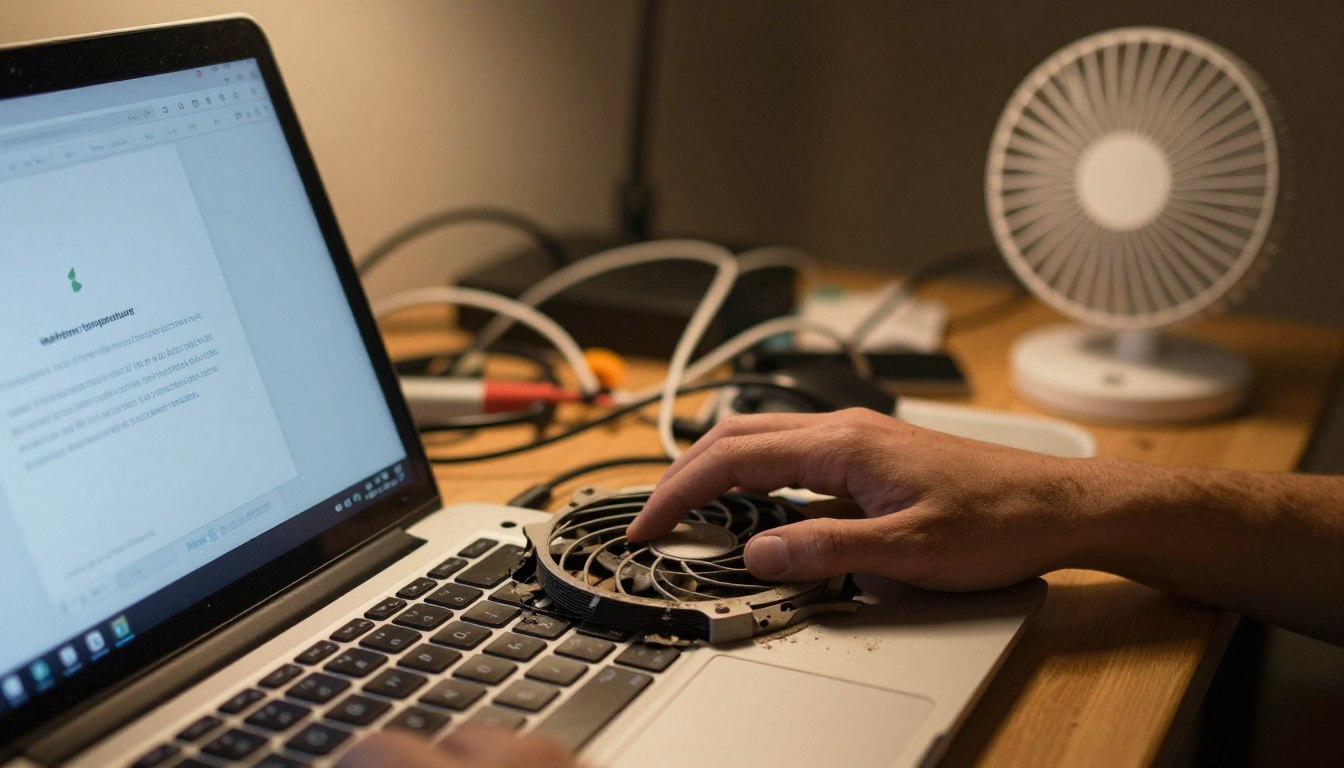
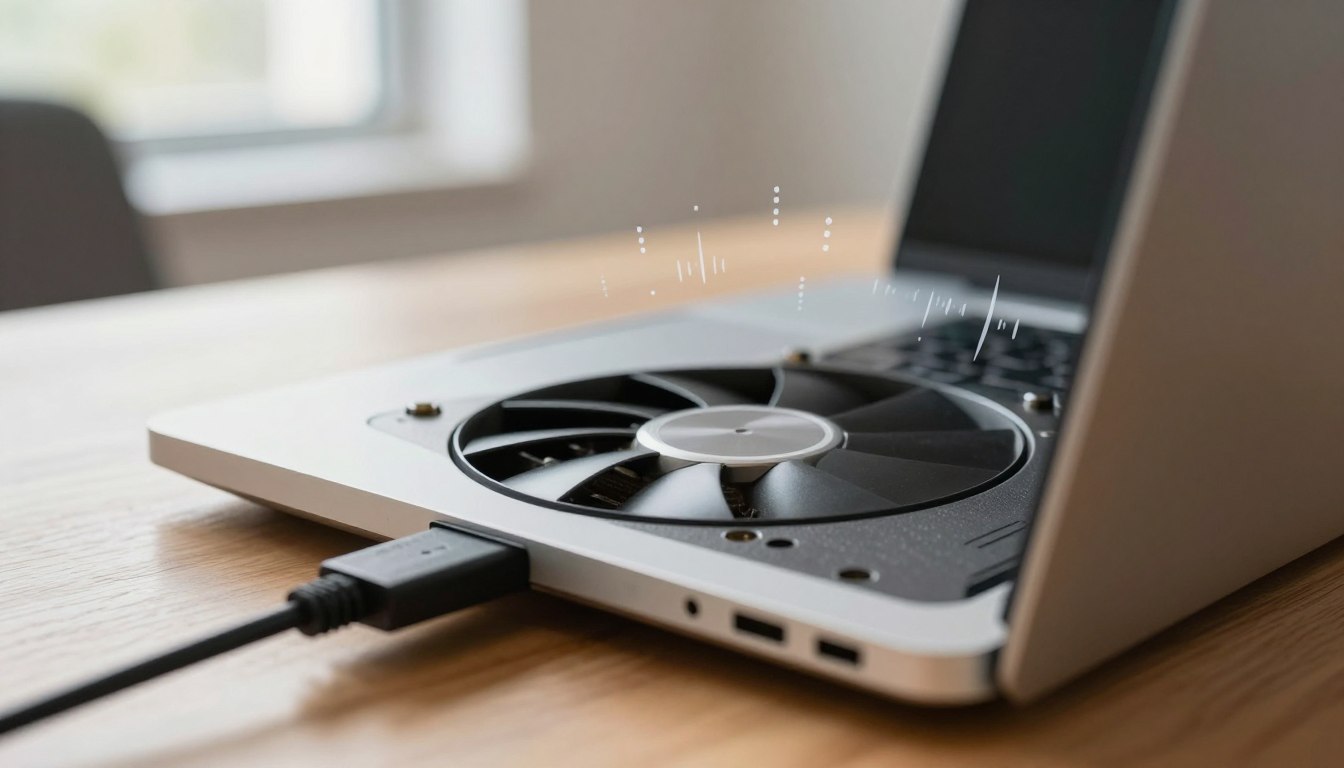
Most notebooks pull cool air in and exhaust warm air out. Soft surfaces like beds and couches block those paths and trap heat near the pack.
Fixes: use hard surfaces, elevate the chassis, clean dust from vents, or add a cooling pad for heavy use.
Internal power and performance sources
High‑demand tasks — gaming, video editing, long compiles — keep fans running and raise component temperatures. That added power draw increases thermal stress near the battery.
Cold weather effects
Very low temperatures reduce immediate capacity and charging speed. This is usually reversible once the device warms, but charging while very cold can cause issues.
- Daily checklist: never leave laptop in a hot car, maintain ventilation, monitor temps during intense sessions.
- Lower sustained temperatures and you slow chemical aging and preserve capacity over months and years.
Optimize System Settings for Better Battery Performance and Lower Temperatures
Adjusting your system settings is one of the easiest ways to stretch battery performance and reduce internal heat. Small changes in power profiles and background activity cut steady drain and lower component temperature during use.
Power profiles and battery saver modes
Use built-in profiles (Balanced or Battery Saver) to slow CPU clocks and limit background tasks. On Windows, enable Battery Saver; on macOS use Low Power Mode; on Linux pick a power‑saving governor.
CPU, GPU and efficiency settings
Choose “best power efficiency” or cap frame rates for apps that push the graphics chip. Avoid high‑performance modes when unplugged to keep temperatures down and reduce wear.
Display brightness and background apps
Lowering screen brightness yields large gains in runtime and reduces internal heat. Close unused apps, trim startup items, and restrict background refresh to cut quiet drain.
Wireless management
Turn off Bluetooth when not needed and pause Wi‑Fi scanning if offline. Radios that constantly search increase power usage and raise device temperature over time.
| Setting | Action | Benefit |
|---|---|---|
| Power profile | Pick Balanced or Battery Saver | Lower power draw, cooler temps, longer runtime |
| CPU/GPU | Enable efficiency mode, cap FPS | Less heat, slower battery wear, stable performance |
| Display | Reduce brightness, auto-dim | Major reduction in power use and heat |
| Background apps | Close/disable unnecessary apps | Lower constant drain and fewer charge cycles |
| Wireless | Disable unused radios, manage scanning | Cut idle power use and thermal load |
Quick settings routine: enable Battery Saver, set GPU to efficient mode, lower brightness to ~50%, close background apps, and disable Bluetooth if not used. Do this before travel or long meetings to keep runtime high and temperatures low.
Track Cycle Count and Battery Capacity to Know What’s Really Happening
Hard data from the system tells you whether repeated use or high temps are the main culprit. Don’t guess—read the numbers for cycle count and capacity to see actual wear.
https://www.youtube.com/watch?v=A8IXepvlnSg
What the numbers mean
Cycle count measures cumulative full charge equivalents; partial charges add up. A healthy pack often keeps ~80% capacity around 300 500 cycles, though models vary.
How to get the report
- Windows: run
powercfg /batteryreport, open the generated HTML and find cycle count plus capacity history. - macOS: Option-click Apple menu → System Information → Power to view cycle count and condition.
- Linux: use tools like
upower(outputs vary by distro and hardware support).
Key terms to watch
Design capacity is original energy. Full charge capacity is current max. Wear level = percent lost. Use these data points to estimate remaining usable life and timing for replacement.
Monitor temperatures during heavy work—sustained high readings speed aging even if cycle counts look low. If reports show fast wear, change charging habits, clean vents, adjust power settings, or plan a battery replacement.
Daily Habits That Balance Battery Lifespan, Runtime, and Convenience
A few simple routines each day keep a battery healthier and more predictable. These habits aim to preserve battery health while keeping the device ready when you need it.
Smart charging frequency and timing
Frequent partial charging—top ups from about 40% to 80%—is gentler than repeated full discharges. Short breaks are ideal moments to add a quick charge.
Tip: set reminders to top up during coffee breaks rather than waiting until empty.
Workload planning to reduce heat and discharge
Plug in before heavy tasks like video editing or long calls so the battery avoids deep discharge and the system runs cooler.
If you must stay unplugged, lower performance settings to cut power draw and keep temps down.
Storage and travel best practices
For weeks of non-use, store the battery around 40–60% in a cool, dry place. Avoid leaving the device fully charged or fully empty for long periods.
On travel days, it’s fine to charge higher for runtime. Afterward, return to middle-range charging to protect long-term lifespan.
| Scenario | Action | Benefit |
|---|---|---|
| Short daily use | Top up 40–80% | Lower stress, fewer deep discharges |
| Intense work | Plug in and limit max charge | Stable performance, less thermal wear |
| Storage | Store at ~50% in cool place | Slower aging, better battery health |
Balanced approach: prioritize realistic routines over perfection. Minor, consistent changes preserve battery life while keeping the device convenient for daily usage.
Conclusion
, Conclusion
For most users, elevated temperatures are the faster accelerator of battery loss while repeated cycles provide steady wear. Keep devices cool and avoid prolonged stays at 100% to get the best return on care.
Practical steps: enable a charge limit or conservation mode, improve ventilation, use power‑saving profiles, and reduce intense workloads when possible. Check cycle count and compare current capacity to design capacity to see which factor matters most for your device.
With these habits many people extend battery life by several years, but chemical aging still makes replacement inevitable eventually. If cycle count is high and capacity is low, plan replacement; if cycle count is moderate but temperatures spike often, prioritize heat control first.