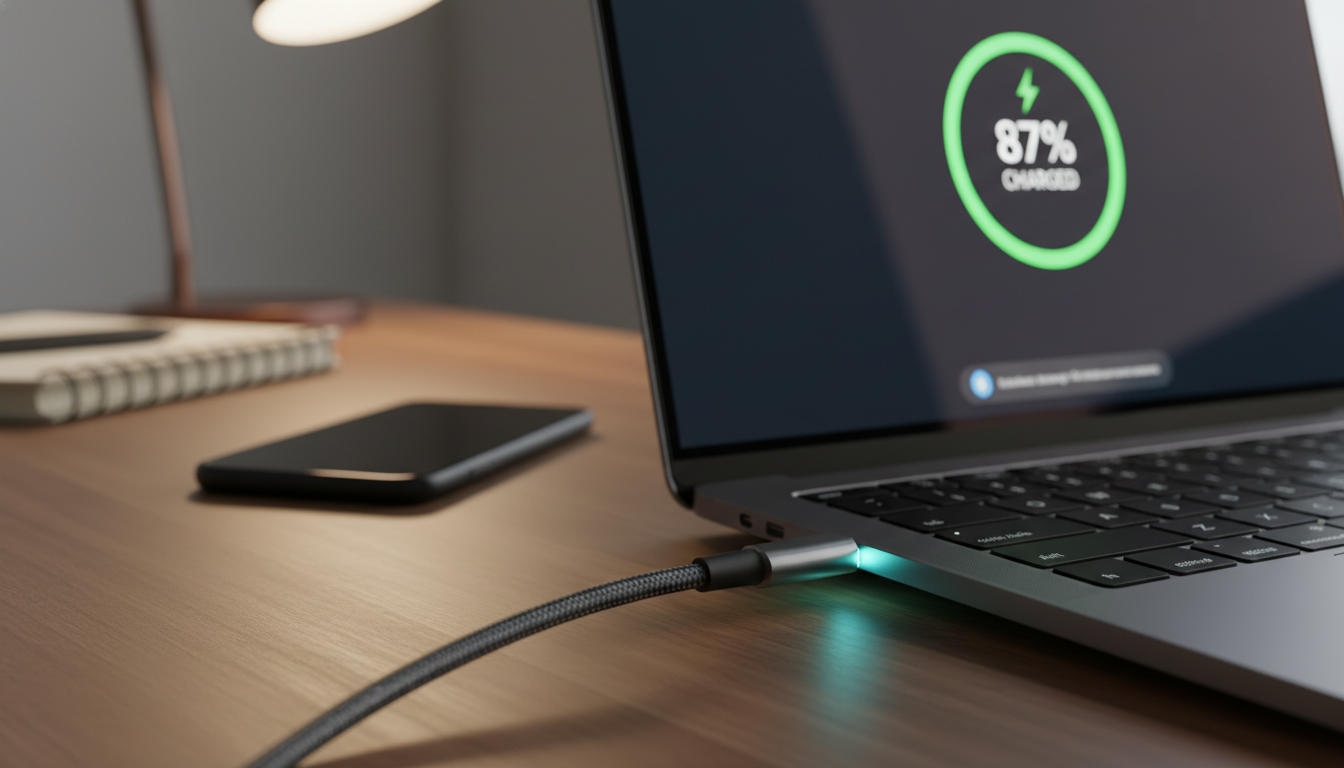
Charging a Laptop Under Heavy Load Explained
Learn how to optimize charging under load laptop with our step-by-step guide. Discover the best practices for efficient laptop charging.
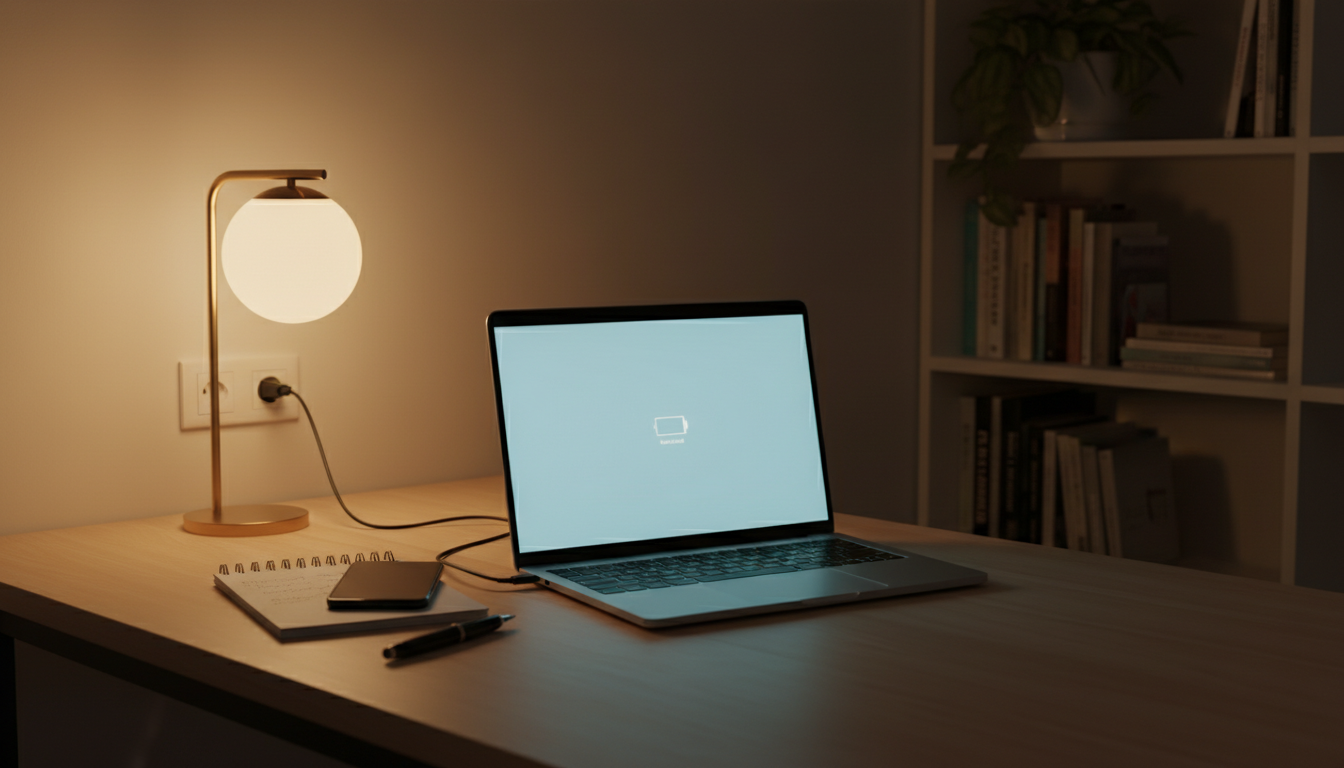
Modern portable computers can run while plugged into AC power. When you connect an adapter, most systems draw energy from the adapter instead of draining the battery.
Real-world heavy use means gaming, video editing, compiling code, or intense multitasking while the adapter is connected. In those cases you may see a slower charge rate, a steady battery percentage, or brief drops even while plugged in.
This behavior is usually normal. The device routes power to run components first, and any remaining energy tops up the battery. That design keeps the system safe and helps prevent overcharge.
Still, sustained heat and high draw can shorten battery life over time. This guide explains how power switching works, why heat and throttling occur, and how to improve charging behavior without sacrificing performance.
Key Takeaways
- Plugged-in use routes adapter power to run the system and preserve battery.
- Heavy workloads may slow battery fill or cause temporary drops while connected.
- Heat and repeated high draw can reduce battery lifespan over months or years.
- Settings and proper adapters help balance performance and battery care.
- This guide shows practical fixes for slow or “not charging” behavior without risking damage.
What really happens when you use your laptop while it’s charging
Connecting the AC adapter reroutes energy so the wall supply powers the system first. The adapter delivers most of the power output, and the battery is topped only if the adapter has spare capacity.
How power switches to the AC adapter
The adapter supplies steady power to CPUs, GPUs, and peripherals. If the workload stays below the adapter’s maximum, excess output flows into the battery.
If the task draws near the adapter limit, the battery may charge slowly or hold steady. That can look like the battery is not charging even while plugged in.
Why mild heat is common
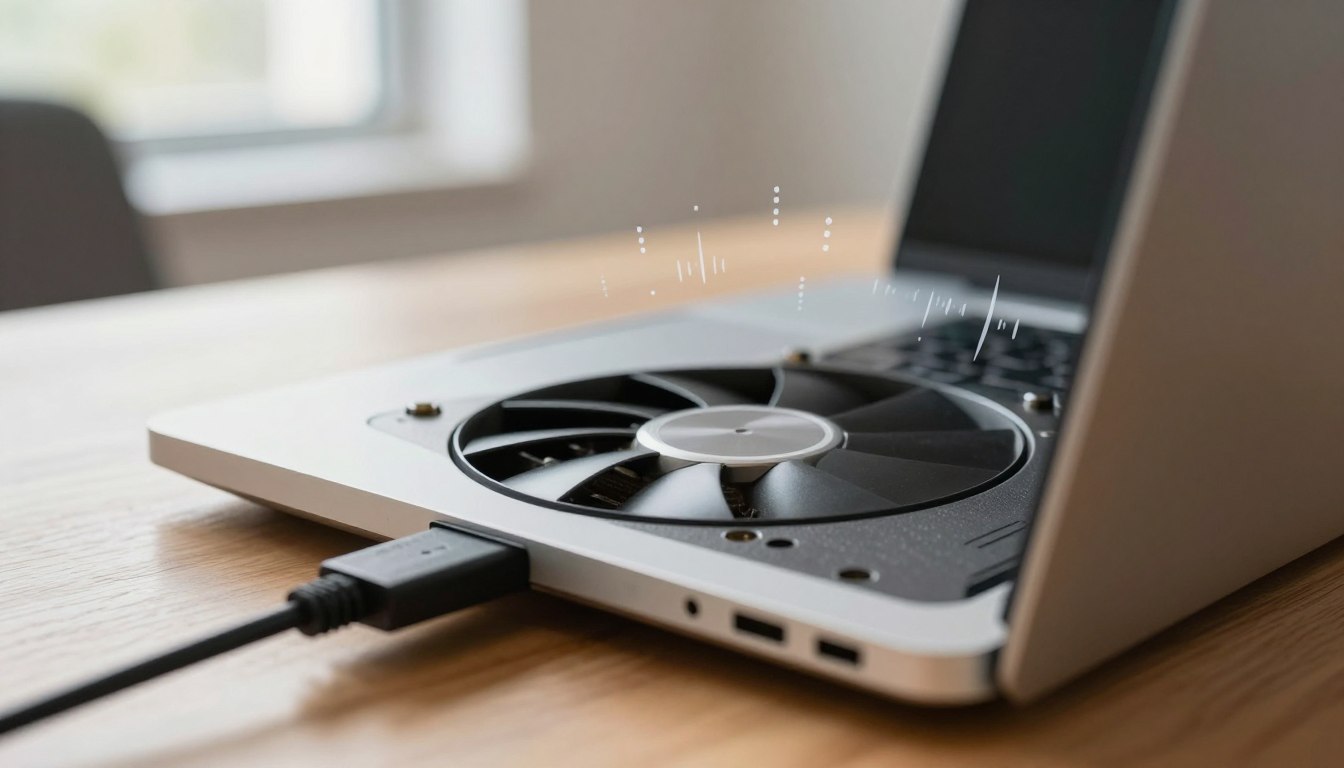
Both the charging circuitry and active processors create heat. Fans spin and surfaces warm during heavy use; that is normal and not immediate damage.
When performance throttling kicks in
When internal temps, including battery temperature, approach about 50°C, the system can reduce speeds to protect components. Throttling prevents harm and stabilizes temps.
| Trigger | Normal sign | What to do |
|---|---|---|
| Adapter near max output | Battery percent stalls | Lower peak tasks or use higher-watt adapter |
| High internal heat | Fans loud, warm palm rest | Improve airflow and reduce background load |
| Battery ~50°C | Automatic speed reduction | Let device cool; avoid sustained full power |
Next: practical steps to match adapter wattage, cut peak draw, and boost cooling to improve charge behavior.
charging under load laptop: how to charge efficiently while gaming or working
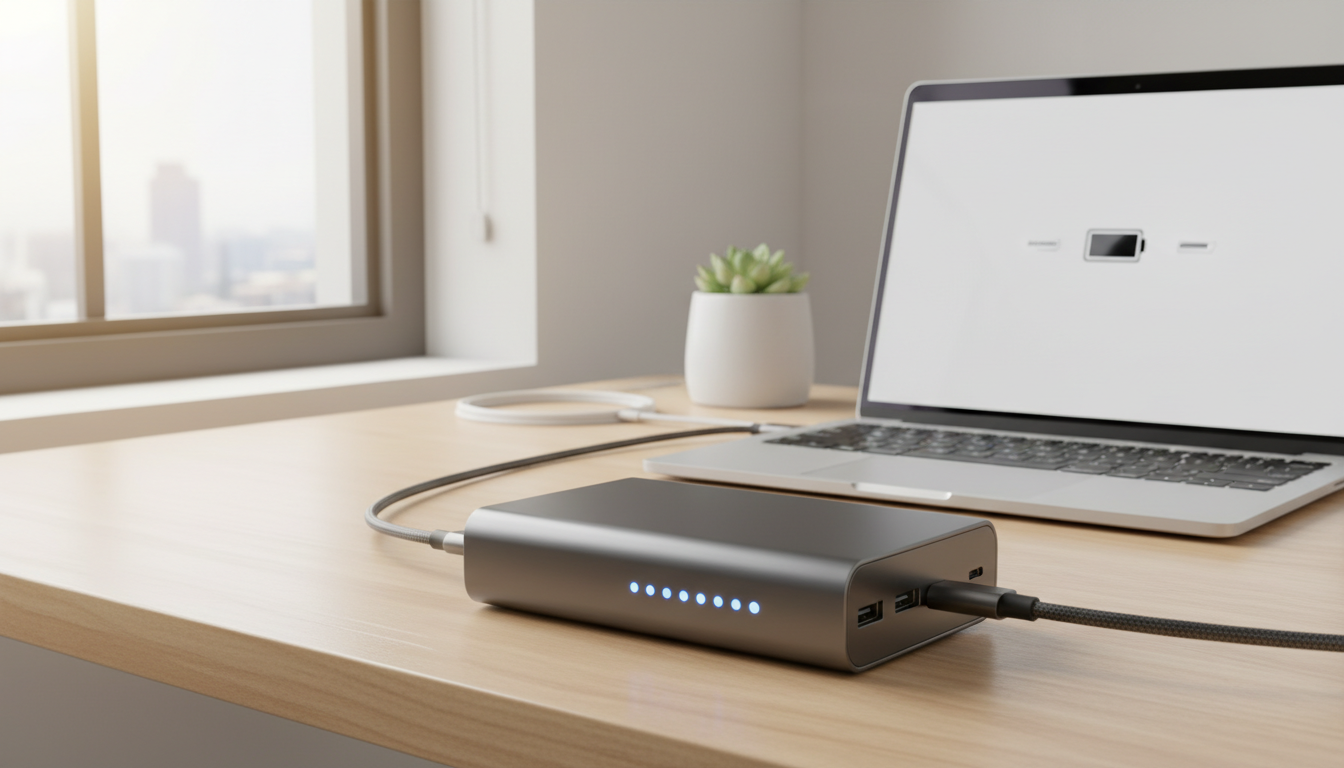
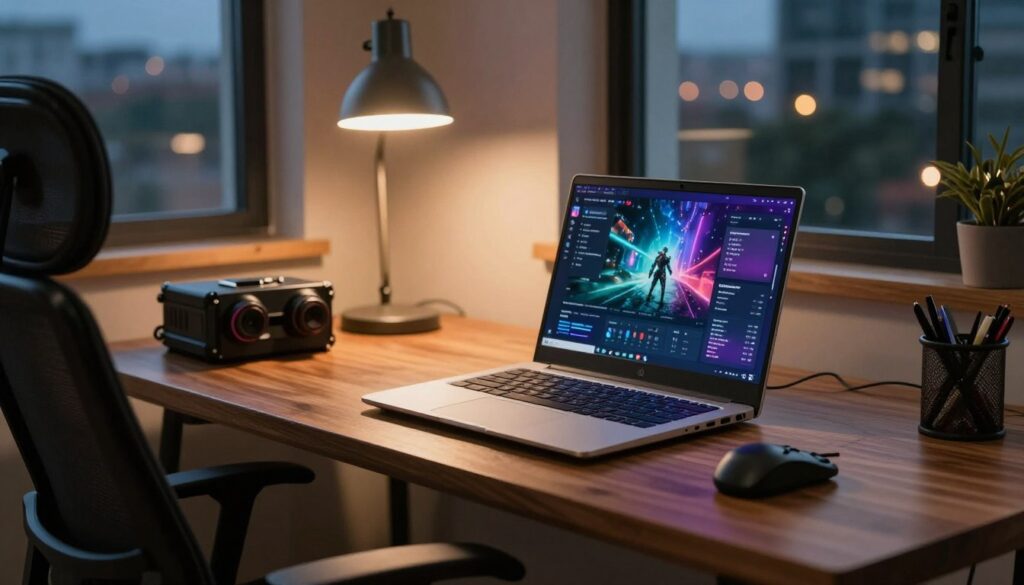
If you want strong frame rates and progress toward a full charge, pick the right adapter and reduce competing draws. High-performance use often needs more wattage than a small USB-C brick can supply.
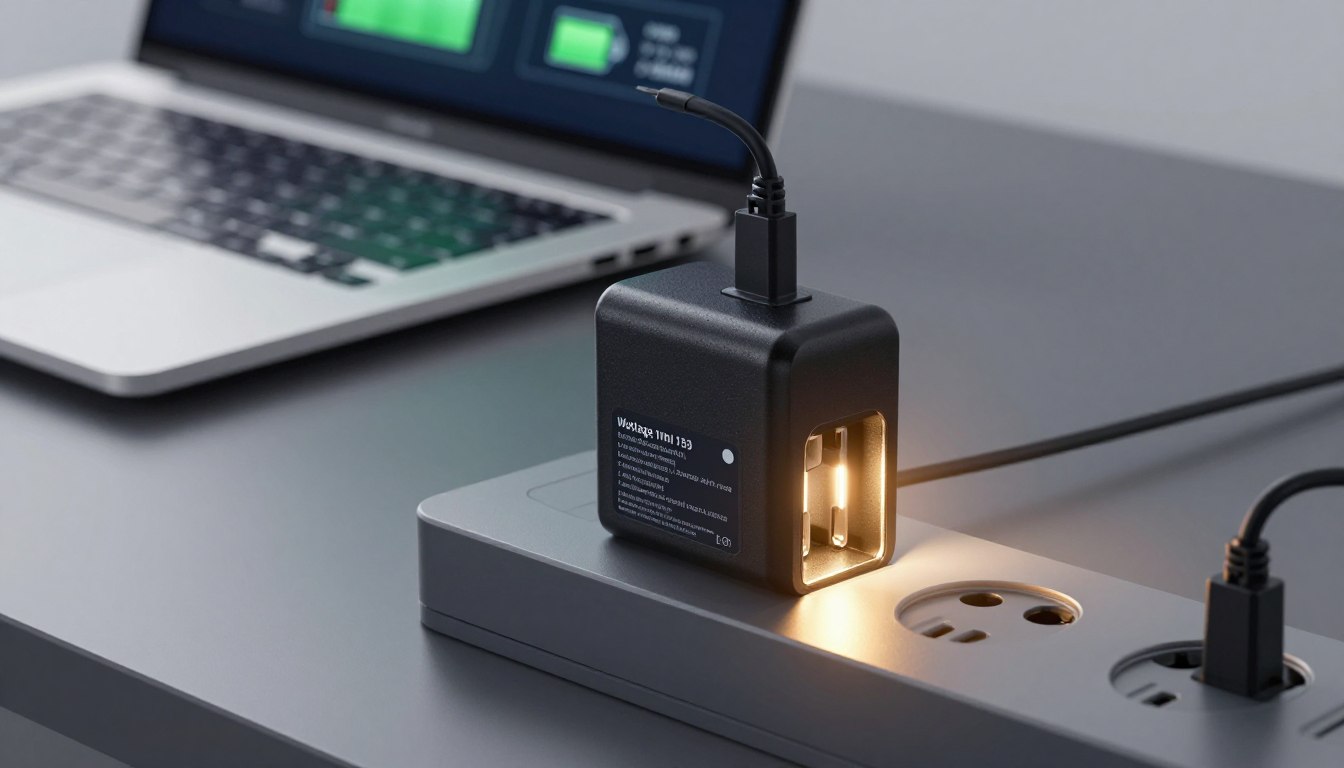
Match adapter wattage to your workload
Checklist:
- Confirm the adapter’s wattage rating matches the system’s spec.
- Ensure the charger output voltage and connector type match the device.
- Avoid underpowered USB‑C bricks for sustained gaming or editing.
Manage the wattage budget
The system draws power for CPU, GPU, and peripherals first. If consumption nears adapter max, little energy remains to top the battery, so time to full charge increases.
Reduce peak draw without stopping work
Lower frame caps, drop resolution or presets, and close background apps to free headroom. Limiting CPU boost or capping FPS often improves both performance and charge progress.
Airflow and peripherals matter
Keep vents clear, avoid soft surfaces, and consider a cooling pad during long sessions. Disconnect external drives and phone chargers to remove competing power drains.
When to stay plugged in
Remain connected for gaming or heavy editing when stable performance matters more than fastest top-up. The practical way is to balance power and heat so the system stays responsive while the battery gains charge slowly but safely.
Overcharging myths and modern battery protection
Modern battery systems include smart controls that stop intake once cells reach a safe state.
How lithium-ion and lithium‑polymer stop at a full charge
Built-in management circuits monitor voltage and temperature. When the pack reaches a set threshold, the system halts active current and runs from the adapter or system power. Periodic top‑offs may occur, but continuous feeding does not.
Why overcharging rarely causes real damage
Actual wear comes from charge cycles and heat, not a perpetual top-up. High temperatures and deep cycles shorten battery life much more than staying plugged in.
Practical notes
- Obsessive unplugging for a single percentage is usually unnecessary.
- Keep vents clear and avoid sustained high heat for better battery life.
- Trust the manufacturer’s firmware; it is designed to prevent overfill and damage.
| Myth | Reality | What to do |
|---|---|---|
| Constant overcharge ruins cells | Management stops intake at full charge | Focus on cooling and cycle count |
| 100% means continuous current | System uses mains; battery stays near full | Accept periodic top‑offs; avoid heat |
| Plugged in always causes damage | Heat and cycles cause most wear | Use correct adapter and firmware updates |
Windows settings that help optimize battery life and charging behavior
Windows offers simple power profiles so users can balance performance and battery life. Pick a mode that matches the task to reduce heat and total power draw.
Choose the right Power & Battery mode
Open Settings > System > Power & Battery and pick a mode. Use Best performance for demanding work while plugged in. Choose Balanced for daily use. Select Best power efficiency for travel or long days away from outlets.
Use Battery Saver and display tweaks
Battery Saver reduces background activity and is best for light tasks like browsing or editing documents. Do not enable it during heavy work; it cuts performance.
Lower brightness, reduce refresh rate, and set per-app graphics to “power saving” or “high performance” depending on need.
Trim background apps and wireless radios
- Disable background apps in Settings > Privacy when not needed.
- Turn off Wi‑Fi or Bluetooth for offline movies or local work to save power and reduce heat.
- Close cloud sync and external devices to free adapter capacity so the battery can top up faster.
| Action | Best for | Effect |
|---|---|---|
| Best performance mode | Gaming/Editing | Higher power, more heat |
| Balanced mode | Daily use | Good mix of life and speed |
| Power efficiency mode | Travel/offline day | Longer battery life |
Note: Reduced capacity over time is normal. These settings help slow decline but cannot stop wear entirely.
Fix slow charging or “not charging” issues while under load
A handful of simple tests will quickly tell you whether the wall supply, cable, or battery is at fault. Start with the basics and move to software fixes only if hardware checks pass.
Check cable seating, port debris, and external devices
Reseat the cable at both ends and inspect the port for lint or bent pins. Unplug USB drives, phones, and other devices that draw power; they can make topping the cell slower during heavy use.
Rule out wall outlet and low-voltage problems
Try a different wall outlet and avoid overloaded strips. If lights dim or charging is inconsistent, low voltage in the circuit could be the real issue.
Test another compatible charger
Swap in a known-good charger and confirm the correct voltage and polarity on the brick. Using the wrong output can cause instability or no-charge behavior across multiple models.
Update drivers, chipset, and BIOS
In Windows, open Device Manager (Windows key + X) → Batteries → Microsoft ACPI‑Compliant System → Update driver. Then check the manufacturer site for chipset and BIOS updates that fix power-management bugs.
Reset power and run Windows tools
Power down and hold the power button 15–30 seconds, then reconnect AC and restart. Run Settings → Update & Security → Troubleshoot → Power to let Windows detect common misconfigurations.
Tell battery vs. charger problems
On Windows 11 run powercfg /batteryreport /output “C:\battery-report.html”. Compare design capacity to full charge capacity and check cycle count. Noticeable health loss (around 15–20%) may mean the pack needs replacing rather than repairing.
“Start with quick hardware checks before diving into drivers — most issues are solved that way.”
Conclusion
Running demanding tasks while plugged in rarely harms the battery if the adapter and cooling are appropriate.
Key takeaway: It is normal for a laptop to draw mains power first and only top the cells when spare energy exists. Mild heat and a slowed rate of charge can happen during heavy use.
Good behavior looks like warm surfaces, fans running, and slow percent gains. If you see sustained high temperatures, reduce peak work, improve airflow, or verify the adapter wattage.
Practical steps: match the right adapter, remove needless peripherals, and keep cooling paths clear to improve charge stability. Modern batteries and firmware stop true overcharging; most wear comes from heat and cycle count.
When to troubleshoot: the device won’t fill during light use, only charges in certain outlets, or shows rapid percentage swings. Run Windows Power & Battery modes and generate a battery report to check capacity and cycles before deciding on repair or replacement.