Do Third-Party Laptop Chargers Damage Batteries
Is your third party charger laptop damaging your battery? Find out what to look for in a reliable charger and make an informed decision with our buyer's guide.
What is a third party charger laptop? It is a replacement power adapter made by a brand other than your device maker. The main worry is safety and fit, not brand names. Buyers need to focus on specs and protections.
This guide helps you pick a reliable laptop charger that fits, charges without issues, and avoids battery or circuit risk. The most important rule is clear: match the output voltage exactly. Higher wattage can be okay if the system accepts it.
Battery wear usually comes from heat, unstable power, and chronic low power, rather than the adapter label. To decide, identify your model and adapter specs. Then confirm connector fit, voltage, amperage, and wattage.
Also check certifications, built-in protections, and return policies. USB-C Power Delivery has made many replacements simpler, but USB-C alone does not guarantee safe charging. This guide focuses on what to look for in listings and how US shoppers can buy with confidence.
Key Takeaways
- Match output voltage exactly to avoid damage.
- Confirm connector fit and required wattage.
- Watch for heat and unstable power as main battery risks.
- Check certifications, protections, returns, and warranty.
- USB-C PD helps, but verify protocol support before buying.
Why people buy third-party laptop chargers in 2026
USB-C standards have simplified choices. A single, certified USB adapter can often serve a phone, tablet, and a small notebook. Many shoppers now buy a laptop charger to replace a lost unit, keep a spare at work, or build a lighter travel kit.
Cost, convenience, and spare gear
Value matters. Reputable alternatives like the Nekteck 60W USB-C GaN or the Nekteck 100W PD 3.0 often cost less than OEMs and include a cable that would otherwise be extra. Higher tiers such as the Insignia 140W dual USB-C appeal to users who want one wall plug for multiple devices.
Why USB-C changed buying behavior
- One charger can power multiple devices, reducing accessories and clutter.
- Buyers upgrade wattage class (60W → 100W → 140W) for faster or shared charging.
- Proprietary barrel tips still exist, but more USB-C laptops broaden cross-brand options.
Tip: Listings that say “fits Dell/HP/Lenovo” are common, but always confirm voltage and Power Delivery support before use.
What actually damages a laptop battery when you use a different charger
The biggest dangers stem from incorrect voltage and poor power regulation. Most real damage comes from electrical mismatch or weak regulation, not the maker name. Match specs to avoid risk.
Voltage mismatch: the primary red flag
Incorrect voltage can stress internal circuits and the battery management system. Too high a voltage may overheat components. Too low a voltage can cause unstable operation and repeated shutdowns, which shortens lifespan.
Heat and unstable output over time
Poor regulation and unstable power delivery degrade battery health slowly. Generic, low-cost units often run hot and drop voltage under load.
Heat accelerates chemical wear inside the cell. A warm adapter or connector is a warning sign of inefficiency or weak thermal design.
Underpowered charging and high-load use
If the adapter can’t meet peak power demand the device may charge slowly or keep draining while plugged in. Daily reliance on an underpowered unit raises stress and heat, unlike occasional use.
- Treat vague listings on output specs as risky.
- If a unit runs unusually hot, don’t make it your daily spare.
OEM vs third-party chargers: what’s the real difference for safety and longevity
Not all replacement power units are built the same; some match OEM performance while others cut safety corners.
OEM units are either made by a device maker or built by established electronics suppliers under the brand name. Aftermarket options range from reputable brands with full specs to ultra-cheap listings that hide key details.
How reputable brands can match OEM reliability
Good manufacturers use quality regulation chips, thermal design, and protection circuits. Those features keep output stable and reduce heat. Stable output and cooler operation protect both the power block and the laptop battery over years.
Where ultra-cheap models cut corners
Low-cost units often skimp on components, insulation, shielding, and basic protections like overcurrent or short-circuit control. That can cause voltage drift, heat, or random shutdowns.
- Look for full output tables, PD version, and certification details in listings.
- Prefer longer warranty and responsive customer support.
- Paying a bit more can avoid slow charging, random shutdowns, and port wear.
“Trusted documentation and tested protections are the real safety difference — not just a brand name.”
Next: we’ll dive into certification marks and the protection features that matter most.
How to confirm charger compatibility using your laptop model and adapter label
Start by reading the adapter label: it contains the model number and output specs you need.
Finding the model number on the AC brick
Look for a line that starts with Model (example: Dell LA65NS2-01). That model is the fastest shopping reference. If the original adapter is missing, confirm the computer make and exact model instead.
Match voltage, amperage, and wattage
Use the label to verify Output values: volts (V), amps (A), and wattage (W). Make sure the voltage matches before buying. Ampere or wattage can be equal or higher; lower values risk slow charge or no charge.
Connector size and naming quirks
Even “same model” listings can differ in connector diameter or output. Online specs often show barrel tips as outer × inner diameter (for example: 4.5×3.0mm / 4530). Both dimensions must match the port on your device.
“Verify the adapter model and the output numbers — those facts beat brand claims every time.”
| Label item | What to read | Why it matters |
|---|---|---|
| Model | e.g., LA65NS2-01 | Quick match for replacement listings |
| Output | e.g., 19.5V ⎓ 3.34A = 65W | Ensures voltage and wattage compatibility |
| Connector | e.g., 4.5×3.0mm | Prevents loose fit or no contact |
Next: we’ll explain how volts, amps, and watts work together and how to use the wattage formula to compare listings.
Voltage, amperage, and wattage explained for laptop charging
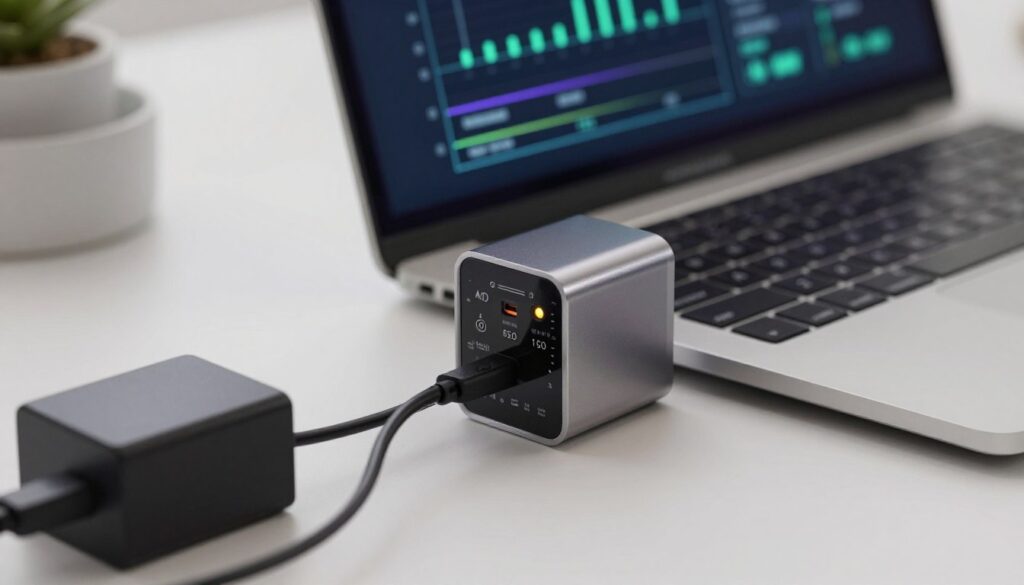
Knowing how voltage, amperage, and wattage work helps you avoid charging problems. These three specs tell you if an adapter will supply the right power for your device.
Why voltage must match closely
Voltage is the must-match number. Stay within about ±1V of the original rating to avoid stress on the power circuitry and battery management system.
Why amps and wattage can be higher
The adapter’s amperage shows how much current it can supply. A higher amp rating is usually safe because the device draws only what it needs—so long as the voltage is correct and the unit is well regulated.
Wattage is total power capacity. Higher wattage gives headroom for peak loads. Lower wattage risks slow charging, throttling, or even battery drain during heavy use.
Using the wattage formula
Use the simple formula W = V × A to compare listings and spot misleading titles.
| Output (V) | Current (A) | Wattage (W) |
|---|---|---|
| 19.5V | 3.33A | ≈65W |
What underpowered charging feels like
Common signs of an underpowered adapter include very slow percentage gains, “plugged in, not charging,” or charge dropping during video calls and gaming.
- Rule: match voltage first, then pick equal-or-higher wattage from a reputable, safety-tested listing.
- When specs are unclear, avoid buys that list only vague output or dramatic wattage claims without PD or certification details.
“Match volts, then check watts — that simple math protects battery health.”
Connector and port fit: barrel tips, slim tips, and USB-C ports
Even a tiny mismatch at the plug can turn a safe power source into a hazard. Physical fit is a separate requirement from electrical compatibility. Both must be correct to charge safely and avoid heat or intermittent contact.
Round-tip barrel connectors
Round barrel tips need exact outer and inner diameters. A small size difference can prevent contact or cause a loose fit.
A loose barrel may spark or heat the jack. That wear makes charging unreliable and can damage the port over time.
Lenovo-style slim tips
Lenovo slim tips are often standardized in shape. That means buyers should focus more on matching output and wattage than on the plug form.
Still verify center-pin style and polarity when applicable. Incorrect pin wiring can stop charging or stress internal circuits.
USB-C vs legacy charging ports
USB-C makes ports more universal, but “it fits” does not guarantee the device accepts power. Some USB-C laptops only support data on a given port.
Adapters that convert USB to barrel can work if the adapter, cable, and adapter output match the device’s requirements. Always confirm tip dimensions, polarity, and power negotiation support.
“Physical fit and correct output together keep ports cool and charging reliable.”
- Rule: Confirm both plug dimensions and electrical specs before buying a replacement.
- Loose tips speed connector wear and can harm the port over months of use.
- USB-C PD will be covered next; proper negotiation depends on cable and charger quality.
USB-C Power Delivery and why it makes many third-party USB-C chargers safer
USB-C Power Delivery lets a source and a device agree on voltage and current before any power flows. That negotiation forms a simple power “contract” that helps prevent unsafe over-delivery when implemented correctly.
How negotiation keeps devices safe
PD communication uses the USB data lines to request specific profiles (common steps: 5V, 9V, 15V, 20V). A device asks for higher profiles only when needed, so phones and thin notebooks draw less than high‑power models.
Dynamic adjustment and PD 3.0
Charging behavior changes over time: high input during rapid charging, then tapering as the battery nears full to protect cells. PD 3.0 is the modern baseline buyers should prefer — it usually means better negotiation, improved efficiency, and wider device compatibility.
Buyer notes: a reputable usb-c charger with real PD support and a proper USB cable reduces mismatch risk. Confirm wattage tiers (60W, 100W, 140W) next to your device models to pick the right capacity.
Choosing the right wattage tier for your laptop charger
Pick a wattage tier by matching your device’s peak draw and daily workload, not the biggest number on the box.
60W covers most 13-inch and lower-power models. For casual browsing, email, and light office work, a 60W usb-c charger is a common one‑charger baseline. Many thin notebooks and ultrabooks sit comfortably under this level.
100W is the sensible step up for heavier multitasking and faster topping up. Models that peak above 60W—like the MacBook Air (2022+) at ~67W or the 15″ MacBook Pro (2019) at ~87W—benefit from a 100W unit for reliable charging under load.
140W+ fits high-performance machines or desk setups that must juice two devices fast. Chargers such as the Insignia 140W dual USB-C let a power-hungry notebook and a phone or tablet charge quickly without starving either device.
Buy smart: choose the smallest tier that covers your peak needs while leaving modest headroom. Brands like Nekteck offer 60W and 100W PD 3.0 GaN options that balance size, efficiency, and safe charging for many models and devices.
“Match peak draw first, then add headroom — that protects battery life and your wallet.”
Fast charging for laptops: what’s real vs marketing
Fast charging for modern notebooks often delivers a power burst early, then slows to protect the battery.
True rapid charging supplies high power during the first phase to replenish capacity quickly. As the cell nears full, the system reduces current to limit heat and chemical stress.
Why two units with the same wattage can act different
Identical watt ratings mean little if regulation quality, PD implementation, or thermal design differ. A well-regulated unit holds voltage steady under load; a cheaper model may sag or overheat.
How the chipset and firmware affect charge speed
The computer’s power management and firmware decide how much current to accept. Even with a higher-watt adapter, the internal controller may cap intake to protect the cell or components.
- Marketing traps: bold watt numbers without clear power delivery support or protocol details.
- Using the device while plugged in splits available power and can make fast charging feel inconsistent over time.
Buyer takeaway: prioritize adapters with transparent PD specs and proven safety features rather than chasing the biggest advertised speed.
Certifications and safety standards to prioritize when buying
Certifications tell you whether a USB power block was tested to behave safely under real-world loads.
The most meaningful mark for USB-C units is USB-IF certification. It shows independent testing of USB and Power Delivery behavior. Products like the Nekteck 60W and 100W, and the Insignia 140W, list USB-IF or full safety testing in their specs.
What to check in product listings
- Explicit certification claims and visible model identifiers.
- Complete output tables with volts, amps, and wattage.
- Clear PD version and USB compliance notes.
How certification reduces real risks
Independent compliance lowers the chance of overheating and unstable output. Units that lack transparent testing often show poor thermal design or flaky negotiation under load.
Treat very cheap listings without compliance data with skepticism; safety features and clear specs matter more than name recognition.
| Certification | What it proves | Why it matters |
|---|---|---|
| USB-IF | USB-C/PD protocol compliance | Assures correct negotiation and compatible voltages |
| UL / ETL | Electrical safety testing | Reduces fire and shock risk from faults |
| IEC / CE | International safety and EMC checks | Shows tested thermal and emission limits |
Shopping heuristic: prioritize certified, safety-tested units for daily use, travel, and high-watt needs. Focus on clear specs and documented support rather than the lowest price.
Safety features that actually protect your laptop and battery
What separates safe adapters from risky ones is how they respond to voltage spikes and heat. Look beyond marketing and focus on the protections built into the unit. Good features stop faults before they reach your device.
Overvoltage, overcurrent, and short-circuit protection
Key protections: overvoltage protection (OVP), overcurrent protection (OCP), and short-circuit protection (SCP). These limit dangerous excursions in voltage or current during grid faults or cable damage.
OVP prevents spikes from reaching the battery pack. OCP cuts output when a short or fault draws too much current. SCP stops catastrophic flow instantly, reducing fire and component risk.
Thermal management and why cooler units tend to be more stable
Temperature control is a practical sign of real quality. Cooler operation usually means better efficiency and stable power under load.
Well‑designed cooling prevents throttling and avoids long-term chemical stress on the cell. Beware units that run hot during normal use.
Voltage regulation quality vs generic control chips
Clean, steady output reduces charging interruptions and long-term wear. Reputable control chips maintain tight voltage under changing loads.
Generic designs may work briefly but fail under sustained demand, causing sag, heat, or random disconnects.
- Look for explicit protection callouts and certification badges.
- Prefer realistic wattage ratings with clear PD version details.
- Choose brands that document thermal and overcurrent limits.
Buyer tip: prioritize units with tested protections, clear specs, and solid thermal design — those features protect your battery and device over years of use.
GaN chargers: smaller size, higher efficiency, and what it means for daily use
Gallium nitride designs let small bricks deliver higher power with less heat than older silicon models.
Why GaN matters: GaN (gallium nitride) uses a faster semiconductor that wastes less energy as heat. That makes compact chargers that still hit 60W or 100W power levels without getting hot.
Cooler operation improves reliability during long charging sessions. Less heat means fewer thermal cutoffs and lower stress on internal components.
Who gains the most
Commuters, frequent travelers, and hybrid workers benefit from smaller kits and fewer accessories. A Nekteck 60W USB-C GaN with a fold-up plug or a Nekteck 100W PD 3.0 GaN saves space and packs enough output for many laptops.
Trade-offs and buyer tips
- Small size does not replace certifications—confirm PD version and safety marks.
- Use a rated USB cable to match the adapter’s wattage for safe charging.
- Choose GaN when portability and consistent power delivery are priorities.
Quick take: GaN gives real portability and cooler operation, but verify certification and cable quality before you buy.
Cables, USB-C power ratings, and adapters that can make or break charging
A strong power block only helps when the cable and tip can handle the current. A complete setup needs three matched items: a high‑power usb source, an appropriate usb-c cable, and, if required, a usb‑to‑barrel adapter that fits the device.
Why a USB-C cable must support the charger’s wattage
Not every cord is built for high wattage. Use a usb-c cable rated for your planned usb-c power level or charging will be slow, unstable, or fail.
A capable charger can be limited by a weak cable. Cables with thin wires or old specs often cause voltage drop and heat under load.
Choosing cable ratings for 60W, 100W, and 140W setups
For 60W, a standard 3A/60W usb-c cable usually works. For 100W, choose a 5A/100W cable with proper PD marking. For 140W, use cables and plugs explicitly rated above 100W and tested for high‑current PD profiles.
USB-C to barrel adapters: pin type and diameter matter
Adapters that convert usb to barrel must match the center pin and exact outer/inner diameters. A loose adapter can spark or cause intermittent contact.
Tip: check listings for exact millimeter measurements and polarity before buying any adapter.
Connector wear and build quality
Poor plugs and cheap strain relief speed port wear. Loose ports produce heat, intermittent charging, and can damage the device’s jack over time.
- Prefer braided or reinforced cable jackets and solid molded ends.
- Look for clear wattage and PD compatibility on product pages.
- Avoid vague listings that omit cable amperage or connector dimensions.
Buyer check: match charger wattage, use a rated usb-c cable, and confirm adapter pin/diameter to keep ports cool and charging reliable.
Multi-port chargers and charging stations: powering a laptop plus other devices
Modern charging station designs assign available power across ports based on what each device requests. USB Power Delivery and smart negotiation decide how much current each port can take.
Understanding shared power on multiple ports (USB-C and USB-A)
Shared power means the total wattage is split when several ports are active. A unit rated 140W may deliver full wattage to one port or divide it when two devices draw simultaneously.
When a dual USB-C charger is better than a single high-watt adapter
Choose a dual USB-C unit if you regularly charge a notebook and a phone or tablet together. A single high-watt brick works when you only need max performance for one device.
Example: the Insignia 140W Dual Port USB-C Compact Wall Charger can push up to 140W per port or 145W total and includes an 8-foot cable rated to 240W. That makes fast top-ups for a high-power device and quick charging for a phone or tablet possible at once.
Desk setups vs travel kits: picking the right port mix
On a desk, use one USB-C port to sustain a primary machine and a second port for a phone, earbuds, or power bank.
For travel, a compact unit with multiple ports can replace several bricks, but confirm how wattage splits under load so your primary device does not slow down.
| Use case | Common ports | Why it matters |
|---|---|---|
| Desk | 2×USB-C + 1×USB-A | Sustain main device; charge phone and accessories |
| Travel | 2×USB-C (high watt) compact | Replace multiple bricks; beware power splitting |
| Legacy gear | USB-A ports | Best for low-power devices and older phones |
Buy smart: prefer product pages with clear port power tables and PD details so multiple ports won’t steal needed power from your main device.
Common buying mistakes with third-party laptop chargers
Many buyers pick a replacement by brand fit alone and miss the critical output details that keep devices safe.
Choosing by “fits my brand” instead of matching output requirements
Seeing a product labeled “for Dell/HP/Lenovo” is convenient, but that label does not confirm exact voltage or connector wiring. A wrong voltage can prevent charging or stress internal circuits over time.
Always verify the listed V/A/W numbers and connector diameter before purchase.
Ignoring return policies and warranty support for power accessories
Power blocks and cables fail or show compatibility quirks more often than many peripherals. A clear return window and warranty give you a practical safety net if a unit runs hot or won’t negotiate power.
Falling for wattage claims without PD support or credible certification
A high wattage label alone is meaningless without real power delivery (PD) negotiation on USB models. Vague listings also often lack safety testing, which raises the chance of overheating or unstable output.
- #1 mistake: buying for brand fit instead of matching exact voltage and sufficient wattage.
- High-watt claims need PD version and certified testing to be trustworthy.
- Vague specs increase risk of heat, voltage sag, and intermittent charging.
- Return policy and responsive support are essential for peace of mind.
“Before you click buy, make sure the listing shows V/A/W, PD version (if USB), connector type, and cable rating.”
Buyer’s checklist: how to choose a reliable third-party laptop charger
Picking a safe replacement starts with clear facts and a short shopping routine. Follow this checklist while viewing listings to reduce returns and avoid risky mismatches.
Match voltage first, then confirm wattage headroom
Step 1: Identify the original adapter model number on the AC brick or your computer’s spec page. Read the output line and match the voltage within about ±1V.
Step 2: Pick equal-or-higher wattage for headroom. Choose 60W for light use, 100W for heavier multitasking, and 140W+ for power-hungry models or dual-device setups.
Confirm port type, connector fit, and cable rating
Step 3: Verify the correct port and plug dimensions (barrel/skinny tip or USB‑C). If using adapters, confirm exact pin diameter and polarity.
Step 4: Use a rated usb-c cable for the charger’s wattage tier—3A/60W, 5A/100W, or the higher range for 140W units—so the cable does not bottleneck charging.
Prioritize certified, safety-tested chargers from reputable brands
Step 5: Favor products with visible certification (USB-IF, UL/ETL, CE/IEC) and full output tables. A documented warranty and clear model identifiers mean fewer surprises.
Rule: if a listing hides voltage, wattage, PD support, or port allocation, don’t use that listing.
Pick the right form factor: wall charger vs compact travel charger vs charging station
Step 6: Match form factor to how you use the device. Choose a simple wall plug for one-device use, a compact GaN travel unit for commuting, or a multi‑port charging station for desk setups that feed several devices safely.
- Quick checklist: model number → voltage match → wattage headroom → correct port/plug → rated cable → certifications & warranty → right form factor.
- When in doubt, prefer a certified usb-c laptop chargers model with clear specs and a return policy.
Conclusion
A final rule: read specs, pick a well-built unit, and confirm certification before you buy.
When voltage matches, wattage gives headroom, the connector fits, and the cable supports the usb-c power level, a quality replacement charger can be safe for your laptop.
Real risks are simple: sustained heat, unstable output, and chronic underpower while the system runs hard. Those, not a brand name, shorten battery life.
Buy from listings with clear V/A/W tables, visible safety marks, and a return policy—especially for higher-watt models. Read your adapter label, compare output, choose the right PD tier (60W / 100W / 140W+), and only then press purchase.