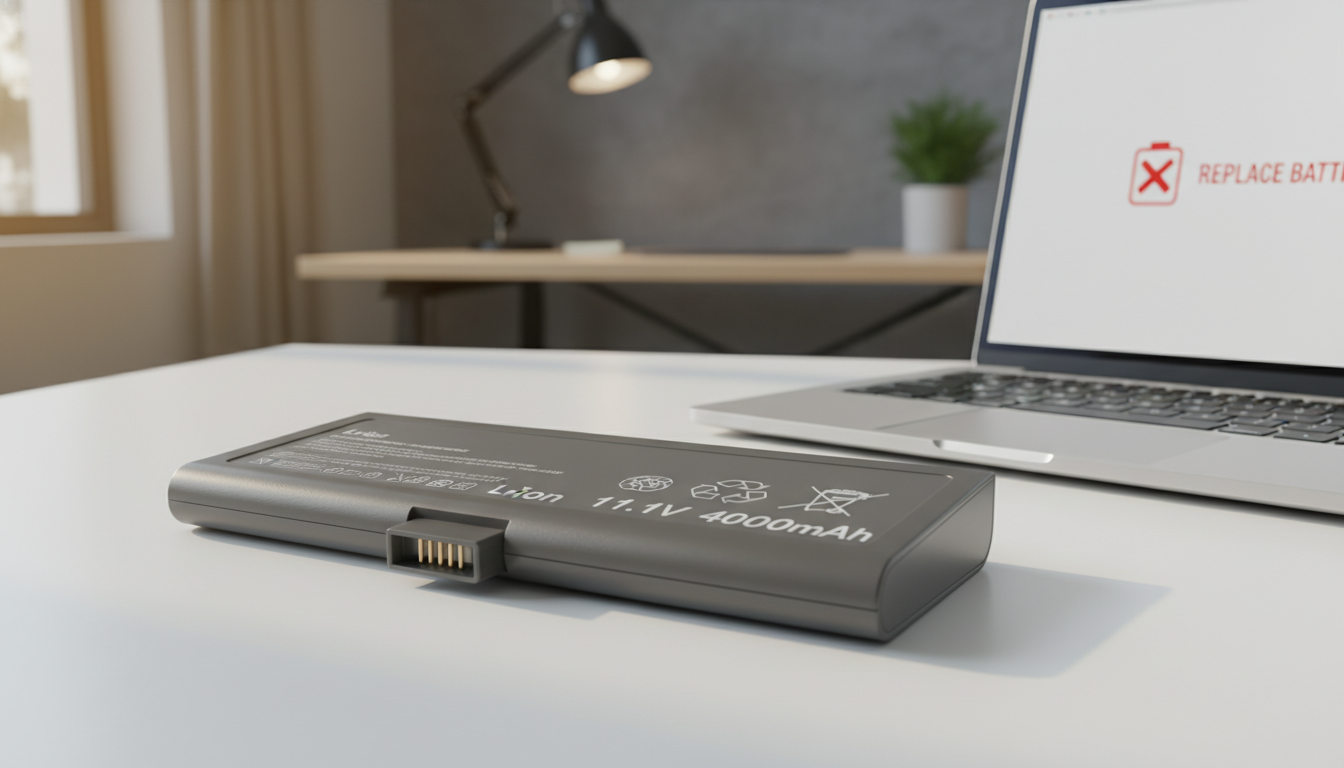
Calendar Aging Explained in Laptop Batteries
Learn about calendar aging laptop battery and how it affects your laptop's overall health. Get tips on how to slow down battery aging and maintain your device.
Calendar aging describes time-based decline in lithium-ion cells that starts from the first charge and continues even when a device sits unused.
For many U.S. users who leave devices plugged in, store them for weeks, or use them seasonally, this matters. The slow chemical reactions inside cells reduce runtime and weaken overall performance over months and years.
The article shows how to spot signs of wear, run basic health checks, and adopt settings and habits that slow the process.
We also explain the difference between wear from charge cycles and time-driven loss, and why both can affect the same machine.
Goal: Give practical steps to preserve battery life without relying on old myths about overcharging or memory effects.
Key Takeaways
- Time alone causes lithium-ion battery degradation, even when unused.
- Less runtime and poorer performance are the main practical effects.
- Learn to check health and recognize early signs of decline.
- Use settings and storage habits to slow the rate of loss.
- Both cycle wear and time-driven aging can affect one device.
Why laptop batteries lose health over time even when you barely use them
Time and heat quietly reduce a cell’s usable energy, even with very low cycle counts.
Internal chemistry runs 24/7. Slow reactions and rising internal resistance cause battery degradation while the device sits idle or stays plugged in.
Cycle wear comes from charge and discharge events. That type of wear shows up as a steady drop tied to how you use the machine. Time-driven wear, by contrast, depends on state of charge and temperature more than count of cycles.
In real terms, capacity loss means fewer hours of usable battery life, larger percent swings, and earlier low-charge warnings. Tools report battery health as a percent of design capacity, but that number is a simplified snapshot.
| Cause | Main driver | Practical sign | Typical timescale |
|---|---|---|---|
| Time-driven loss | High state of charge & heat | Faster % drops, less run time | Months to years |
| Cycle wear | Frequent deep discharge | Reduced max capacity by cycles | Hundreds of cycles |
| Combined effects | Hot, full storage plus heavy use | Noticeable loss after a few years | 1–4 years |
Many owners notice weaker performance after a few years, especially if the system runs hot or stays near full charge. Even a mostly plugged-in laptop can age quickly under those conditions.
How lithium-ion laptop batteries work in plain English
Inside every cell is a simple set of parts that store and move lithium ions to make power. This plain model helps explain what wears out over time and why heat and voltage matter.
What’s inside a cell: the core components
A typical cell contains an anode, a cathode, a porous separator, and an electrolyte that shuttles ions. Each part has a clear role:
- Anode: holds lithium when the pack is charged.
- Cathode: supplies most of the lithium inventory and sets the cell’s energy.
- Separator & electrolyte: keep electrodes apart while letting ions pass.
These components form the physical interfaces where later reactions—like SEI growth and electrolyte breakdown—happen.
What changes during charging and discharging
During charging, lithium ions move from cathode to anode. During discharge, they move back to produce current. That shuttle motion—charging discharging—is normal, but it also creates stress.
Every cycle and every hour at high voltage or temperature can consume tiny amounts of usable lithium. Over many cycles the finite lithium inventory shrinks, lowering the pack’s available capacity and shortening usable life in your laptop.
What calendar aging is and why it’s unavoidable
Time silently reduces a cell’s useful capacity through slow chemical reactions that never stop.
24/7 chemical side reactions
Even when a device is off, tiny reactions keep happening inside cells. Thermodynamics drives these changes and they cause steady degradation.
That process runs with or without use, so storage does not pause loss. Higher heat and long periods at high charge speed those reactions.
Why storage conditions matter as much as usage
A warm room, sunlight, or internal operating heat can harm a pack faster than a few short cycles. Storing a unit fully charged speeds damage.
Two main factors you can control are temperature and state of charge. Managing those helps extend pack lifespan and slow overall battery degradation.
| Factor | Effect | Control |
|---|---|---|
| High temperature | Faster chemical breakdown and more degradation | Cool, ventilated storage |
| High state of charge | Voltage stress shortens life | Store at ~40–60% charge |
| Usage patterns | Continuous plugged-in vs portable use changes risk | Adjust charge limits and avoid heat |
What’s happening inside the cells during calendar aging
Inside each cell a few slow chemical processes quietly reduce usable capacity and change how the pack behaves.
SEI growth and lost lithium inventory
SEI (solid electrolyte interphase) is a thin film that forms on the anode early in life to protect it. Over time the SEI keeps growing.
That growth consumes electrolyte and free lithium ions. Fewer mobile lithium ions means a steady loss of battery capacity, even with low use.
Thicker SEI, higher internal resistance, and more heat
As the SEI thickens, internal resistance rises. Higher resistance reduces available power and cuts real-world performance.
More resistance also creates extra heat under load. That heat speeds the chemical process that thickens the SEI, forming a damaging feedback loop.
Electrolyte breakdown, gas build-up, and swelling risk
Electrolyte decomposition can produce gas inside cells. Pouch-style packs are most prone to visible swelling.
Swelling is a safety red flag. It can press on internal parts, reduce cooling, and worsen degradation.
Why controls and readings drift with time
Battery management systems assume predictable cell behavior. As cells change, the BMS model diverges.
“State-of-charge readings and time-to-empty estimates can become unreliable as the pack’s chemistry and resistance shift.”
That mismatch explains sudden shutdowns, odd percentage jumps, and confusing run-time numbers.
- Symptoms users notice: shorter runtime, throttling, hotter charging, and unexpected shutdowns.
- Core causes: SEI growth, higher internal resistance, electrolyte loss, and control drift.
Key factors that speed up calendar aging laptop battery
If your machine runs hot while sitting at 100% charge, internal reactions will eat capacity faster than cycles do. Three main drivers make time-based degradation worse: heat, high-voltage stress at full state of charge, and long hours spent topped off.

Heat and temperature: why reaction rates accelerate fast
Heat is the biggest accelerator. Chemical reaction rates in cells often rise dramatically with temperature—roughly doubling for each +10°C increase in many cases.
That speeds side reactions in the electrolyte and at electrode surfaces, raising internal resistance and lowering usable capacity.
High state of charge and voltage stress at 100%
Keeping a pack near 100% creates high-voltage stress. This condition promotes parasitic reactions even when no cycles occur.
High voltage shortens life because it increases the rate at which active lithium and electrolyte degrade.
Time at full charge: the hidden damage of staying topped off
Hours or days spent fully charged is a time-driven stress pattern, not a cycle-count problem. Docked work machines, gaming rigs on AC, or always-on desks that heat the case are typical scenarios.
Later sections show practical fixes: set charge limits, enable optimized charging, and reduce operating temperatures to slow degradation.
“Heat and high voltage together create the fastest path to lost capacity.”
Calendar aging vs cycle aging and how to tell what’s hurting your battery
Figuring out whether time or active use is the main culprit helps you pick the right fixes. A quick routine check of how you charge and discharge will point you toward the dominant wear mode.
Cycle basics and full cycle equivalents
One full cycle equals a total 0%→100% shift, or the sum of partial discharges that add up to the same amount. Devices count these as “full cycle equivalents.”
Frequent shallow cycles still accumulate. Track cumulative cycles, not just daily top-ups, to estimate real wear.
Why deep discharge events are high-stress
Repeated 0% shutdowns and long full discharges stress electrodes more than shallow use. Deep discharge can speed chemical loss and raise internal resistance, shortening lifespan.
Fast charging and lithium plating risk
Fast charging pushes ions quickly into the anode. Under some conditions this causes lithium plating, which consumes active lithium and increases resistance.
Plating causes faster degradation than normal SEI growth and can cut useful years from a pack.
“Low cycles but big capacity loss usually signals time-driven decline; high cycles with many deep discharges points to cycle wear.”
- Diagnostic cues: low cycles + large capacity drop = time-related loss; high cycles + frequent deep discharge = cycle wear.
- Practical tip: reduce depth of discharge and avoid repeated 0% events to extend lifespan.
Signs your laptop battery is aging (capacity, power, and performance)
Noticeable runtime loss and odd performance stutters are often the first clues that a cell has lost capacity.
Shorter runtime and faster percentage drops
Capacity loss shows as shorter run times and faster percent swings. You may see the device die earlier than the percentage suggests.
Watch for runs that used to last hours but now end after a fraction of that time. Percentage jumps or sudden shutdowns at low charge are common signs.
Reduced power capability: throttling, slowdowns, and voltage sag
Higher internal resistance cuts power delivery. Under load the system may throttle, slow apps, or show lag that looks like a performance problem.
Voltage sag can force abrupt shutdowns during heavy tasks or cause the CPU to reduce speed to stay within limits.
Extra heat during use and charging
More resistance also makes more heat. If the unit runs hotter while charging or under load, the cell is working harder and will degrade faster.
Physical warning signs: swelling and when to stop using the device
Bulging under the trackpad, a raised palm rest, or a wobbly chassis are safety red flags. Stop using the machine and seek replacement immediately.
Note: Software “battery health” numbers can lag behind real behavior. Trust symptoms — runtime, heat, and performance — over a single percent reading.
| Sign | Likely cause | User experience | What to do |
|---|---|---|---|
| Shorter runtime | Lower usable capacity | Trips need more frequent charging | Check health report; reduce full-charge time |
| Throttling/slowdowns | Increased internal resistance | Apps stutter under load | Limit heavy tasks; cool the device |
| Extra heat | Resistance + chemical reactions | Warm case during charge or use | Improve airflow; avoid hot surfaces |
| Swelling | Gas from side reactions | Raised case or keys | Power off and replace the pack immediately |
How to check laptop battery health on Windows and macOS
Quick checks in your operating system and a few built-in reports reveal whether a pack still holds useful capacity.
Windows: generate and read the battery report
Open PowerShell or Command Prompt and run the built-in report command to export a detailed HTML file. Look for Design Capacity vs Full Charge Capacity to estimate percent loss.
Watch trends: a steadily shrinking full charge capacity points to long-term loss. Patterns of large drops while the device stayed plugged in suggest time-at-high-voltage stress.
macOS: Battery settings, condition, and cycle count
In System Settings (or System Preferences) check the Battery pane for condition and cycle count. Apple shows when service is recommended and lists cumulative cycles.
Low cycles do not guarantee good health if the device spent long periods hot and fully charged.
Limits of state-of-health metrics and next steps
Tools and software report capacity and resistance estimates, but they miss some internal faults. Use these reports as ongoing monitoring to guide charge habits or plan replacement.
| Metric | What it shows | Action |
|---|---|---|
| Design vs Full | Capacity loss | Change charging limits |
| Cycle count | Use history | Separate cycle vs time wear |
| Condition | Service flag | Consider replacement |
How to slow calendar aging with smarter charging settings
Smart charging settings cut hours spent at high voltage and reduce chemical stress. Small changes to charging behavior help preserve usable capacity and extend usable life.
Set a charge limit (the practical 80% approach)
Limiting the maximum charge to about 80% reduces voltage stress at the top end. That lower peak voltage slows chemical reactions that cause long‑term degradation.
For users who stay plugged in all day, an 80% cap can meaningfully slow capacity loss while keeping enough runtime for most tasks.
Use optimized or adaptive charging
Optimized charging delays the final fill to near your planned unplug time. This cuts the hours spent at 100% and reduces cumulative stress.
Most manufacturers provide this in their software—Apple, Dell, Lenovo, HP, and ASUS include it. Turn it on for automatic, hands‑off protection.
Avoid always‑full behavior when plugged in
If you work at a desk and are plugged in all day, aim for a capped charge during those hours. Only top to 100% just before travel or long unplugged use.
“The problem isn’t Overcharging; it’s sitting at full charge for long periods.”
- Outcome: slower capacity loss, steadier health readings, and longer battery life.
- Tip: use manufacturer software when available to enforce limits and schedules.
How to reduce battery degradation by managing heat
Controlling how a device sheds heat every day makes a big difference in how long its cells stay healthy. High temperatures speed chemical side reactions and raise internal resistance. That combination accelerates both time-driven and cycle-driven degradation.
Keep airflow clear: stands, vents, and avoiding soft surfaces
Ensure vents are free and intake/exhaust paths are open. Soft surfaces like beds or couches block airflow and trap warmth under the chassis.
Use a simple stand to lift the base and improve intake. Even a small elevation can lower internal temperature and cut stress on the pack.
Gaming and heavy workloads: why internal heat “cooks” batteries
Sustained CPU or GPU loads raise chassis heat and warm cells, even when the system is plugged in. Activities like gaming, video editing, or long compilations can “cook” the pack over hours.
Limit long, full-throttle sessions or add active cooling if you run heavy workloads regularly. Cooler operation slows resistance growth and preserves performance.
Safe temperature ranges for everyday use and charging
Aim to keep the device in a moderate environment and avoid direct sun or hot cars. Well-ventilated desks beat cramped, warm docking stations.
Practical rule: avoid sustained operation or charging in very hot conditions. Treat heat as a controllable variable—reducing thermal stress often gives the biggest day-to-day longevity benefit.
Best day-to-day habits that protect laptop battery life
Targeted daily routines reduce stress on cells and extend usable run time without losing convenience.
Practical target ranges
Avoid extremes: try not to hit 0% often and minimize hours sitting at 100%.
A good everyday window is keeping the pack roughly between 40% and 80% when possible. Top to 100% only before long trips.
Why shallow cycles help
Partial discharges put less stress on cells than deep drains. Frequent small top-ups instead of full runs usually yields more usable life and steadier performance.
Shallow cycles slow capacity loss per cycle and reduce the chance of sudden shutdowns.
Watch fast and wireless charging
Fast chargers and wireless pads raise temperature. Extra heat increases wear and can raise plating risk during high-rate charging.
Use fast charging for short, urgent boosts. For daily fills prefer standard charging and keep vents clear.
- Low-stress routine: top up from ~40–60% when near an outlet.
- Commuter tip: charge to 90% before a long day away.
- Home office: enable an 80% cap if you stay plugged in most of the time.
“Small, consistent habits beat occasional extremes for long-term pack health.”
Plugged in most of the time vs always on the go: choose the right strategy
Pick a care plan that matches how you actually use your machine. Different usage habits mean different risks: a desk setup sees more stress from heat and high state of charge, while a mobile user piles up cycles and deep discharges.
Desktop replacement profile
Who this fits: a user who keeps a laptop mostly plugged in at a desk.
What to do: set a charge limit (about 80%), enable optimized charging when available, and avoid long high‑heat sessions while docked.
Road warrior profile
Who this fits: a user who runs on battery most days and travels frequently.
What to do: avoid routine 0% shutdowns, plan top‑ups to keep discharges moderate, and use occasional full cycles only when needed to recalibrate state-of‑health.
Hybrid routine
For mixed use, try a practical schedule: cap charging during workdays, then plan a full charge before flights or long meetings. This reduces both time-driven stress from long full sits and cycle stress from deep drains.
- Match settings to actual usage, not idealized rules.
- Use software charge limits when available; top to 100% only as needed.
- Treat care as a strategy: small choices reduce both heat + high‑voltage stress and excessive cycles.
Storage, travel, and long breaks: how to store a laptop to minimize aging
Small storage steps—like setting a mid-level charge and keeping the unit cool—pay off in longer service life. Follow straightforward habits before travel or long breaks to slow time-driven loss and keep usable capacity higher.
Best storage charge level to reduce chemical stress
Avoid storing at 100% or near 0% for long periods. Aim for a mid-charge state — roughly 40–60% — before powering down for weeks or months.
Cool, dry storage and what to avoid
Cool, dry places slow the slow reactions that reduce capacity over time. A climate-controlled closet or drawer is better than a hot attic or trunk.
Do not leave devices in hot cars, direct sun, or sealed bags that trap warmth. Those conditions accelerate loss and can cause swelling.
Practical steps before a long break
- Charge to ~50%, then shut the device down.
- Store where airflow is possible and temperatures are moderate.
- For multi-month storage, check the charge every 2–3 months and top up if it drifts low.
“A short storage routine reduces capacity loss and delays the need for early replacement.”
These simple choices help preserve battery health and extend the useful life of your laptops during periods of inactivity.
When to consider battery replacement and how to get the most from a new one
Deciding when to replace a worn pack comes down to safety, usable runtime, and how often your machine fails to meet daily needs.
Common end-of-use thresholds and what they mean
Many systems and warranties use ~80% of original capacity as a practical end-of-use marker. For a device that once ran five hours, 80% means about four hours.
Replace sooner if you get frequent shutdowns under load, severe % jumps, or any swelling. Swelling is an immediate safety reason to stop use and seek service.
Resetting expectations after you install a new pack
A new pack restores capacity and power capability, but the same rules apply. Time and cycles start affecting the replacement immediately. Expect normal degradation over months and years.
| Issue | Practical sign | Action |
|---|---|---|
| ~80% capacity | Shorter run time | Plan replacement |
| Frequent shutdowns | Unreliable mobility | Replace now |
| Swelling | Visible bulge | Power off; replace immediately |
Start right: after replacement enable a charge limit, avoid heat, and don’t leave the new pack topped at 100% for days. Choose OEM or a reputable third-party pack and handle physical damage with caution.
“A new pack gives more hours today, but good habits keep those hours longer.”
Conclusion
Power loss is driven by chemistry and stress; managing heat and charge state keeps more runtime for longer.
Overall, cell health declines from both time and use. For many plugged-in machines, time-driven aging can dominate. That means heat, high state of charge, and long sits at 100% matter as much as cycles.
Three practical levers help most: lower operating temperature, avoid long periods at full charge, and stop frequent deep discharges to 0%. These steps slow internal resistance growth, which preserves power and reduces extra heat.
Use built-in OS and vendor tools to track capacity trends and adjust habits before problems get worse. If you see swelling or other physical warnings, stop use and replace the pack immediately.
Choose a consistent charging strategy that fits how you use your laptop. Small, steady habits extend usable life and keep performance more reliable over time.