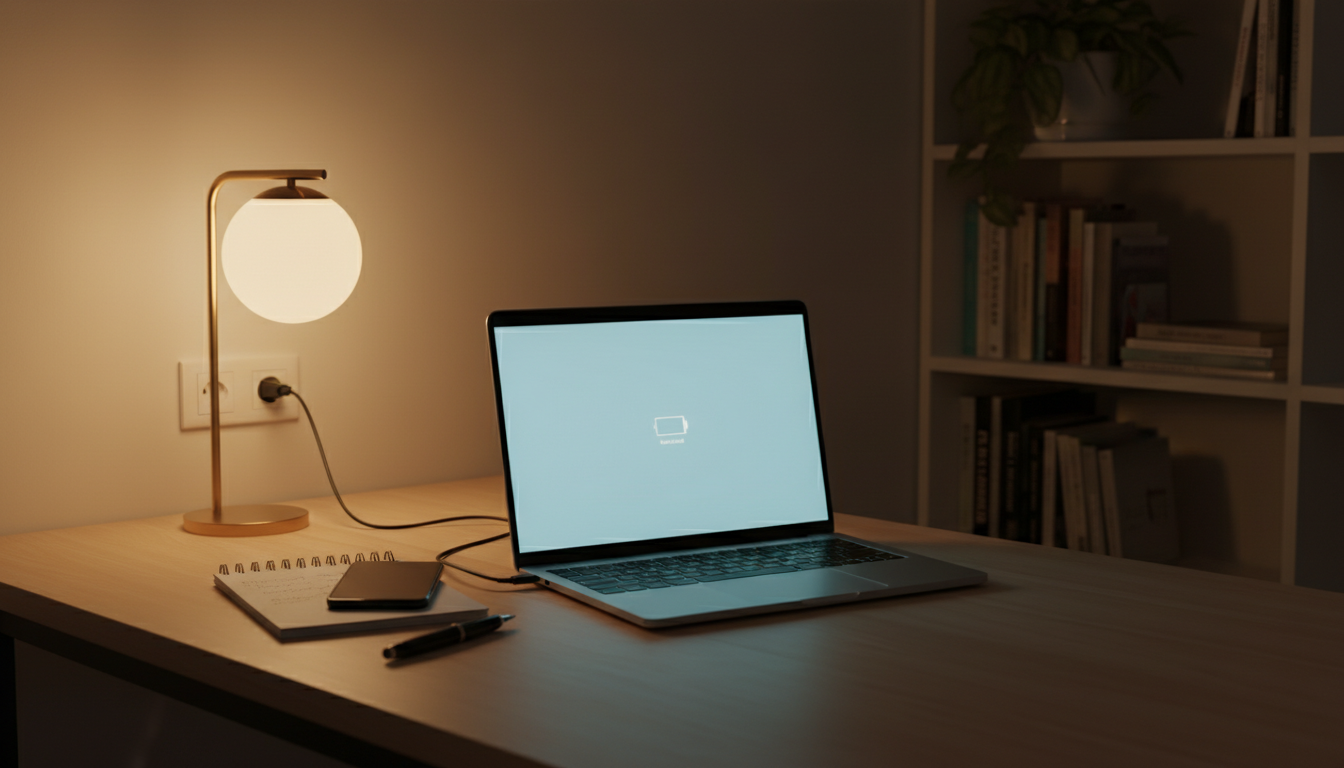
Is It Safe to Charge a Laptop While It’s Hot
Is it safe to charge a hot laptop? Find out the best practices for charging your laptop when it's hot and learn how to prevent damage.
This short guide explains when it’s okay to keep your device plugged in and when to act fast.
Modern designs include protections that stop overcharging, but staying connected for long stretches can cause a trickle effect that raises temperatures and wears the battery over weeks or months.
Feel for mild warmth near the keyboard or port; that is normal. Excessive heat that feels uncomfortable or builds quickly signals problems with power delivery, heavy workload, or clogged vents. That kind of overheating can lower performance and shorten battery life.
This article is a practical, U.S.-focused how-to for common Windows models and MacBooks. You’ll learn why charging raises heat, what to do right away, and simple steps to protect long-term battery health and charging efficiency.
Start a quick self-check: note where heat concentrates, whether fans speed up, and if the system throttles. These signs help answer basic questions like whether it’s safe to use the device while it charges and when to unplug and cool down.
Key Takeaways
- Normal warmth is expected; uncomfortable heat is a red flag.
- Modern systems manage charge, but long-term trickle can harm battery life.
- Check vents, fan activity, and where the heat builds.
- Unplug and cool the device if temperatures rise quickly or performance drops.
- Advice applies to common Windows models and MacBooks in the U.S.
Why laptops get hot during charging in the first place
Providing external power does more than top up the battery. When a system sees AC input, it can let the CPU and GPU run at higher clocks. That extra performance increases power draw and produces more heat around the case and vents.
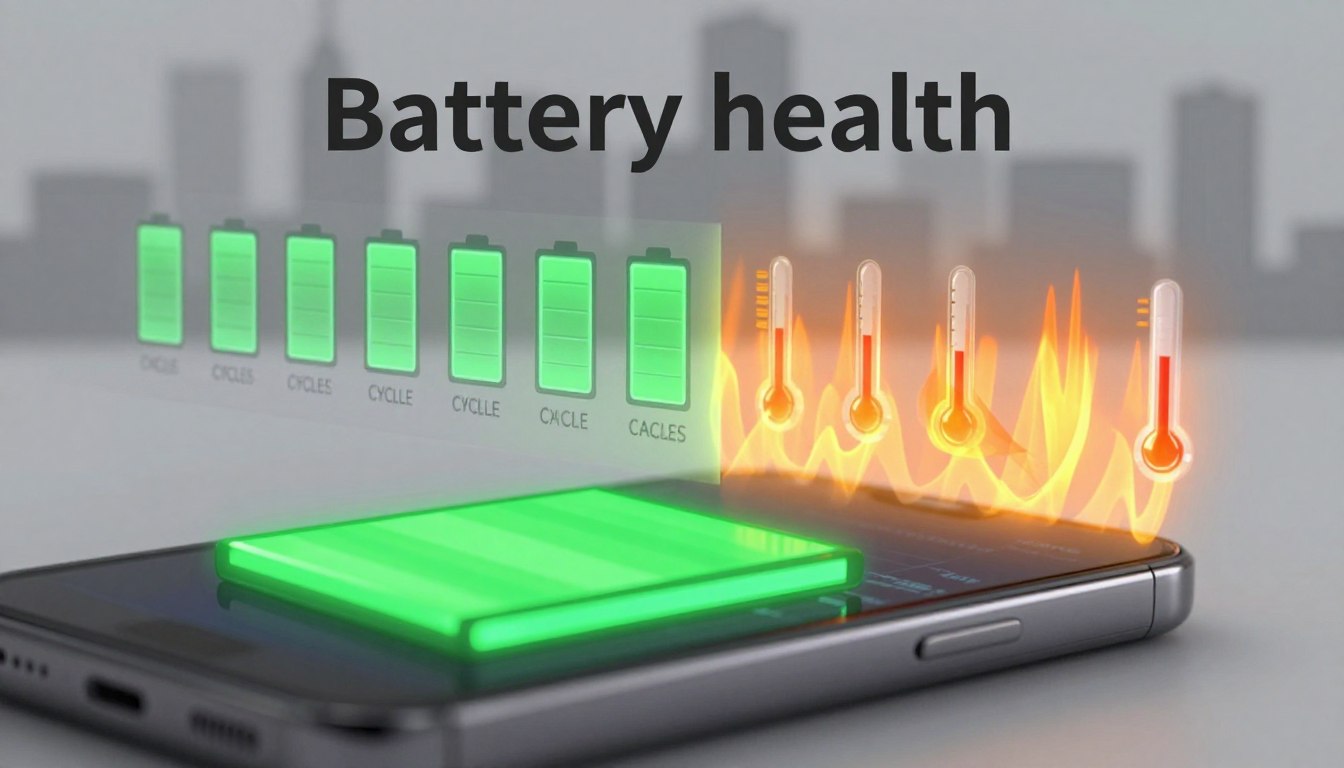
Aging batteries waste energy as heat. Lithium-ion cells develop higher internal resistance with time, so some charging energy is lost as warmth instead of stored. Symptoms include slower charge, hotter palm rests, and more frequent fan activity.
Blocked vents and soft surfaces make matters worse. Placing the device on beds or couches reduces ventilation and traps warm air near heat sinks and the battery area.
Environmental factors also matter. High room temperatures or direct sun raise baseline casing temperatures so the same workload can trigger overheating faster.
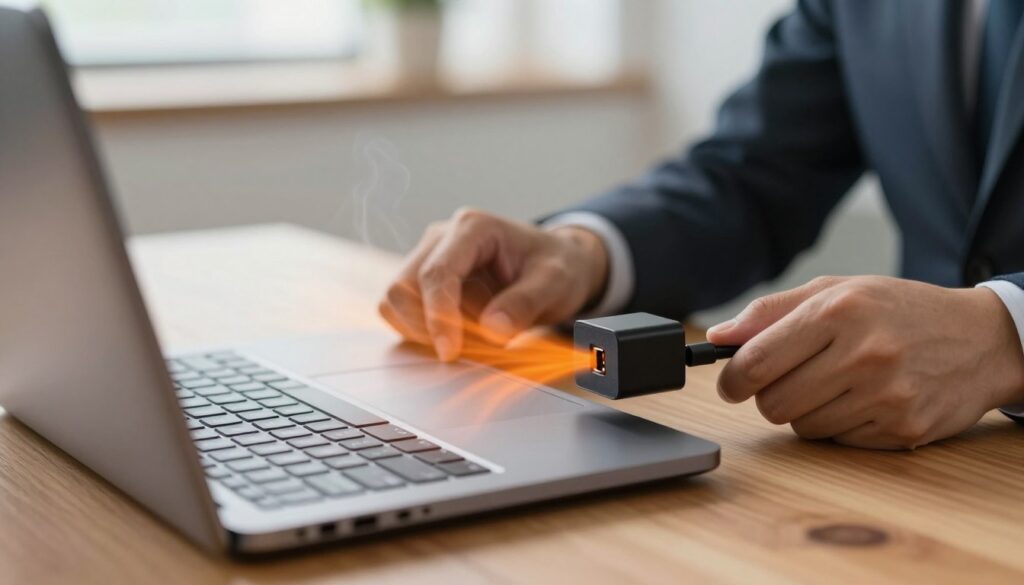
Finally, mismatched or poor-quality chargers raise conversion losses. Incorrect wattage, subpar cables, or incompatible USB-C profiles can concentrate heat at the port and reduce charging efficiency.
These are stacking factors: a warm room + blocked vents + high-performance mode + an older battery is far more likely to cause problems than any single issue alone.
- Power availability can change performance and heat output.
- Battery age increases internal resistance and heat loss.
- Poor ventilation and high ambient temperature raise overheating risk.
- Use the correct charger and quality cables to improve efficiency.
Hot laptop charging: what to do right away to keep it safe
Act fast but calmly. First, identify any localized hotspots—around the charging connector, center of the keys, or the rear vent. Check whether warmth is steady or rises quickly.
Quick decision flow:
- If mild and stable, move the device to a hard, flat surface and watch for changes.
- If temperatures climb rapidly or the connector area feels very warm, unplug and let the device cool before reuse.
Reduce load to cut heat: close games, video editors, and heavy tabs. Pause large downloads and background tasks. Switch to balanced or power-saver mode, lower screen brightness, and unplug extra peripherals.
Improve airflow immediately: place the unit on a flat desk, elevate the rear slightly, and clear vents of dust. Fans that speed up are normal; constant max speed plus rising heat signals a cooling issue.
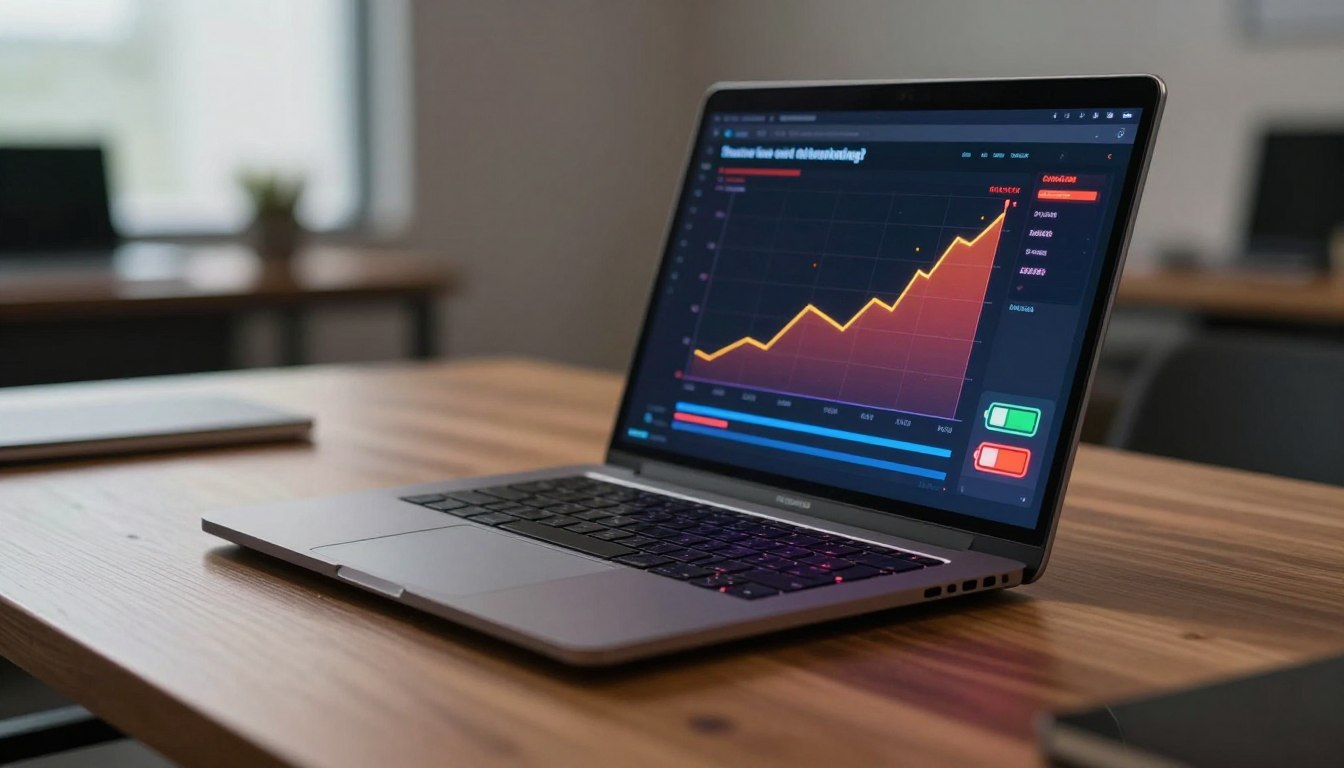
Inspect the charger and cable. Confirm matched wattage, avoid frayed cords, and skip unknown low-quality USB-C adapters. Use Open Hardware Monitor or equivalent software to watch CPU, GPU, and battery sensors for trends.
| Check | Action | When to stop |
|---|---|---|
| Keyboard center | Move to flat surface; reduce load | If heat rises fast |
| Charging port | Unplug and inspect cable/adapter | If connector is very warm |
| Underside vents | Clear dust; elevate rear | If fans stay at max and temps climb |
Safety boundary: if the device shuts down, smells burned, or the charger brick becomes unusually hot, stop use and seek professional service.
Prevent overheating and protect battery health over time
Small changes in settings and routines can cut peak temperatures and extend battery life.
Optimize power settings to balance performance and temperatures
Keep the default “Balanced” profile for daily tasks. Use Best power efficiency when plugged in during warm room conditions. Reserve High performance for short sessions and pair it with good ventilation.
Keep BIOS and drivers updated for better thermal management
Vendors often refine fan curves and power limits in updates. Install BIOS/UEFI and chipset updates to help the system manage thermals and sustain performance.
Avoid staying plugged in at full charge for long periods
Modern systems stop at 100%, but trickle behavior over weeks can add heat and reduce laptop battery life. Use manufacturer battery health modes or unplug once convenient to limit long-term wear.
Spot aging or charging issues early
Signs like rapid percentage drops, swelling, or “plugged in, not charging” point to battery problems. Run a battery report, try calibration, and consider professional testing if problems persist.
“Reducing peak temperatures and avoiding chronic heat exposure is one of the biggest controllable factors for extending laptop battery life.”
| Action | When to use | Expected benefit | When to seek service |
|---|---|---|---|
| Balanced or power-saver mode | Daily work; warm environments | Lower sustained heat; longer life | If temps and drain stay high |
| BIOS and driver updates | After vendor release | Better fan control; fewer throttles | If updates don’t fix thermal spikes |
| Unplug at full or set charge limit | Long idle periods | Reduce trickle; less wear over time | If battery still gets very warm |
| Calibration and battery report | Every few months | Accurate readings; detect faults | If reports show rapid capacity loss |
Conclusion
Treat recurring heat spikes as practical clues, not mere annoyances. Charging while warm is often okay, but repeated overheating signals something to fix.
Use a quick checklist: move the device to a hard surface, clear vents, pick Balanced power mode, and confirm correct charger wattage. These steps lower stress on the battery and improve ventilation immediately.
Adopt a few habits for longer life: avoid staying plugged in at full charge for long stretches, keep firmware and drivers current, and monitor temperatures during heavy use. Small changes add up to better battery health over time.
If the unit gets very warm again, treat spikes as diagnostics that point to battery age, airflow issues, or a faulty cable. Read the faqs next for clear rules of thumb on using and when to unplug.
Safety note: if the device becomes dangerously hot, shuts down, or shows swelling, stop use and seek qualified service.