Why Old Laptop Batteries Drain Faster Than New Ones
Why does old laptop battery drain happen? Get insights and troubleshooting steps to optimize your laptop's battery performance and longevity.
This article explains why a device that once ran for hours now loses charge much quicker under the same daily use. Li‑ion cells wear out: capacity drops with time and charge cycles, so faster loss is often part wear and part other causes.
Quick view: chemical aging reduces capacity, internal resistance rises, and calibration or heat can make runtime shrink. Power-hungry tasks and adapter limits can also cause the unit to draw from the cell even while plugged in.
This guide focuses on troubleshooting now: how to tell normal aging from fixable settings, adapter issues, or a hardware fault. It flags serious signs to stop use and seek repair, such as overheating, swelling, or smell. The article then walks you step-by-step to confirm causes, tweak power settings, and choose repair or replacement when needed.
Key Takeaways
- Capacity loss is normal; reduced runtime often reflects wear.
- High internal resistance and heat make charge fall faster.
- Devices can draw power while plugged in if demand exceeds adapter output.
- Check for swelling, smell, or heat and stop use if seen; seek repair.
- The guide gives a step path: spot symptoms, test causes, apply fixes, then decide on replacement.
What “Fast Battery Drain” Looks Like on an Aging Laptop Battery
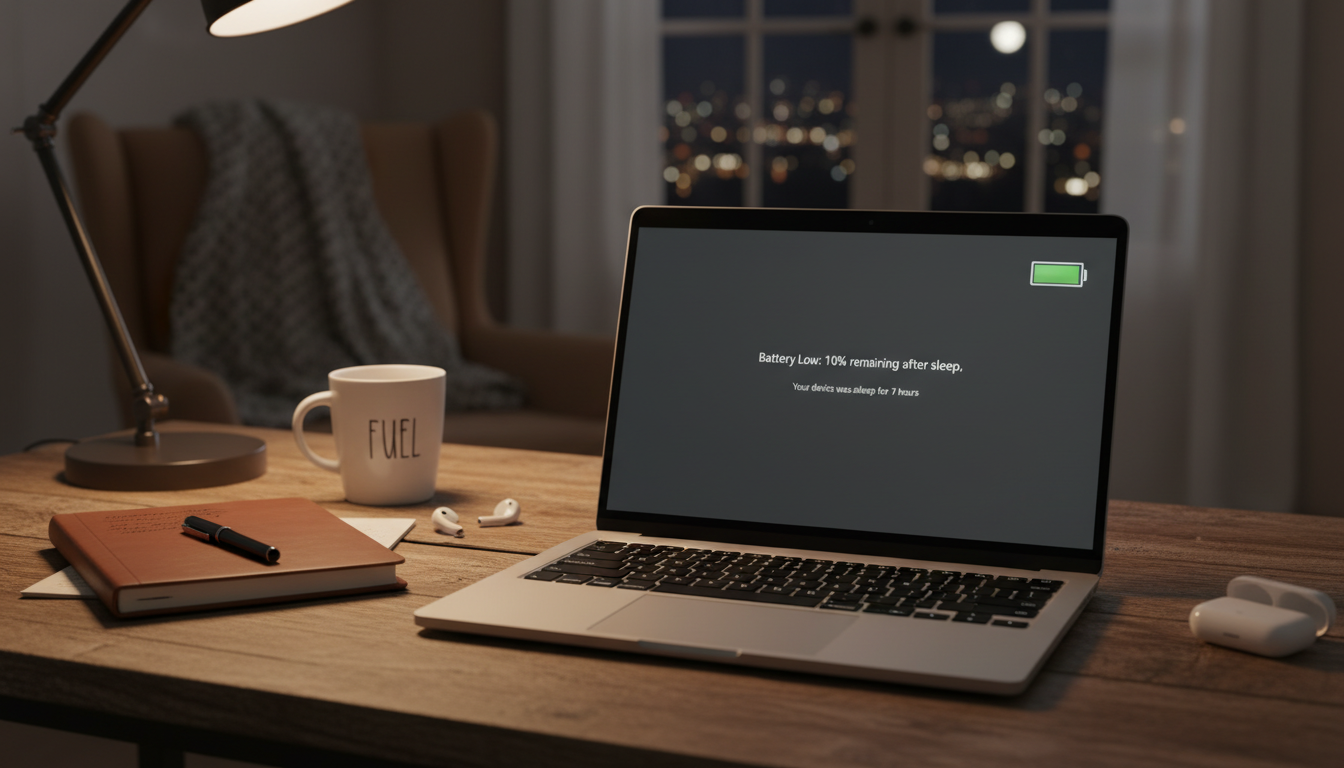
Seeing big swings in percentage or much shorter run time is the first clue of a charging problem. Watch for a shorter unplugged time, sudden jumps in percent, or a status that changes after sleep or reboot.
Common signs to notice
Shorter run time: You used to get hours; now you get far less for the same tasks.
Rapid drops: Percent can fall fast — for example, 40% to 15% in minutes — which can mean capacity loss or a fuel-gauge error.
Inconsistent status: The readout may stall at a percent, jump after restart, or behave differently across reboots.
Workload vs idle
To tell workload-driven drain from idle problems, test two states: open only the desktop with minimal apps vs running heavy software like games or video editors.
Define idle as screen on, no major apps, few background tasks, and no external devices attached.
| Symptom | Likely cause | Quick test |
|---|---|---|
| Steady, slow decline | Normal use or high power apps | Compare idle vs heavy app runtime |
| Chunky drops or jumps | Fuel-gauge misreporting or aged cells | Reboot and note percentage changes |
| Still draining when plugged in | Adapter limits or high workload | Run on AC with heavy app and monitor wattage |
Note: Perceived fast drain can be a power-budgeting issue: settings and workload may simply demand more than expected. Battery health still matters under load and can make symptoms look worse. The next section explains the underlying causes so you can pinpoint the root problem.
Why Old Laptop Battery Drain Happens Over Time
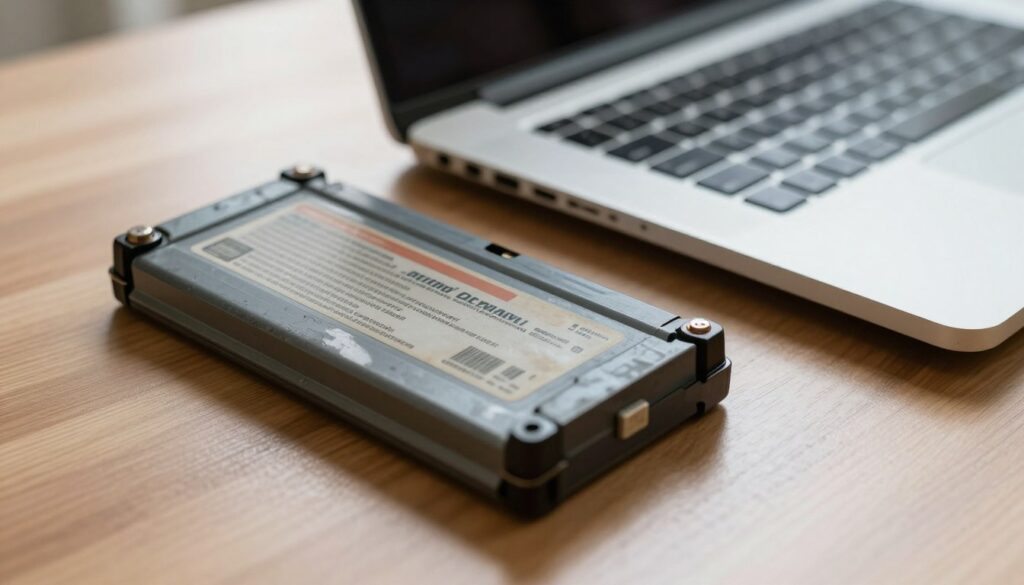
Cell chemistry and use patterns explain most reduced runtime. Over months and years, maximum stored energy falls so a full percentage can mean less real run time.
Lithium-ion aging: capacity loss as a normal, consumable process
Each charge cycle and calendar day slightly reduces cell capacity. That means a 100% readout may contain fewer watt-hours than when new.
Result: shorter battery life and lower usable life per charge, even with normal use.
Higher internal resistance: cells struggle under load
Aged cells gain internal resistance. During CPU or GPU spikes, voltage sags and the system pulls extra power from the battery.
This makes percent drop quickly and can cause early shutdowns under heavy power draw.
Calibration and fuel-gauge errors
The power-management system estimates state of charge from learned behavior. When capacity changes, estimates can go off.
Symptom: sudden percent jumps, “plugged in, not charging,” or fluctuating runtime readings.
Heat impact: reduced charging efficiency and faster loss
High temperatures make cells accept charge less efficiently and increase wear. Dust-clogged vents or old thermal paste raise chassis temps.
Improving cooling and running calibration checks can reduce these day-to-day issues, though capacity loss remains a normal outcome.
| Cause | Effect on runtime | Quick mitigation |
|---|---|---|
| Lithium‑ion aging | Lower max watt‑hours at any percent | Check health reports; plan replacement |
| Higher internal resistance | Voltage sag under load; sudden drops | Reduce peak load; limit heavy apps on battery |
| Calibration errors | Inaccurate percent and abrupt changes | Run full charge/discharge cycles or recalibrate |
| Heat and poor cooling | Poor charging efficiency; faster wear | Clean vents, improve airflow, reapply thermal paste |
Quick Checks to Confirm the Real Cause Before Changing Settings
Start with a quick triage to confirm whether the problem repeats under the same conditions. These steps prove if the issue is hardware, adapter, or workload related.
Check system health and status
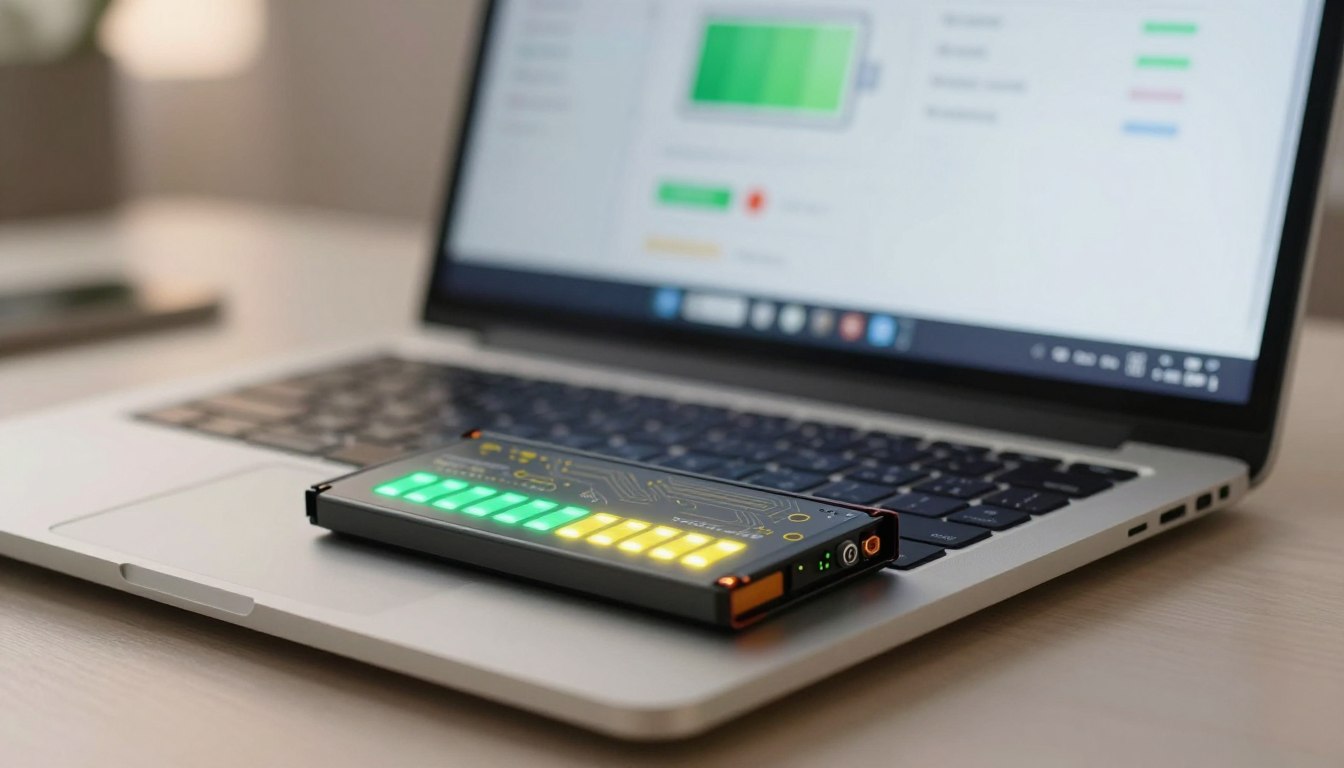
Use built-in tools to run a battery health report and view design capacity versus full charge capacity. Note cycle count and any unusual percent swings in the status output.
Verify adapter wattage vs real-world load
If peak demand exceeds adapter wattage, the system will pull power from the cell while plugged in. Confirm you have the OEM charger or a higher-rated unit and update firmware and drivers if suggested by support.
Inspect charger, cable, and port
Look for kinks, heat marks, bent pins, loose plugs, or a hot brick. If moving the plug makes the charge start or stop, treat the jack as a repair item.
Controlled tests and peripheral elimination
Measure runtime at idle, then under heavy apps (gaming, video encode, graphics software). Disconnect hubs, drives, and USB devices, then re-test to see if the symptom stops.
| Check | What to look for | Action |
|---|---|---|
| Health report | Design vs full capacity, cycles | Plan replacement or recalibrate |
| Adapter wattage | Adapter rating vs peak demand | Use OEM/higher watt charger |
| Charger & port | Wobble, heat, connect/disconnect | Repair jack or replace cable/charger |
| Load test | Idle vs heavy app usage | Identify software or power-hungry devices |
Decision point: if hardware signs appear—wobble, heat, or inconsistent charging—prioritize repair diagnostics over more settings changes. Otherwise, apply the targeted steps in the next section.
Windows Power Settings and System Tweaks That Reduce Battery Drain
A few targeted settings in Windows can cut steady power use and extend unplugged time.
Start here: open Settings → System → Power & battery and review the main controls. Choose a power plan or mode such as Balanced or Best power efficiency. These reduce boost behavior and limit background work.
Sleep, screen, and saver
Set short screen timeouts and a quick sleep interval that fit your workflow. Configure Battery saver (Energy saver) to turn on at about 50% and limit background activity and push notifications.
Screen and performance
Lower screen brightness to the minimum comfortable level and drop refresh rate when unplugged. Reduce display power to cut one of the largest continuous draws.
Background apps and radios
Use Task Manager to spot high-CPU or rogue apps. End or uninstall unnecessary background apps. Turn off Wi‑Fi and Bluetooth when not needed to stop constant scanning.
Updates and verification
Apply BIOS/UEFI, chipset, GPU driver, and Windows package updates to fix power-management bugs (ASUS and vendor advice). After changes, re-test with the same workload to verify improvement.
| Setting area | Quick action | Why it helps |
|---|---|---|
| Power & battery | Select Best power efficiency | Limits peak draw and background activity |
| Display | Lower brightness / refresh rate | Reduces continuous power use |
| Battery saver | Enable at ~50% | Mutes background tasks and notifications |
| Task Manager | End high-CPU apps | Stops runaway processes that waste power |
High-Drain Culprits You Can Control Day to Day
Everyday habits and apps can push power use higher than you expect. Spotting the top culprits helps you get more run time from an aging cell and avoid surprises during travel.
Power-hungry programs and performance bursts
Video editors, modern games, and heavy multitasking demand sustained CPU and GPU work. That causes performance bursts: turbo speeds spike current draw for short periods and shorten usable time fast.
External displays and graphics behavior
Running a second screen forces higher GPU states and may raise screen brightness. Choosing integrated graphics for light work saves power; forcing the discrete GPU ramps consumption.
Always-on accessories and lighting
Keyboard backlight, wireless receivers, and dongles add constant draw. Each small device matters more as capacity falls.
USB devices, docks, and bus-powered drives
Hubs and bus-powered drives pull extra current. Charging a phone from the USB port or using a dock can push total demand past the adapter rating, so the cell supplements power.
“Disconnect nonessential devices, lower brightness, and close unused programs to keep the system in a lower-power state.”
Practical habits:
- Make an on‑battery routine: lighter apps, fewer peripherals.
- Drop screen brightness and disable keyboard lighting when unplugged.
- Unplug bus-powered drives and turn off Bluetooth if unused.
- Select integrated GPU for simple tasks and use power-saving modes.
| Culprit | Immediate effect | Quick fix |
|---|---|---|
| High-performance software (video, games) | Spikes current draw; shortens run time | Close apps or lower settings |
| External display / high brightness | Higher GPU state and brighter screen power use | Lower brightness; use single monitor |
| Peripherals & USB devices | Continuous extra load; can exceed adapter | Disconnect nonessential devices |
When Battery Drain Points to Hardware Wear or a Repair-Level Problem
When runtime loss resists settings changes, the root cause may be a physical fault that needs hands‑on repair.
Replacement thresholds and health signals
Check full‑charge capacity against design capacity. If usable capacity falls well below design, software tweaks give diminishing returns.
If full capacity is under ~60% of design, you may need replacement. At that point, higher internal resistance makes the pack perform worse under load.
Charging-port and charger faults
Intermittent charging that stops when the plug moves usually means a worn DC‑in jack or loose connector. A failing charger can also overheat or fail to deliver rated power.
Thermal red flags and firmware causes
Hot chassis at light use, loud fans, or charging that stalls at high percentages point to thermal or cooling problems. Dust or old paste increases temperatures and reduces charging efficiency.
If symptoms start after an update, corrupted drivers or firmware can change power behavior; update or roll back as needed.
Safety and repair guidance
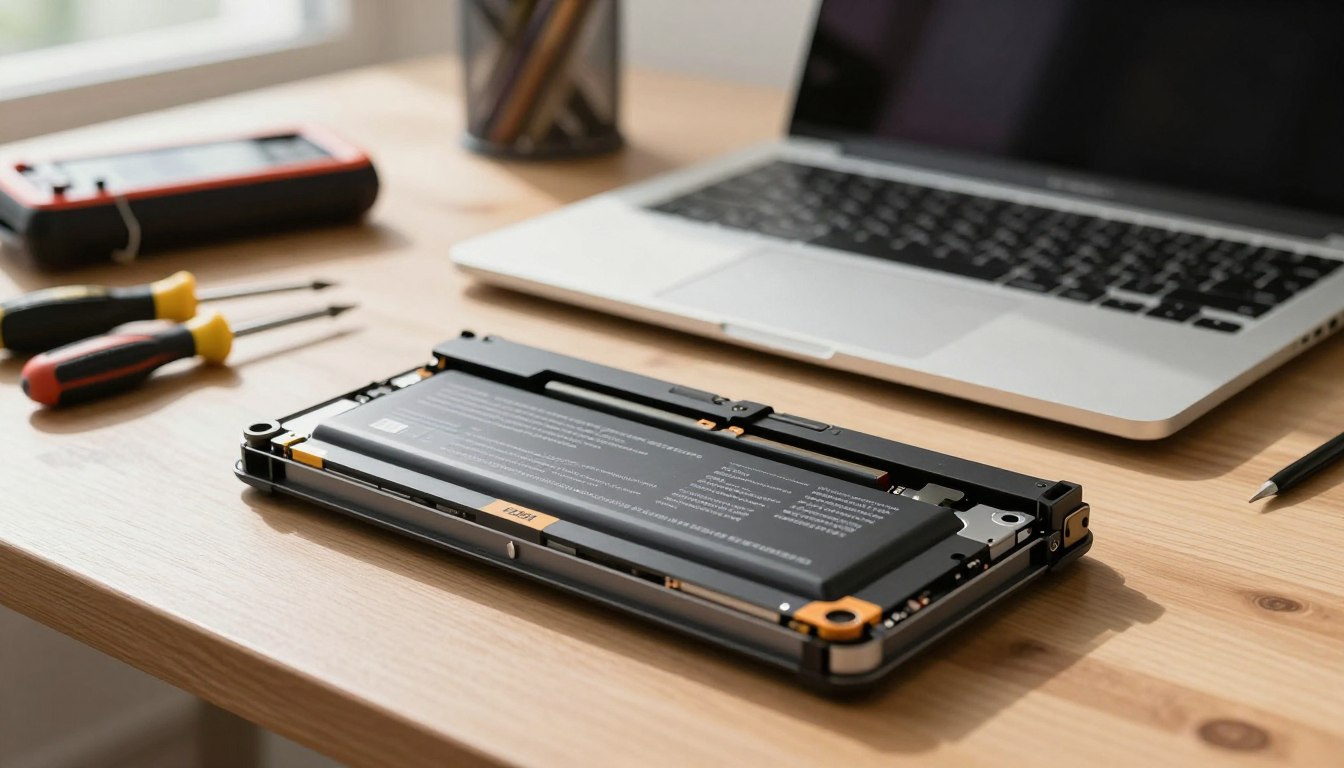
Stop using immediately if you see swelling, a burning smell, or extreme heat. Seek professional repair evaluation.
Port and thermal repairs often restore normal charging; worn cells usually require replacement to regain runtime.
Conclusion
Conclusion — a compact checklist to finish
A short, practical checklist helps you confirm symptoms, apply fixes, and decide if repair or replacement is needed.
First, verify adapter wattage and run a health report to check battery capacity and status. Separate idle versus heavy use behavior and note whether the system still loses charge while idle.
Then apply targeted Windows settings: pick a low-power mode, close high‑CPU apps in Task Manager, and use the taskbar battery icon to watch changes after each step.
If charging is unstable, the plug moves, or heat/throttling continues at idle, the issue is likely hardware and may need repair or replacement. Stop using the device if you see swelling or extreme heat and seek qualified support.