Is Charging a Laptop at Very Low Battery Levels Harmful
Understand the impact of low battery charging laptop on your device. Find out if charging at very low levels is harmful and how to optimize your laptop's battery health.
This article answers a common worry: does plugging in at single-digit percentages hurt your device?
Short answer: modern units use smart management systems that handle routine top-ups. The bigger threats are heat, aging cells, and faulty adapters or ports.
We define “very low” as single-digit percentages, critical warnings, or sudden shutdowns. Many users search this topic due to anxiety about lifespan, lost work when power fails, and cases where the machine shows “plugged in, not charging.”
Safety first: if you see swelling, a burning smell, visible damage, or extreme heat, stop charging and get professional repair help right away.
What to expect in this article: begin with basic checks (outlet, cable, port, heat), move to advanced diagnostics (BIOS adapter recognition, OS power settings, driver checks, LED signals), and close with when to replace the cell.
Practical goal: help readers in the United States restore reliable power, cut repeat failures, and protect battery life without overcomplicating normal charging habits.
Key Takeaways
- Modern systems generally tolerate charging from single-digit percentages.
- Main risks come from heat, aging cells, and bad chargers or ports.
- Stop and seek repair if you notice swelling, smells, or extreme heat.
- Start with simple checks: outlet, cable, and port before advanced fixes.
- The guide will show signs of failure and when replacement is needed.
Is low battery charging laptop harmful or normal for modern laptop battery health?
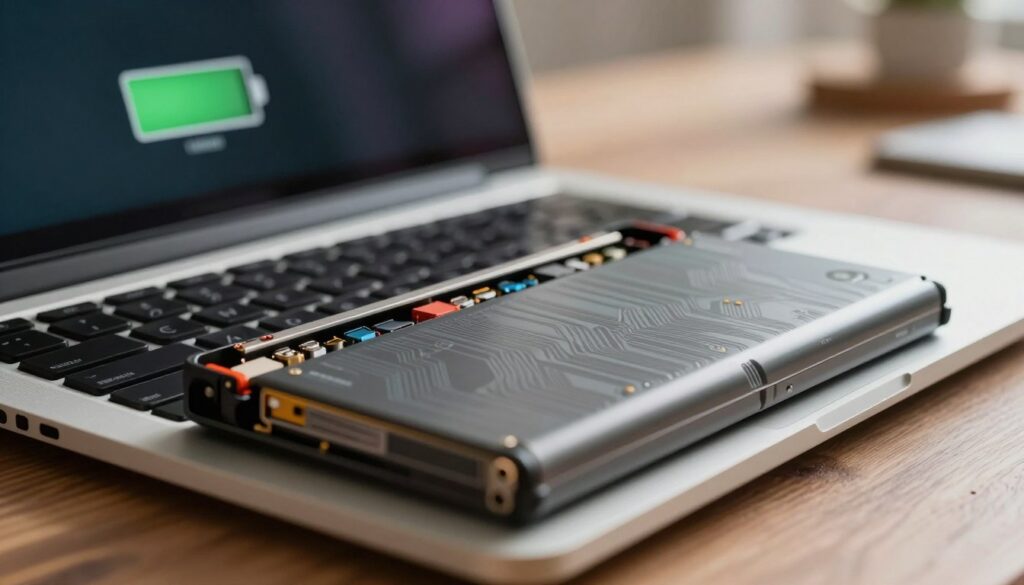
When a portable computer nears critical power, onboard controllers step in to protect the cell and the system.
What happens inside when the cell hits very low power
Modern packs and firmware reduce output as capacity falls. Controllers may throttle performance or force a shutdown before true deep discharge occurs. This behavior is intentional and prevents chemical damage during normal use.
When this becomes an issue instead of routine use
Repeated full drains, high temps, or an aged cell can make top-ups slow or erratic. Overheating or heavy workloads may pause incoming power until the system cools (Asurion). Also, BIOS charge modes can cap maximum charge for longevity, which can look like a problem if unexpected (Dell).
Signs your device has a real charging problem
- “Plugged in” status missing or flickering.
- Percentage stuck or sudden shutdowns at non-zero values.
- Charging LED shows error patterns or the charger is intermittently recognized.
Note: a single forgotten plug-in is normal. A repeating pattern points to an underlying issue with the cell, charging circuit, or adapter recognition. If recovery from low power is unreliable, the next section walks through quick fixes.
Troubleshooting low battery charging laptop problems: cables, outlet, heat, and quick fixes
Before assuming a failed cell, walk through a few fast tests that fix most power problems.
https://www.youtube.com/watch?v=YdVXT_PUO0Y
Power cycle to clear a temporary fault
Steps: shut down completely, unplug accessories, and wait about 30 minutes. This pause lets the device cool and clears transient faults.
After waiting, reconnect the power cable and test from a low state. Success looks like the LED changing and the percent rising.
Check the cable, power cable, and cord
Inspect for frays, bent pins, scorch marks, or a loose fit. A poor connection can mimic a cell failure by giving intermittent power.
Try a different wall outlet or adapter
Plug directly into a known-good wall outlet. Bypass surge protectors and try other outlets in the room. If the adapter is at fault, using a spare can confirm it.
Clean and inspect the charging port safely
Power down first. Use compressed air or a cotton swab very lightly dampened with isopropyl alcohol. Let the port dry completely before reconnecting. Do not scrape the port.
Use the manufacturer charger and address overheating
Third-party products may not meet wattage or communication needs, causing slow or no charge—especially at very low percentages.
If the system feels hot, close heavy apps and improve airflow. Let it cool, then retest; successful repair shows normal charge behavior.
Reseat a detachable battery and when to seek repair
If removable, remove and reseat the pack. If it still fails, hold the power button ~10 seconds to drain residual power, then plug in and test.
Stop DIY and get pro support if the port is loose, damaged, charging only at angles, or there is a burning smell.
| Check | What to do | Success sign |
|---|---|---|
| Power cycle | Shutdown, wait 30 min, restart | LED normal, percent rising |
| Cable & cord | Inspect for damage, test spare | Solid connection, steady input |
| Wall outlet | Bypass surge protector, try other outlets | Adapter powers device reliably |
| Port cleaning | Compressed air or swab, dry fully | Good contact, no debris |
Advanced checks when your laptop charging still fails at low battery
If simple fixes did not restore normal function, move to firmware and system-level checks. These steps help tell if the adapter, port, or internal circuit needs repair or replacement.
Confirm AC adapter recognition in BIOS
Enter BIOS (commonly F2 on many Dell systems) and look for adapter info. If it reads “Unknown” or wrong wattage, the computer may run but refuse to charge fully.
Decision path: try a known-good, OEM-approved adapter that matches rated wattage. If charge returns, the original adapter is faulty; if not, suspect the port or internal circuitry.
Review BIOS charge-limit settings
Some BIOS modes cap charge to extend life (Primarily AC Use, ExpressCharge, Custom). Switch to Standard when you need a full charge.
Reset Windows power management
Run as admin: powercfg -restoredefaultschemes, then powercfg -h off and powercfg -h on, and restart. This restores defaults and rebuilds power files that can block normal charging behavior.
Verify charging circuit via LED and system status
With the device off and plugged in, map LED patterns: solid green/white = normal; amber/orange = degraded health; blinking amber = error; no light = no power to port. Check Windows for AC adapter recognition too.
Update power-related drivers
Use Device Manager → System devices → update Intel Management Engine Interface (MEI), then restart. Firmware and MEI updates can fix negotiation issues between adapter and board.
When to consider replacing the battery and seek repair
Consider replacing when health reports show Fair/Poor, runtime is under half of original, there are unexpected shutdowns, or the pack is swollen. If the port is loose or an OEM adapter is ignored, professional repair is needed.
| Check | Action | Next step |
|---|---|---|
| BIOS shows Unknown | Try OEM adapter with correct wattage | Adapter works → replace adapter; otherwise inspect port |
| Charge cap active | Change BIOS mode to Standard | Full charge possible; revert for longevity later |
| LED indicates error | Swap adapter, inspect port, document pattern | Persisting error → board repair |
Conclusion
Conclusion
Modern devices usually handle a near-empty state and accept power safely when you plug them in. The main risks are repeated full drains, heat, worn cells, or faulty adapters and ports—not the act of plugging in late.
Follow this path: try basic fixes first (power cycle, check cables and outlets, clean the port, cool the system, reseat a removable pack). If that fails, run the advanced checks: BIOS adapter recognition, reset power settings, LED diagnostics, and driver updates.
If a known-good OEM adapter fixes the issue, replace the adapter. If the port is unrecognized or loose, seek professional repair. Replace the battery if health reports show poor results or if swelling occurs.
Prevention checklist: avoid excess heat, use manufacturer chargers, keep the port clean, and review charge settings regularly. Most concerns resolve with these steps; get support when safety or hardware damage is suspected.