Is Keeping a Laptop Always Plugged In Bad for the Battery
Is keeping your laptop always plugged in damaging its battery? Find out the effects and get tips on how to prolong your laptop's battery life.
The short answer: modern devices include charging safeguards that stop overcharging, so leaving your device connected is generally safe for immediate use.
However, the long view differs. Storing a lithium-ion battery at 100% for long stretches and exposing it to heat can speed up natural aging.
Battery health shows up as reduced maximum capacity and shorter unplugged runtime over months and years. Systems may throttle performance to protect an aging pack.
People who treat a notebook like a desktop keep it powered for stable performance and fewer interruptions. This article separates the safety question from lifespan effects and explains clear, practical fixes.
What you can control: avoid keeping charge at full constantly and manage temperature with good ventilation and reasonable workloads.
Key Takeaways
- Modern laptops prevent classic overcharging, so plugged time is usually safe short-term.
- Keeping a battery at 100% and hot speeds up capacity loss over months and years.
- Battery health means lower maximum charge and shorter run times when unplugged.
- Two main levers: charge level management and temperature control.
- Best practices help preserve battery life while keeping performance steady.
How Modern Laptop Charging Works Today
Today’s power systems stop the old overcharge cycle by switching to adapter-supplied power when the pack is full. Charging now relies on dedicated controllers that manage voltage and current and protect the cell.
Why classic overcharging is rare:
- The charger converts wall power then hands control to the computer’s power circuits.
- Built-in controllers stop active charging at a full charge so the battery is not forced beyond designed limits.
- Firmware may occasionally “top off” the battery to keep the indicator at 100 percent during long plugged time.
Battery bypass and real-world cues:
When on AC power the system often runs from the adapter rather than cycling the battery. That concept—battery bypass—varies by brand and model.
| Behavior | What to watch for | Health impact |
|---|---|---|
| Stop charging at 100% | Indicator stays at 100% or 99–100% | Prevents overcurrent but keeps battery at high level |
| Periodic topping-off | Small percent dips then returns to full | Adds mild stress if held near 100% long term |
| Adapter power use | Chassis feels warm during heavy use | Heat raises aging rate and reduces capacity over time |
Simple checks—watch percent, feel for warmth, and note if the computer reports AC power—help you judge whether constant charging or high charge level is affecting battery health.
What Actually Ages a Lithium-Ion Laptop Battery
Battery capacity declines through two pathways: time spent at high charge and repeated charge–discharge cycles. Both shorten useful life, but desk users who keep a device on AC often see more calendar aging than cycle wear.
https://www.youtube.com/watch?v=-wHLh94QmDU
High charge level stress
Staying at 100 percent raises cell voltage and creates chemical stress. That high state of charge speeds up degradation even if the system is running from adapter power.
Over extended periods this shows as lower maximum capacity and shorter unplugged runtime. Studies show batteries age faster when held full and hot versus moderate charge levels.
Heat and temperatures
Heat is the top risk. Higher temperatures accelerate unwanted reactions inside cells and cut capacity faster than charging alone.
Sources include heavy CPU/GPU work, poor airflow, background tasks, and the charger itself. Keep temperatures down to slow permanent damage.
Workload-induced aging
Gaming, video editing, 3D rendering, and large compiles raise internal temps and combine with full charge to accelerate wear. Managing charge level and reducing sustained load helps protect your laptop battery and long-term performance.
Best Practices If Your Laptop Always Plugged In at Your Desk
If your device spends long stretches at a desk, small adjustments can extend battery lifespan.
Set a lower maximum charge percent
Use the manufacturer’s Battery Care, Conservation, or Adaptive Charging mode and set a cap (often 60–80%). This reduces high-voltage stress and slows chemical aging.
Aim for a healthier daily charge range
Target roughly 40–80 percent for typical desk use. That range balances usable runtime with less long-term wear.
Improve ventilation to control heat
Place the device on a hard surface, keep vents clear, use a stand if needed, and dust fans periodically. Lower temperatures are the best guard against faster capacity loss.
When it’s fine to leave the system connected
Office tasks, video calls, and browsing are fine for extended periods if temperatures are controlled and the charger matches specs. Unplug if the device runs hot or vents are blocked.
Charger, voltage, and power basics
- Use the OEM or a certified charger that matches rated voltage and wattage.
- Avoid cheap adapters and unstable power sources that add heat or needless cycling.
- Frequent plugging and unplugging won’t beat proper charge caps and thermal control.
Maintenance Habits That Protect Battery Health Over Time
A few simple checks each month will help the battery last longer and report charge more reliably.
Use battery power periodically. Run the computer on battery about once a month to keep the charge meter accurate and to confirm real-world capacity. Toshiba recommends this as a basic check.
When a full discharge helps — and when it doesn’t
Lithium-ion batteries have no memory effect. Avoid routine deep drains. Do a full discharge only to recalibrate the percent reading after long desk use or after firmware updates.
“Occasional calibration fixes meter drift; frequent full discharges add needless wear.”
How to check battery health
On Windows, generate a battery report. On macOS, use System Information. OEM utilities often show design vs full charge capacity.
| Check | What it shows | Action |
|---|---|---|
| Full charge vs design | Lower full capacity | Plan replacement |
| Unexpected shutdowns | Rapid decline | Run diagnostics |
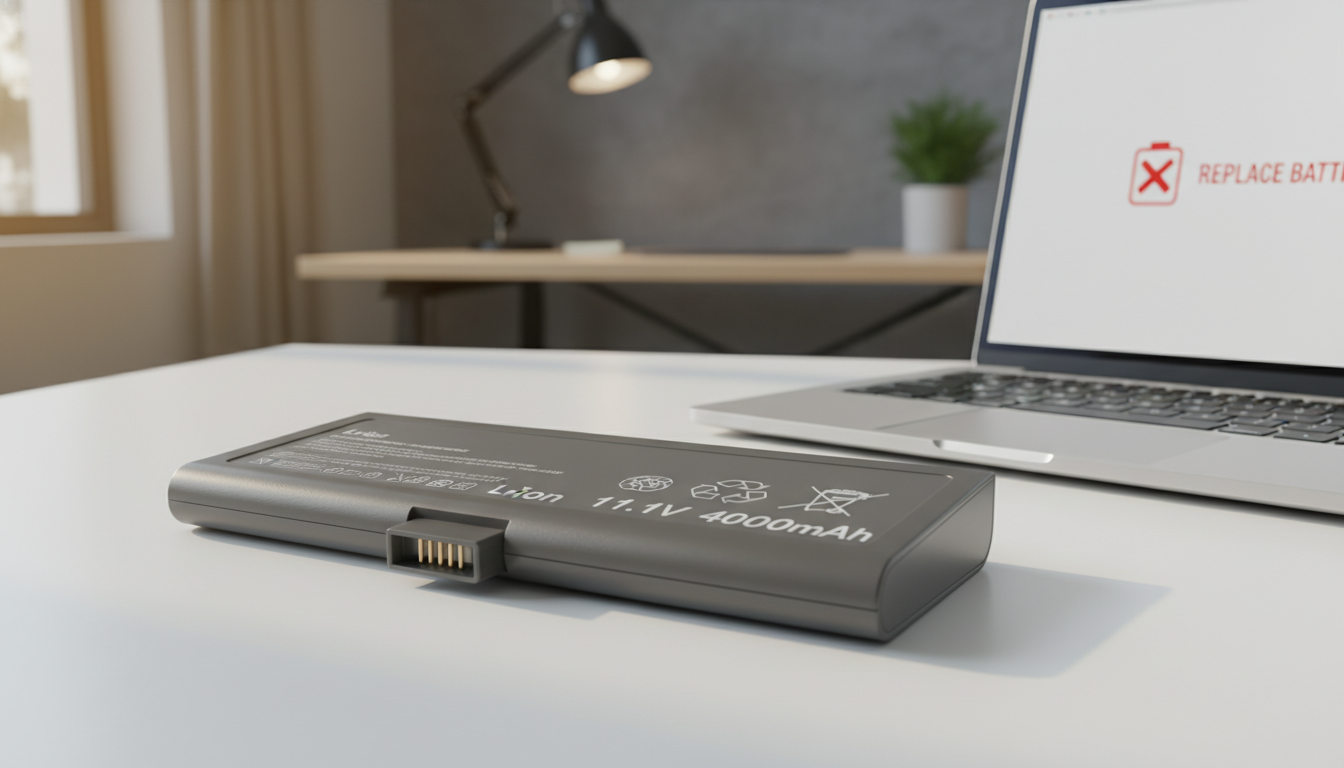
| Physical swelling | Safety risk | Stop use and service |
Storage guidance
For storage over a month, power to about 40–60% and keep the device cool and dry. If removable, consider storing the battery separately per manufacturer guidance.
Conclusion
The answer is nuanced: modern laptops include safeguards, so leaving a device connected usually causes no immediate damage.
Still, long-term battery wear rises when cells sit at high percent and endure extra heat or chemical stress. That combination shortens capacity and reduces battery life over the months and years.
To reduce wear, enable conservation or charge-cap features and keep good airflow. Use the correct charger, avoid heat traps, and aim for a moderate charge range during desk use.
Don’t make deep discharges a habit; run them only for meter checks. Periodically check health reports so you can decide when settings or replacement are needed.
Bottom line: keeping a laptop plugged is usually safe short-term, but unmanaged heat and constant high charge speed lifespan loss over time.