Why Laptop Battery Drains in Sleep Mode
Troubleshoot laptop sleep battery drain with our step-by-step guide. Understand the causes and solutions to prevent battery drain in sleep mode.
Modern standby designs and background activity can make the expected close‑lid, wake‑to‑the‑same‑charge result rare on many Windows systems.
Normal overnight loss is small — often 2–5% over eight hours — while losses above 10–15% or a warm chassis usually point to configuration, driver, or wake‑activity problems.
This introduction defines current sleep behavior, contrasts it with hibernation and shutdown, and previews common culprits: Modern Standby, background apps, wireless radios, USB devices, wake timers, Fast Startup, and aging cells.
The guide that follows uses a clear flow: confirm the issue with Windows tools, find what woke the system, then apply targeted fixes. The aim is to cut overnight loss while keeping instant‑on and notifications unless you choose maximum savings.
Key Takeaways
- Small overnight loss (2–5%) can be normal on modern Windows devices.
- Double‑digit loss or a warm device signals a real issue to investigate.
- Know the difference between sleep, standby, hibernation, and shutdown.
- Common causes include Modern Standby, apps, radios, and peripherals.
- Follow a measured troubleshooting flow: confirm, identify wake sources, then fix.
What causes battery drain in sleep mode on Windows laptops
A surprising number of overnight charge losses come from partial standby modes that maintain network access and sync. Modern Standby (S0) can make a closed lid look like rest while the OS keeps radios and services active for instant wake and notifications.

Modern Standby and connected activity
Connected standby lets the system stay online to sync mail, cloud files, and messages. That convenience uses more power than deeper low‑power states and can leave the chassis warm when components never fully power down.
Background tasks and scheduled wakes
Cloud sync, collaboration apps, antivirus scans, and Windows Update can run while the lid is closed. Scheduled maintenance and wake timers will resume the system at night to complete updates or backups.
Radios, peripherals, and firmware
Wi‑Fi and Bluetooth adapters often remain available in standby and can repeatedly wake the system if drivers misbehave. USB dongles, external drives, and hubs may draw standby power or trigger wakes.
Outdated chipset, graphics, and wireless drivers — plus old BIOS/UEFI firmware — can prevent deeper power states and make overnight loss worse. Finally, a worn battery with reduced capacity magnifies any percentage loss during standby.
How to confirm laptop sleep battery drain and pinpoint the culprit
Start by collecting concrete run-time data. Use built-in Windows tools rather than guessing. That gives clear evidence of how much charge a device loses over a set time.
Generate a battery report
Open Windows Terminal (Admin) and run the command powercfg /batteryreport. This creates battery-report.html. Open it and review the “Battery usage” and “Usage history” sections to compare charge drops across sessions.
Check supported sleep modes
Run powercfg /a to see if the system supports S3 or uses Modern Standby (S0). If S3 is unavailable, deeper low‑power states may not be possible by design or due to drivers.
Identify wake sources
Use powercfg /lastwake and powercfg /devicequery wake_armed. These commands show what woke the computer and which devices can trigger wakes.
“Measure first, change later — data prevents wasted fixes.”
| Metric | Normal | Problem |
|---|---|---|
| Typical overnight loss | ~2–5% in ~8 hours | >10–15% |
| Sleep mode | S3 or deep states available | S0 Modern Standby only |
| Likely cause | Minor background sync | Wakes, radios, or drivers |
Quick checklist of questions: how long was the device asleep, was it plugged in, what peripherals were attached, and did Windows run updates? Answering these keeps troubleshooting systematic.
Step-by-step fixes to stop battery drain during sleep, standby, and shutdown
Start with hibernation for overnight or long idle periods. Hibernation writes the session to disk and uses almost no power compared with standby. To enable it: Control Panel > Power Options > Choose what the power buttons do > Enable Hibernate. Use Hibernate when you’ll be away for hours; use Sleep for short breaks.
Tighten timers and reduce background activity
Open Settings > System > Power & battery to shorten screen and sleep timers so the system reaches low‑power states sooner.
Limit background app permissions at Settings > Apps > Installed apps for sync apps like OneDrive and collaboration tools that keep the system active.
Prevent overnight wakes and ensure true shutdowns
Disable wake timers: Control Panel > Power Options > Change plan settings > Advanced power settings > Sleep > Allow wake timers > Disable.
Turn off Fast Startup: Control Panel > Power Options > Choose what the power buttons do > Change settings that are currently unavailable > uncheck “Turn on fast startup.”
Update firmware, drivers, and USB power settings
Update chipset, graphics, Wi‑Fi, and Bluetooth drivers from the vendor site and check BIOS/UEFI updates for known standby fixes.
In Device Manager, under Universal Serial Bus controllers, enable “Allow the computer to turn off this device to save power” on each USB Root Hub.
Automate checks and workflow tweaks
Run Settings > System > Troubleshoot > Other troubleshooters > Power to apply recommended fixes. Try unplugging unused peripherals or enabling Airplane Mode overnight to reduce connected activity.
Conclusion
Most overnight charge loss stems from Modern Standby behavior, background activity, wake timers, wireless or peripheral wake events, Fast Startup, and outdated drivers/firmware.
Follow a simple loop: generate a battery report, change one setting at a time, then re-measure over consistent hours. Aim for low single-digit charge loss after fixes; larger drops often point to worn cells or power subsystem issues.
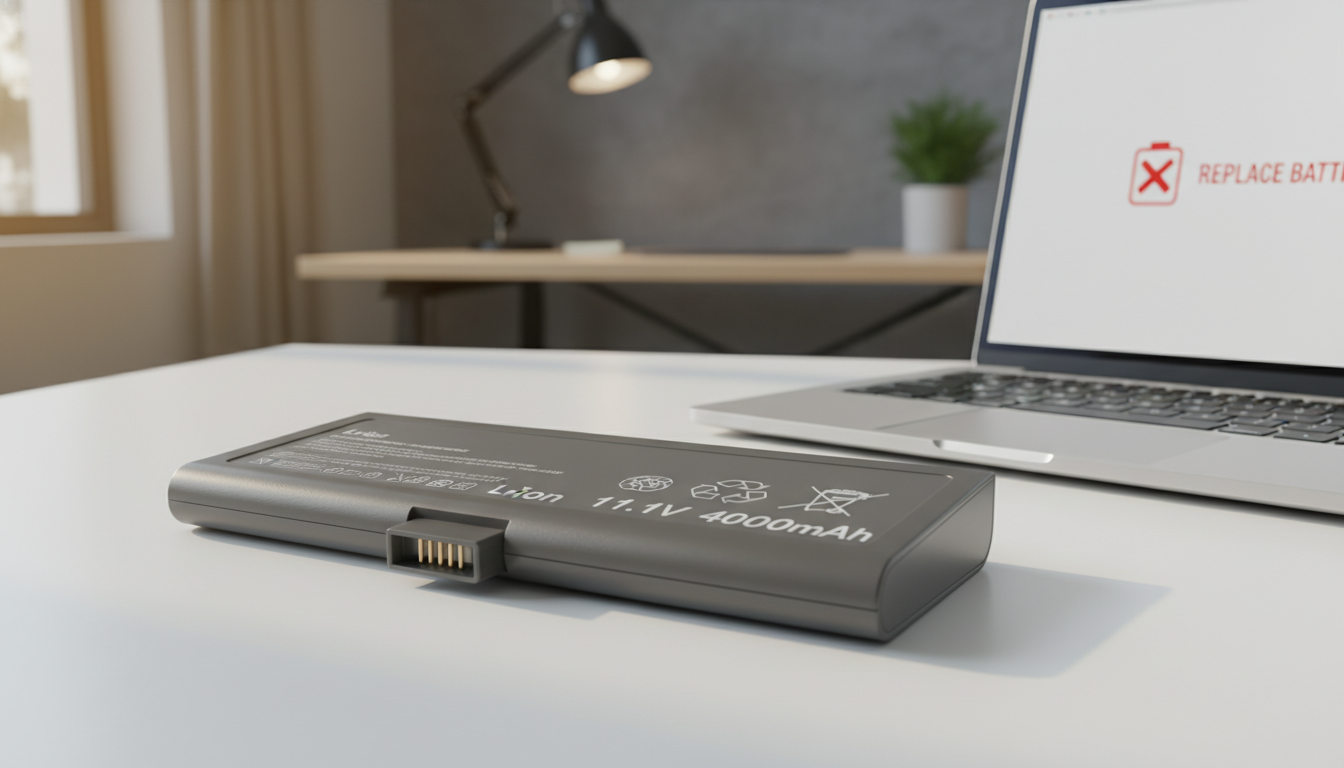
Keep drivers and firmware current, review power settings after major updates, and remove peripherals that repeatedly wake the system. Compare design capacity to full charge capacity to check health; replacement may be the clearest long-term fix if capacity is below ~70–80%.
For daily use, use sleep for short breaks, hibernation overnight, and shutdown when you want the cleanest reset.