Does Using a Laptop While Charging Harm the Battery
Is using laptop while charging bad for the battery? Get the facts and tips on how to properly care for your laptop's battery.
Quick answer: Modern notebooks let you work and power up at the same time without immediate harm. They draw mains power first, and built-in management cuts current when the cell is full.
People worry about long-term battery wear from common tasks such as work, streaming, video calls, or light gaming. The real risk over months and years is gradual capacity loss, not sudden failure.
Key factors: heat, charge habits, and workload drive decline more than the act of keeping the device plugged in. High-performance gaming or heavy editing raises temperatures and affects lifespan faster.
This guide previews how charging works, what happens at 100%, and practical settings and habits that extend laptop battery life. Recommendations vary by model and cooling, so advice targets safe use for US home and office users.
Key Takeaways
- Modern designs let you use and recharge together without instant damage.
- Heat control and power habits matter more than staying plugged in.
- High-power tasks speed wear; monitor temps during heavy loads.
- Battery management systems prevent overfill at full capacity.
- Follow simple habits to balance convenience and long-term health.
How laptop charging works in modern laptops
Short answer: When a notebook is plugged into the wall, the AC adapter supplies most of the operating power and the battery refills at the same time. This keeps the cell from supplying the main load during normal plugged-in use.
AC adapter vs. battery power: what the system actually uses
The adapter delivers a steady voltage and rated amperage so internal circuits run from mains supply. A proper charger keeps voltage stable so the machine behaves predictably during tasks.
This design means the battery does not cycle just because the unit is on the mains. It charges in parallel and only contributes when adapter demand is insufficient.
Battery management systems today and why they matter for longevity
Modern battery management circuitry monitors cell voltage and temperature. It controls charge rate, tapers current near full, and stops input to prevent overfill.
These systems protect cells and extend lifespan by avoiding unsafe conditions rather than forcing top speed charging. That trade-off favors long-term health.
Why charge rate can slow during heavy tasks
Under CPU or GPU load, the system prioritizes power for active components. The result: the charge current to the battery may reduce so thermal and power delivery limits are not exceeded.
You may notice more heat and louder fans when performing intense work with laptop charging under load. That is normal, but keep vents clear to help cooling.
| Component | Primary role | What you’ll notice |
|---|---|---|
| AC adapter | Provides steady mains power to system | Stable performance, less battery drain |
| Battery | Stores energy and tops up in parallel | Charge percent rises, then tapers near 100% |
| Management circuitry | Monitors voltage/temperature and controls current | Prevents overcharge and reduces wear |
- Slower percent rise during gaming or editing
- Warmer chassis and louder fans under load
- Performance stays higher when plugged in
- To preserve health, use original charger and good airflow
Is using laptop while charging bad for your laptop battery?
Short answer: For everyday work, browsing, and streaming, plugged-in operation is safe. Modern notebooks route most power from the adapter and manage cell temperature and current to avoid overfill.
What’s generally safe for everyday work, browsing, and streaming
Light-to-moderate tasks produce modest heat. That means minimal extra stress on the cell and little impact on battery life over months.
When “safe” becomes “stressful” for batteries over time
Stressful patterns include long periods held at full state-of-charge, frequent high temperatures, and repeated heavy workloads that keep the chassis hot.
| Use case | Risk to battery | Practical sign |
|---|---|---|
| Email, docs, web | Low | Consistent runtime at unplugged: stable |
| Streaming, video calls | Low–moderate (if vents blocked) | Slightly warmer chassis |
| Heavy editing, gaming | Higher (sustained heat) | Faster capacity loss over months |
Wear shows as reduced capacity and shorter unplugged time. If you mostly stay at a desk, staying plugged in is convenient; just keep vents clear and enable any charge-limit features your OS or vendor offers.
Overcharging myths and what happens at 100% charge
It’s easy to confuse a stable 100% with harmful overfilling of the battery. Modern systems rarely force current into a full cell. They switch to mains power and hold voltage steady.
Why most systems stop at full
Most laptops designed today include smart charge control. The circuitry tapers current near full and then stops input. This prevents classic overcharging and protects capacity.
Old chemistries versus today
Earlier devices used NiMH or similar cells that tolerated different stress. Current lithium-ion and lithium‑polymer batteries have protection circuits and smarter charge behavior. That shift is central to modern battery life.
| Era | Chemistry | Charge control |
|---|---|---|
| Early portable PCs | NiMH | Basic; higher overcharge risk |
| Modern notebooks | Lithium-ion / Li‑poly | Advanced tapering and cutoff |
| Desk-first use | Any | Use conservation modes to limit full capacity stress |
- Overcharging in the classic sense is rare with today’s protections.
- Keeping the cell at 100% often raises state-of-charge stress and speeds capacity loss over time.
- If your system offers a conservation or charge-limit mode, enable it for mostly-plugged-in setups.
Heat is the real enemy: preventing overheating while charging laptop
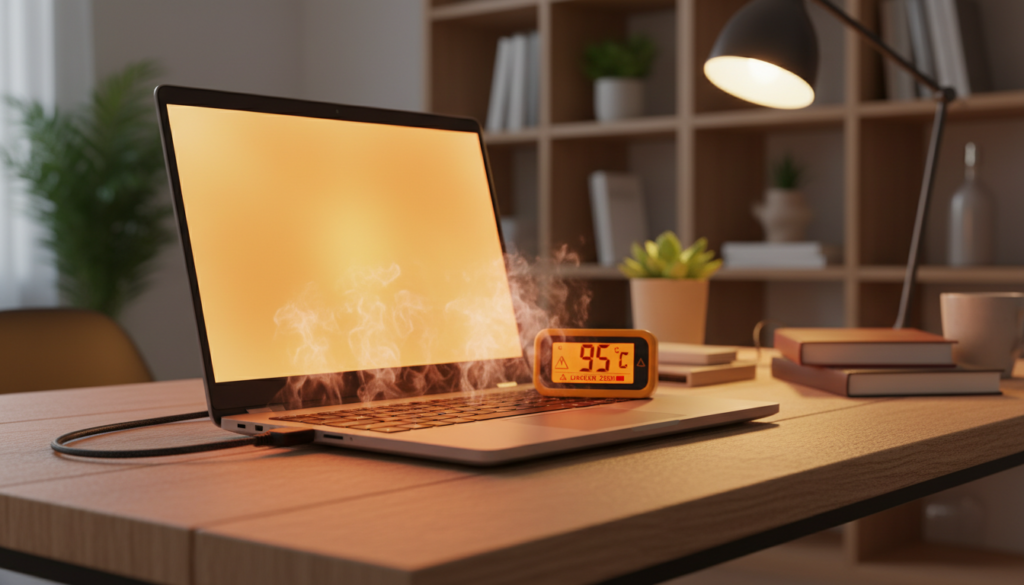
Short intro: When heavy compute meets mains power, internal temperatures climb and battery stress increases. Heat—not overfill—is the main driver of long-term capacity loss.
Why temperature rises during demanding workloads
High CPU and GPU draw more power, the adapter supplies sustained current, and the cell may also accept top-up current. Combined, these sources raise case temperature during intense tasks.
Ventilation basics and simple fixes
- Keep vents unobstructed. Avoid placing intake or exhaust against walls or soft fabric.
- Remove dust periodically with compressed air or a soft brush.
- Use a firm desk surface or a ventilated stand and consider a cooling pad for long sessions.
Safe temperature range and break signals
Aim for an ambient range near 15°C–35°C. Noticeable performance drops or fan roar, a very hot palm rest, or thermal throttling (near 50°C component temps) are clear cues to stop and cool down.
Why lap, bed, and couch setups shorten battery life
Soft surfaces trap warmth and block airflow. A solid pad or stand preserves airflow and reduces overheating risk, which helps protect battery lifespan and keeps performance steady.
“Sustained high temperatures accelerate battery aging far more than staying plugged in.”
Best practices for safe use laptop when it’s plugged in
Small changes to power and heat management help preserve battery capacity over years. Follow a few simple habits to balance convenience and long‑term battery life.
Use an original charger to protect voltage and amperage
Always use an original charger or a certified OEM replacement. An original charger matches the device’s voltage and amperage needs and avoids unstable power delivery that can stress internal circuits.
Smart charge habits for longer battery life
Avoid deep discharges to 0% and aim to keep the cell in a mid-range when possible. A common practical window is roughly 40%–80%; this reduces cycling stress and slows capacity loss.
When unplugging helps and when staying plugged is better
If the system runs hot at full state-of-charge and there’s no conservation mode, occasional unplugged use lowers time spent at 100% and reduces heat exposure.
By contrast, if you work long hours at a desk or run high-performance tasks, staying plugged reduces battery cycles and keeps power stable.
| Focus | Recommendation | Reason |
|---|---|---|
| Charger | Use original charger / OEM certified | Correct voltage/amperage and stable delivery |
| Charge window | Maintain ~40%–80% when feasible | Less cycle stress and longer battery life |
| Heat control | Keep vents clear; avoid hot surfaces | Reduces thermal aging of the cell |
Safety notes: avoid cheap third-party chargers, keep the device out of direct sun, and never expose it to extreme temperatures. Choose habits that match your daily usage and enable any built-in conservation features for best results.
Gaming and heavy workloads: performance vs. battery wear
High-performance games and long render jobs push components hard and make heat the primary concern for wear.
Why gaming on battery often reduces performance: Many systems limit CPU and GPU power to save runtime. That lowers frame rates and can introduce stutter during demanding titles.
Reduced performance does not remove heat. Inefficient power states and sustained clocks still generate significant temperature. Good cooling matters in either mode.
Tips for video editing and high-power tasks
For consistent export and render times, stay plugged into mains power. Stable supply keeps cores at higher clocks and shortens job time.
Manage thermals: keep vents clear, elevate the device, and consider a cooling pad for long sessions. Take intermittent breaks during lengthy renders.
- Prefer plugged-in play for modern, graphics-heavy games that demand sustained wattage.
- Monitor fan behavior and chassis temperature to spot thermal stress early.
- For long video and editing tasks, choose balanced power profiles to reduce unnecessary heat.
| Focus | Recommendation | Why it helps |
|---|---|---|
| gaming | Plug in and select performance mode | Smoother FPS, stable power delivery |
| editing / video | Keep mains connected and clear vents | Faster exports, less thermal throttling |
| battery health | Avoid prolonged high temps | Reduces long-term capacity loss |
“High sustained power and heat are the trade-offs for peak performance; manage temperature to protect battery life.”
System and software settings that improve battery life over time
Tuning Windows modes and background tasks is a simple way to protect battery health over time.
How the system decides power vs performance:
Windows Power & Battery modes
Windows offers three basic modes: Best power efficiency, Balanced, and Best performance. Choose Best power efficiency for long meetings or travel to reduce processor clocks and screen draw.
Pick Balanced for everyday use. Select Best performance only for heavy workloads where short run time is acceptable.
Battery saver and background apps
Enable Battery saver to block background apps and push notifications that wake the system. Close or disable apps that auto-start to cut needless drain and heat.
This adds time between charges and lowers background power, which helps overall battery longevity.
Graphics and display management
Lower brightness, shorten screen timeout, and reduce refresh rate when possible. Assign the high-performance GPU only to editing suites and games. Let the integrated GPU handle browsing and productivity to save power.
Wi‑Fi, Bluetooth, and peripherals
Turn off Wi‑Fi or Bluetooth when you don’t need them and unplug unused USB devices. Radios and peripherals add small continuous draw that adds up over time.
Storage and updates
SSDs complete tasks faster and draw less power than HDDs. Keep Windows, BIOS, and drivers current to benefit from software improvements to power management.
| Setting | Action | Benefit |
|---|---|---|
| Power mode | Use Best power efficiency or Balanced | Lower draw, less heat, longer runtime |
| Background apps | Enable Battery saver; disable auto-start | Fewer wake events and reduced idle power |
| Graphics | Assign GPU per app | Save watts for routine tasks |
| Radios & USB | Disable unused Wi‑Fi/Bluetooth; unplug devices | Cut steady peripheral drain |
| Storage & updates | Prefer SSDs; install updates | Faster, more efficient operations and fixes |
“Small system and software changes reduce heat and background load, which protects battery health and supports longevity.”
Conclusion
Short answer: Stated simply, routine plugged use is safe for most modern laptops and does not cause immediate damage to the battery.
Long-term life depends on heat control and smart habits. Prolonged high temperatures from heavy work are the biggest cause of capacity loss, not the act of charging at 100% itself.
Most systems stop active input at full and shift to mains power, so classic overcharging is rare. Still, avoid leaving the device at full state for long stretches and enable any conservation or charge‑limit feature your vendor offers.
Practical rule: keep vents clear, use the original charger, pick balanced power modes, and stay plugged in for gaming or long desk sessions if you can manage thermals. Monitor temps and change workload or settings if the unit runs very hot.