Home » How Heat Permanently Damages Laptop Batteries
How Heat Permanently Damages Laptop Batteries
Discover how laptop battery overheating causes permanent damage. Learn troubleshooting steps to prevent overheating and prolong battery life.
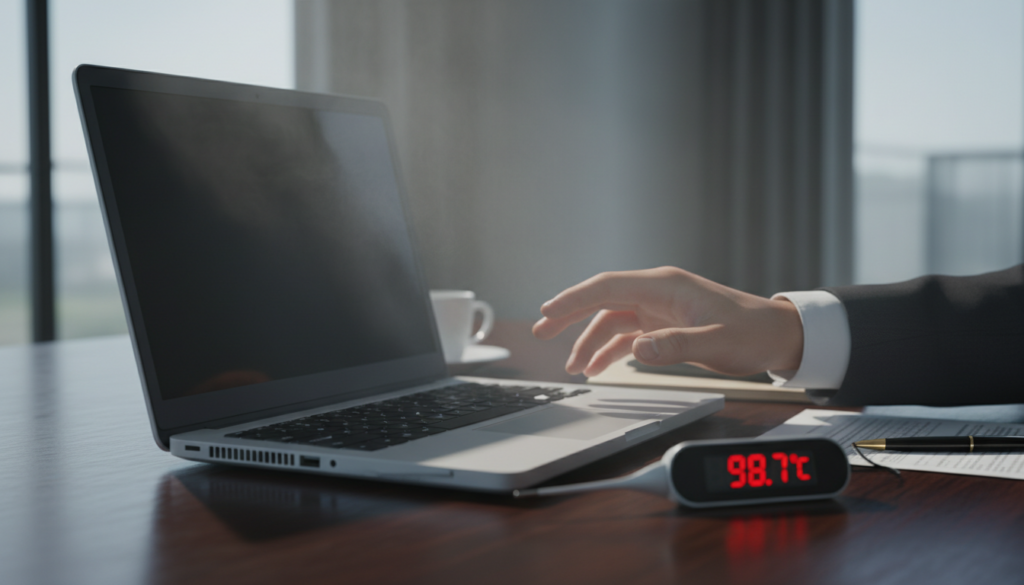
Warmth during use or charging is normal, but persistent high heat is a clear sign of problems that can shorten battery life and harm your device. Excessive temperature speeds chemical aging, and an older pack runs hotter, creating a damaging loop.
This short guide shows what causes laptop overheating and what you can do. You will learn to spot common causes, cut heat generation, improve airflow, and choose when to stop using the computer and seek support.
Enjoying the read? Share it!
Why it matters now: at home and work in the United States, long charging sessions, video calls, streaming, and heavy multitasking raise temps fast. Power draw from charging and high load can push components past safe limits.
Safety note: extreme heat, odors, or chassis deformation are more than uncomfortable—they can be dangerous. This article focuses on software tweaks, settings, vents and airflow, charger choices, and basic health checks rather than deep hardware repair.
Key Takeaways
Persistent high heat shortens battery life and harms internal components.
Identify causes, reduce load, and improve airflow to lower temperatures.
Power behavior like charging or heavy use raises temperatures quickly.
Stop using the device if the case warps, smells odd, or gets extremely hot.
This guide covers practical fixes—software, vents, chargers, and quick checks.
How Heat Causes Permanent Battery Damage in Laptops
High temperatures during use and charging cause irreversible declines in capacity.
Heat generation during charging and high power draw
When a device is plugged in, the system often draws extra power to run higher performance modes. That greater power demand increases heat generation across processors and nearby components.
Why aging lithium-ion batteries run hotter over time
As cells age, internal resistance rises. More energy is lost as heat during charge and discharge, so the same tasks create higher temperatures than when the pack was new.
What “normal warmth” vs. dangerous heat can look like
Normal warmth feels mildly warm and drops at idle. Dangerous heat feels uncomfortably hot, stays high at idle, or concentrates near the charging port or keyboard. Performance signs like throttling, noisy fans, or sudden shutdowns are early warning signs.
Reduce heat to slow chemical aging and protect capacity across hundreds of charge cycles.
Common Causes of Laptop Battery Overheating
Simple usage patterns and poor airflow often combine to make a computer run hotter than it should.
High performance workloads
Video editing, high-res gaming, and heavy multitasking push the processor to sustained power levels. That sustained draw raises internal temperatures and can warm the battery compartment during long sessions.
Many browser tabs and background apps
Multiple tabs—especially streaming media—quietly increase CPU load. Background processes and startup apps add baseline work, so the system stays hot even when you think it is idle.
Poor ventilation and dust
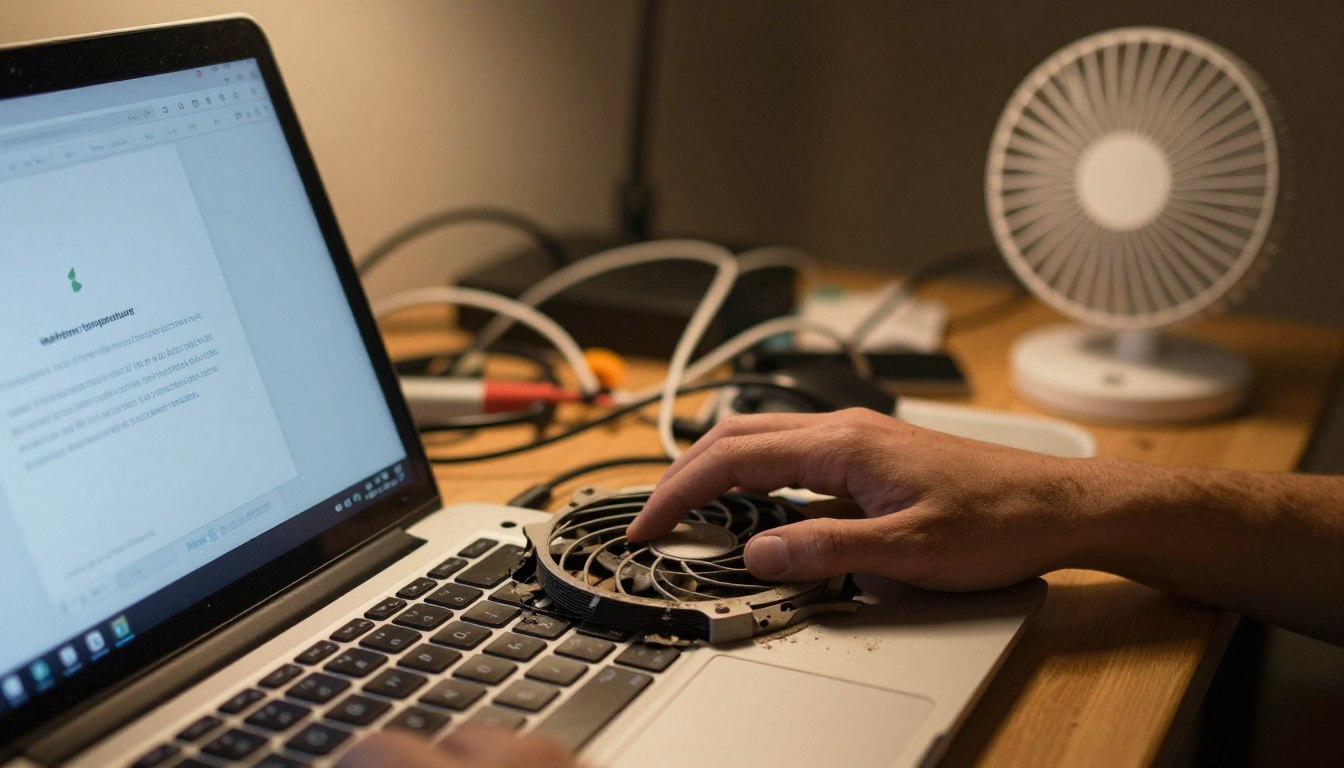
Using a device on soft surfaces blocks vents and traps air. Dust builds up in heat sinks and fans, reducing cooling airflow and forcing fans to run harder.
Power and charger issues
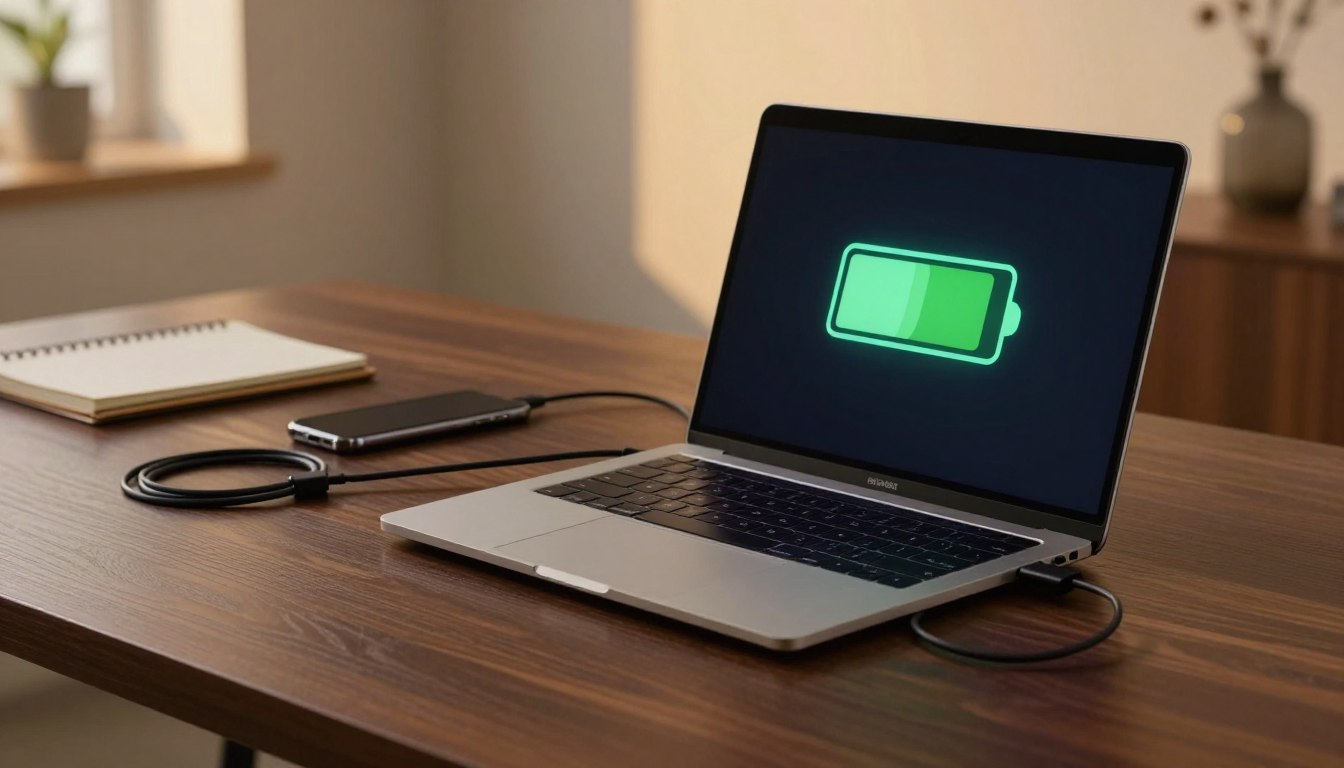
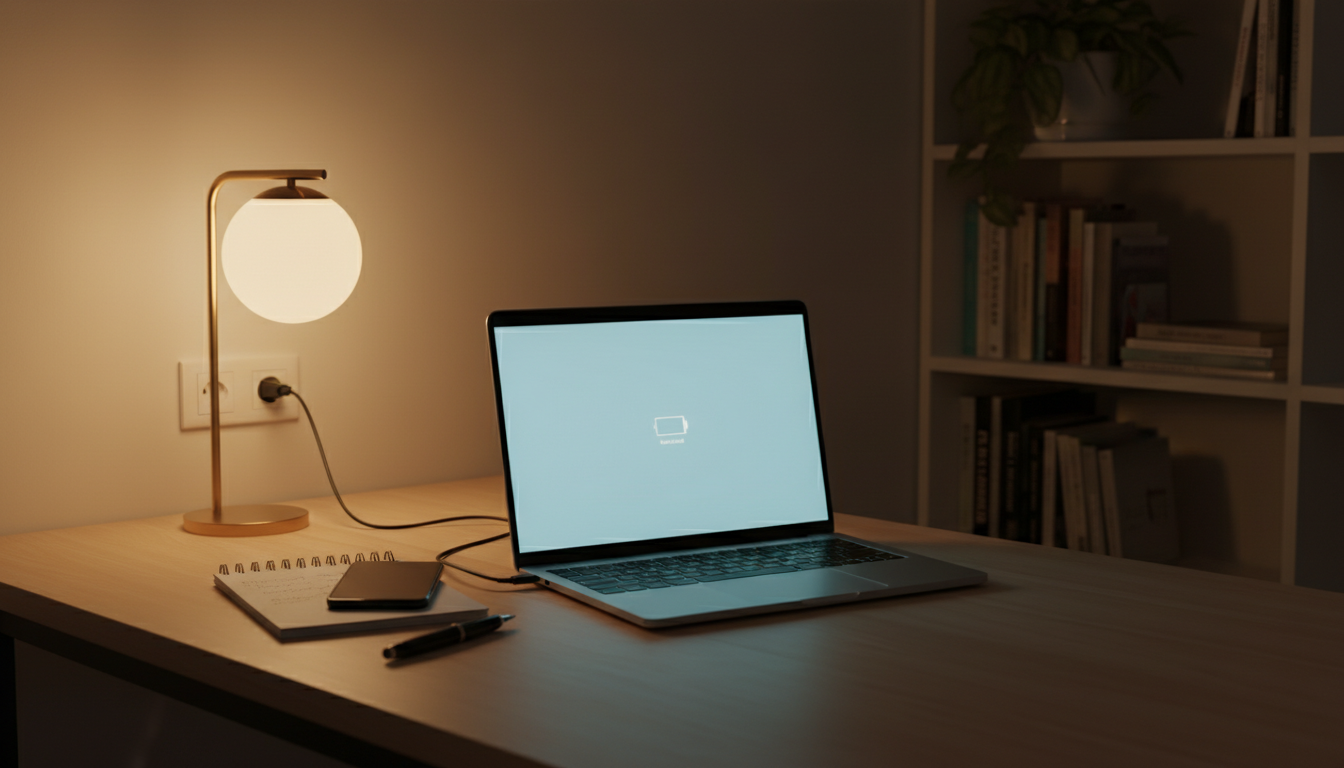
Constantly leaving the machine plugged in adds charging heat. Faulty or incompatible chargers and cables can raise local temperatures near the port and cause unpredictable problems.
Cause
How it raises heat
Quick fix
Heavy applications
Sustained CPU/GPU power draw
Close apps, lower settings
Many browser tabs
Continuous media decoding
Limit tabs, pause media
Blocked vents / dust
Reduced airflow to components
Use hard surface, clean vents
Bad charger / hot room
Inefficient power delivery; high ambient temp
Use recommended charger; cool the room
Troubleshooting Steps to Reduce Overheating and Protect Battery Life
Start troubleshooting with quick checks that stop unnecessary power draw and cool the system fast. Begin with actions you can do in minutes, then move to firmware and hardware checks if heat persists.
Check background power use
Open Task Manager on Windows and sort by CPU or power. Close unnecessary apps so the device stops generating avoidable heat.
Tweak Windows power settings
Use a balanced profile, limit maximum processor state, and choose a lower power mode for everyday tasks. These settings cut heat generation without big performance loss.
Improve physical cooling and airflow
Work on a hard, flat surface and keep intake/exhaust areas clear. Consider a cooling pad for sustained loads to improve airflow and reduce component stress.
Update firmware, use the right charger, and scan for issues
Install BIOS and driver updates for better thermal management. Use the manufacturer-recommended charger and quality cable. Run a reputable malware scan and keep software current to prevent runaway processes.
Check health, monitor temps, and know when to stop
Generate a Windows battery report to compare design vs current capacity and spot aging. Use tools like Open Hardware Monitor to confirm temperature drops after changes.
If the device becomes extremely hot, swells, or smells odd, stop using it and seek manufacturer support or qualified tech help immediately.
Conclusion
Conclusion
Ignoring sustained heat risks reduced performance and faster capacity loss over time. Act early: cut unnecessary load, improve ventilation, and follow safe charging and software habits to slow chemical wear.
Keep a simple maintenance cadence. Review startup apps, apply updates, and run health checks when you notice new thermal patterns. These steps help protect daily reliability and extend service life.
For home setups, pay attention to room temperature and clear vents regularly. If extreme heat, unusual odors, or physical swelling appear, stop use and seek professional support. For more guidance and official notices, see the disclaimer and support info.
FAQ
How does heat permanently damage a device’s rechargeable cell?
Excessive temperature speeds chemical wear inside lithium-ion cells, increasing internal resistance and reducing capacity. Repeated exposure to high heat during charging or heavy use causes irreversible loss of charge-holding ability and can lead to swelling or failure over months or years.
What causes heat to build up during charging and heavy power draw?
Charging and high-performance tasks push current through cells and the processor, producing heat from internal resistance and the power supply. Power-hungry apps, graphics rendering, and long charging cycles all add thermal load, which the cooling system must dissipate to avoid damage.
Why do aging lithium-ion cells run hotter than new ones?
As cells age, their internal resistance increases, so the same current creates more heat. Degraded cells also hold less charge, forcing the system to work harder to deliver performance, which further raises operating temperature and accelerates decline.
How can I tell normal warmth from dangerous heat?
Mild warmth during use or charging is expected. Dangerous heat feels very hot to the touch, causes system throttling, frequent shutdowns, or visible swelling. If the device becomes too hot to hold or shows performance drops, power it down and seek inspection.
Can running resource-heavy applications cause the device to overheat?
Yes. Games, video editing, virtual machines, and scientific software push CPU and GPU cores, increasing power draw and thermal output. Sustained heavy loads overwhelm cooling if airflow or thermal limits are insufficient.
Do many open browser tabs and streaming media increase heat?
Absolutely. Multiple tabs, especially with video or complex scripts, keep the processor and graphics unit active. This raises power consumption and heat, particularly if background tabs autoplay or run intensive web apps.
How do background processes and startup apps contribute to overheating?
Unnecessary background services and autostart programs consume CPU cycles and disk access, adding continuous thermal load. Identifying and closing or disabling these processes reduces constant heat generation.
Does using the device on a bed or couch block cooling vents?
Yes. Soft surfaces can seal intake or exhaust vents and trap hot air, cutting cooling efficiency. Always place the device on a firm, flat surface to maintain proper airflow.
How does dust buildup affect cooling airflow?
Dust clogs vents and fan blades, constricting airflow and insulating components. That raises internal temperatures and forces fans to work harder, accelerating wear on the cooling system and internal components.
Is keeping the power cord plugged in all the time harmful?
Constant charging keeps cells at high state-of-charge and can raise operating temperatures during trickle or top-off cycles. Using power management settings to limit charging peaks or unplugging when fully charged helps reduce heat-related wear.
Can a faulty or incompatible charger cause excessive heat?
Yes. Nonstandard adapters or damaged cables can deliver incorrect voltage or current, produce heat in the charging circuit, and stress cells. Use manufacturer-recommended chargers to ensure safe charging behavior.
Do hot rooms and direct sunlight increase risk?’
Ambient heat reduces the cooling margin, so devices run hotter in warm offices or direct sun. Limit exposure, improve room ventilation, and avoid placing the device on heated surfaces to keep temperatures safe.
Can malware or poorly written software drive CPU usage and heat?
Malicious programs and inefficient apps can create runaway CPU or disk activity, causing sustained high temperatures. Regular scans and software updates prevent these scenarios and help keep resource use normal.
How do I check what’s using power and close unnecessary applications?
Use Task Manager on Windows or Activity Monitor on macOS to view CPU and app energy use. Close or uninstall high-usage programs, and disable unneeded startup items to reduce thermal load and conserve charge life.
Which power settings reduce heat generation?
Choose balanced or power-saver profiles, reduce maximum processor state, and lower screen brightness. On Windows, use power plans and battery saver options; on macOS, enable Energy Saver settings to cut performance peaks and thermal output.
What practical steps improve cooling airflow at home or work?
Place the device on a hard surface, clear surrounding vents, and use a cooling pad if needed. Keep workspace air moving with a fan or open window, and avoid stacking items over vents or in tight enclosures.
Why should I update BIOS and drivers for thermal management?
Firmware and driver updates often include thermal policy improvements, fan curve adjustments, and power optimizations. Keeping them current helps the system manage heat more effectively and can resolve overheating bugs.
How important is using the manufacturer-recommended charger?
Critical. Official chargers match the device’s charging circuitry and protect against overvoltage or excessive current. Third-party adapters of poor quality can cause higher charging temperatures and risk damage.
How can a malware scan help stop runaway processes?
Scans detect and remove malicious software that may be hiding in the background, consuming CPU and network resources. Regular security sweeps and updated antivirus software prevent unexpected thermal spikes caused by malware.
How do I generate a health report to spot aging issues?
On Windows, run “powercfg /batteryreport” in Command Prompt to create a detailed charge cycle and capacity report. On macOS, check System Information for cycle count and condition. These reports reveal capacity loss and aging signs.
What tools can monitor system temperatures reliably?
Use trusted utilities like HWMonitor, Core Temp, or manufacturer software such as Dell Power Manager or ASUS Armoury Crate. Monitor CPU, GPU, and cell temperatures to verify if your fixes reduce heat.
When should I stop using the device and contact support?
Power down and seek professional help if you notice swelling, persistent extreme heat, smoke, burning smells, or sudden shutdowns. These are signs of serious component failure and require immediate service to avoid hazards.