How macOS Manages MacBook Battery Health
Understand how macOS manages macbook battery health and learn how to maximize your MacBook's battery lifespan with our comprehensive how-to guide.
Modern MacBooks use built‑in lithium‑ion cells with layers of protection and sensors that cut overheating, overcharging, and short circuits. These safeguards work behind the scenes so the device stays safe during daily use.
Every power pack wears down over years. You may notice shorter runtime, a warmer case, or earlier low‑charge warnings. Those signs usually mean normal aging of the chemistry, not that the device is broken.
macOS helps by using smart charging, power‑saving modes, and usage reporting. This article shows the checks you can run — menu bar indicators, System Settings panels, and cycle history — so you can read reports without third‑party tools and make informed choices.
Key Takeaways
- Built‑in safeguards reduce risks like overheating and overcharging.
- Runtime drop and warmth over years often signal normal decline, not failure.
- macOS uses smart charging and power features to slow wear.
- Battery aging ties to heat, time at high charge, and deep discharges.
- This article gives clear steps to view indicators and cycle history on your Mac.
How macOS power management works for long-term battery health
Design choices and system software shape how long the power pack keeps capacity. Apple fits custom lithium‑ion packs into thin, rigid chassis and adds sensors and protections that cut overheating and overcharge risks.
Why built‑in lithium‑ion packs matter
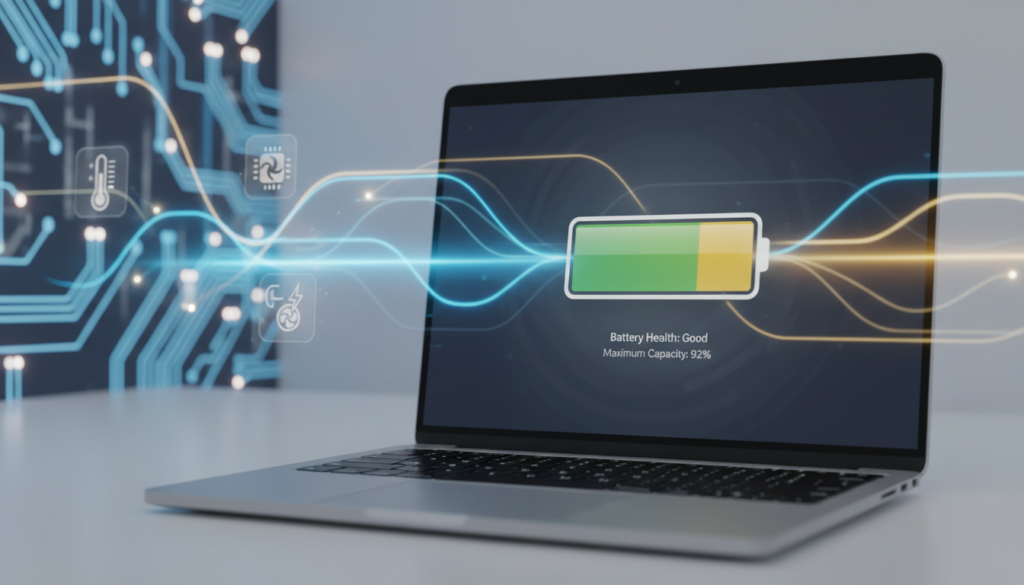
Built‑in batteries allow thinner design and better structural support. The sensors inside help the system monitor temperature and charge so charging algorithms can protect long‑term life.
What “battery health” means
“Battery health” refers to capacity retention — the amount of charge the pack holds compared with when it was new.
Spending long periods at 100% charge or running hot speeds up chemical aging, even if the device seems normal. Gentler charge profiles and lower heat slow that wear across each cycle.
Optimized Charging and learned routines
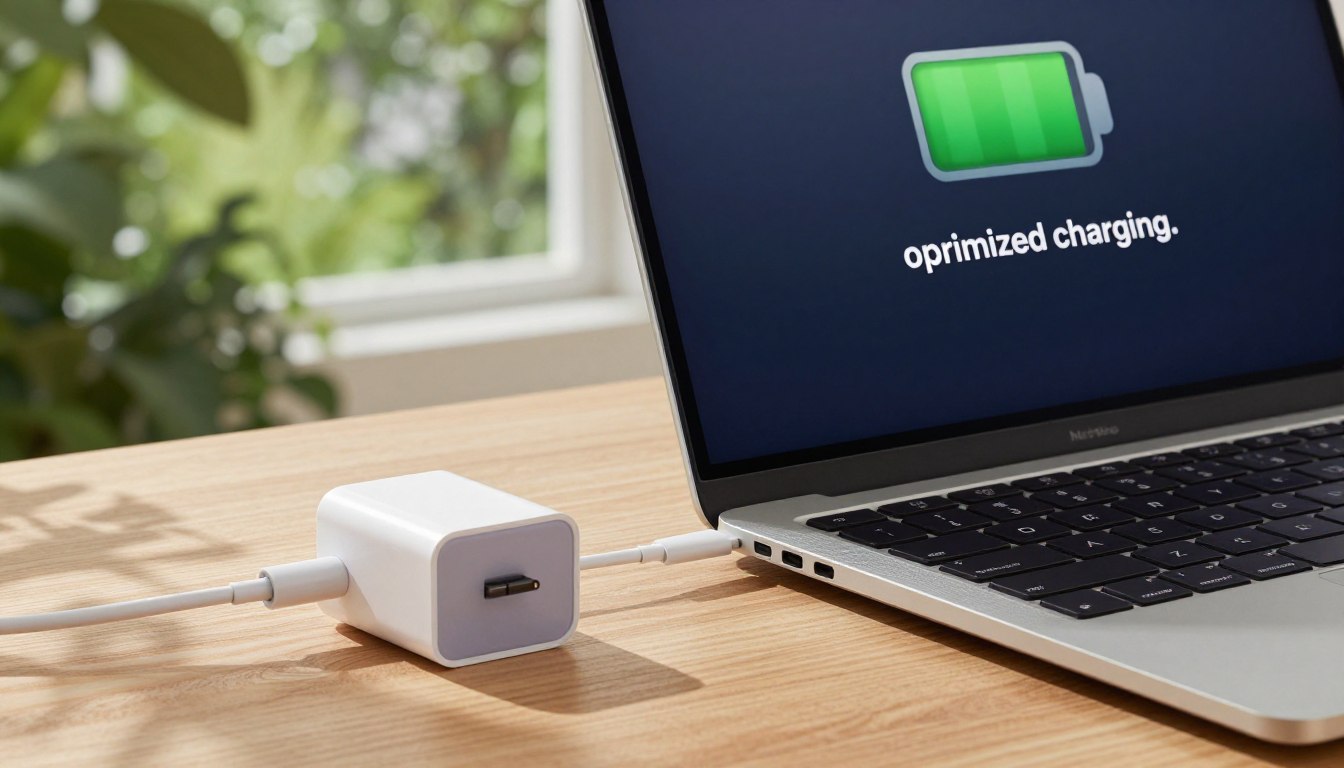
Optimized Battery Charging watches daily plug‑in and unplug patterns. When a routine is consistent, macOS delays the final charge to roughly 80% until just before you usually unplug.
“Holding a charge near 80% for most of the day reduces stress on the cells.”
Irregular schedules make the system more conservative, so it may finish charging sooner to ensure you have one full session of use.
Low Power Mode and trade-offs
Low Power Mode cuts background tasks and reduces peak performance to extend unplugged time. The trade‑off is lower performance during heavy work and fewer background updates.
Together, these features let macOS balance immediate run time with longer life by adjusting charge behavior and power use based on how you actually use the machine.
How to check macbook battery health using built-in macOS tools
You can confirm charge, power source, and high‑energy apps in seconds from the menu bar.
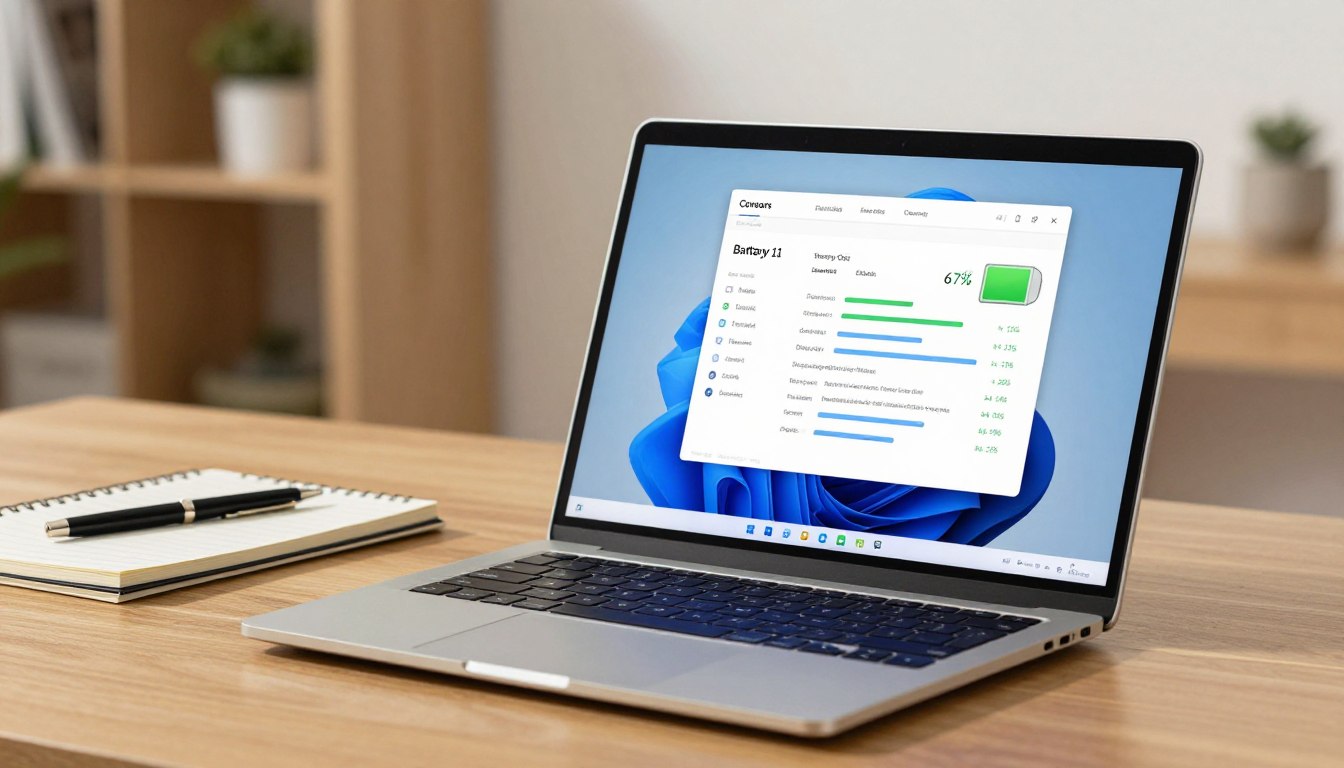
Click the battery icon in the menu bar to see percentage, whether you’re on a power adapter, and a live list of “Apps Using Significant Energy.”
Use the menu icon for quick troubleshooting
If the system feels hot or drains fast, the icon menu often names the offending app.
Close or update that app to test if drain falls.
Open System Settings to read status and options
Go to System Settings > Battery (or System Preferences on older macOS).
Locate Battery Health and read the condition: Normal or Service Recommended.
“‘Service Recommended’ means capacity is reduced and run time may be shorter.”
Details, charts, and cycle count
Click the small (i) next to Battery Health to view maximum capacity and toggle Optimized Battery Charging.
Use Battery Usage charts (Last 24 Hours / Last 10 Days) to spot sudden drops or overnight background drain.
For the technical metric, open System Settings > General > About > System Report… > Hardware > Power to find cycle count.
Apple commonly rates modern models for about 1,000 cycles and ~80% capacity as a typical benchmark.
- Tip: Adjust Battery Options—dim display, optimize video streaming, or change wake/network settings—to reduce drain.
- These steps work across Mac models, including MacBook Air; labels may vary by macOS version.
For more on device care and service guidance, see official support resources.
How to maximize MacBook battery lifespan with the right settings and daily habits
Adjusting a few settings can add months of useful runtime to your device. Use a mix of charging habits, cooling, and app management to slow capacity loss and keep performance steady.
Charge smart: Aim to keep the pack between ~20% and 80% most days and avoid repeated deep discharges. Occasional full cycles are fine for calibration, but daily extremes increase wear.
Reduce heat and background drain
Run the Mac on a hard, ventilated surface and avoid soft surfaces while charging. Keep operating temperature near 50–95°F (10–35°C) to prevent accelerated aging.
Close energy-hungry apps, remove unneeded login items, and dim the screen or enable streaming optimizations to save battery time.
Adapters, updates, storage and tracking
Use Apple-quality or equivalent chargers and keep macOS updated for efficiency fixes. For long storage, shut down at ~50% charge and recharge every few months.
- Check cycle count periodically and compare runtime vs capacity to spot decline.
- Enable Optimized Battery Charging and tweak power settings to match your routine.
| Action | Why it helps | When to use | Impact |
|---|---|---|---|
| Keep 20–80% charge | Reduces stress at extremes | Daily use | Slower capacity loss |
| Ventilate and avoid heat | Prevents thermal damage | During heavy work/charging | Improved lifespan |
| Manage background apps | Cuts needless drain | Always | More battery life per session |
| Use quality chargers & update OS | Stable charging and efficiency | When buying/periodically | Reliable performance, fewer issues |
Conclusion
Finish by using the menu icon for quick checks, open System Settings to confirm condition and capacity, then view System Report for the cycle count when you need deeper status.
Trust macOS features like Optimized Battery Charging and Low Power Mode to manage wear while you focus on work and life. “Normal” indicates expected behavior; “Service Recommended” or sudden runtime drops point to reduced capacity or app heat issues.
Action threshold: plan service if capacity nears ~80%, cycle count is high, or you see warnings or unexpected shutdowns. Check status today, tweak a few settings, and adopt cooler charging habits to keep good performance for years.